Green Screen Overlays — Subscribe, Like, Arrows and Countdowns
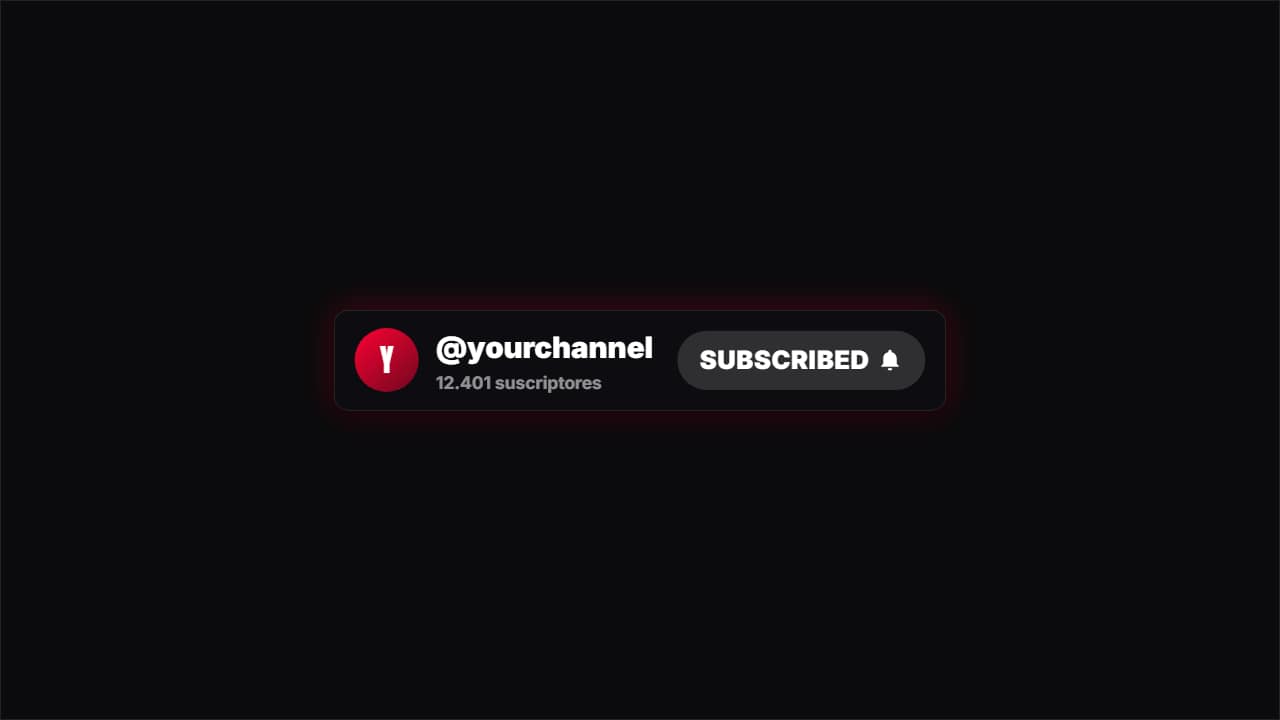 Subscribe
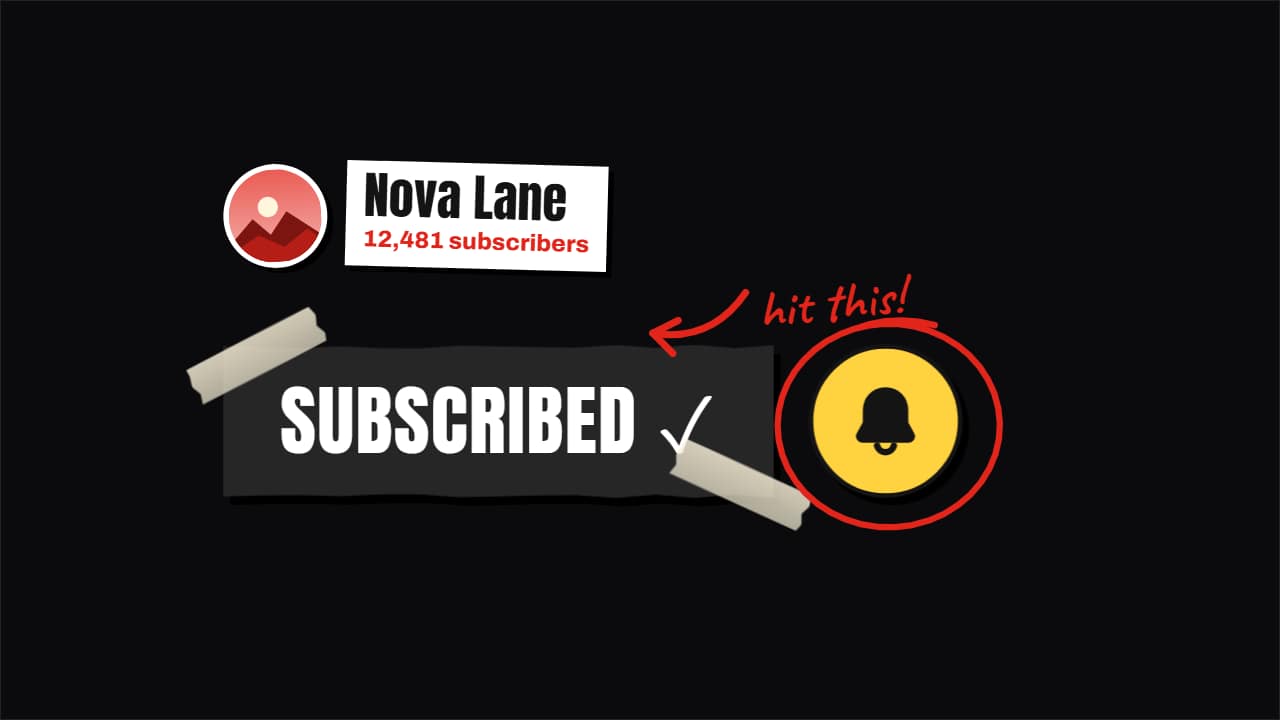 Hand-made subscribe button: cut paper, marker or stamp
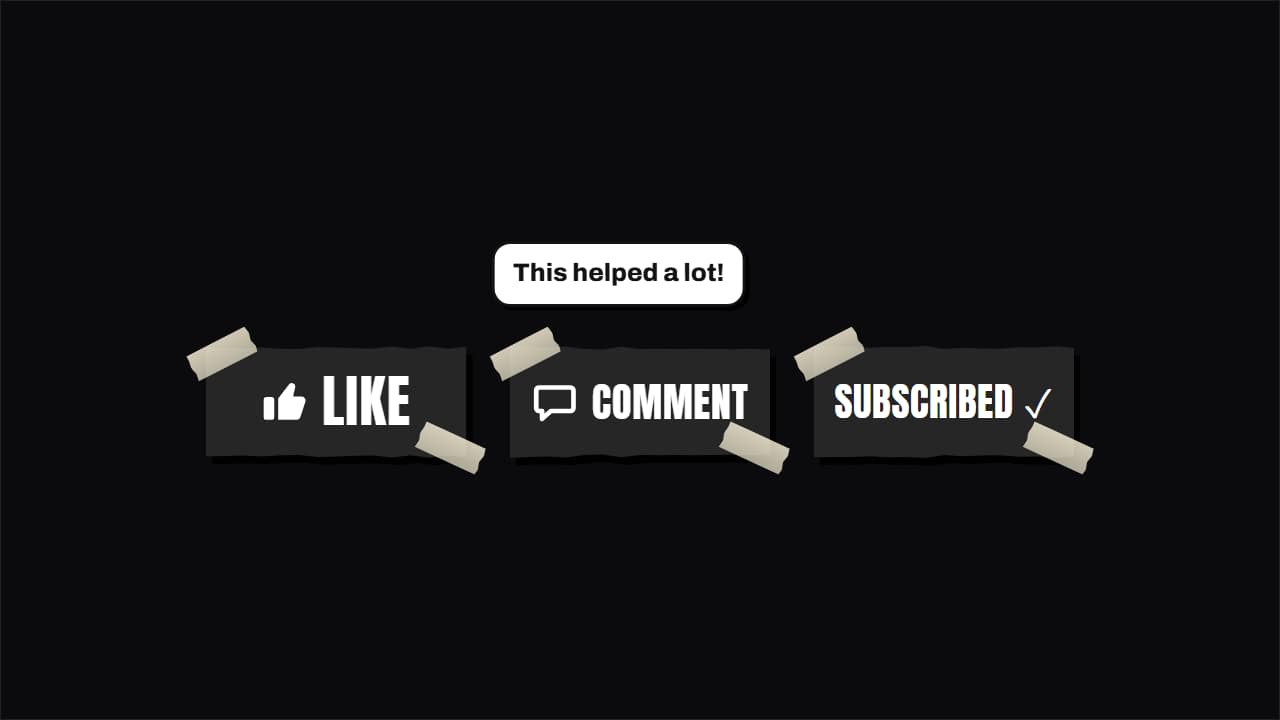 Like, comment & subscribe, hand-made
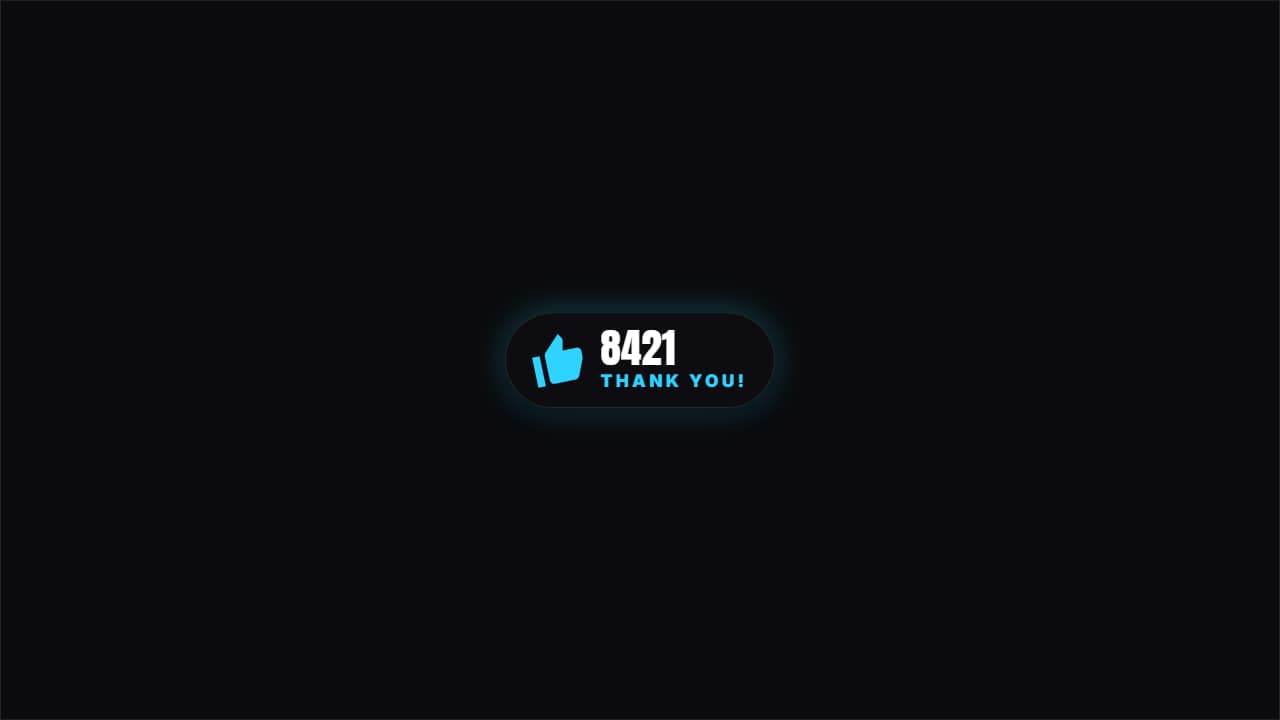 Hit like
A green screen clip is the overlay every editor can use, even the ones that can't read transparency, like CapCut on a phone. These templates come out of the editor as an .mp4 on pure green: open one, type your channel name or your text, and in «Format & background» pick «Green screen (.mp4)». Glows and soft shadows are switched off in that mode on purpose, so the key cuts a clean edge instead of leaving a green halo.
The classics are here: the subscribe card that a cursor clicks until it reads «SUBSCRIBED», the like with its burst and counter, the bell that swings and the «FOLLOW» pill for TikTok and Reels. For pointing, a curved arrow that draws itself to a spot and the «that's me» arrow with its circle. For energy, emoji rain with your own emojis, two countdown styles and the «achievement unlocked» pop-up.
If your editor does read alpha (Premiere Pro, DaVinci Resolve, Final Cut Pro and CapCut on desktop), the transparent .mov of the same template is usually the better file: no keying at all, and the soft glow stays.
12 templates · 16:9 · 9:16 · 1:1
Free tool: Subscribe button green screen — The same buttons with your channel name on pure #00FF00, as an MP4 ready for chroma key.
- SubscribeA channel card with a red button a cursor presses, turning to "SUBSCRIBED" with the bell.
- Hand-made subscribe button: cut paper, marker or stampThe subscribe button made into an object, like the big channels do: a paper cut-out with tape, a marker…
- Like, comment & subscribe, hand-madeThe usual three buttons made into objects: paper cut-out with tape, marker on a whiteboard or rubber stamp.
- Hit likeA thumb being pressed, a burst of particles and the counter ticking up one. Short and effective.
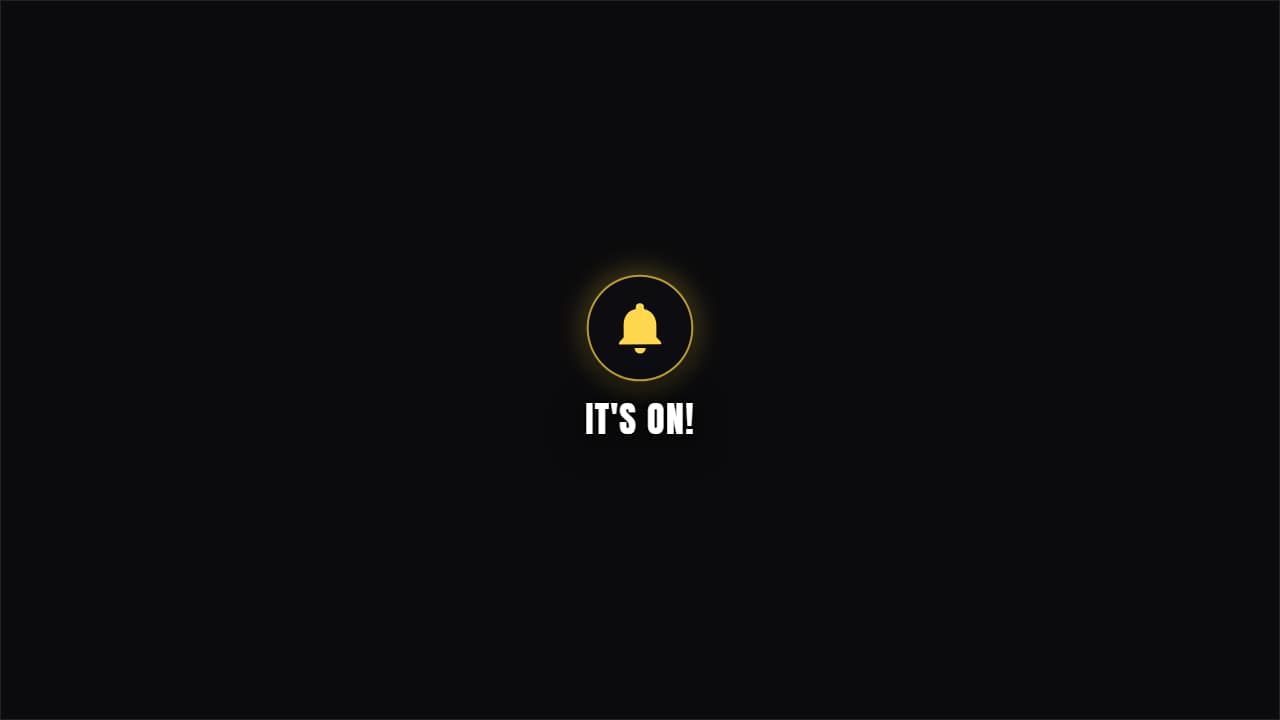 Ring the bellA bell swinging and letting off ripples when pressed. The notification reminder without being a nag.
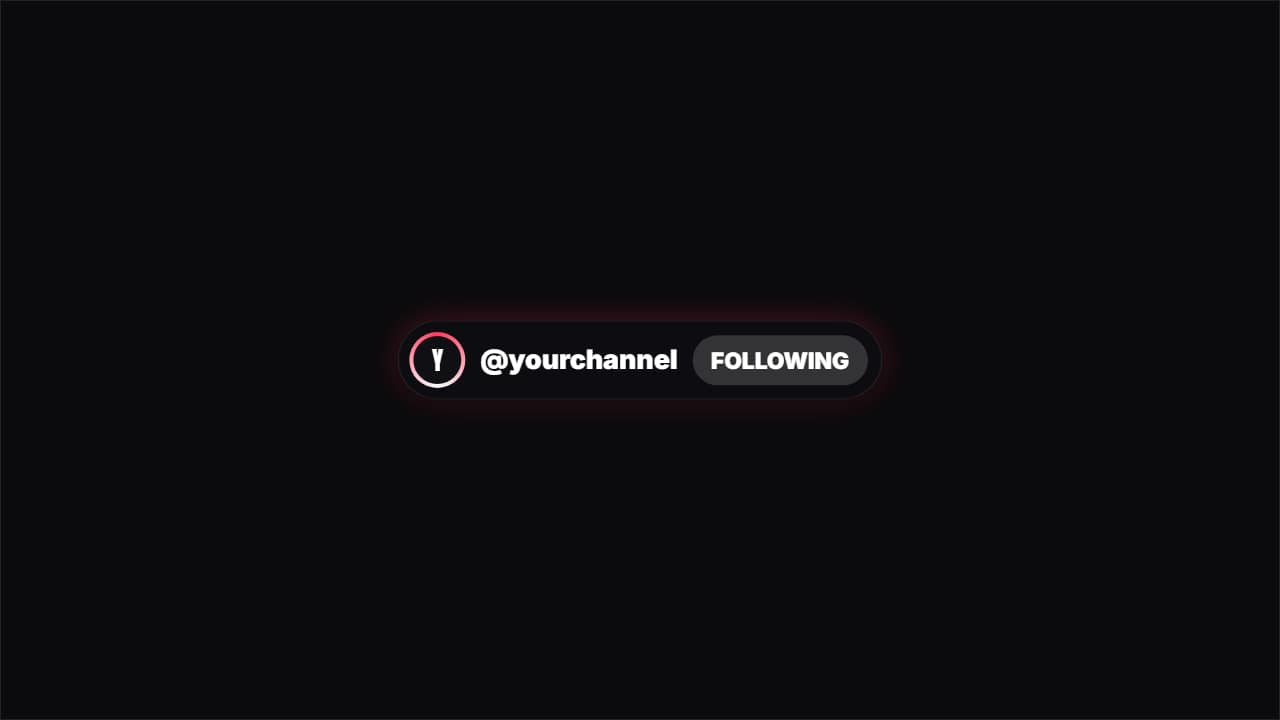 FollowA "FOLLOW" pill turning into "FOLLOWING" with the colored ring around the avatar. For TikTok and Instagram.
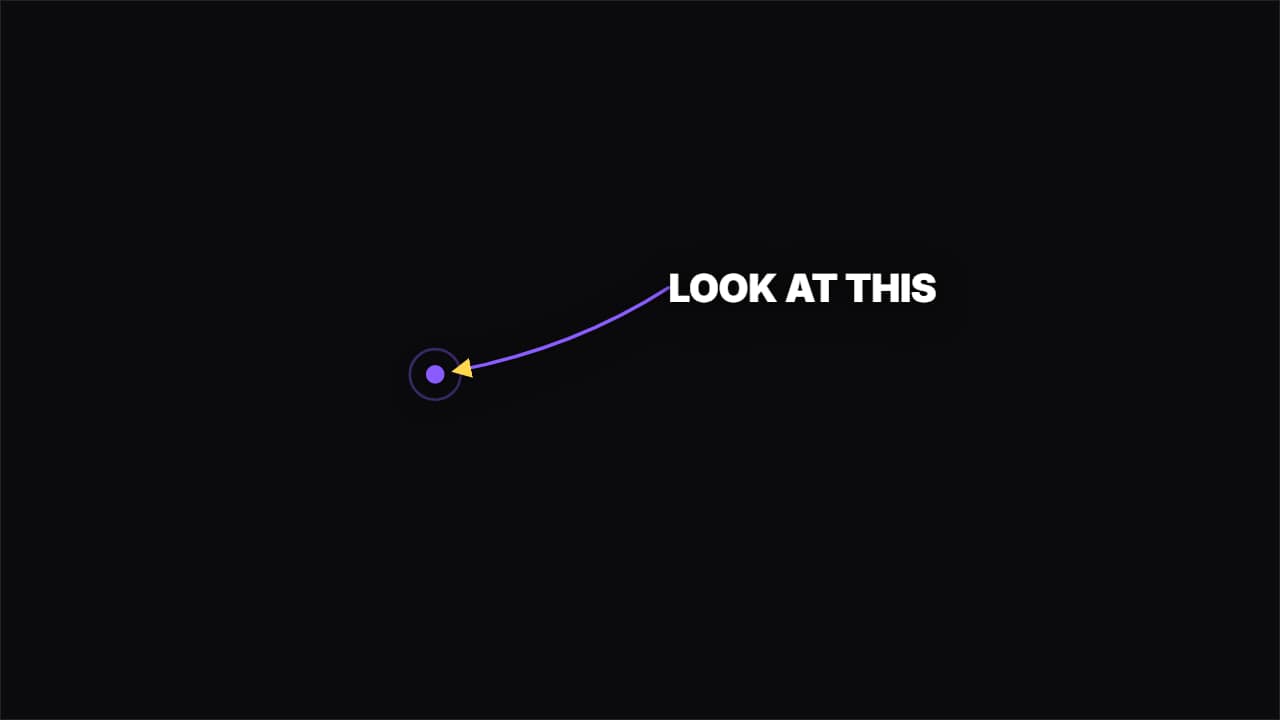 Curved arrowAn arrow drawing itself in a curve from the label to the spot. Directs the eye without covering the shot.
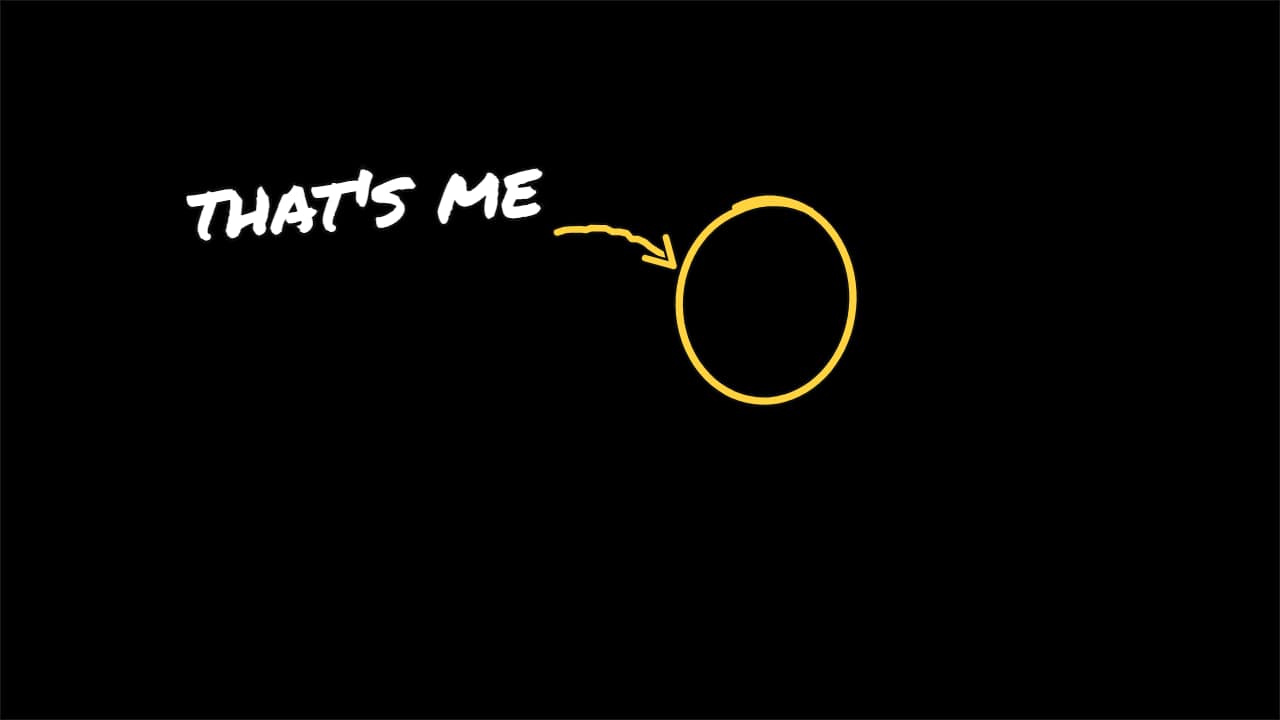 «That's me» arrowThe vlog and comedy move: a circle goes around the person, a hand-drawn arrow comes out of the label and…
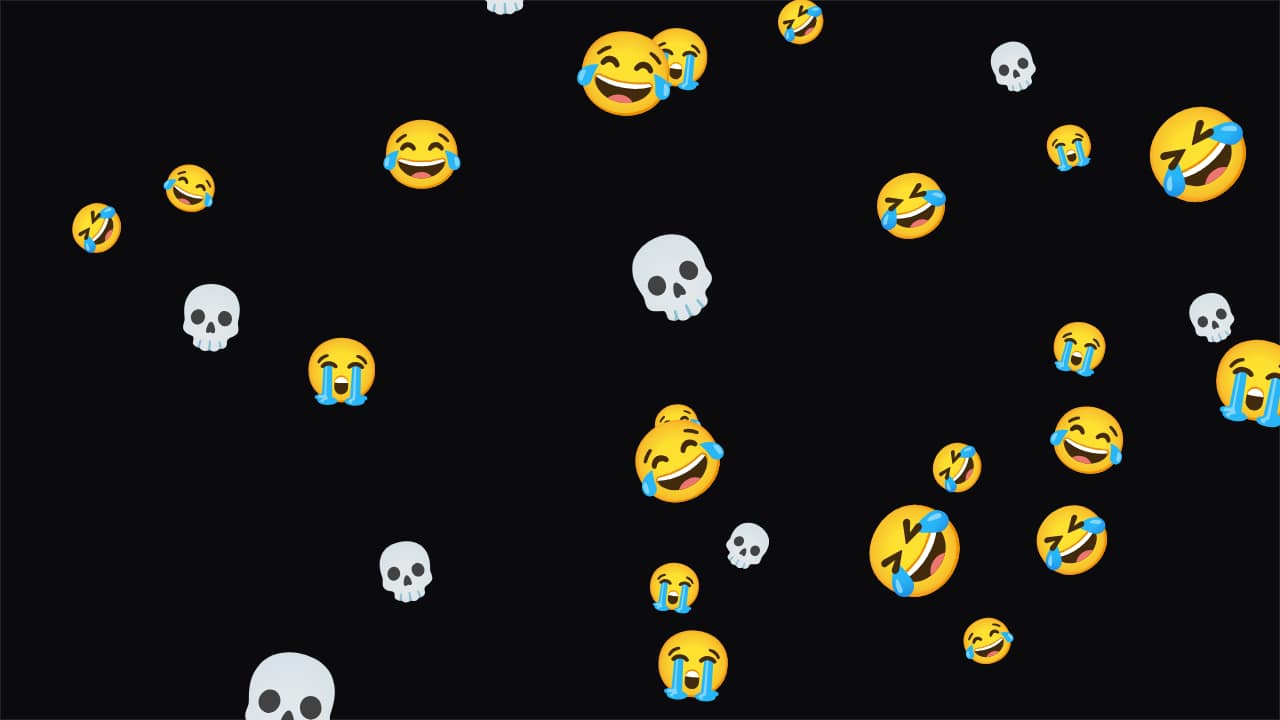 Emoji rainThe emojis you choose (😂💀😭) or your own images rain down over your video.
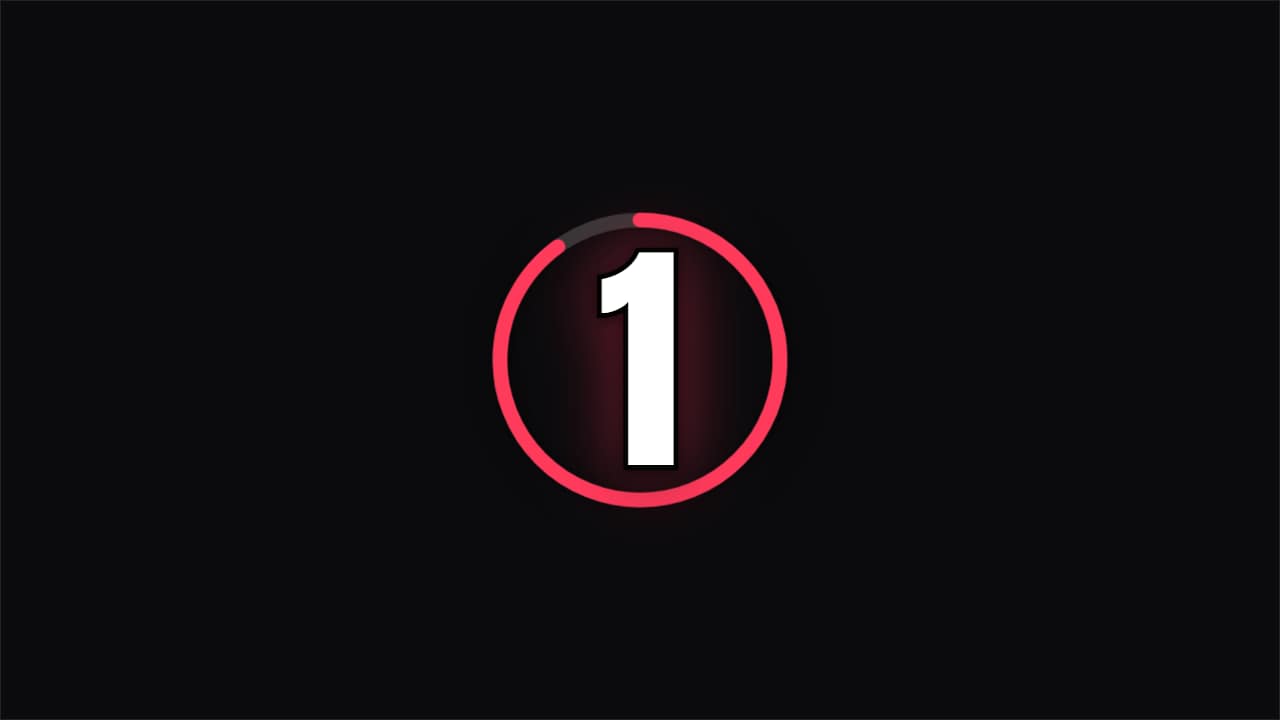 Countdown · RingA ring emptying each second with the number inside and a final flourish. For challenges and openers.
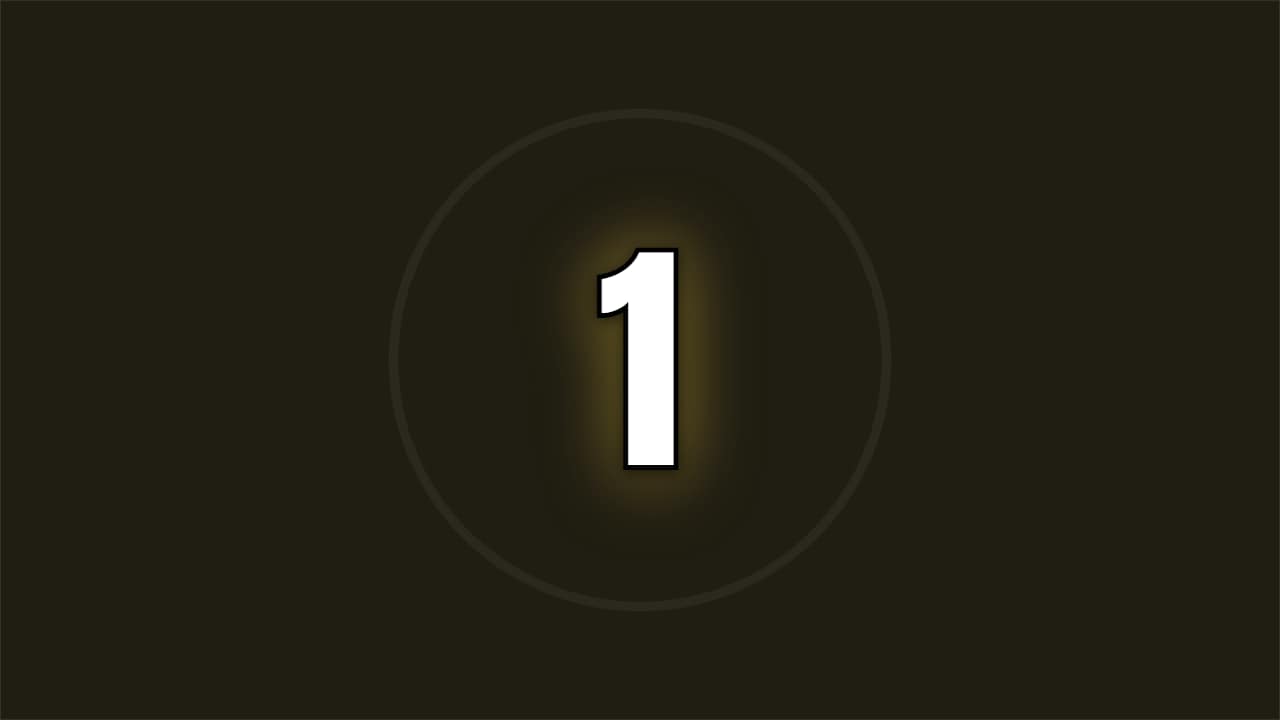 Countdown · FlashA full-screen number with a color hit and a shockwave on every tick. Maximum energy before the key moment.
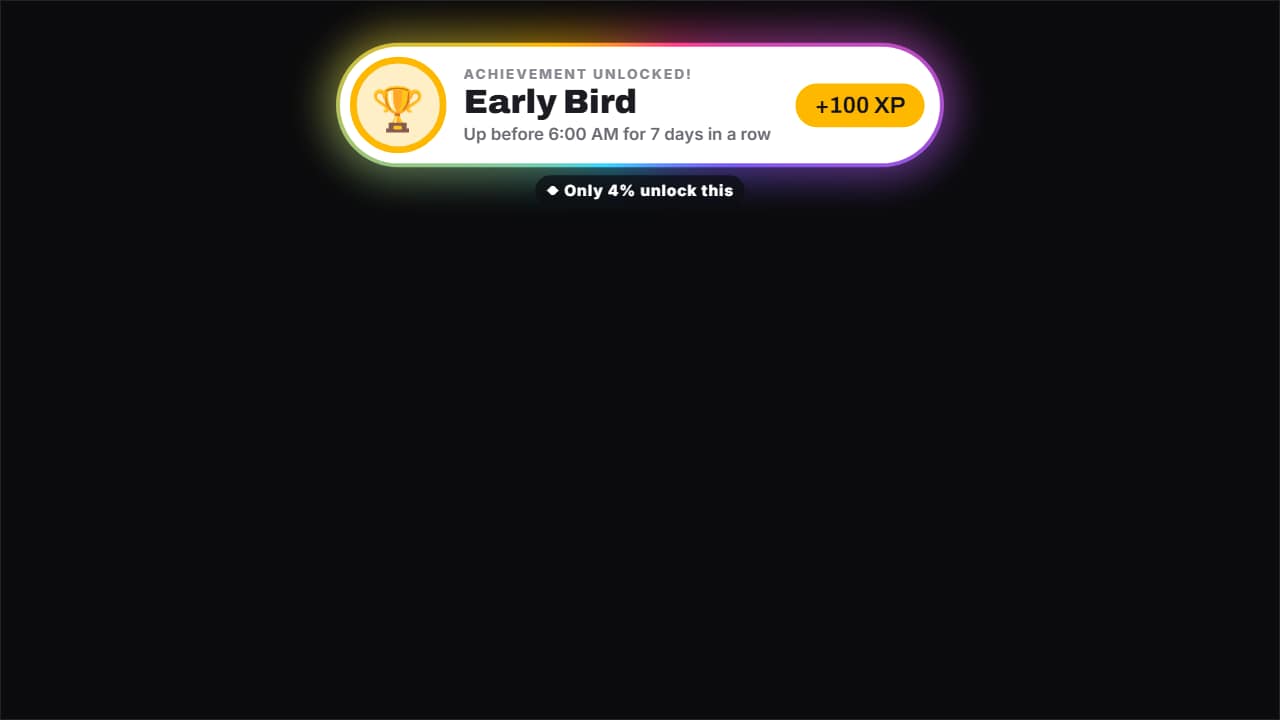 Achievement unlockedThe «achievement unlocked» pop-up, for real or as a joke («Early Bird: 7 days in a row up before 6 AM»): the…
Questions
- How do I remove the green in CapCut?
- Put the green clip on a layer above your video, select it and use Chroma key with the color picker on the green. Because these exports have no glow and a flat #00FF00 background, a low intensity is usually enough.
- Green screen or transparent .mov: which one should I download?
- Transparent if your editor reads alpha: it keeps shadows and glows and needs no key. Green screen if it doesn't, or if you edit on a phone. Both come from the same template with the same text.
- Do I need After Effects?
- No. Every template is edited in your browser: type your text, choose colors and format (16:9, 9:16 or 1:1), watch the live preview and export.
- What do I export, and does it work in my editor?
- Most templates export as a ProRes 4444 .mov with a transparent background, which you place on a track above your clip in CapCut, Premiere Pro, DaVinci Resolve or Final Cut Pro. You can also export an MP4 with your own clip behind it. Always in Full HD.
- Is it free?
- Editing and previewing are free and need no account. To export you sign in with Google; during the open beta, new accounts get export credits at no cost.