Countdown timer green screen — 3 to 10 seconds, your words
Choose the starting number, type what appears at zero and watch four countdowns play on pure green: an emptying ring, a full-screen flash, scoreboard digits and a New Year countdown with fireworks. Download the one you like as an MP4 on #00FF00 and key it out in your editor.
Make your countdown
One second per number. The New Year countdown keeps its own words and only takes the number and the color. Pure green (#00FF00) behind the animation. In your editor apply Chroma key (in CapCut it sits with the background-removal tools) and pick the green. Glows are switched off so the edges key cleanly.
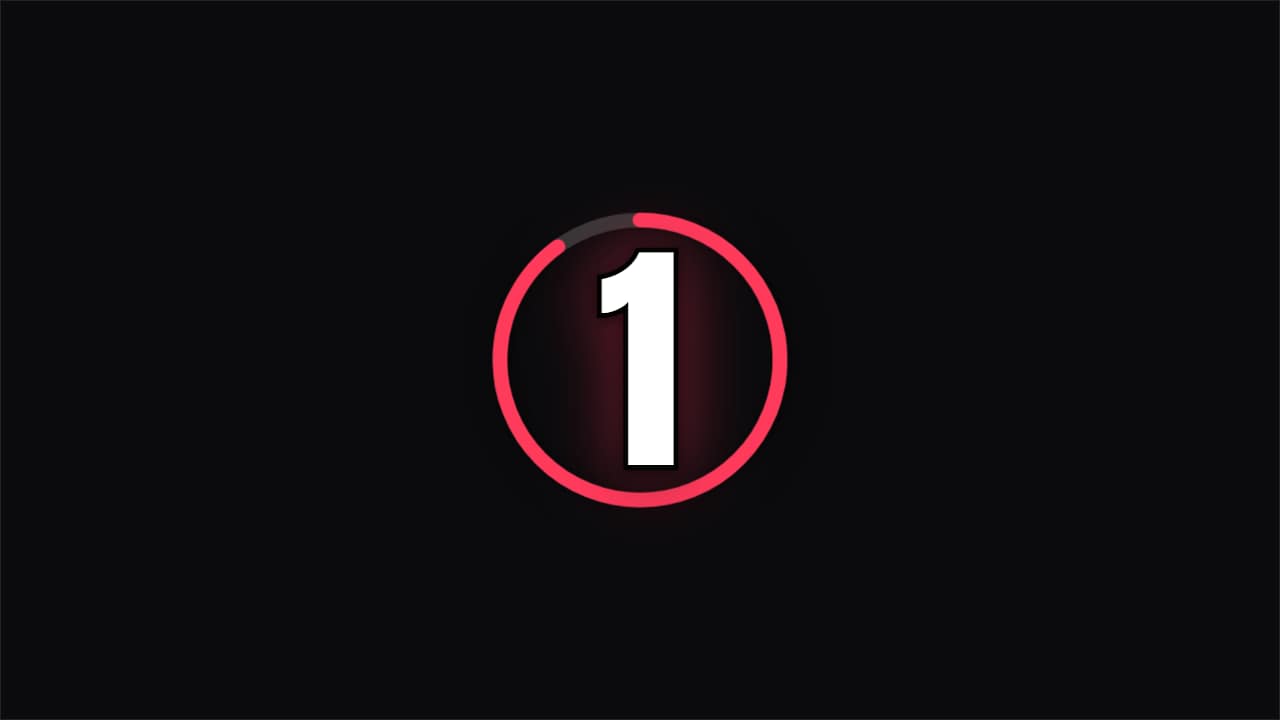
Countdown · Ring
Customize & export — free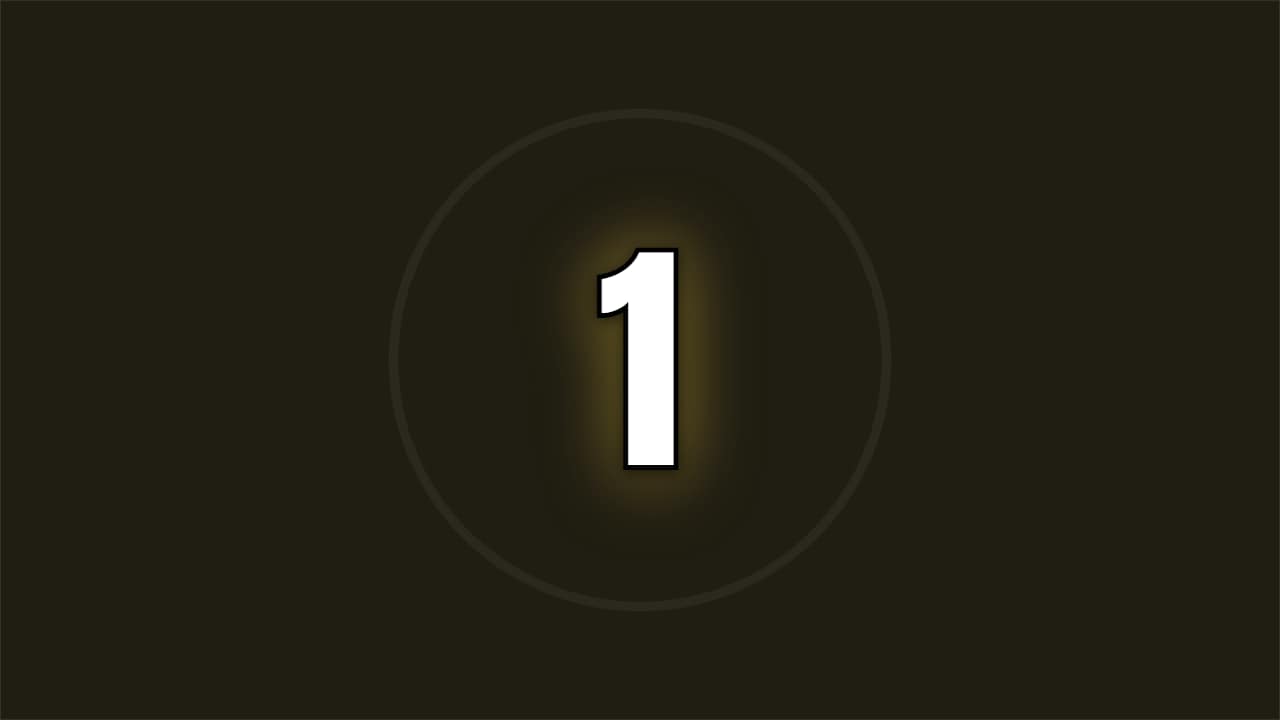
Countdown · Flash
Customize & export — free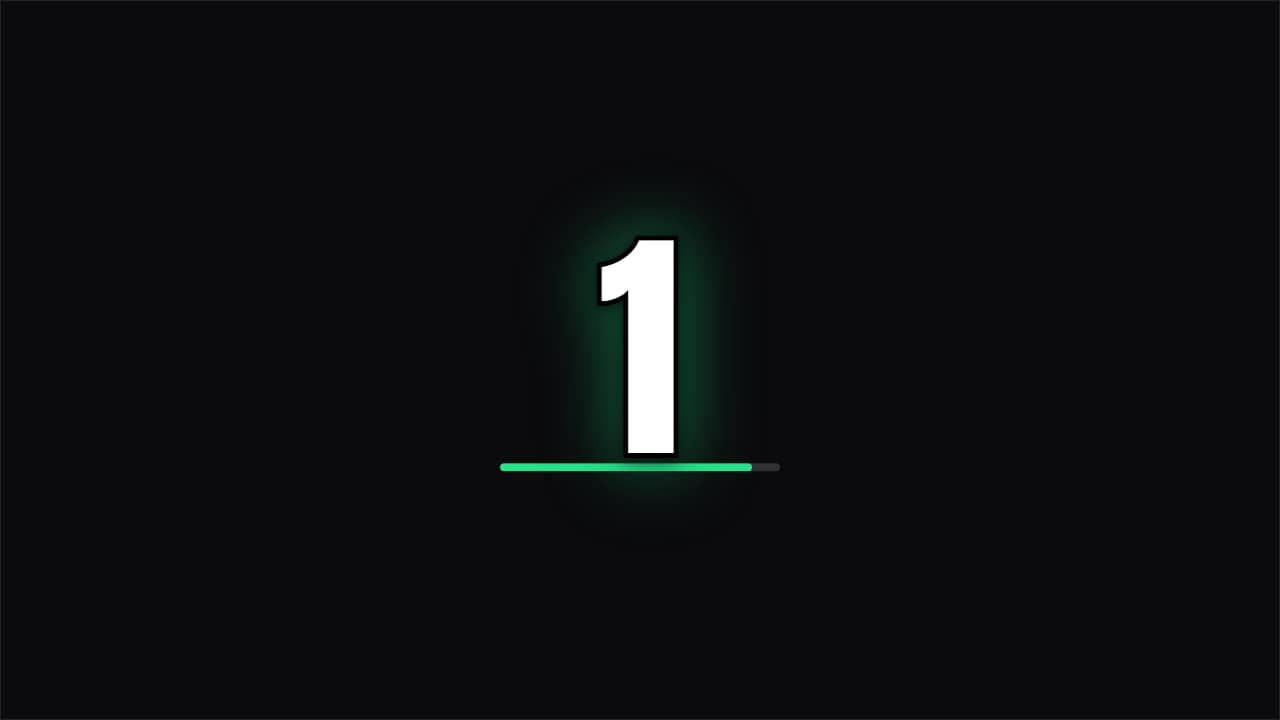
Countdown · Sports
Customize & export — free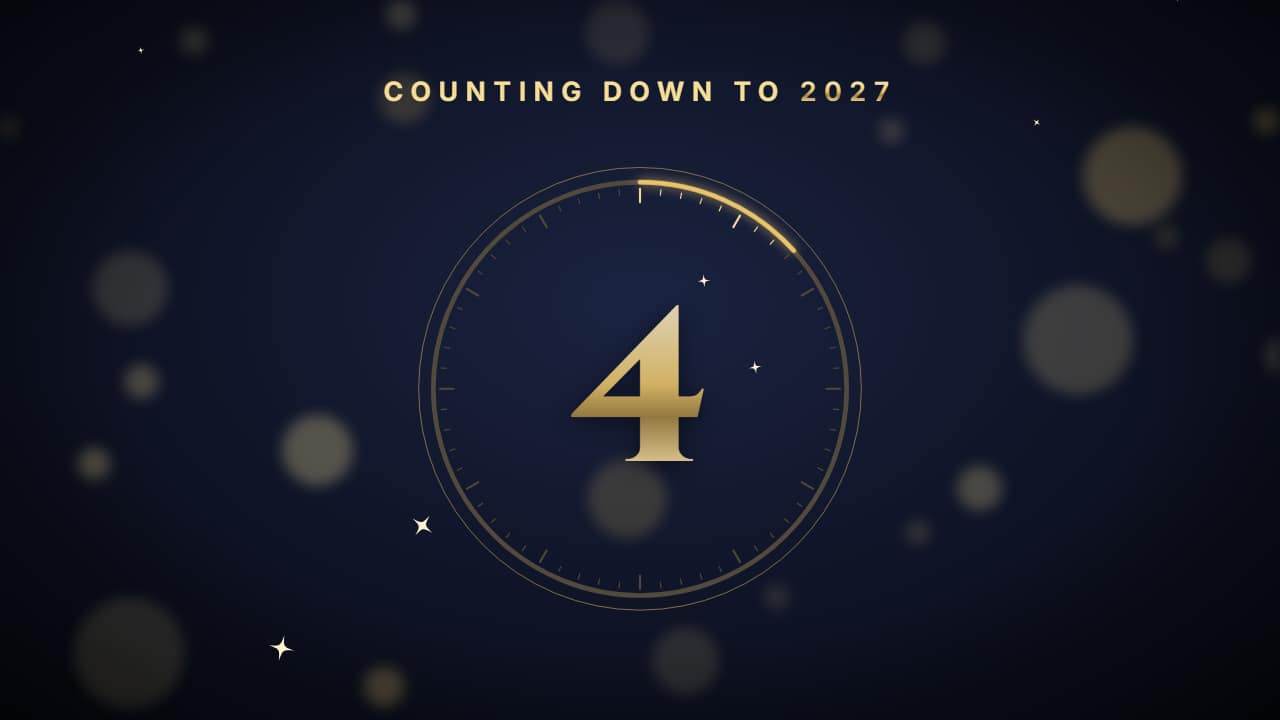
New Year countdown
Customize & export — free
A countdown that lasts what it says
Each number stays on screen for one real second, so a 10-second countdown is ten seconds long on your timeline. That matters when it sits over a live moment — a jump, a reveal, a product drop — and has to land on zero at the right time.
The length of the file follows the number you pick here. If you change the starting number later in the editor, extend the duration there as well, because it doesn't recalculate on its own.
Why green and not black
Free countdown clips are often white digits on black, meant for a blend mode. Blending turns the dark parts of the animation see-through too, and the ring loses its shadow. A solid #00FF00 background is removed with a chroma key and leaves every other color intact.
To keep the key clean, green screen mode draws the template without colored glows (they would mix with the green and leave a halo). Skip a green accent color for the same reason: the picker hides it while green is on.
When to pick the transparent file instead
If you edit in Premiere Pro, DaVinci Resolve, Final Cut Pro or CapCut on desktop, the transparent ProRes 4444 .mov needs no key at all and keeps the soft glow. Green screen is the safe choice on a phone, in browser editors and in apps that show transparency as black.
How to use it in your editor
CapCut
- Add the MP4 as an overlay on top of your clip and line up zero with the moment you want.
- Apply Chroma key (it sits with the background-removal tools), pick the green and raise the intensity.
Premiere Pro
- Drop the MP4 on V2 above your footage.
- Apply Ultra Key and click the green with the Key Color eyedropper.
DaVinci Resolve
- Put the MP4 on Video 2.
- Add the 3D Keyer from the Effects library and sample the green.
Questions
- Can I make a 10-second countdown?
- Yes. Pick 10 and the file lasts ten seconds plus the moment at zero. Any number from 3 to 10 works here; the 3-2-1 templates go down to 1 in the editor.
- Is the countdown green screen free?
- Previewing is free and needs no account. Downloading needs a free account, and exports cost nothing during the open beta.
- Does it beep?
- No, the file is silent. Add your own beeps in the editor — one per second, starting where the first number appears.
- Can it be vertical?
- Yes. Choose 9:16 in the editor for Shorts, TikTok or Reels, or 1:1 for a square post.
Want a different style? See all chapter cards and countdowns