Facecam Frames and Video Layouts — Webcam, Reaction, Podcast
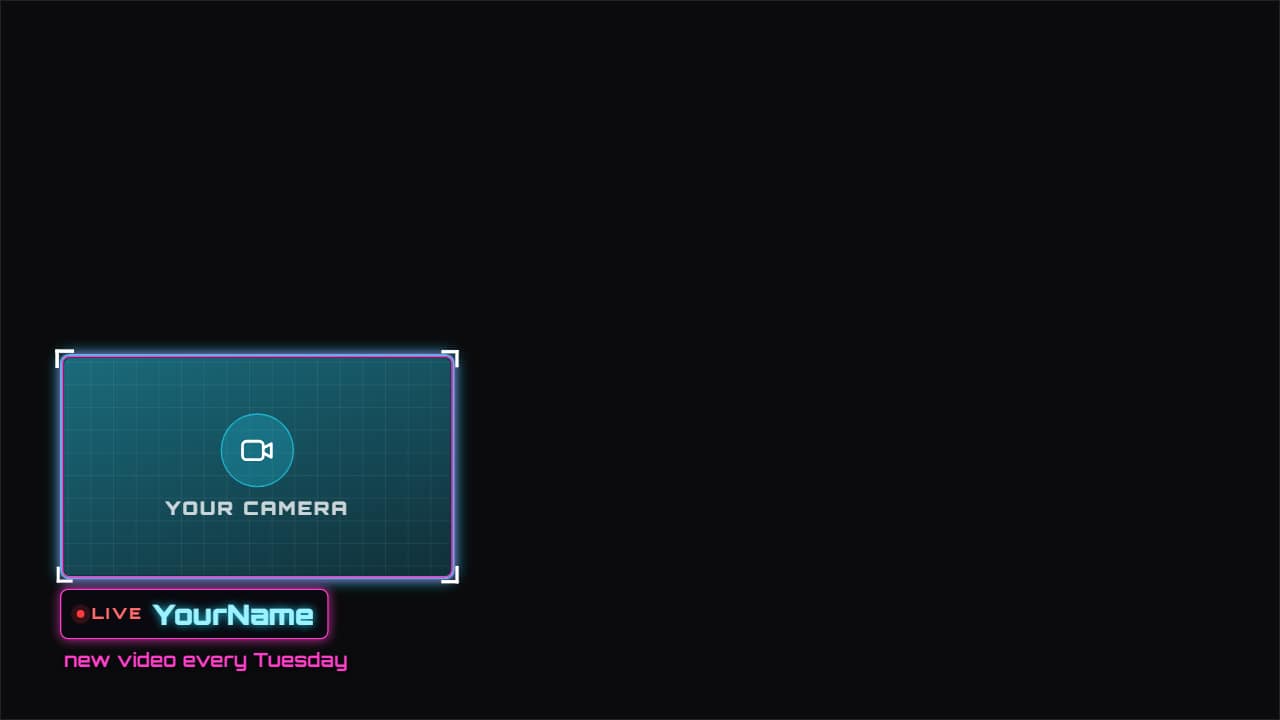 Facecam frame
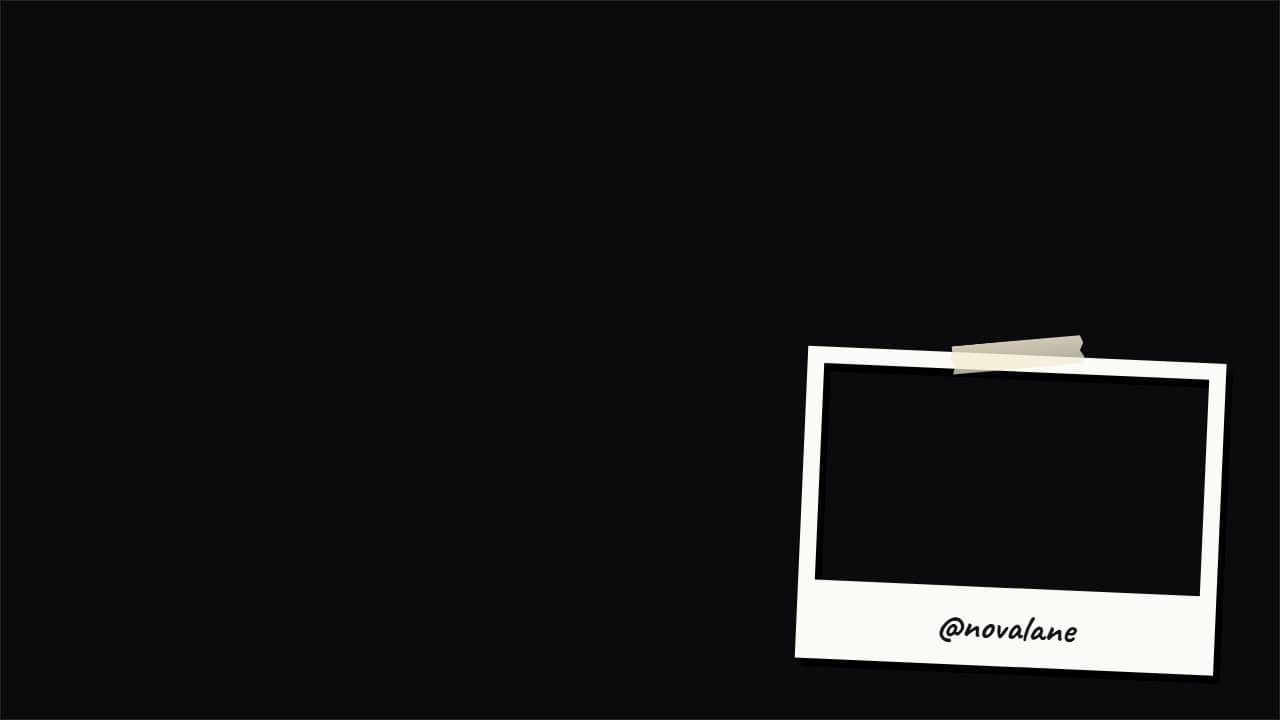 Facecam frame: polaroid, tape, film or 3D
 Video border: torn paper, film, polaroid or 3D
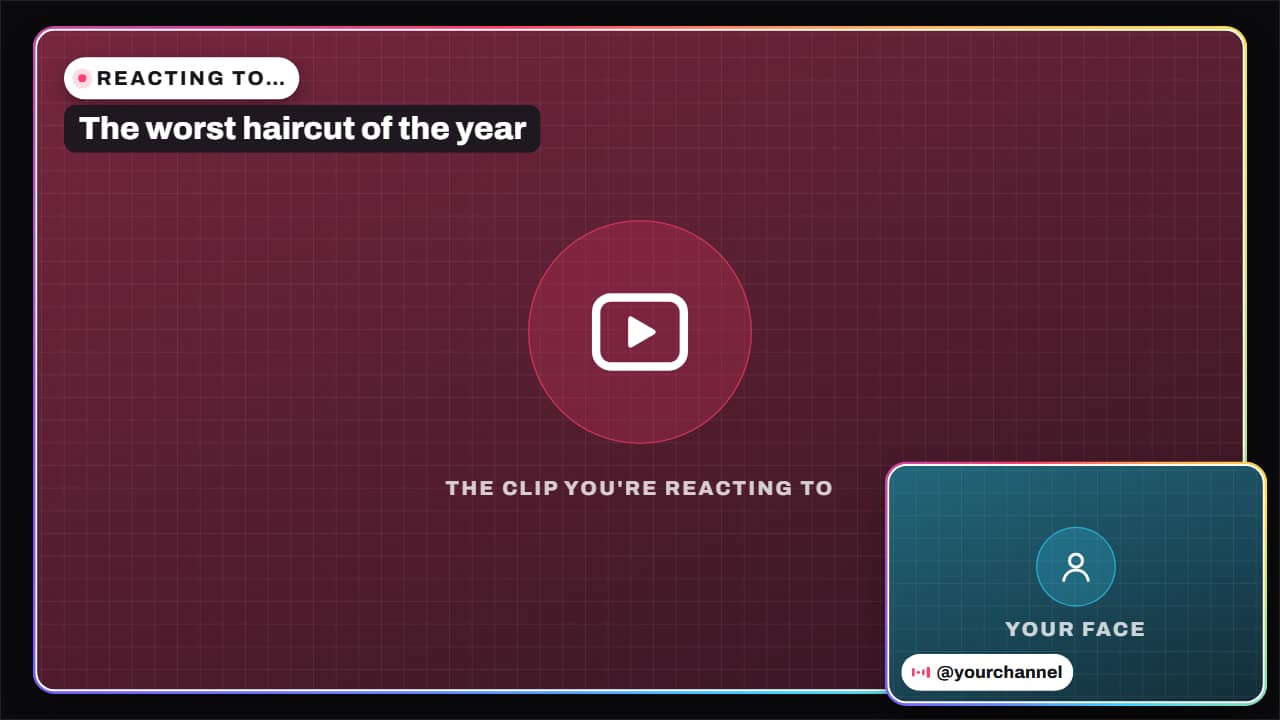 Reaction layout
A frame is what makes a webcam in the corner look intentional instead of pasted on. The facecam frame goes in whichever corner you pick, with your name, a «LIVE» tag and a line of socials that keeps changing; it comes in neon, glass, paper with tape and 8-bit pixel. Export it without a background and put your camera underneath, or upload the clip straight into the slot.
For commentary there is the reaction layout: the clip you're reacting to, big, your face in a corner and «REACTING TO…» with the title; in vertical it splits into top and bottom. Podcasts get a frame for two or three cameras, each with a name and role, where whoever is talking lights up with an audio wave and the others dim.
The other layouts organize a clip and some text. The glass card floats in a corner while your video plays large, the side layout puts your clip on the left and a list on the right, and «video on top, text below» is the one that fits Shorts and Reels. The camera viewfinder draws four corner brackets around a shot, and the propped-up photo puts an image on a white card with a long shadow. Empty slots stay transparent, so your own footage shows through.
10 templates · 16:9 · 9:16 · 1:1
- Facecam frameAn animated frame for your camera, in whichever corner you want, with your name, «LIVE» and a line of…
- Facecam frame: polaroid, tape, film or 3DThe frame for your camera in a corner, made into an object like big channels do: a polaroid with your name…
- Video border: torn paper, film, polaroid or 3DYour whole video inside a frame, the vlog and video-essay trick: a torn paper edge all around, a film strip…
- Reaction layoutThe reaction video layout: the clip you're commenting on, big, and your face in a corner, with «REACTING…
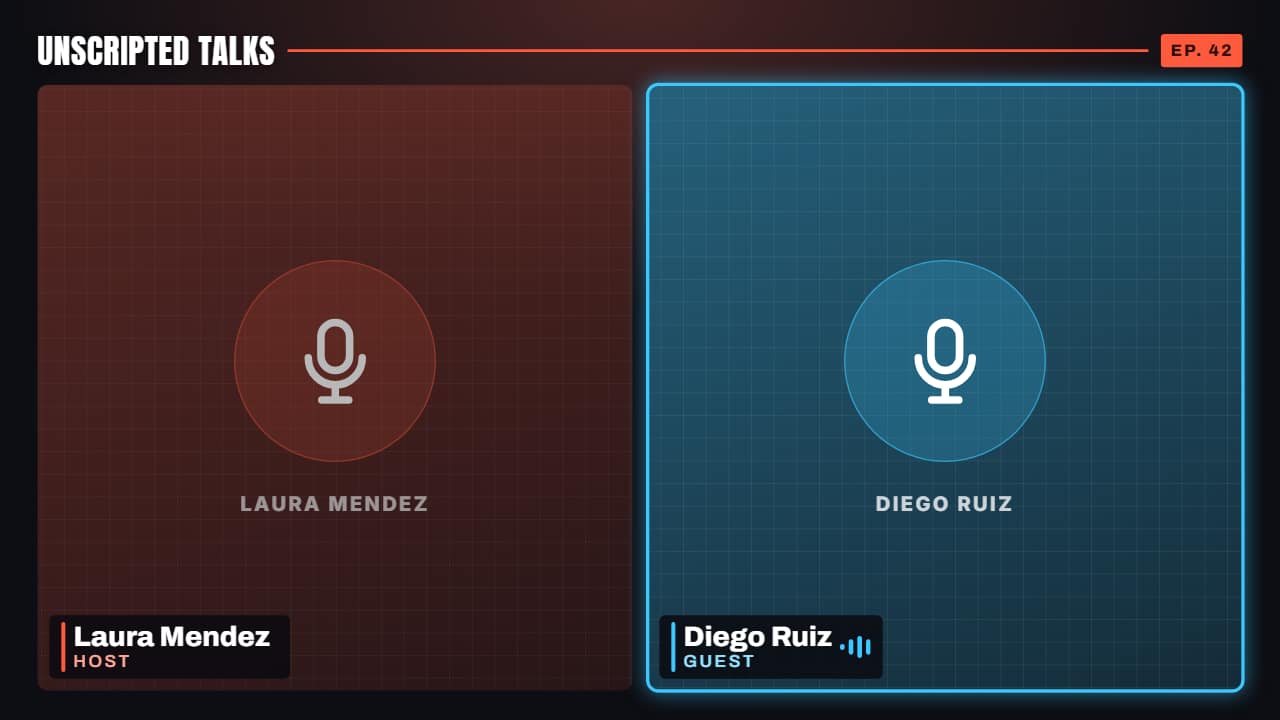 Multi-cam podcast frameTwo or three cameras from your podcast, each with its name and role, plus the show's name and the episode.
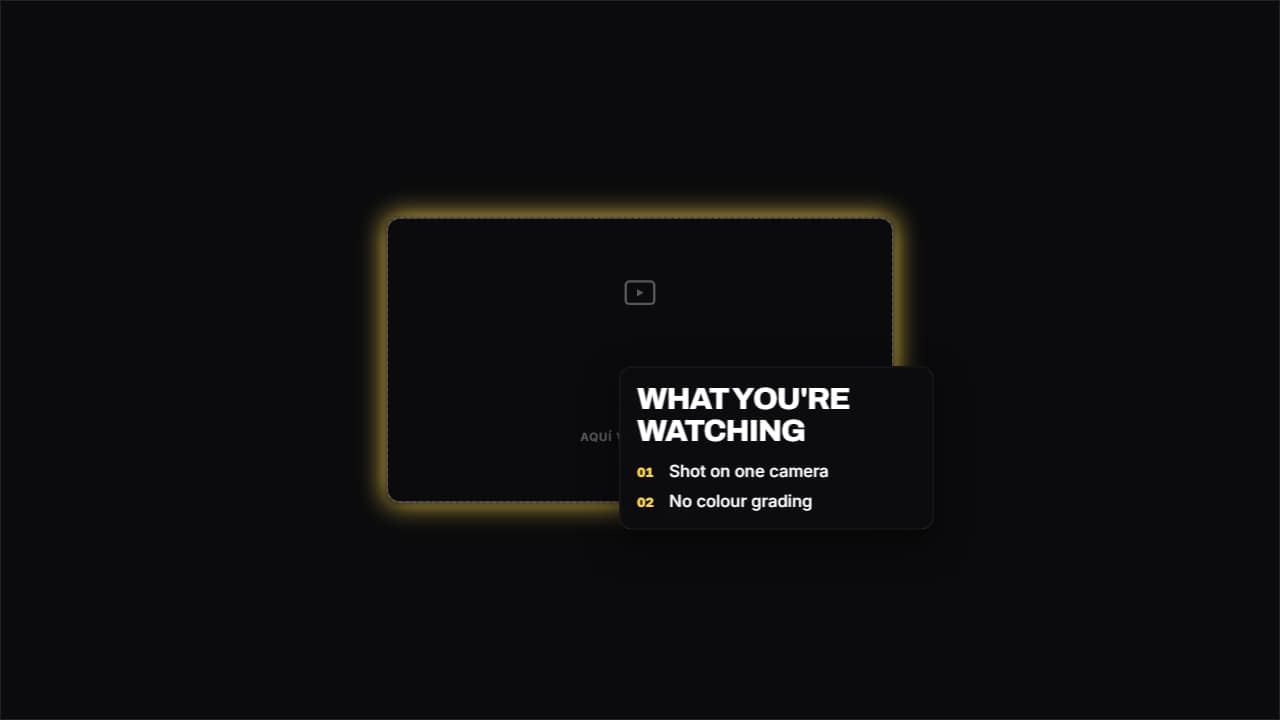 Card over your videoYour clip large and a glass card floating in the corner with the text.
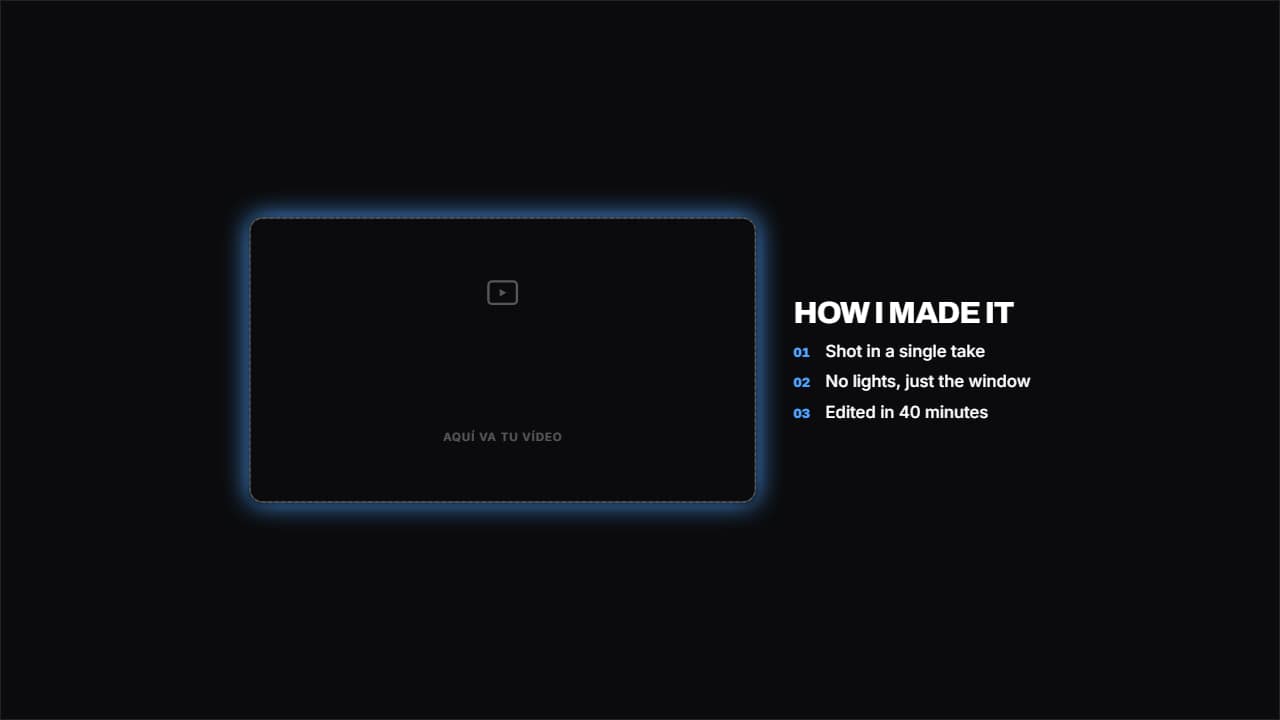 Your video beside the listYour clip in a frame on the left and the list on the right.
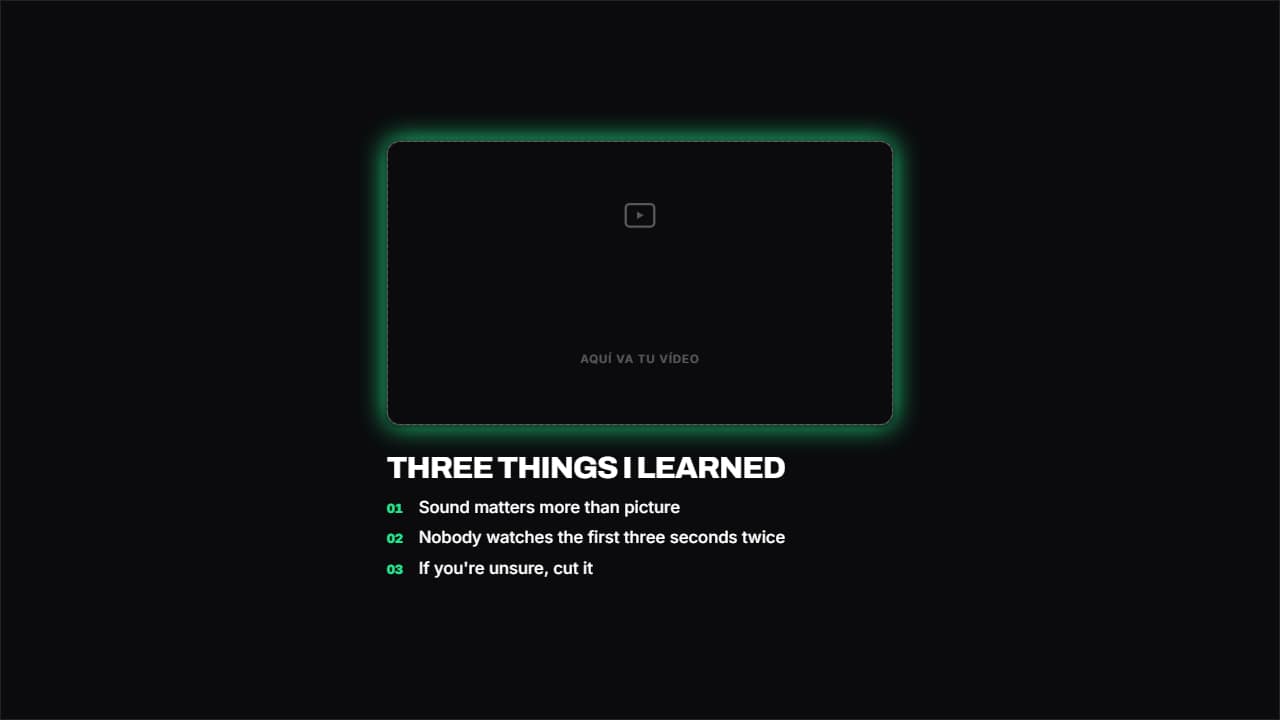 Your video on top, text belowThe frame on top and the content below. The one that works best in Shorts and Reels, where there's no room…
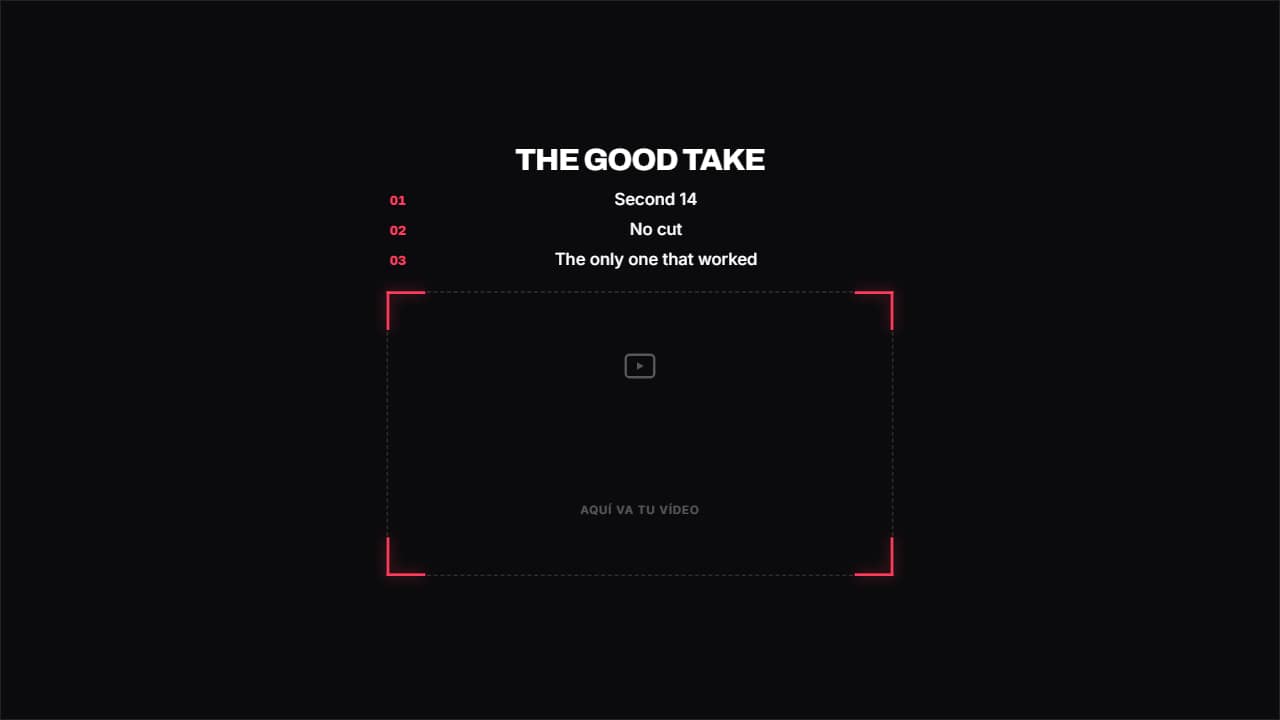 Camera viewfinderFour brackets drawing themselves in the corners, like a camera viewfinder, with the title on top and the…
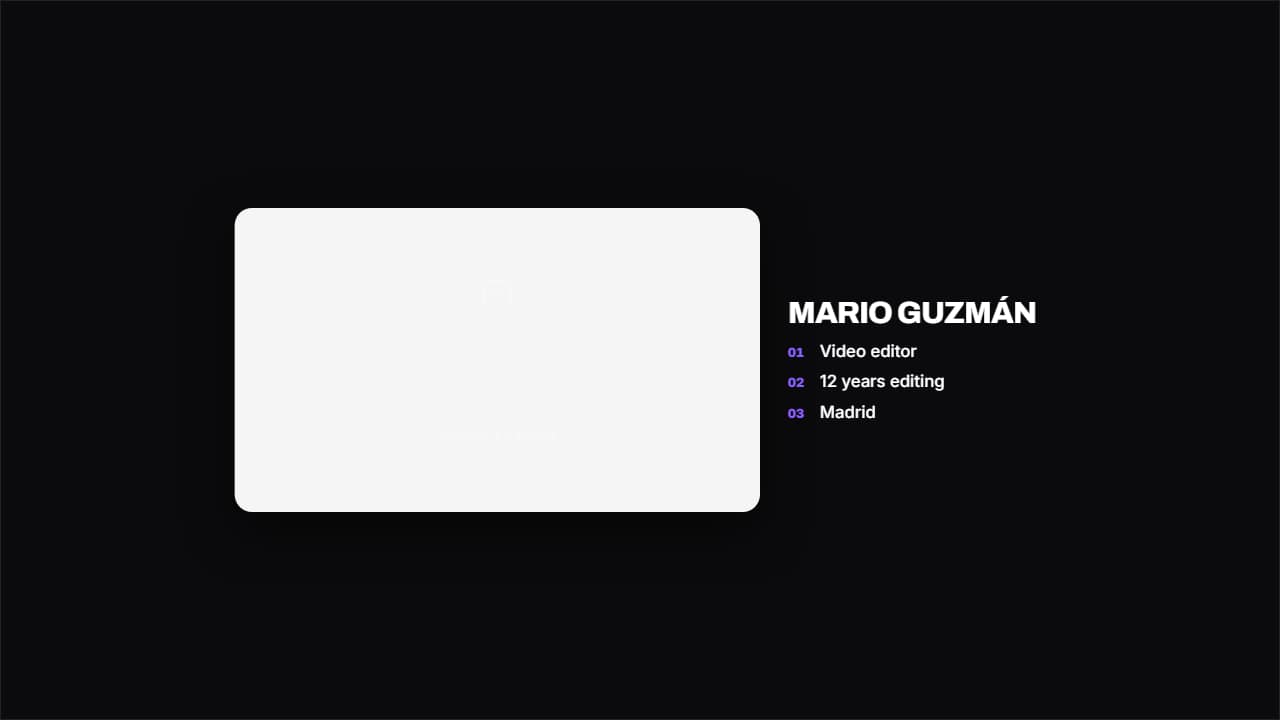 Propped-up photoYour image on a white card with a long shadow, like a photo propped on a table, and the text beside it.
Questions
- Can I use the facecam frame in OBS while streaming?
- The frame is a video file, not a live source: it is made for edited videos such as gameplay, tutorials or stream highlights. You can loop the transparent .mov in an editor or as a media source, but your name and socials are fixed in the file.
- What happens in vertical 9:16?
- The layouts rearrange themselves: the reaction layout and the side layout stack top and bottom, and the podcast frame shows two cameras stacked or one big and two below.
- Do I need After Effects?
- No. Every template is edited in your browser: type your text, choose colors and format (16:9, 9:16 or 1:1), watch the live preview and export.
- What do I export, and does it work in my editor?
- Most templates export as a ProRes 4444 .mov with a transparent background, which you place on a track above your clip in CapCut, Premiere Pro, DaVinci Resolve or Final Cut Pro. You can also export an MP4 with your own clip behind it. Always in Full HD.
- Is it free?
- Editing and previewing are free and need no account. To export you sign in with Google; during the open beta, new accounts get export credits at no cost.