YouTube End Screen Templates — Transparent Outro Overlays
YouTube lets you place end screen elements, the clickable boxes for a video, a playlist or your channel, in the last 5 to 20 seconds of a video. The end screen template gives those elements a designed background: a title like «Watch this next», two 16:9 frames where the video elements go and a circle for the subscribe button with your avatar. The frames draw themselves and a light keeps running around them until the end.
After uploading, add an end screen in YouTube Studio and line the elements up over the frames. If you don't use them, put your own thumbnails into the slots and they play as part of the video. There are four styles, glass, neon, light minimal and pop, and you can stretch the duration to 20 seconds in the editor.
The rest of this page are the pieces that go around it in an outro: a like-and-subscribe channel bar, a glass subscribe card, the bell with the «All» notifications option being picked, an up-next card with a ring that fills, a question that invites comments and an arrow to the link in the description. Shorts don't have end screens, so for a series there is a «Part 2, follow for the next one» card instead.
8 templates · 16:9 · 9:16 · 1:1
Step-by-step guide: How to make a YouTube end screen
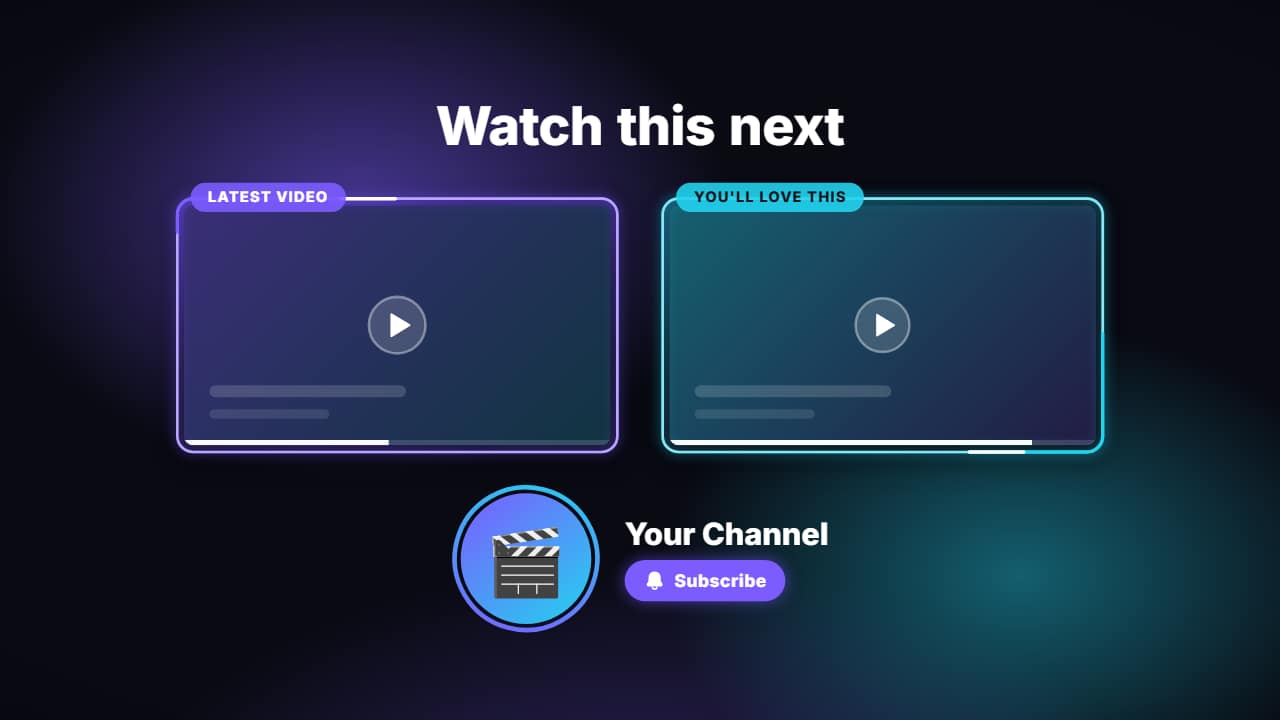 End screenThe last seconds of your video: a title («Watch this next»), two 16:9 slots where YouTube puts its…
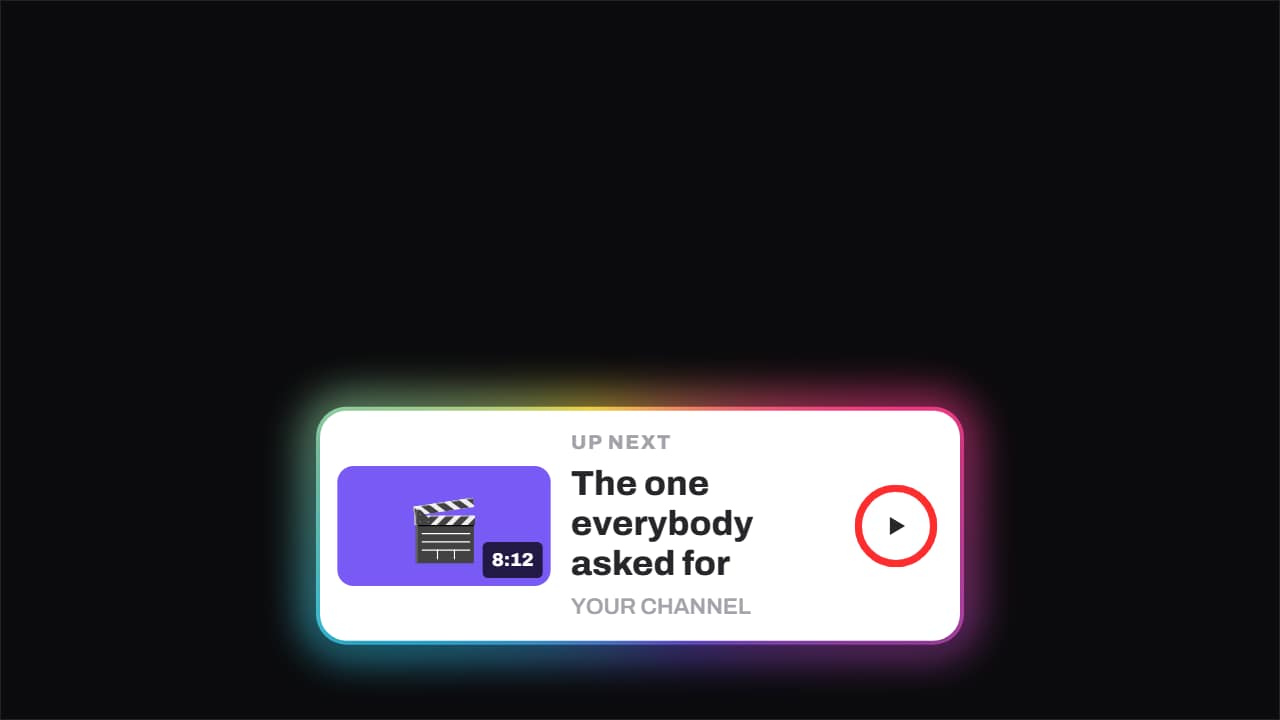 Up next · the ring runs outThe up-next card: thumbnail with its runtime, title, channel and a ring that fills until it fires on its own.
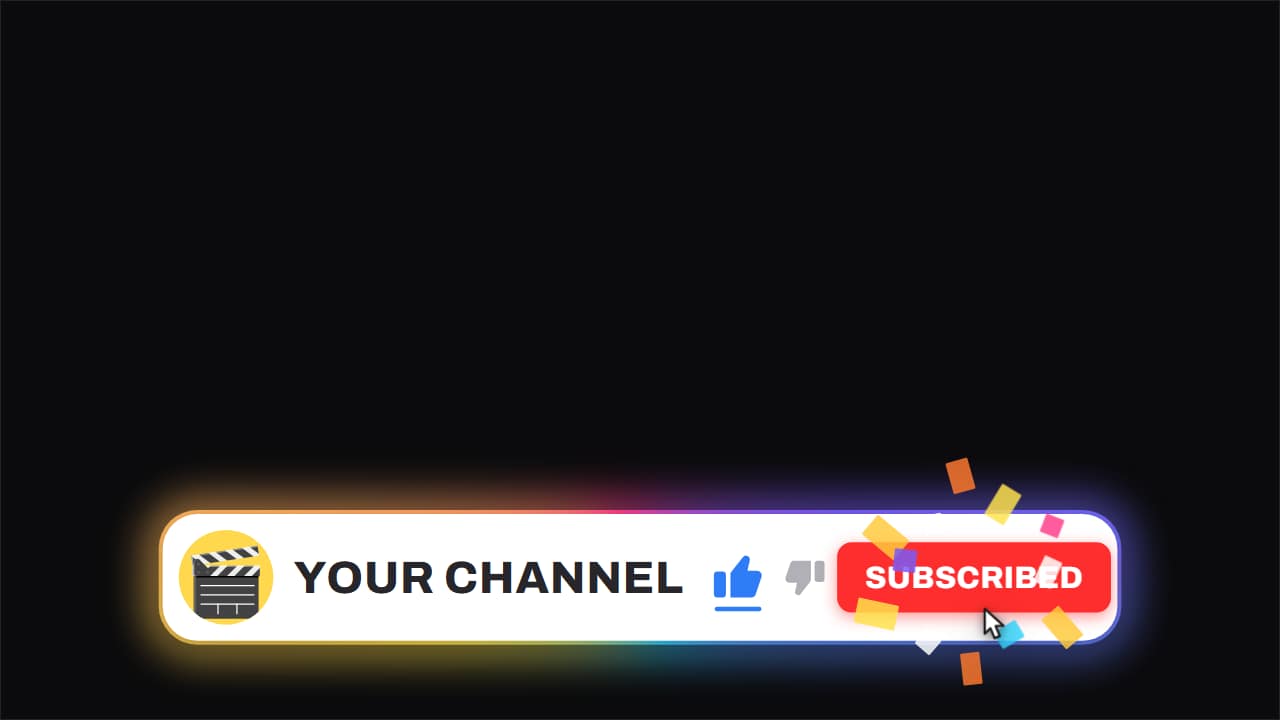 Channel bar · like and subscribeThe white capsule with the ROTATING gradient edge, floating over the video while it keeps running underneath.
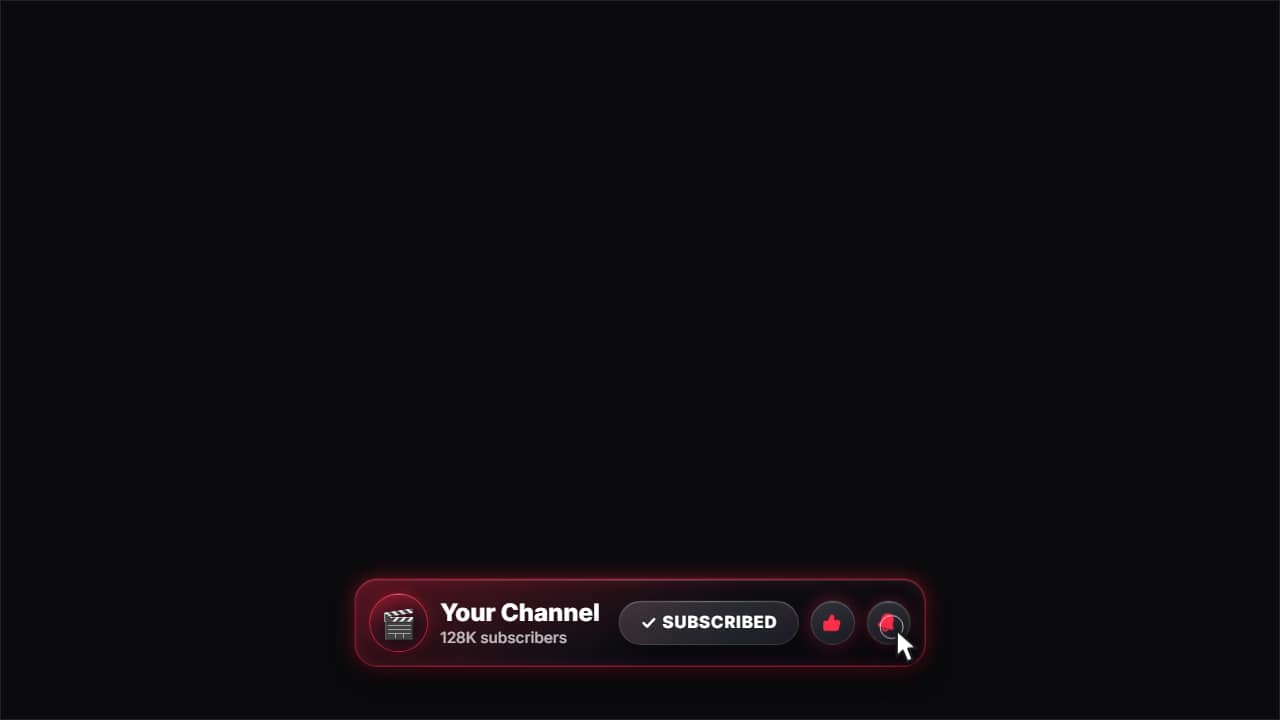 Glass subscribe cardYour channel card in glass: avatar, name and subscriber count.
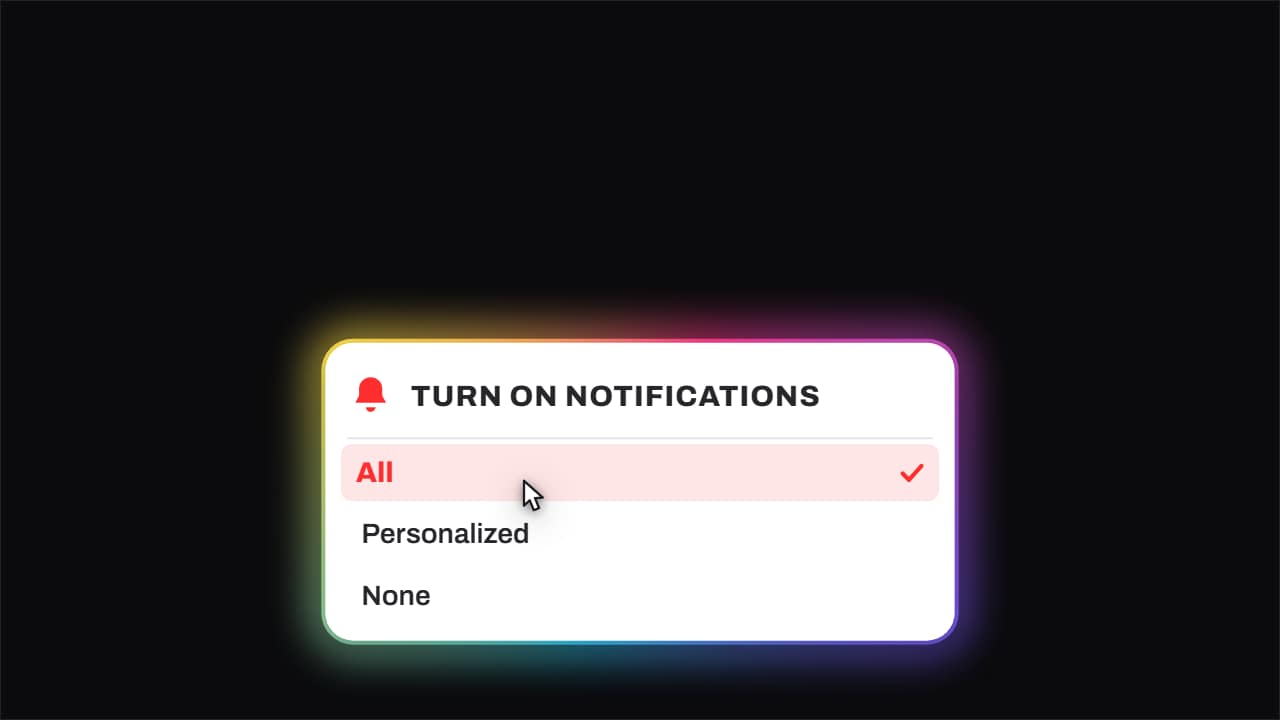 Bell · it rings and «All» gets pickedThe bell genuinely shakes with its sound arcs, the notifications menu opens, and the cursor comes down to…
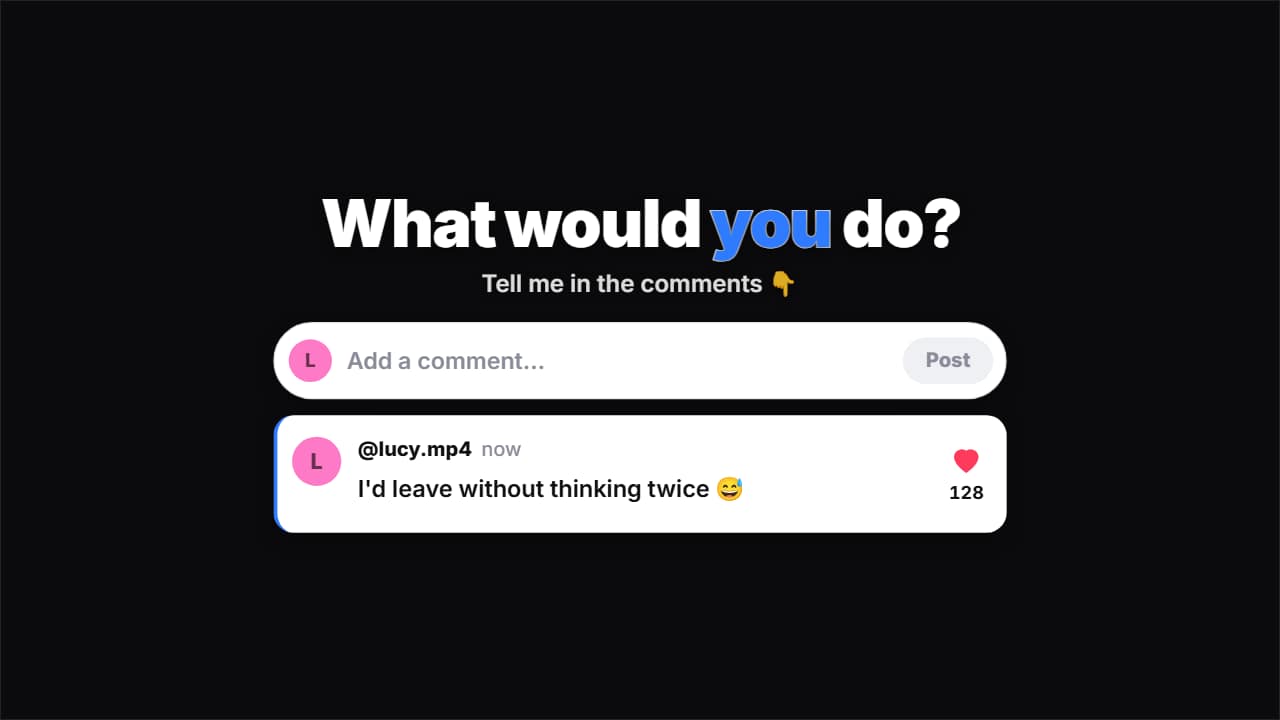 Question for viewersAsk for comments by showing how: the question comes in big («What would you do?
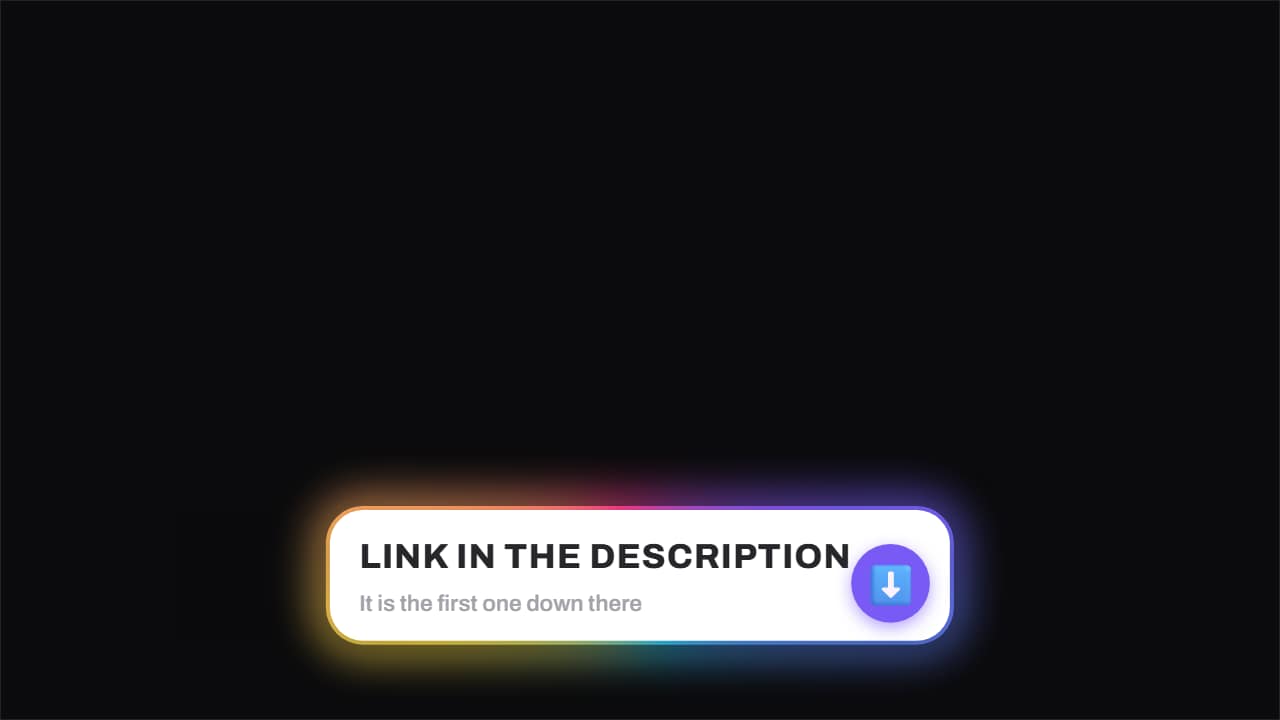 Link in the description · the arrow won't stopThe notice that the link is down there, with the arrow bouncing and a highlight sweeping very slowly across…
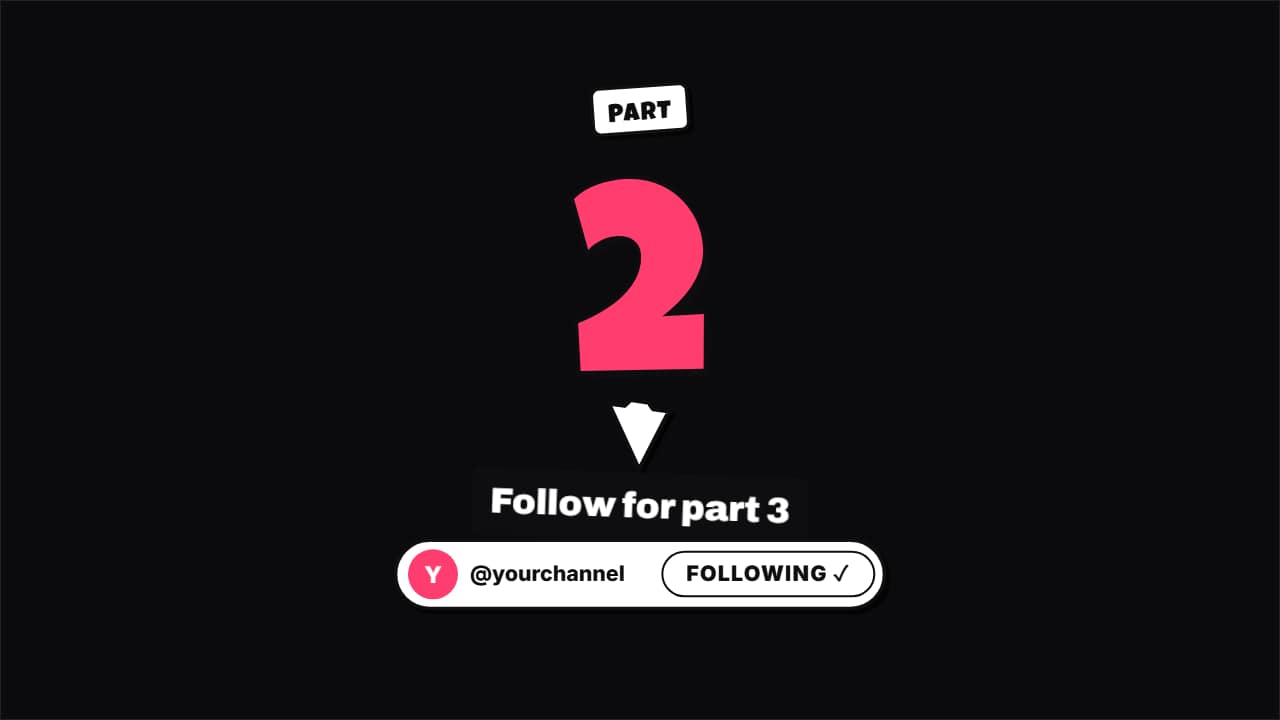 Part 2 · follow for the next oneThe end card of a Short in a series: the part number rolls up from the previous one (1 → 2), an arrow…
Questions
- Is the end screen clickable?
- The video file itself isn't: clicks come from the elements you add in YouTube Studio, which you place over the frames of the template. The template makes them look designed instead of floating over a frozen shot.
- How long should an end screen be?
- YouTube shows end screen elements in the last 5 to 20 seconds of a video. The template lasts 8 seconds by default, and you can set up to 20 with the duration field.
- Do I need After Effects?
- No. Every template is edited in your browser: type your text, choose colors and format (16:9, 9:16 or 1:1), watch the live preview and export.
- What do I export, and does it work in my editor?
- Most templates export as a ProRes 4444 .mov with a transparent background, which you place on a track above your clip in CapCut, Premiere Pro, DaVinci Resolve or Final Cut Pro. You can also export an MP4 with your own clip behind it. Always in Full HD.
- Is it free?
- Editing and previewing are free and need no account. To export you sign in with Google; during the open beta, new accounts get export credits at no cost.