Lower third maker
Type a name and a title and watch six animated lower thirds play with them, right here: a solid bar, a pill, a hairline, a sticker, a glass card and a podcast guest tag. Pick a color, open the one you like and export it with a transparent background.
Make your lower third
The checkerboard is the transparent part: only the title ends up on top of your video. The @handle shows in the glass and podcast styles.

Lower third · Bar
Customize & export — free
Lower third · Pill
Customize & export — free
Lower third · Hairline
Customize & export — free
Lower third · Sticker
Customize & export — free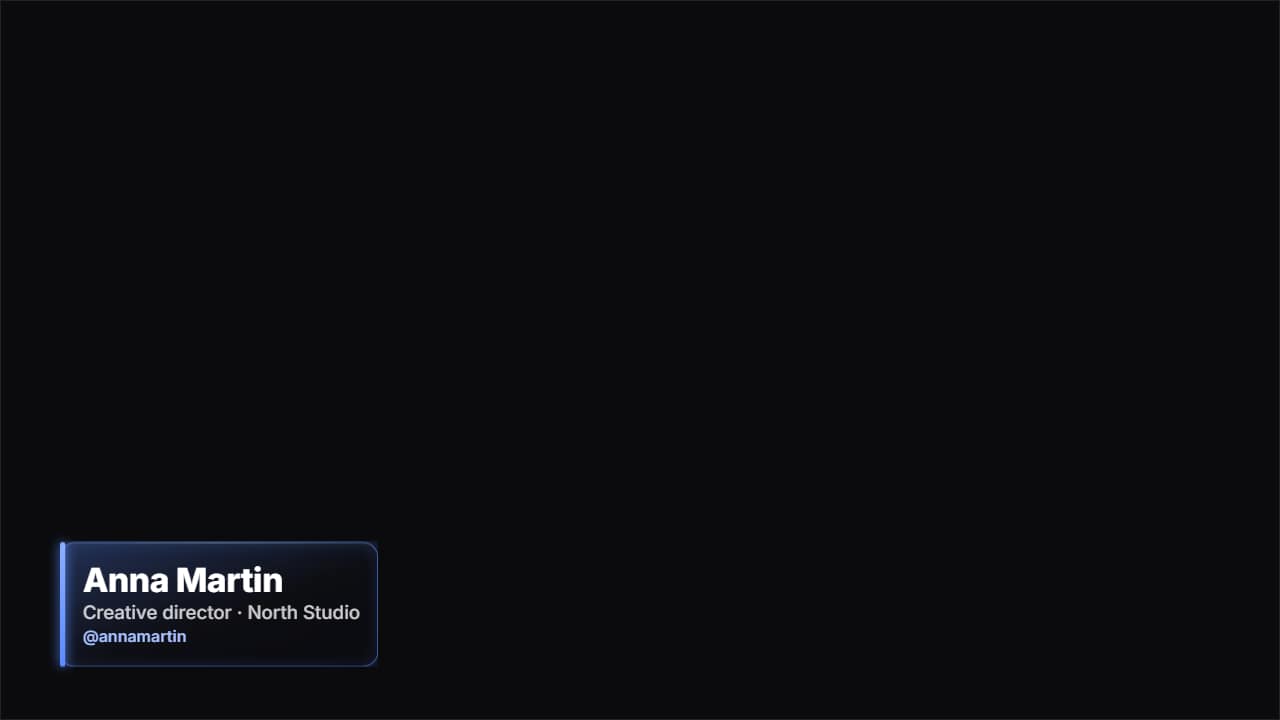
Glass name lower third
Customize & export — free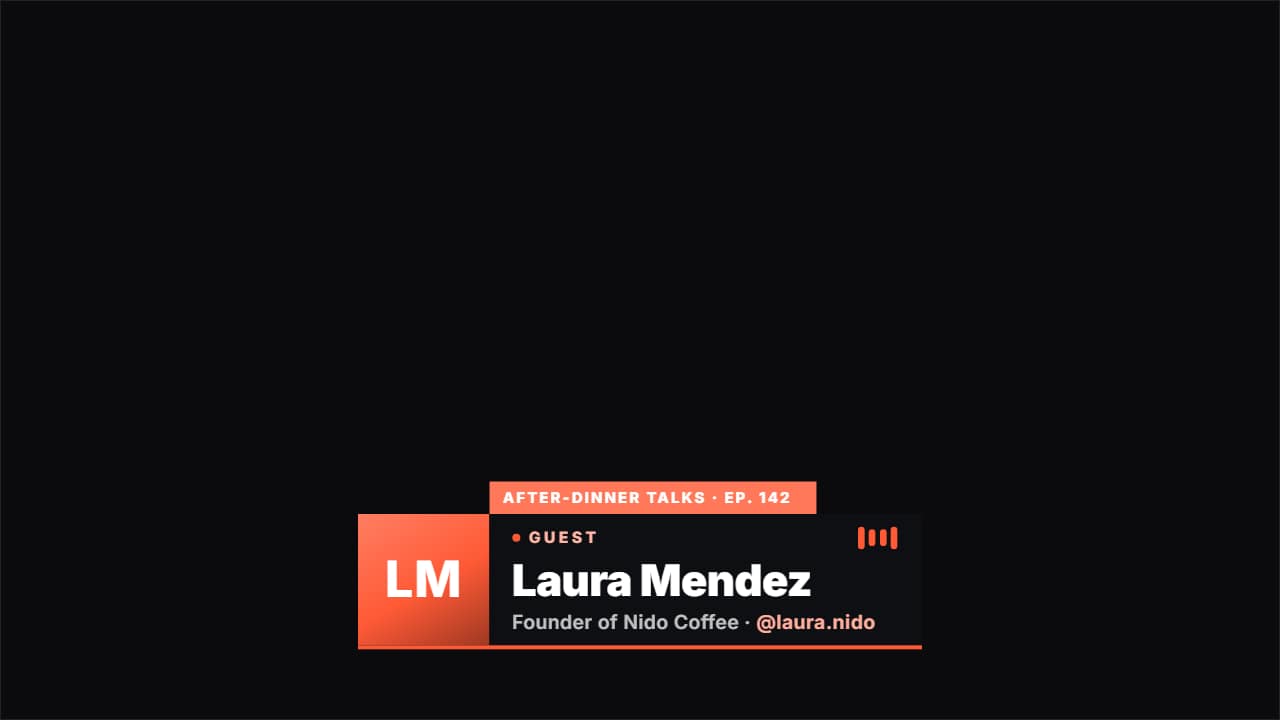
Podcast guest lower third
Customize & export — free
What a lower third is for
A lower third is the name title that slides in at the bottom of the frame when someone speaks for the first time: an interview guest, a podcast co-host or you at the start of a tutorial. It tells the viewer who is talking without stopping the video, and it usually stays for three to five seconds.
Keep it short. A name plus one line («Founder of North Studio», «Physical therapist») reads in a glance; two long lines don't.
Real templates, not a screenshot
Every preview is a real template. Click «Customize & export» and the full editor opens with your name already in it. There, depending on the style, you can also move it to the left or the right or raise it, and change its size, the typeface and the length, and pick the format: 16:9 for YouTube, 9:16 for Shorts, TikTok and Reels, or 1:1. Always in Full HD.
Without a background it exports as a ProRes 4444 .mov with a real alpha channel: clean edges, no green screen to key out. You can also export an MP4 with your own clip behind it.
How to use it in your editor
CapCut
- On desktop, drag the .mov to a track above your clip.
- On the phone, if the overlay shows a black background, export «with your clip» and use the MP4 instead.
Premiere Pro
- File → Import the .mov and drag it to V2, above the interview on V1.
- Trim its end so it leaves before the next cut: the transparency is kept.
DaVinci Resolve
- Import the .mov into the Media Pool and place it on Video 2, above your clip.
- If you see black instead of your clip: right-click → Clip Attributes → Alpha Mode: Premultiplied.
Questions
- Is this lower third maker free?
- Typing and watching the previews is free and needs no account. To download the video you sign in with Google; during the open beta, new accounts get export credits at no cost.
- Can I make one for each guest?
- Yes. Change the name and export again; each export is a separate file. Save a version in «My projects» to come back to it.
- Does it work for vertical videos?
- Yes, every style also comes in 9:16. Keep it above the bottom fifth of the frame, where Shorts, TikTok and Reels put their captions and buttons.
Want a different style? See all lower third templates