Aspect ratio1920×1080this is how it downloads
Preview doesn't change the file
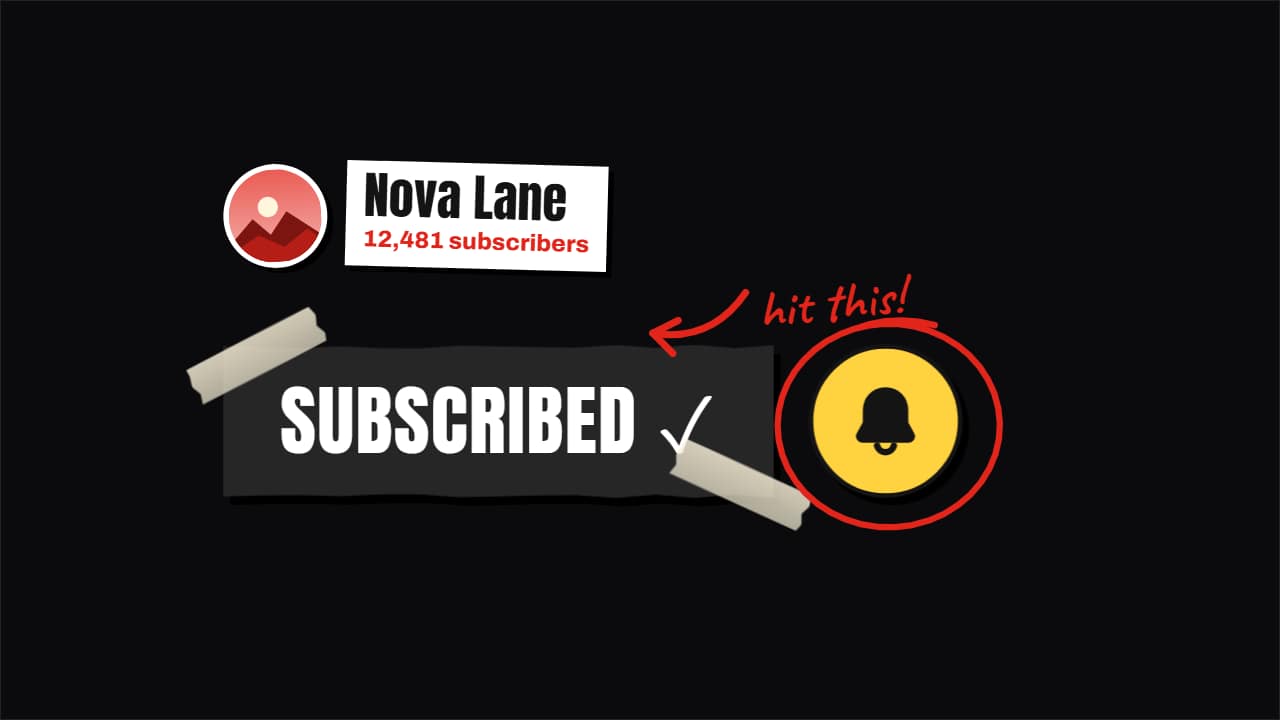
You'll download 1920×1080, 3.5 s, with no background (.mov).
BetaFree during the beta: create an account and export at no cost. No credit card.How it works →Free during the beta · no card →
You'll download 1920×1080, 3.5 s, with no background (.mov).
The subscribe button made into an object, like the big channels do: a paper cut-out with tape, a marker drawing on a whiteboard or a rubber stamp. Your channel card (photo or emoji and name), a handwritten note with an arrow pointing at the button, the cursor click, the button flipping to «Subscribed ✓», your subscribers +1 and the bell sticker shaking inside a marker circle. Works transparent over your video.
Collection: Green screen overlays
Plus the typeface and an optional letter outline, in every template.
Export it without background and put it on a track above your clip: the animation plays over your video.
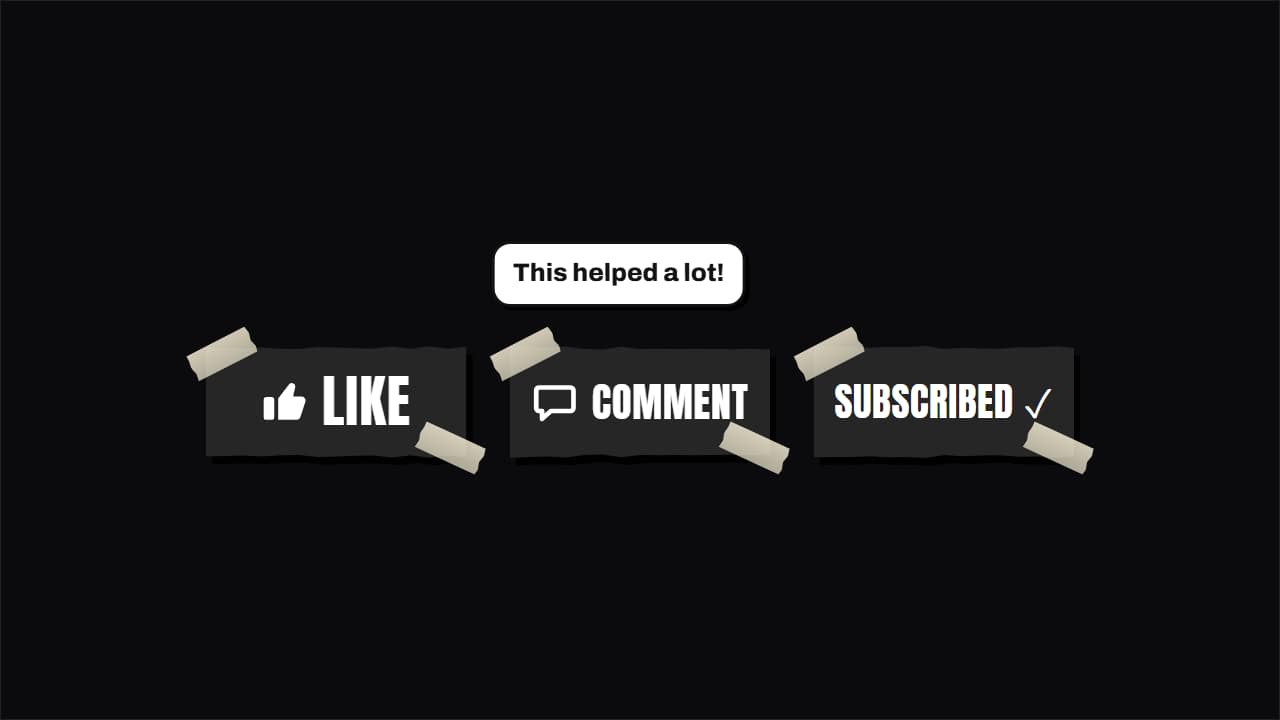 Like, comment & subscribe, hand-madeThe usual three buttons made into objects: paper cut-out with tape, marker on a whiteboard or rubber stamp.
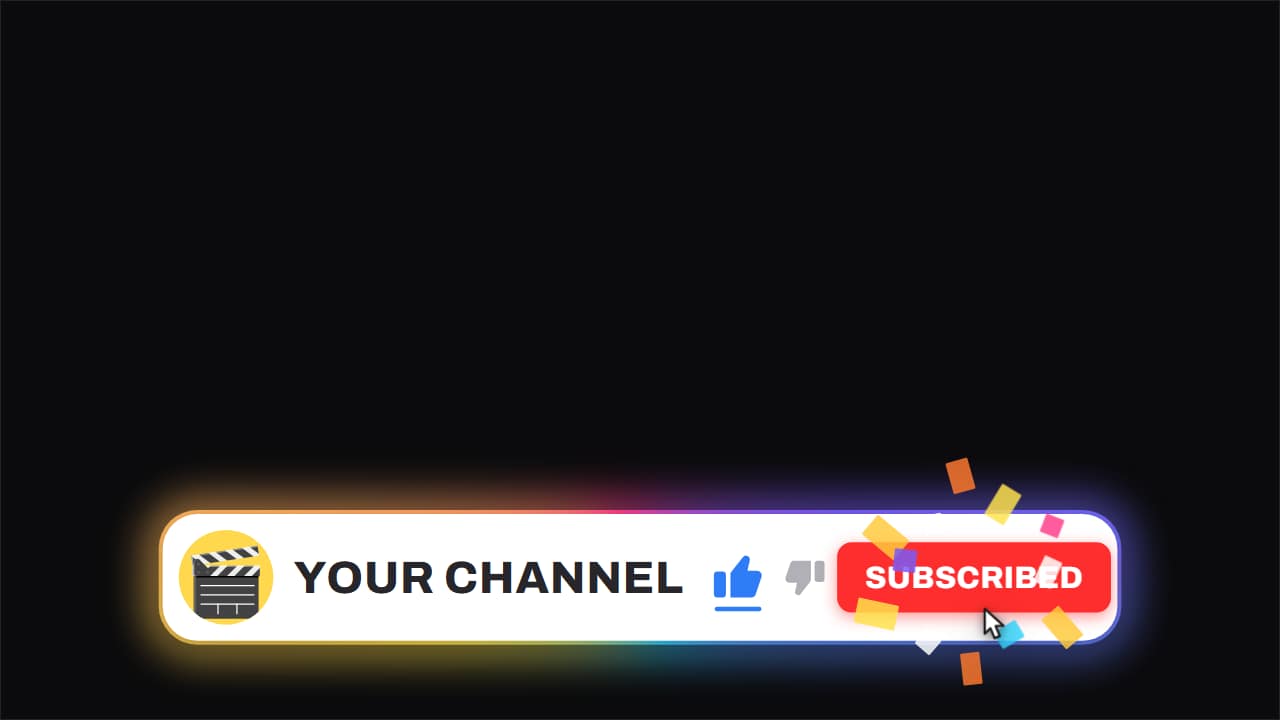 Channel bar · like and subscribeThe white capsule with the ROTATING gradient edge, floating over the video while it keeps running underneath.
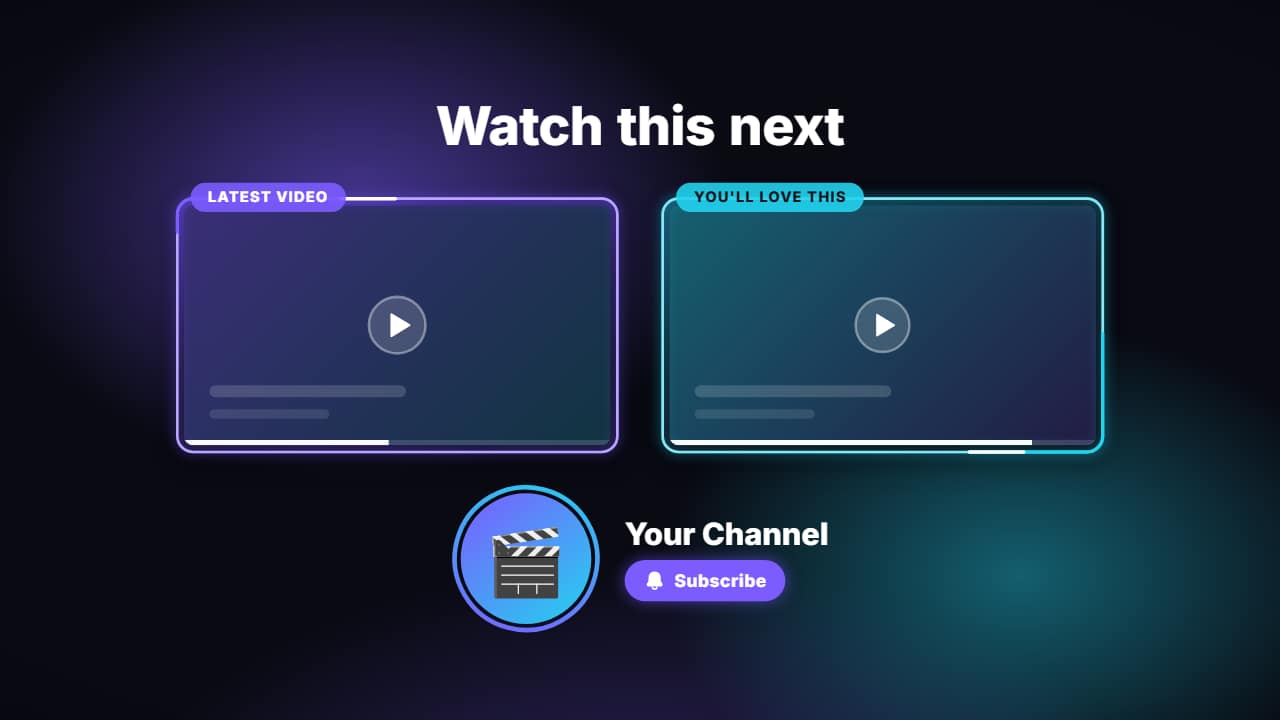 End screenThe last seconds of your video: a title («Watch this next»), two 16:9 slots where YouTube puts its…
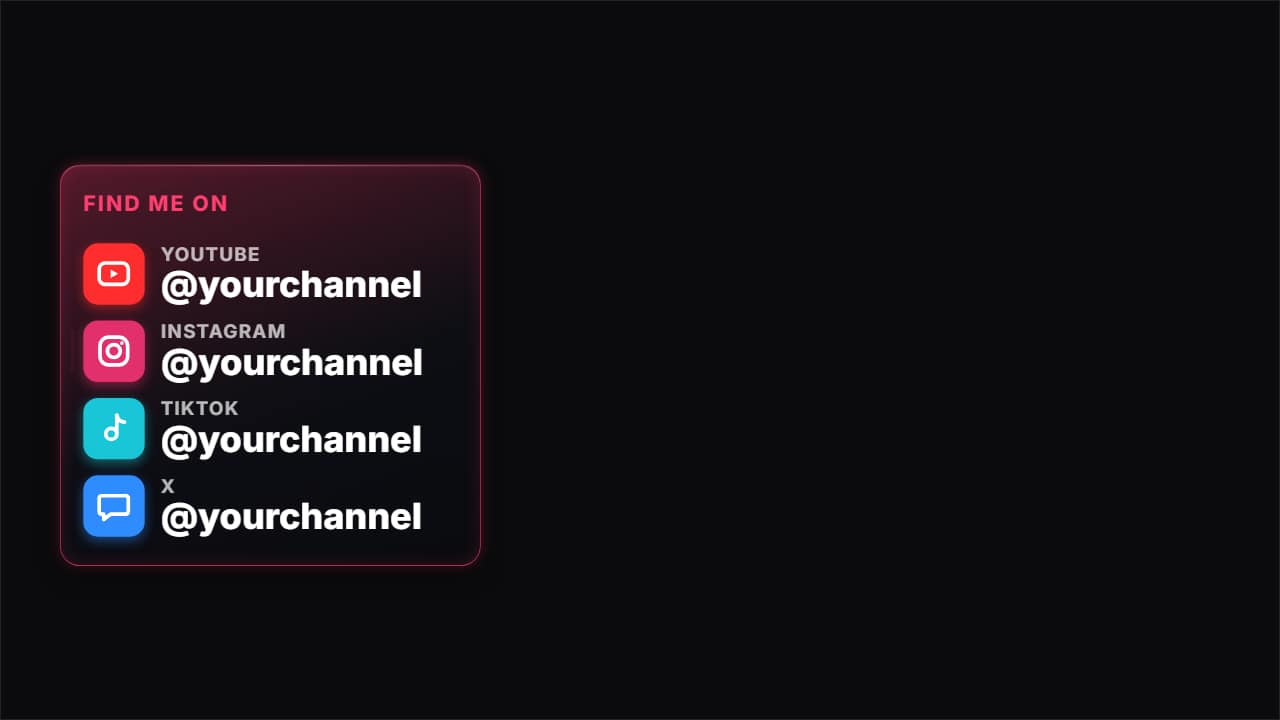 Find me on social mediaThe card with all your socials: one row per platform with its icon, the name and your @.
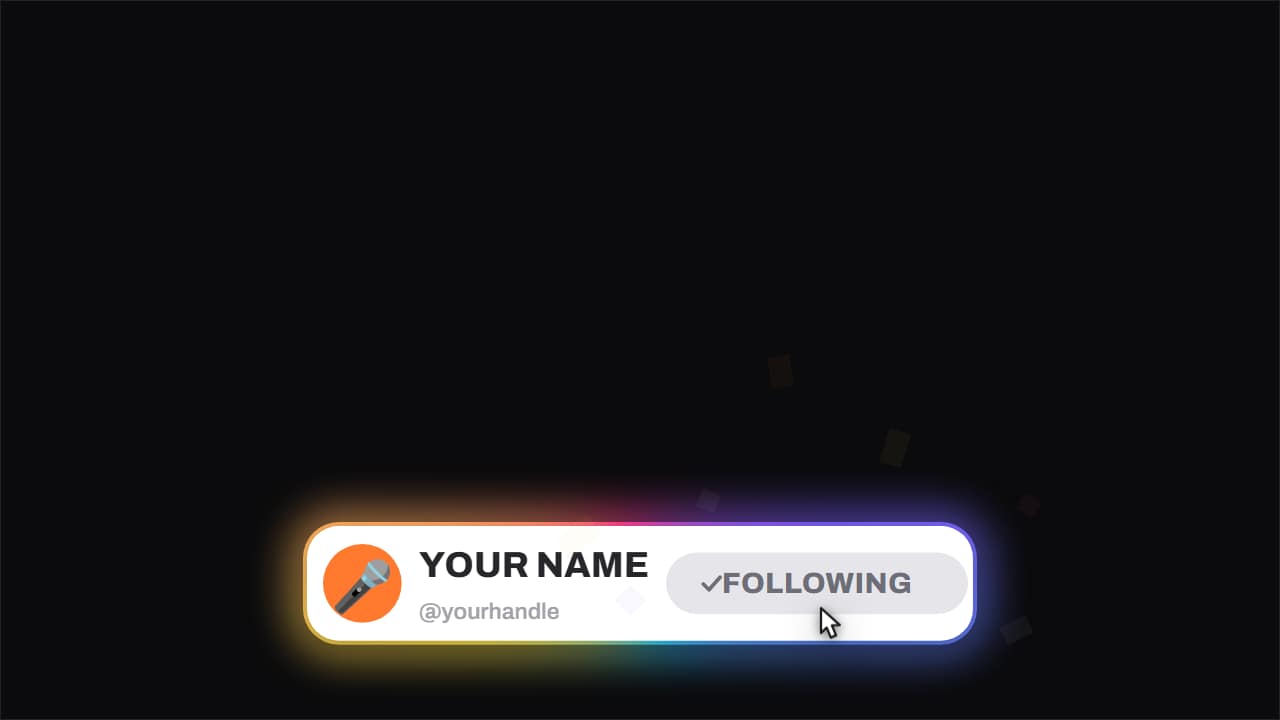 Follow card · with confettiThe short version of the channel bar, the one built for vertical feeds: avatar, name, handle and a button…
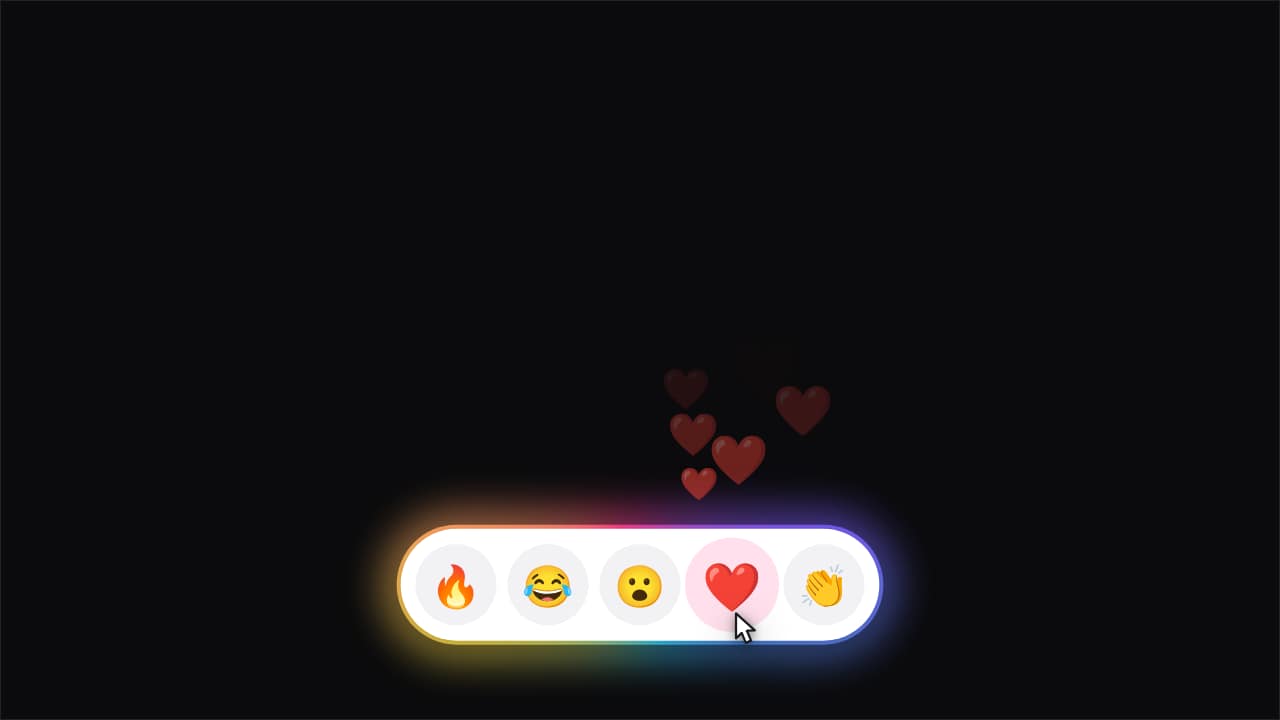 Reactions · the one you tap pours outA row of emoji inside the capsule. The cursor reaches one, taps it, and a stream of copies of that emoji…
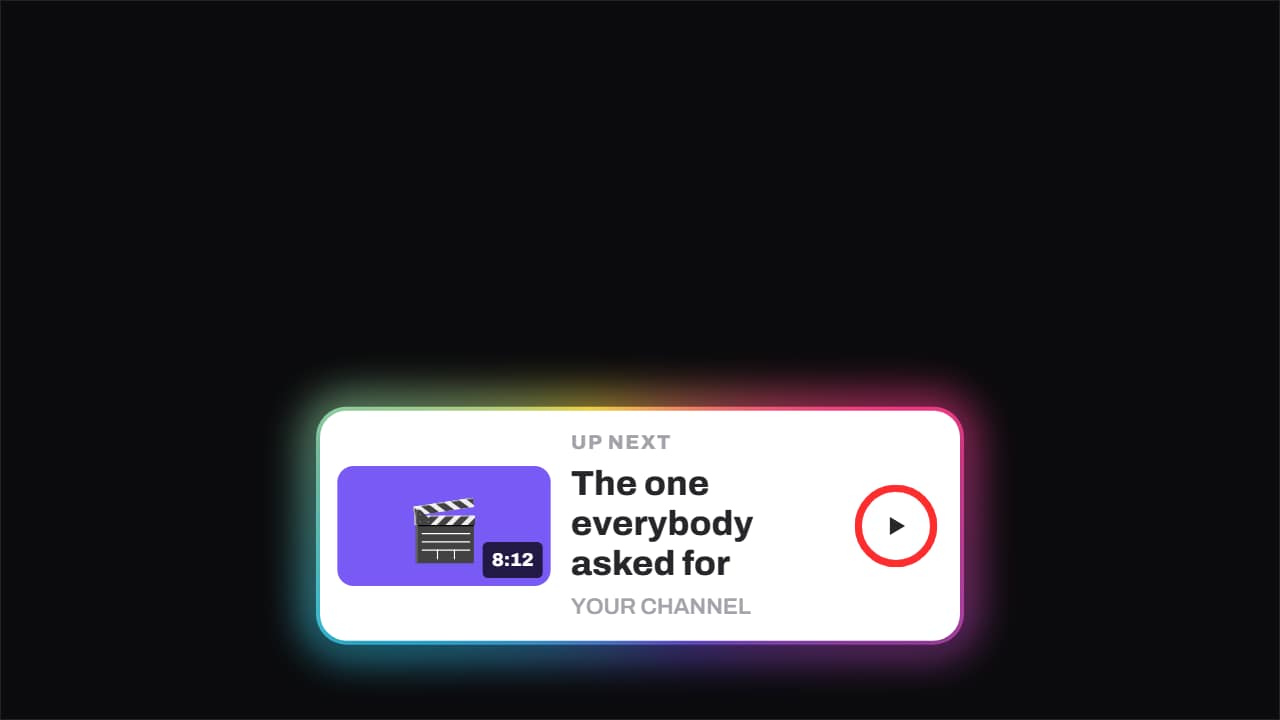 Up next · the ring runs outThe up-next card: thumbnail with its runtime, title, channel and a ring that fills until it fires on its own.
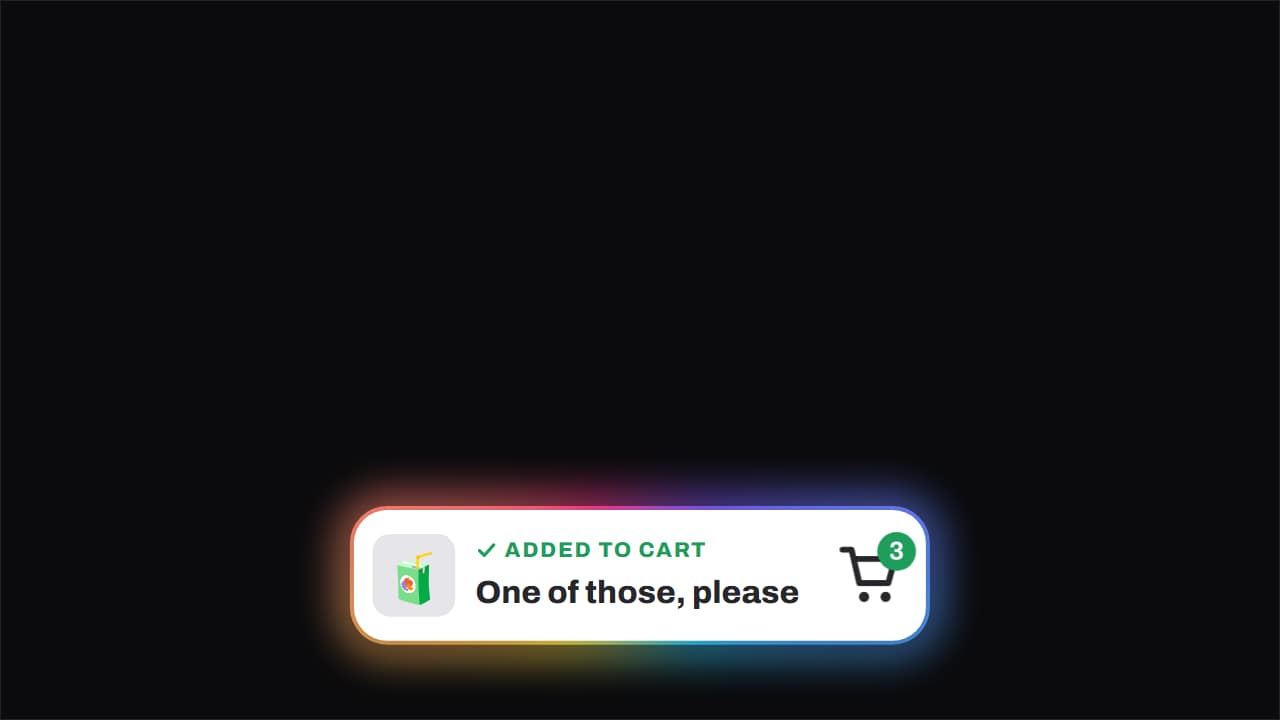 Added to cart · the item flies inThe item arcs across into the cart, the badge ticks up with a pop and the green tick appears.