Timer overlay maker
Pick how long — 10 seconds, 30 seconds, 1 minute, up to 10 minutes or any time you type — add a line on top and the word for zero, and five timer overlays count it down in real time right here: a spinning kitchen dial, a thick 3D ring, an hourglass, huge digits on glass and a small corner ring. Open one and the editor already has your time.
Make your timer
The checkerboard is the transparent part: only the animation ends up on top of your video.
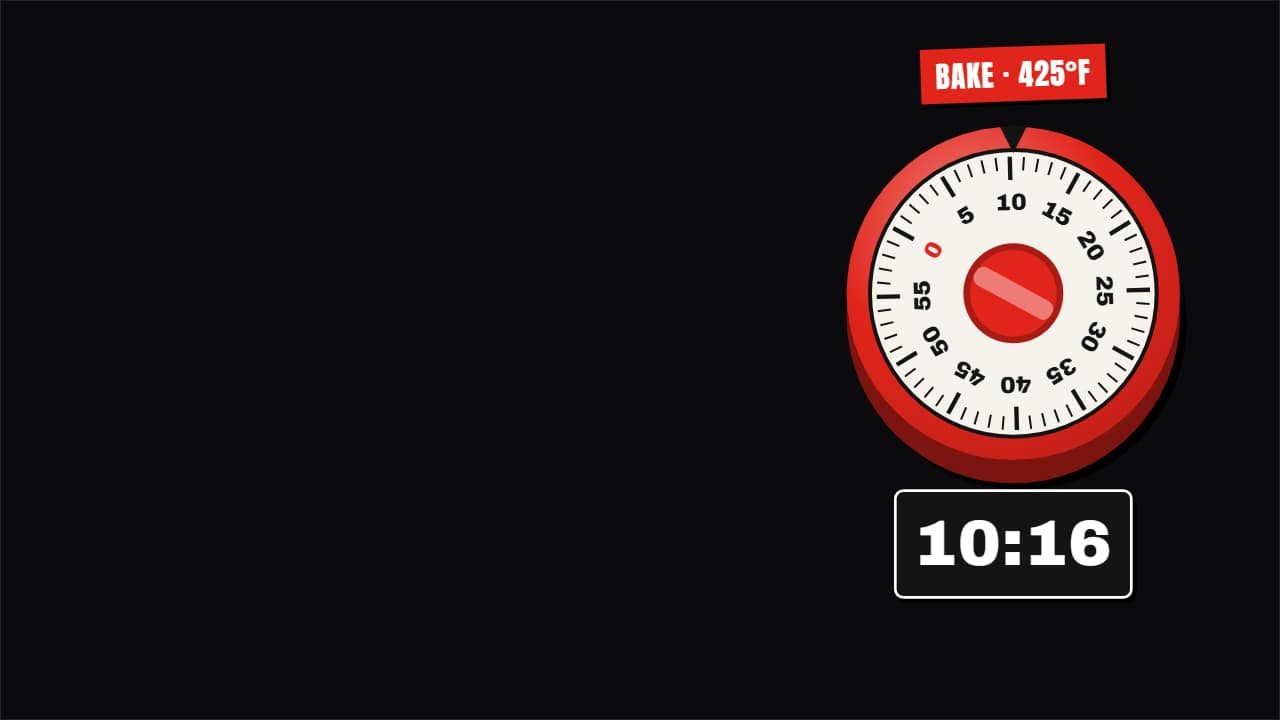
Spinning dial timer
Customize & export — free3D ring timer
Customize & export — free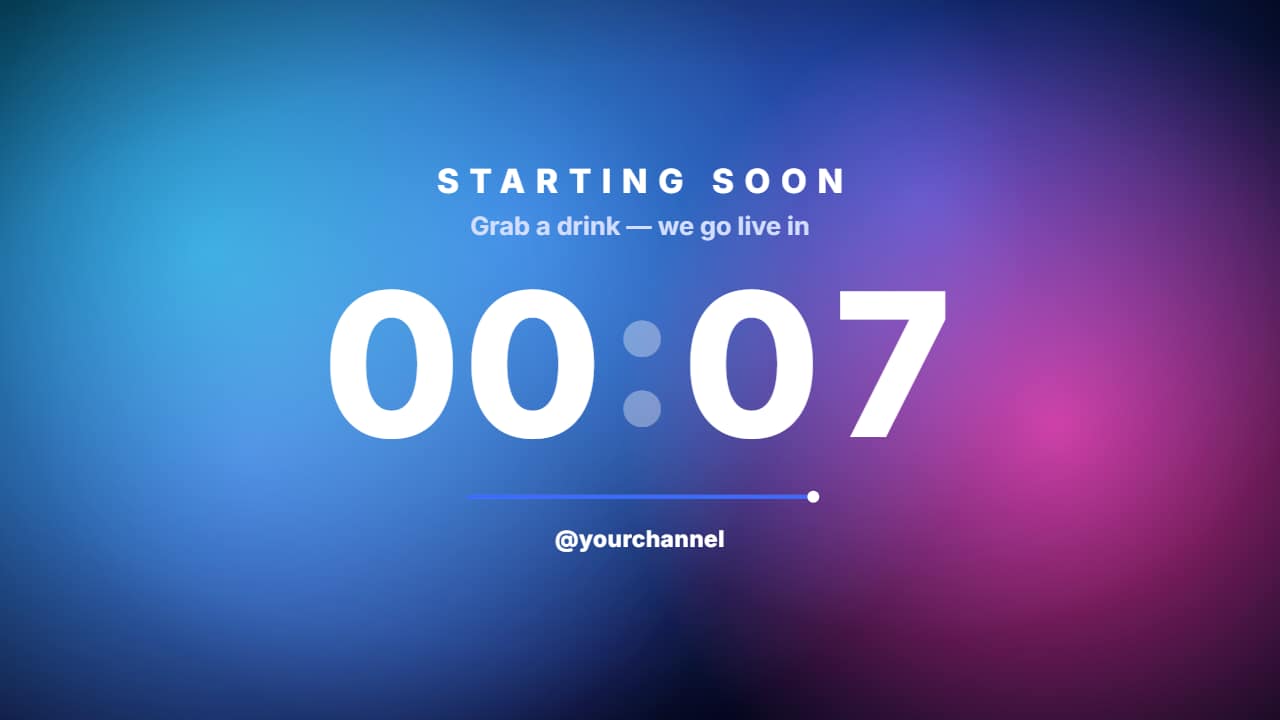
Big glass countdown
Customize & export — freeHourglass timer
Customize & export — free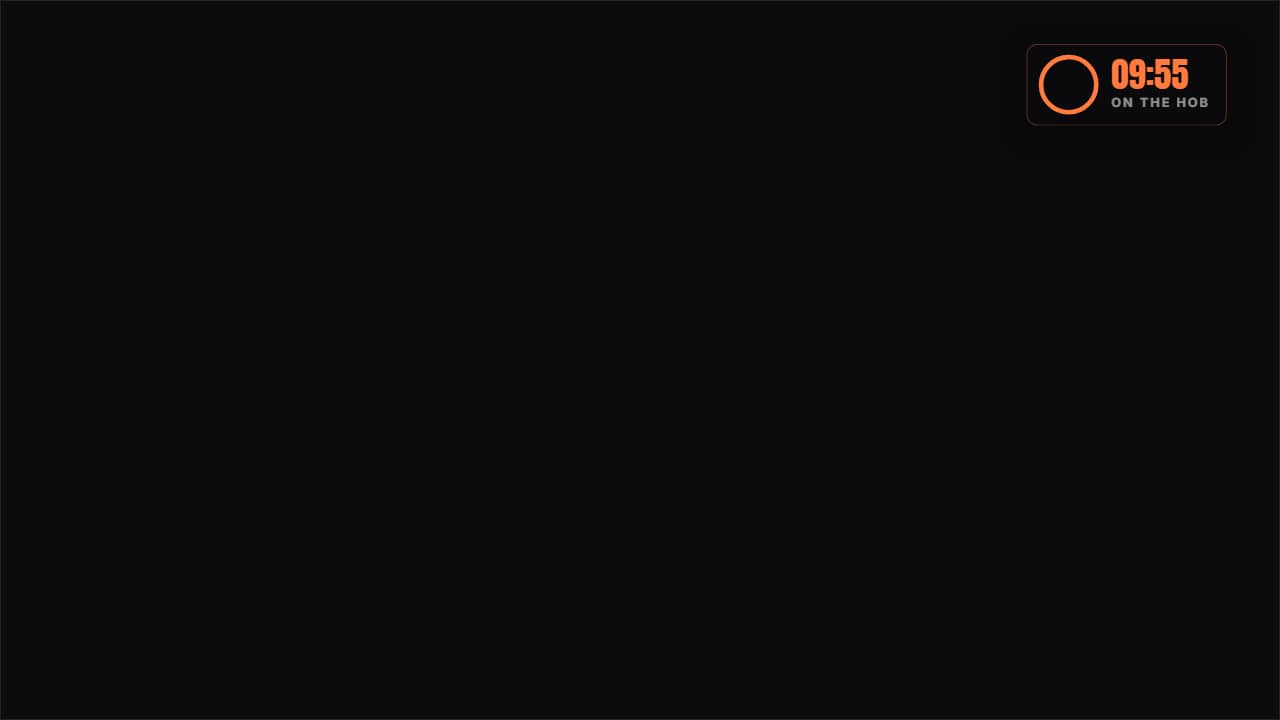
Corner ring timer
Customize & export — free
Every second is a real second
These timers run on the clock, not on a sped-up animation: a 45-second timer shows 0:45 and reaches 0:00 exactly 45 seconds later, so you can lay it over a plank, a pilates hold, a study sprint or a game round and it matches what is happening. The video you export lasts the whole count plus a short finish where the end word appears.
The line on top names the moment — «PLANK», «REST», «FOCUS» — and the end word replaces the default «DONE!». In the editor you can also move it to a corner, resize it, switch the format to 9:16 for Shorts and Reels or 1:1, and change the timer later.
Long timers: green screen and one export per minute
A transparent file can be up to one minute long, because beyond that the file gets huge. Longer timers show and export as a green screen MP4 that you key out in your editor. Timers can run up to 10 minutes; for a longer workout, make it in parts and place them one after another.
The editor counts each started minute as one export and tells you before you download, so a 5-minute timer counts as five. Want a quick 3-2-1 instead? The countdown timer maker does short countdowns from 3 to 10, and the progress bar maker fills a bar for any section up to 3 minutes.
How to use it in your editor
CapCut
- Add the timer on a track above your clip where the exercise starts. On the phone: Overlay → Add overlay.
- For the green screen MP4, apply Chroma key and pick the green.
Premiere Pro
- Import the file and place it on V2 at the first frame of the set.
- Never change its speed: it already counts in real seconds.
DaVinci Resolve
- Put the timer on the track above your footage.
- With the green MP4, add a chroma key effect and pick the green; with the .mov, set Alpha Mode: Premultiplied if you see black.
Questions
- Is the timer overlay maker free?
- Choosing the time and watching the timers is free and needs no account. Exporting asks you to sign in; during the open beta new accounts get export credits at no cost.
- Can I make a 20-second or 30-second timer?
- Yes: tap 20 s or 30 s, or type any time between 0:10 and 10:00 in Custom.
- Does it beep at zero?
- The exported video has no sound. Add a beep or a bell from your editor's sound library at the moment it reaches zero.
- Is it good for workouts and pilates?
- Yes. Use one timer per hold or per round; for work and rest intervals, the interval workout timer template counts both.
- Why is a 10-minute timer on green screen?
- A transparent video over one minute would be several gigabytes. The green MP4 is far lighter and every editor can remove the green.
Want a different style? See the kitchen timer templates