Progress bar overlay maker
Choose how long the bar lasts, type your chapters if you have them and pick a color: five animated progress bars fill at the real speed right here — a thick bar with a runner, a glass capsule, a segmented bar, a video player scrubber and a «wait for it» bar. Open the one you like and the editor opens with your timing already set.
Make your progress bar
The checkerboard is the transparent part: only the animation ends up on top of your video.
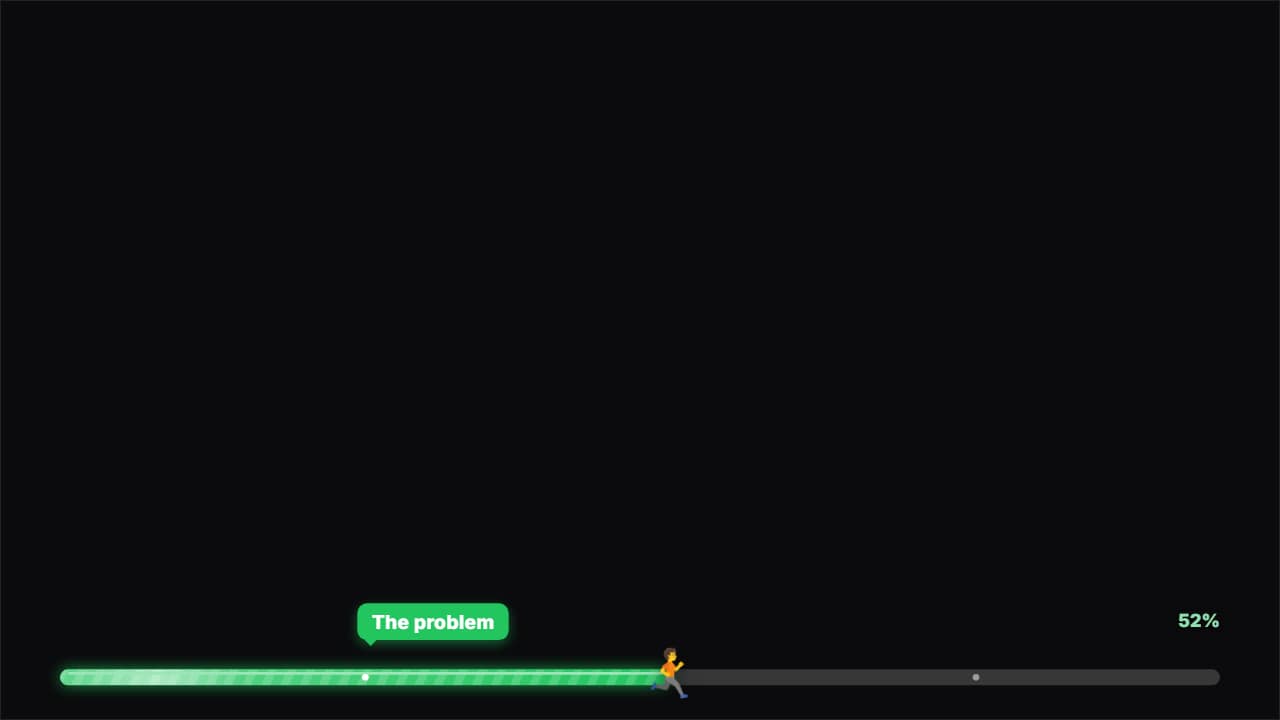
Progress bar · thick
Customize & export — freeProgress bar · glass
Customize & export — free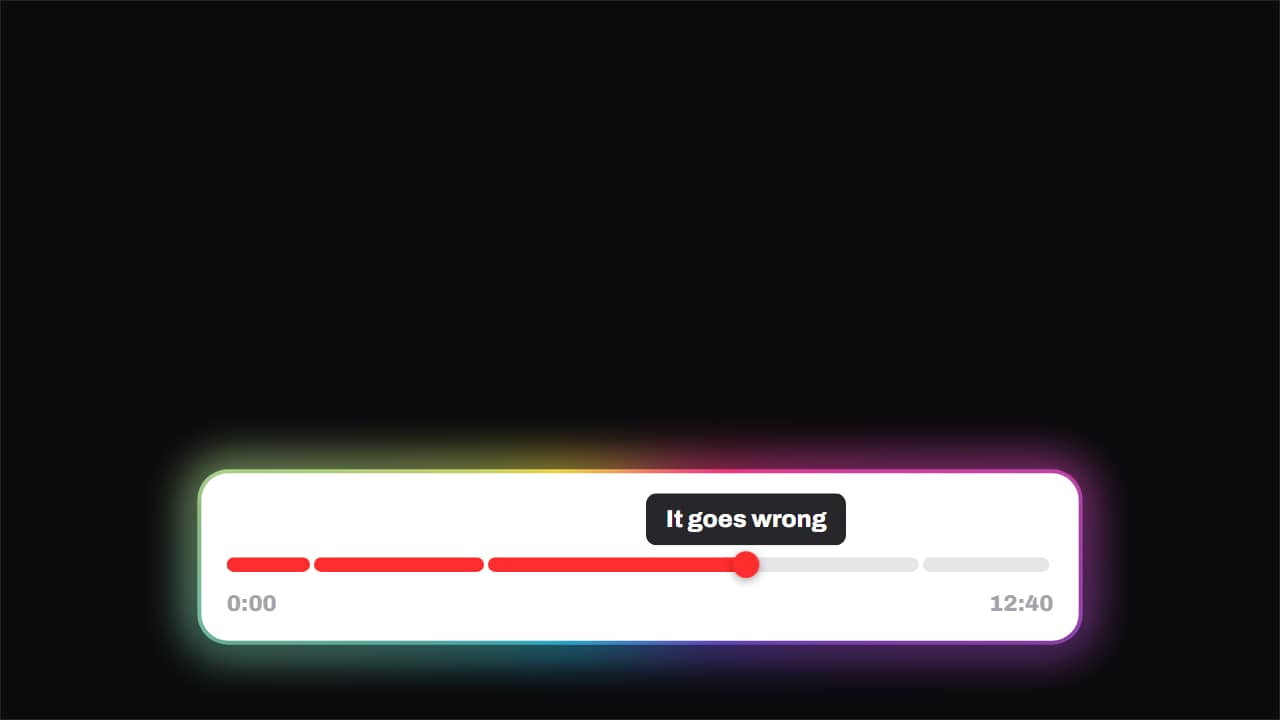
Chapters · the playhead runs the video
Customize & export — freeProgress bar · segmented
Customize & export — free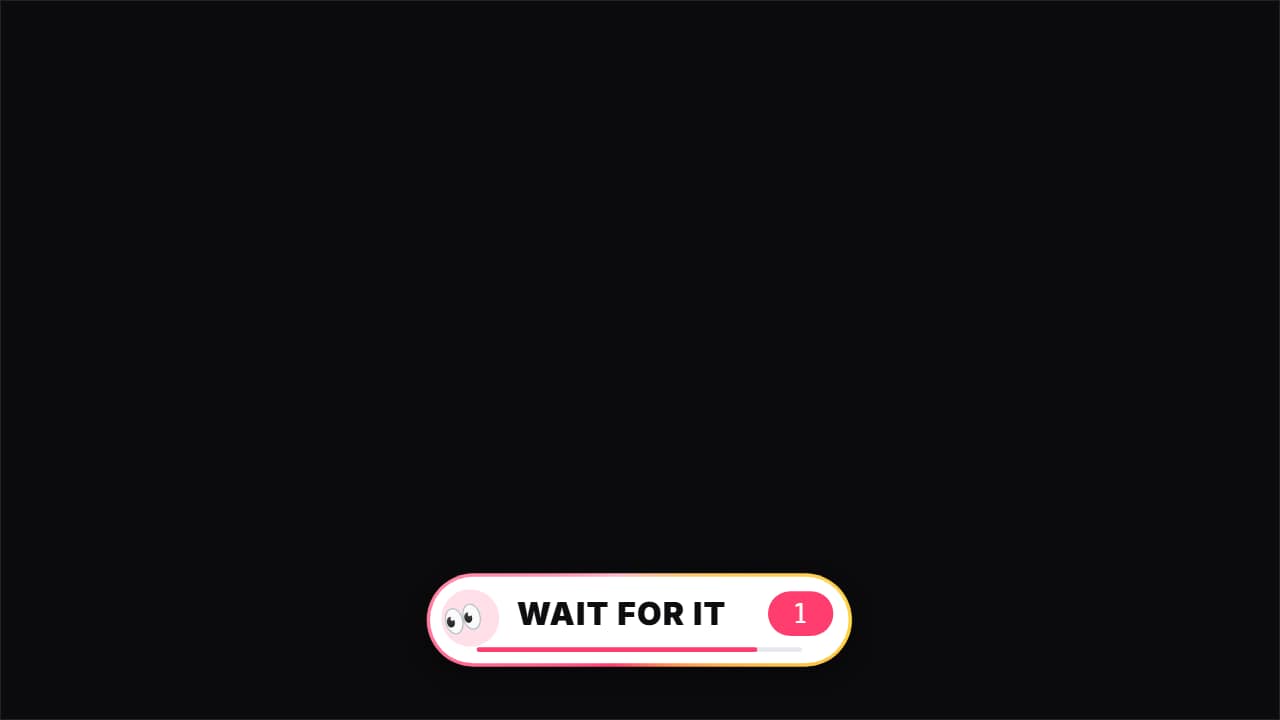
Wait for it
Customize & export — free
It fills at the real pace
A progress bar that speeds up or slows down lies about how much is left, so these move in a straight line with the clock. Pick 30 seconds and the bar takes exactly 30 seconds to reach the end; the length of the video you export follows it, including the short pop at the finish.
Chapters are spread evenly along the bar and named as you typed them: a mark pops when the head passes it and its name appears. Leave the box empty to keep the example chapters, or open the editor afterwards and set each chapter's exact second.
Which bar for which video
The thick and glass bars sit at the top or bottom of a tutorial or a list video and tell viewers how far along they are. The segmented one makes each chapter a block. The player scrubber looks like the video interface itself, with a tooltip naming the chapter. «Wait for it» fills up to your key moment, counts 3-2-1 and bursts — made for Shorts with a payoff at the end.
Bars can be up to 3 minutes. A transparent file can be up to one minute, so longer bars switch to the green screen MP4. Need a clock that counts down instead? The timer overlay maker does real-time timers from 10 seconds to 10 minutes.
How to use it in your editor
CapCut
- Place the file on a track above your clip, starting where the section begins. On the phone: Overlay → Add overlay.
- For the green screen MP4, select it and apply Chroma key with the green color.
Premiere Pro
- Import the .mov and put it on V2 so it covers the part of the video it measures.
- Don't stretch it in time: its speed already matches the duration you chose.
DaVinci Resolve
- Drop the .mov on the track above your footage at the start of the section.
- If it shows black, set Clip Attributes → Alpha Mode: Premultiplied.
Questions
- Is this progress bar maker free?
- Setting the duration and watching the previews is free and needs no account. Exporting asks you to sign in; during the open beta new accounts get export credits at no cost.
- How do I make the bar last as long as my video?
- Pick the length of the video or of the section it covers. Up to 3 minutes per bar; for a longer video, use one bar per section.
- Does a longer bar cost more to export?
- The editor counts each started minute as one export and shows it before you download, so a 2-minute bar counts as two.
- Can I put it at the top of the screen?
- Yes. In the editor the bars have a top or bottom position, and in 9:16 they stay inside the safe zones of Shorts and Reels.
Want a different style? See all section and chapter templates