Like and subscribe animation maker
Type your channel name, add your @ if you like, pick a color and watch six like, comment and subscribe animations play with it right here — from a 3D keyboard key to a frosted glass card. Open the one that fits your video and export it with a transparent background or on green screen.
Make your like and subscribe animation
The checkerboard is the transparent part: only the animation ends up on top of your video.
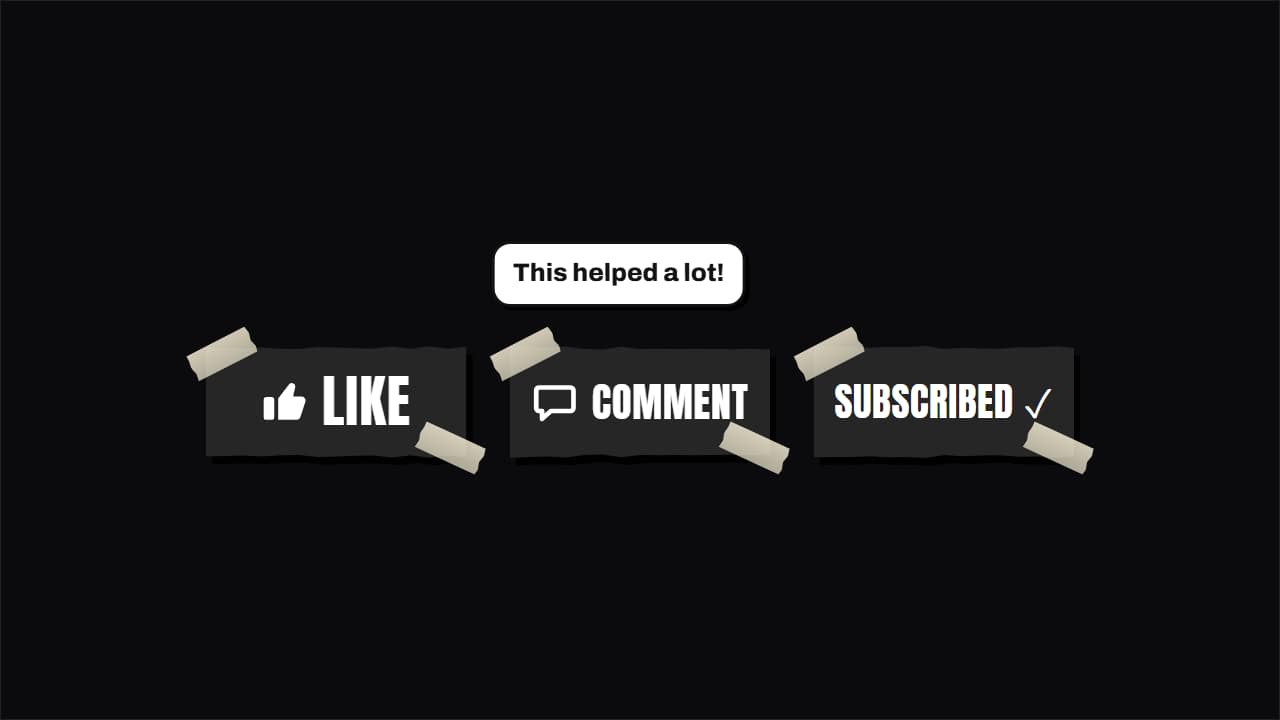
Like, comment & subscribe, hand-made
Customize & export — free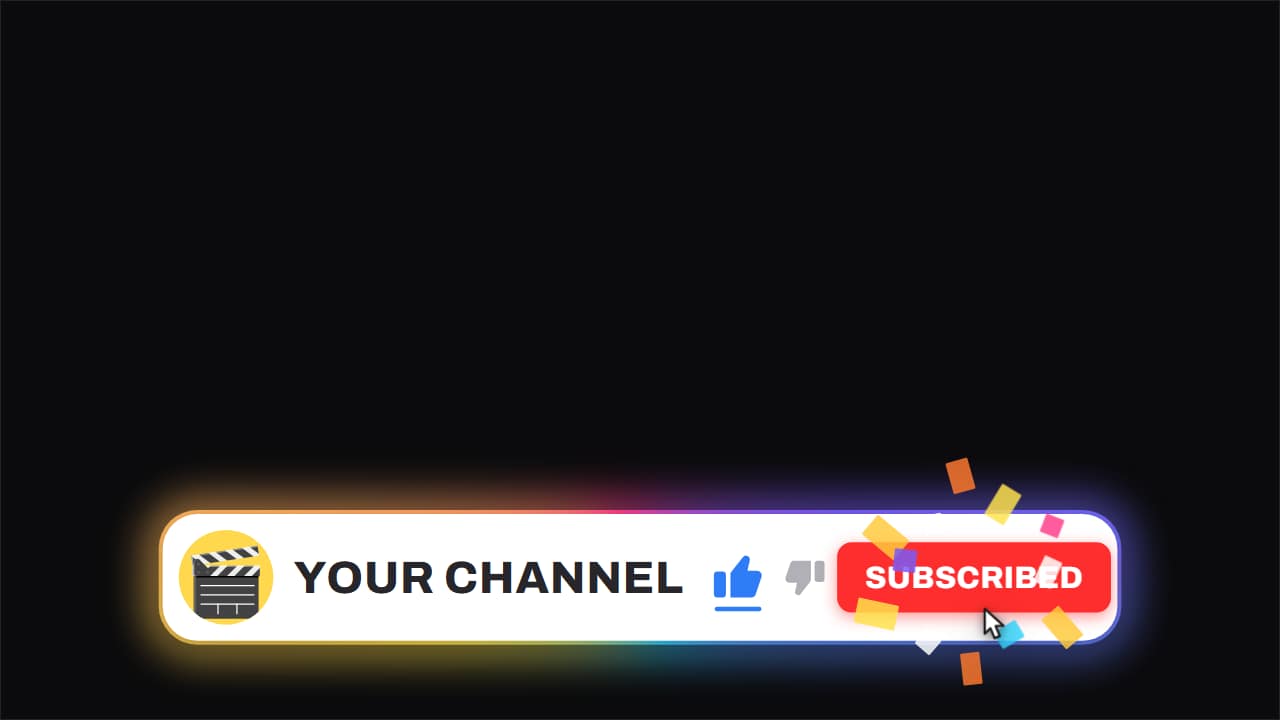
Channel bar · like and subscribe
Customize & export — free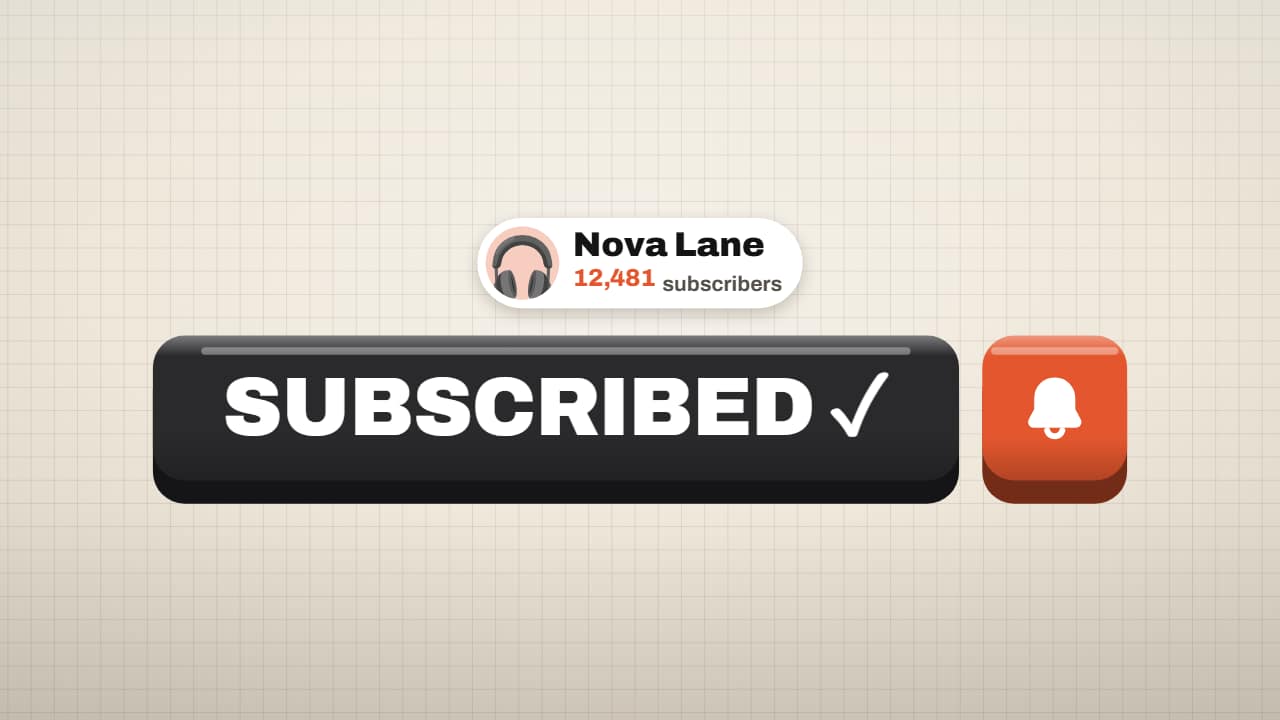
Subscribe button on a 3D key
Customize & export — free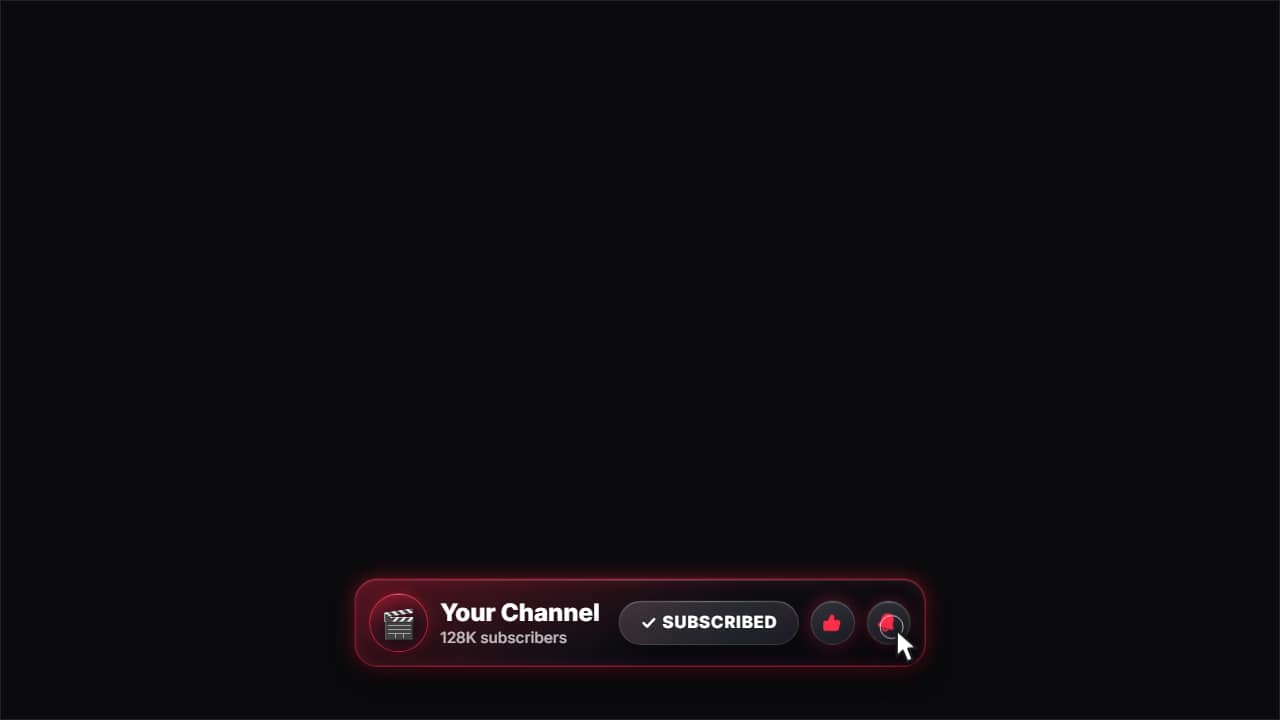
Glass subscribe card
Customize & export — free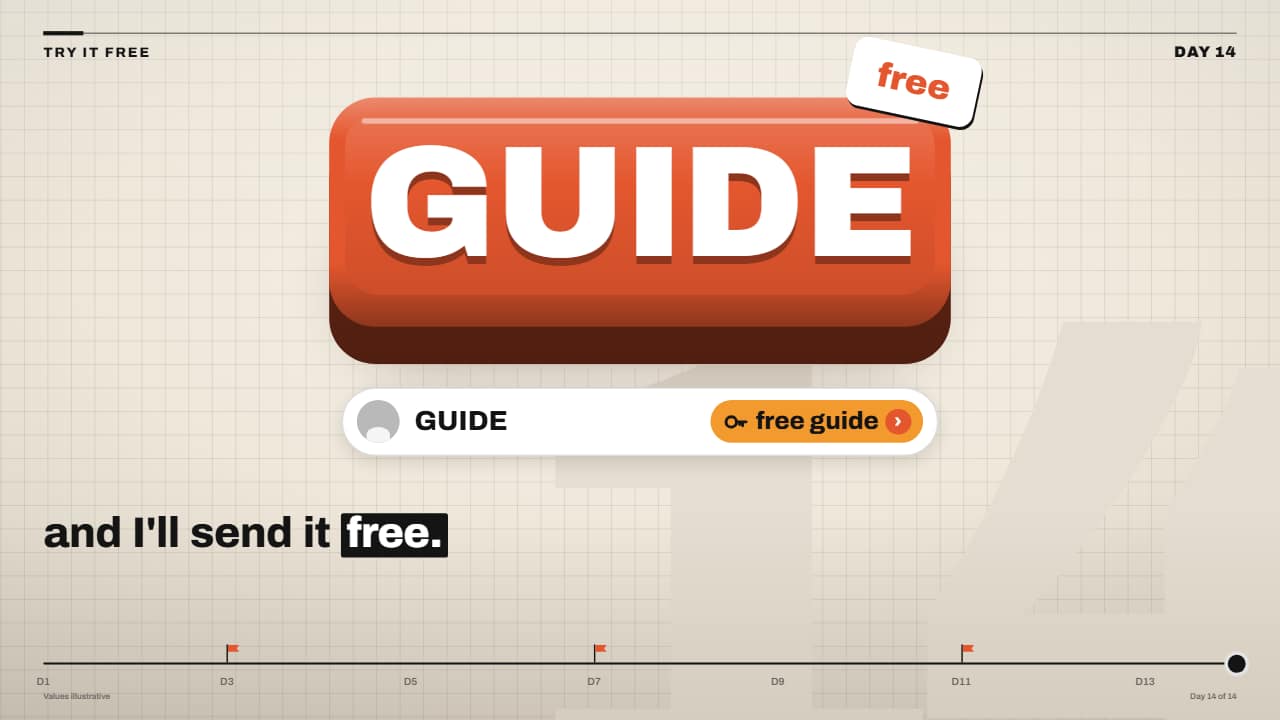
«Comment the keyword» 3D keycap CTA
Customize & export — free
Hit like
Customize & export — free
Six styles, one reminder
Asking for the like is the same sentence in every video, so the way it looks is what keeps it from feeling like a chore. Here you get the channel bar a cursor clicks (the most exported animation on the site), a subscribe key that sinks under the click in the Editorial 3D style, a frosted glass card with like and bell, a «comment the keyword» key, the classic thumbs-up with your @ and a hand-made trio of like, comment and subscribe in cut paper.
Each preview is the real template, not a recording, so what you type is drawn inside the animation and stays sharp in 4K. In the editor you can still change the button words, the subscriber count, the position, the size and the format: 16:9, 9:16 for Shorts and Reels, or 1:1.
When to put it in your video
The reminder works best right after you have given the viewer something: a tip that worked, the reveal, the payoff. Put it there for three or four seconds, then let the video carry on. The hand-made trio and the comment key are good at the end, when you want a reply more than a click.
A transparent file sits over your footage without a box around it. If you edit on a phone, choose the green screen MP4 and remove the green with your app's chroma key.
How to use it in your editor
CapCut
- On a computer, drop the file on a track above your clip. On the phone, use Overlay → Add overlay.
- Phone apps often show a transparent .mov as black: use the green screen MP4 there and key out the green.
Premiere Pro
- Import the .mov and place it on V2, above the shot it should cover.
- Trim it to the moment you ask for the like; the alpha channel comes along.
DaVinci Resolve
- Bring the .mov into the Media Pool and lay it on the track above your footage.
- Black instead of your video? Right-click → Clip Attributes → Alpha Mode: Premultiplied.
Questions
- Is the like and subscribe maker free?
- Typing and watching the previews is free and needs no account. Exporting the video asks you to sign in; during the open beta new accounts get export credits at no cost.
- Do the animations use the real YouTube logo?
- No. The icons are drawn shapes — a thumb, a bell, a speech bubble — not any company's logo, so you can use them on any platform.
- Can I change the word on the button?
- Yes. Open the animation and edit the labels in the editor: «SUBSCRIBE», «LIKE», the comment, even the keyword on the 3D key.
- Will it fit in a Short or a Reel?
- Every one of them also exports in 9:16. Keep it in the middle of the frame, away from the bottom captions and the buttons on the right.
- Only need a subscribe button?
- The subscribe button maker has five more buttons built around the subscribe click, and a green screen version.
Want a different style? See all subscribe and like button templates