Format (important)1920×1080this is how it downloads
Preview doesn't change the file
You'll download 1920×1080, 3.5 s, with no background (.mov).
You'll download 1920×1080, 3.5 s, with no background (.mov).
«👀 Wait for it…»: a bar that fills up to THE second of the key moment (the fail, the twist, the hit), with the emoji riding the tip. The last 3 seconds count down 3·2·1 and the bar shakes; when it arrives it bursts with «NOW!» and gets out of the way so it doesn't cover what matters. Three styles: a capsule with a spinning edge, a sticker with a «loading» bar, and minimal with a thin line and the time.
Plus the typeface and an optional letter outline, in every template.
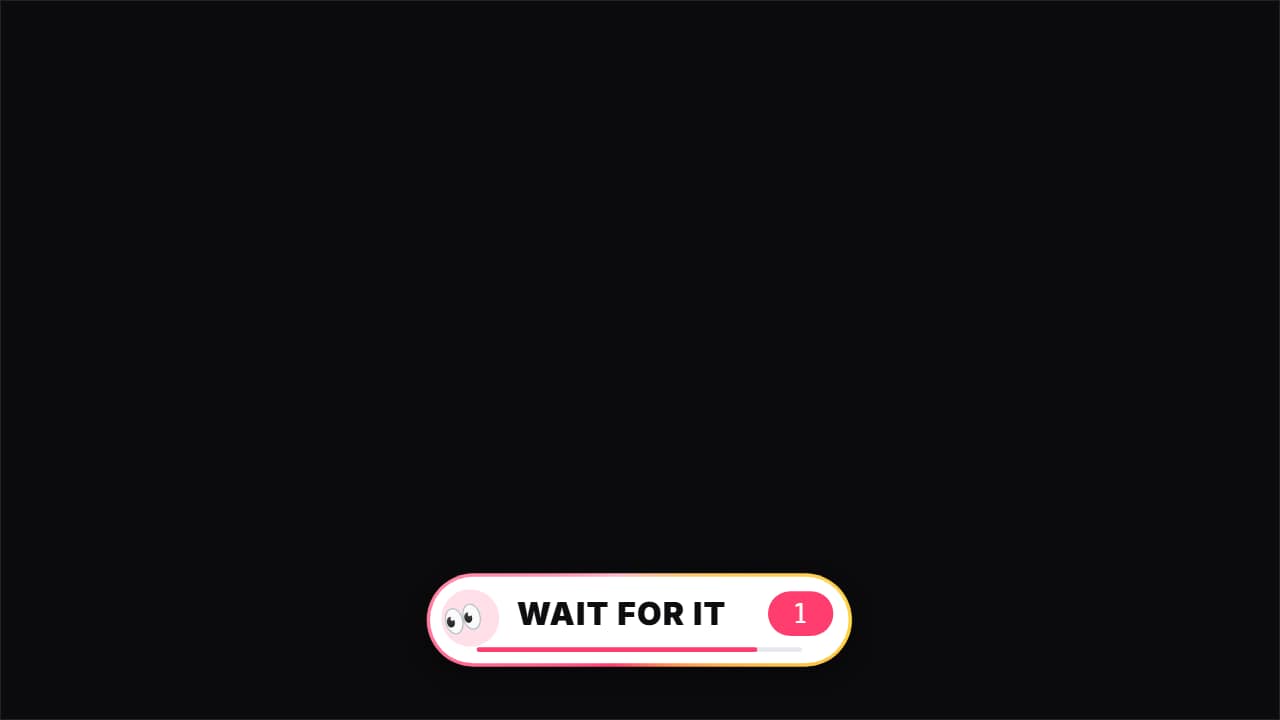
Export it without background and put it on a track above your clip: the animation plays over your video.
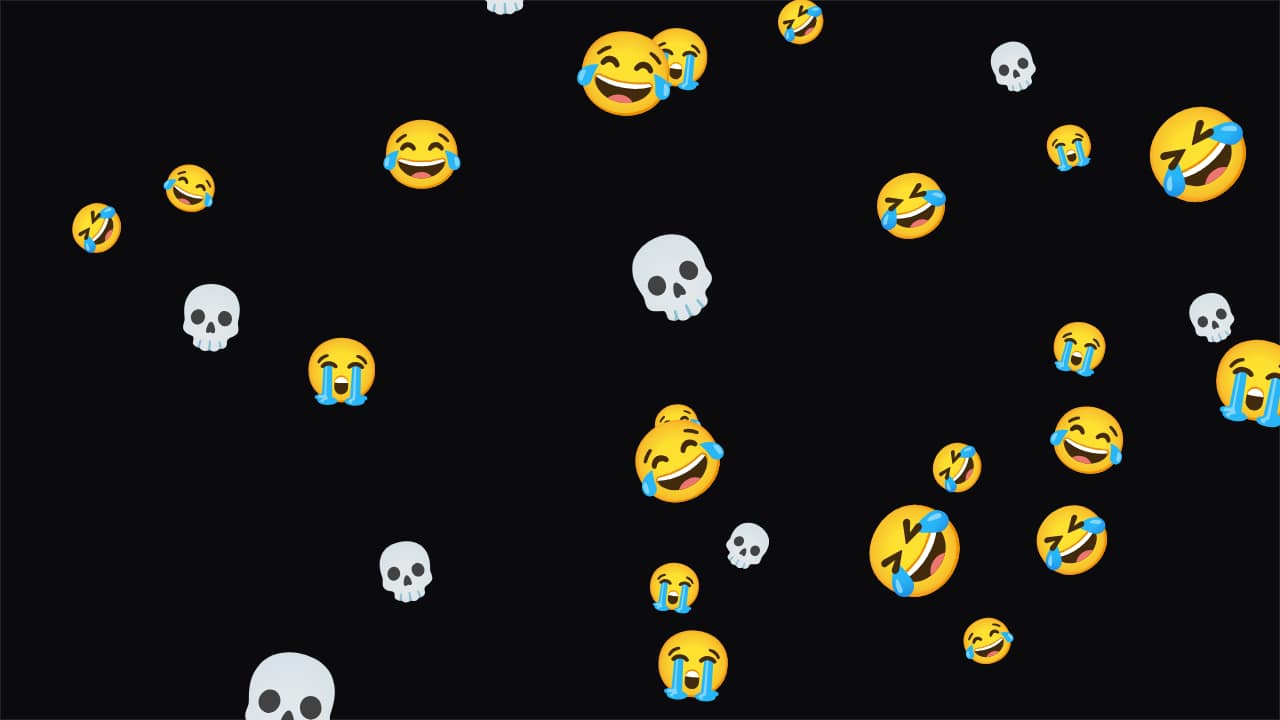 Emoji rainThe emojis you choose (😂💀😭) or your own images rain down over your video.
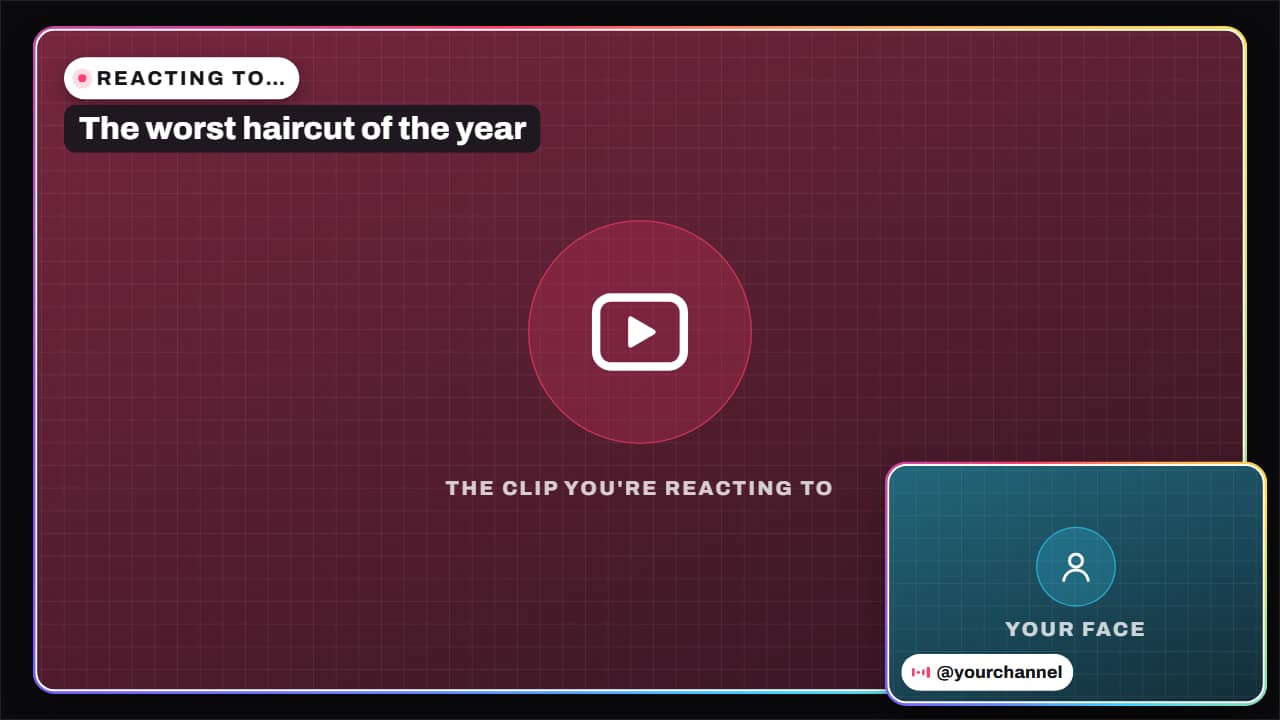 Reaction layoutThe reaction video layout: the clip you're commenting on, big, and your face in a corner, with «REACTING…
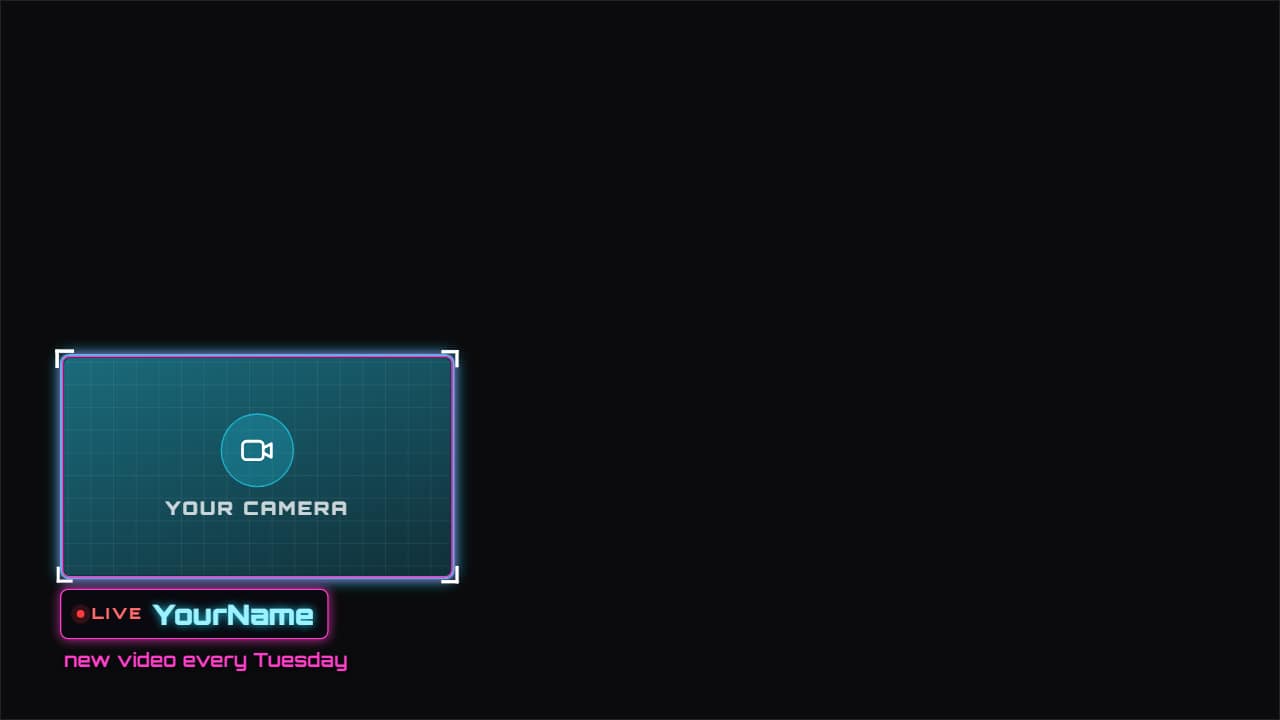 Facecam frameAn animated frame for your camera, in whichever corner you want, with your name, «LIVE» and a line of…
 Verdict stamp«FALSE», «TRUE», «EXAGGERATED»… it lands like a rubber stamp over your video right when you give the…
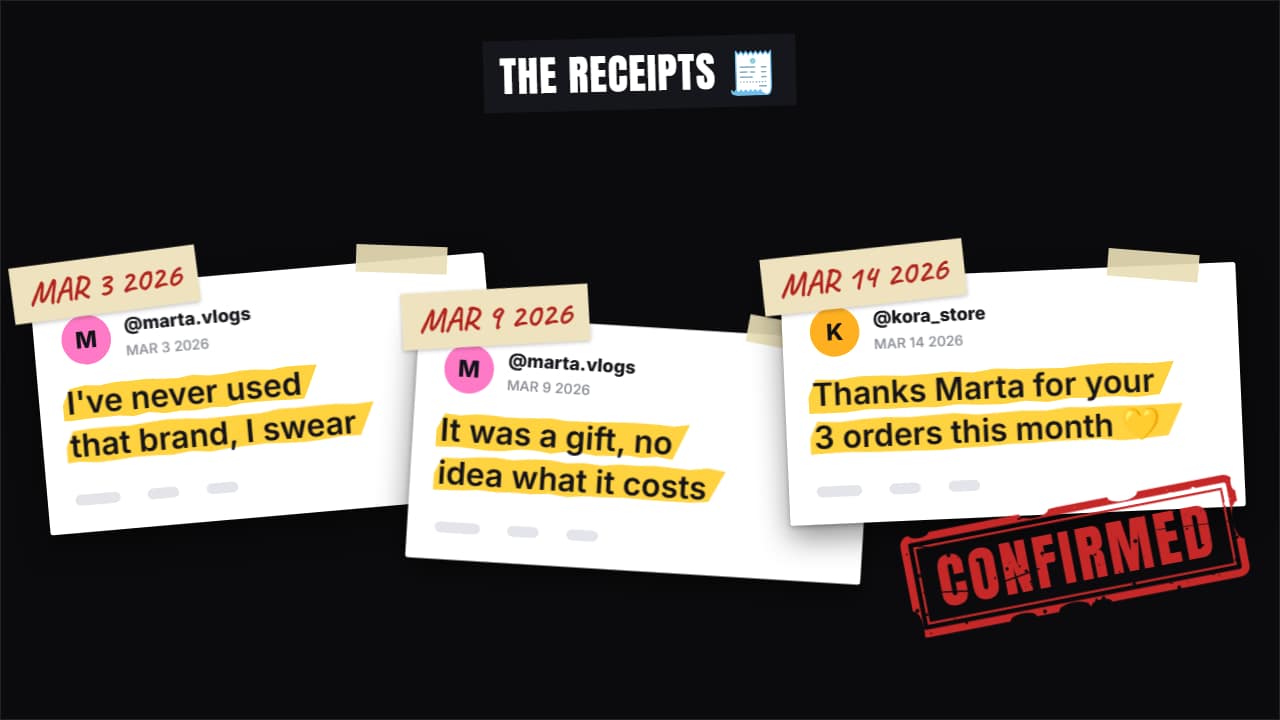 Receipts stack«Here are the receipts»: up to four screenshots drop in one after another and stack up (fanned out in…
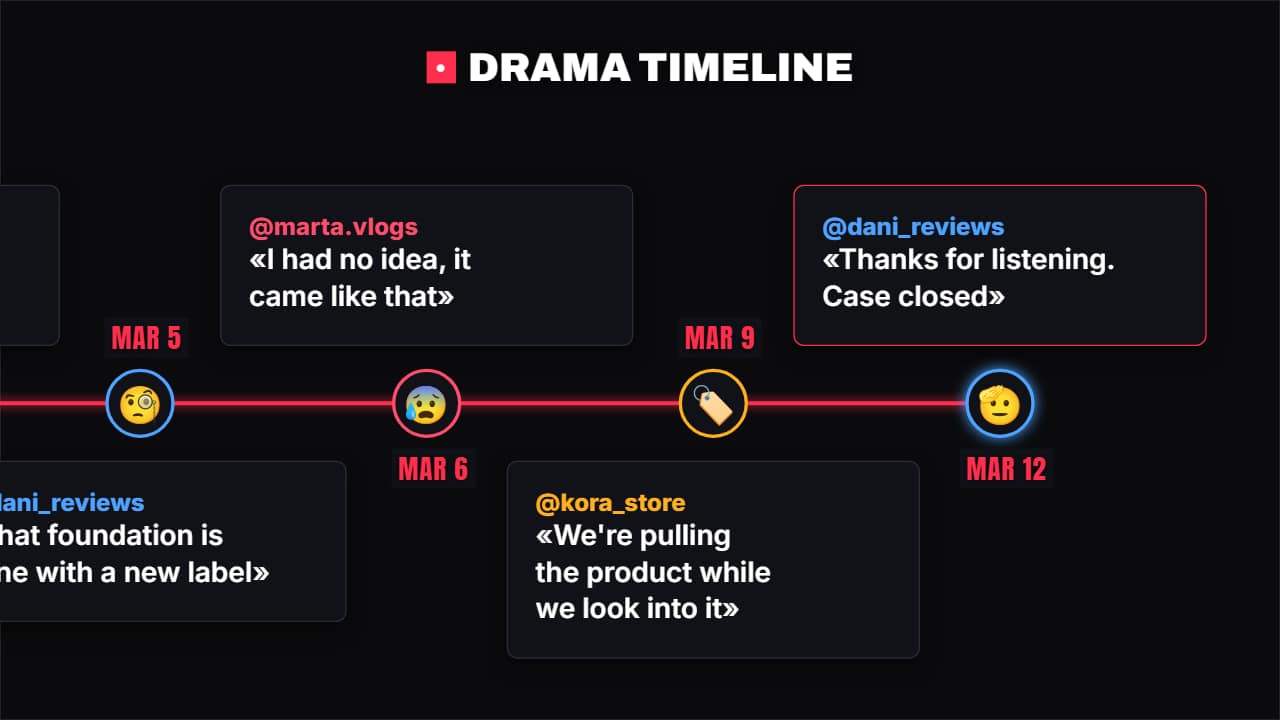 Drama timelineWho said what and when: each point has the date, the @, what they said and their avatar (emoji or photo)…
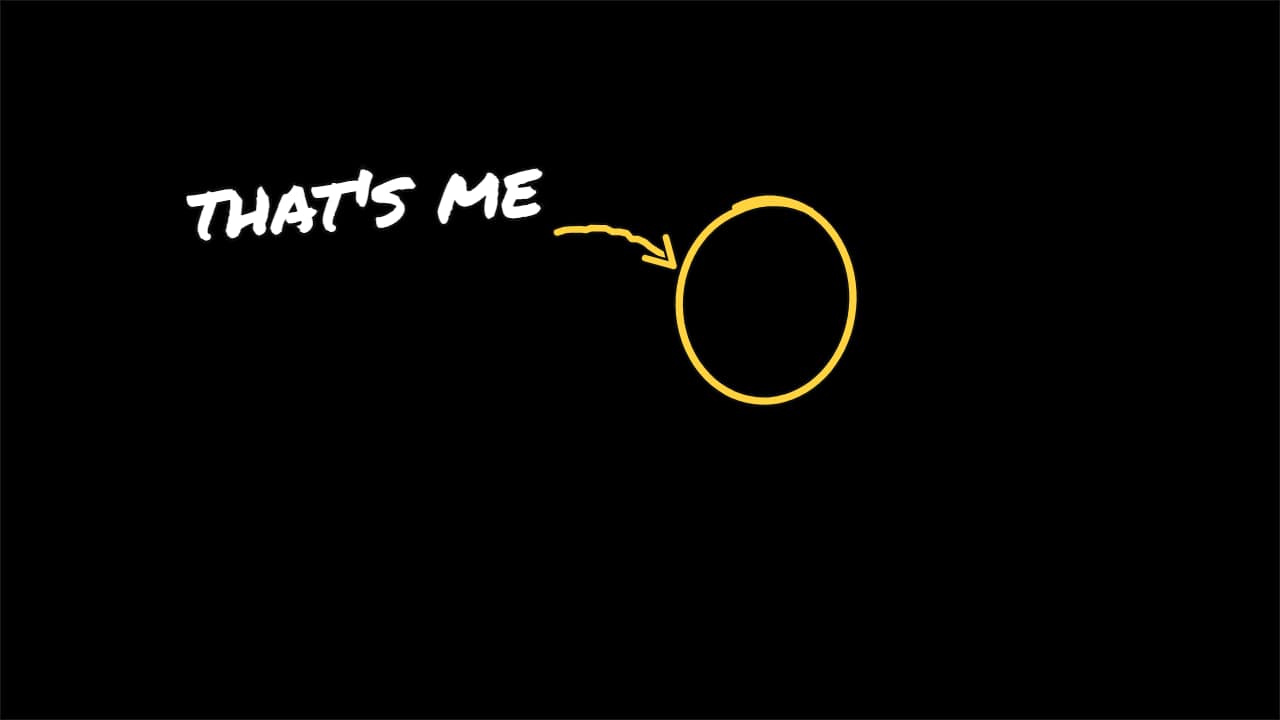 «That's me» arrowThe vlog and comedy move: a circle goes around the person, a hand-drawn arrow comes out of the label and…
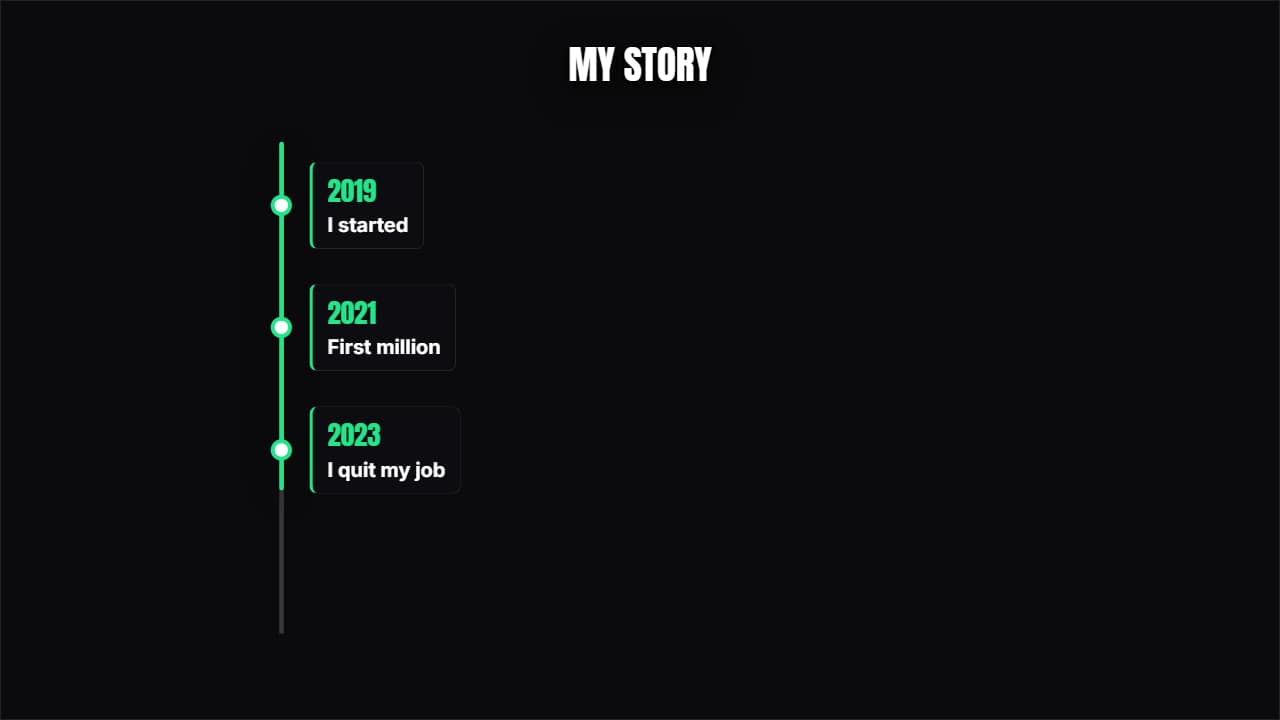 Vertical timelineThe years come down one side and each one opens its card. Built for 9:16 but it works anywhere.