Aspect ratio1920×1080this is how it downloads
Preview doesn't change the file
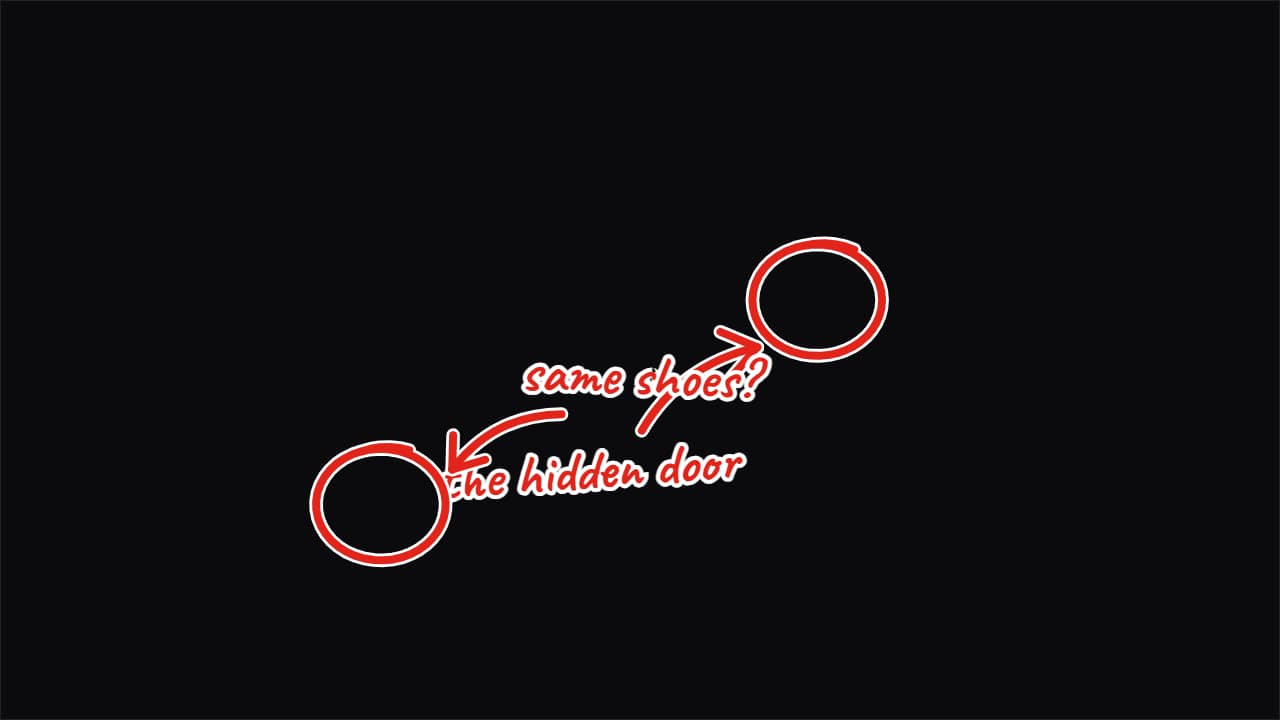
You'll download 1920×1080, 3.5 s, with no background (.mov).
BetaFree during the beta: create an account and export at no cost. No credit card.How it works →Free during the beta · no card →
You'll download 1920×1080, 3.5 s, with no background (.mov).
The big-channel gesture for pointing at something in your video: the marker circle looping around the thing, the arrow leaving the label and landing with its tip, and the label slamming in. Up to 3 spots, one after another: type «x, y | text» in % of the frame (50, 50 is the center). Three styles: red marker with a white outline, cut-paper arrow with a hard shadow, or a chunky 3D arrow with a black pill (Editorial). In vertical the labels stay inside the safe zone. Made transparent, over your video.
Collection: Arrow and circle callouts
Plus the typeface and an optional letter outline, in every template.
Export it without background and put it on a track above your clip: the animation plays over your video.
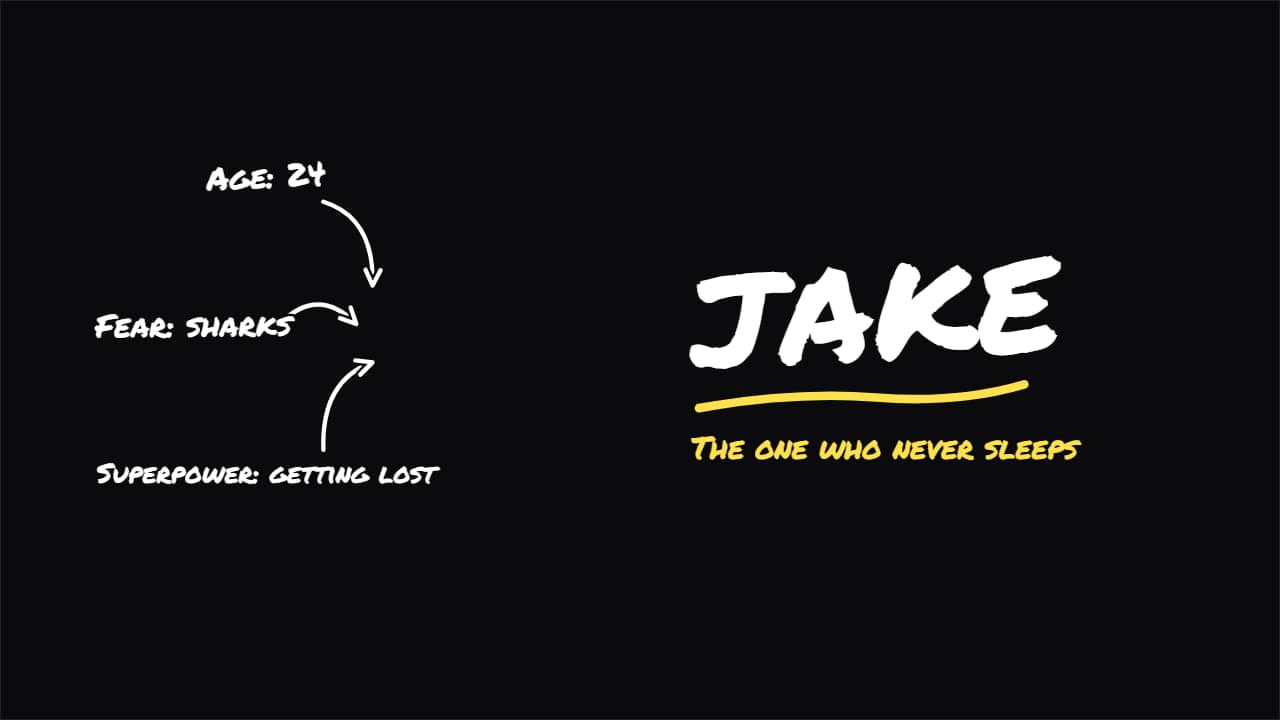 Character intro (vlog)The «this is Jake» from travel and challenge vlogs: a flash, the name SLAMS in big with its underline, the…
 Curved arrowAn arrow drawing itself in a curve from the label to the spot. Directs the eye without covering the shot.
 Place and date stampA map pin, the name of the place and the date underneath in monospace, with a colored rule drawing itself.
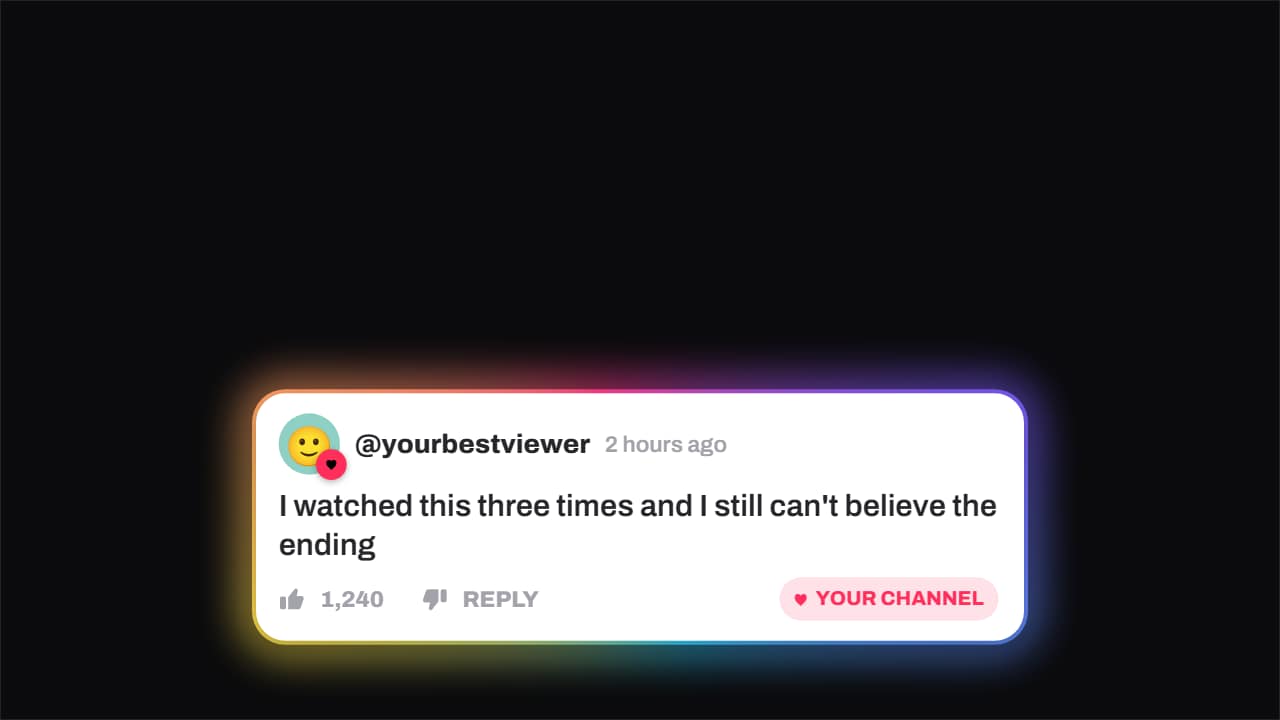 Comment · hearted by the channelA viewer's comment — avatar, timestamp, like count — and the moment the channel hearts it: the badge pops…
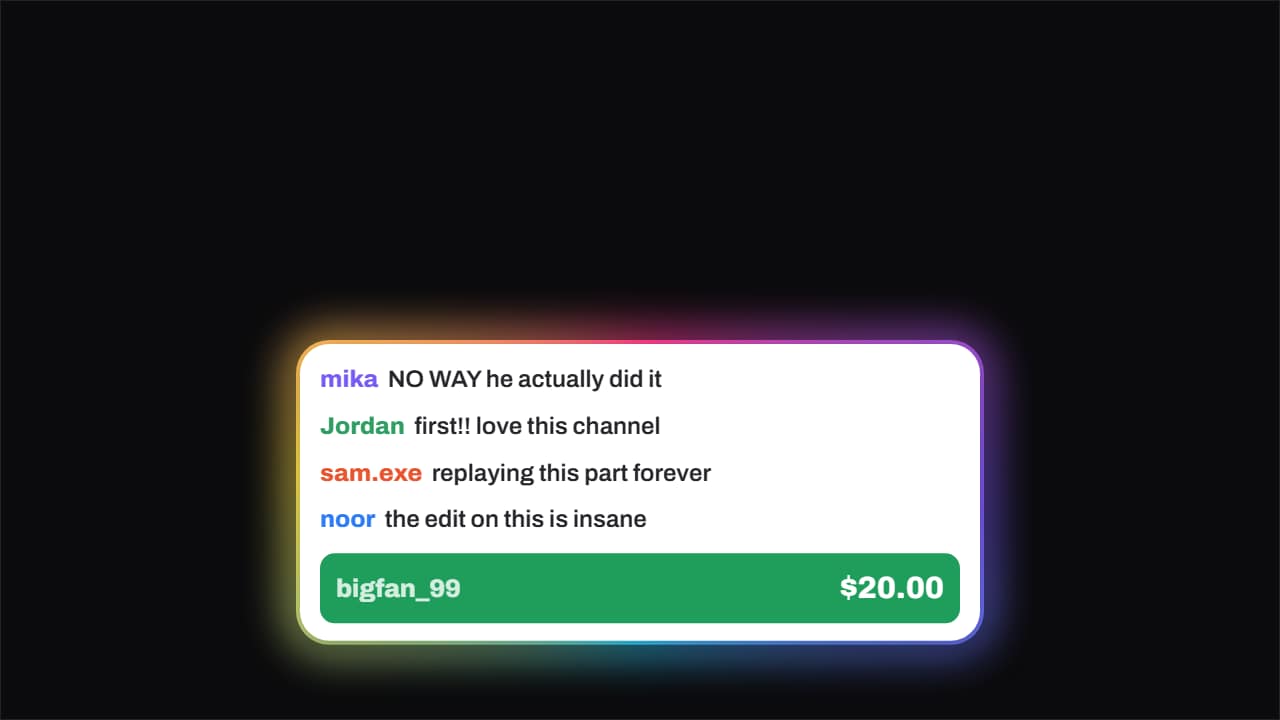 Live chat · with a donationChat messages slide in one after another from the left and, once there is a rhythm, the paid message drops…
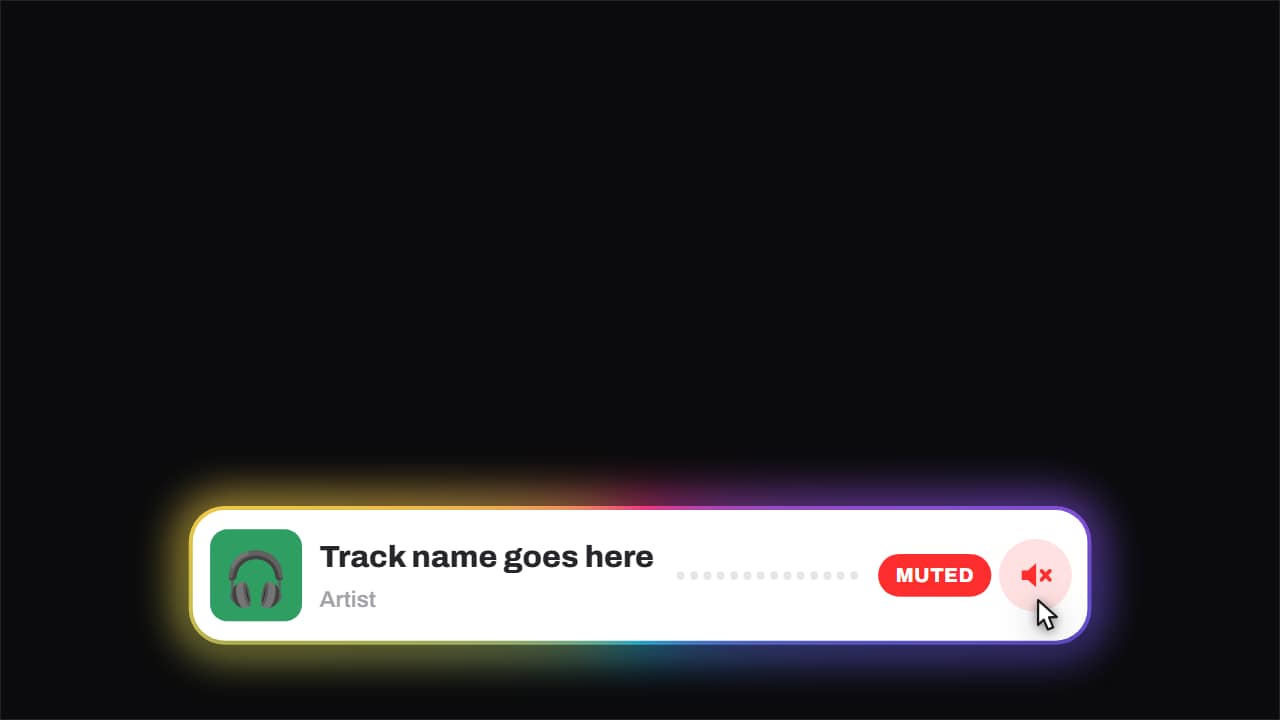 Now playing · and it gets mutedCover, track, artist and an equaliser that genuinely moves — three offset sines, so it looks like sound and…
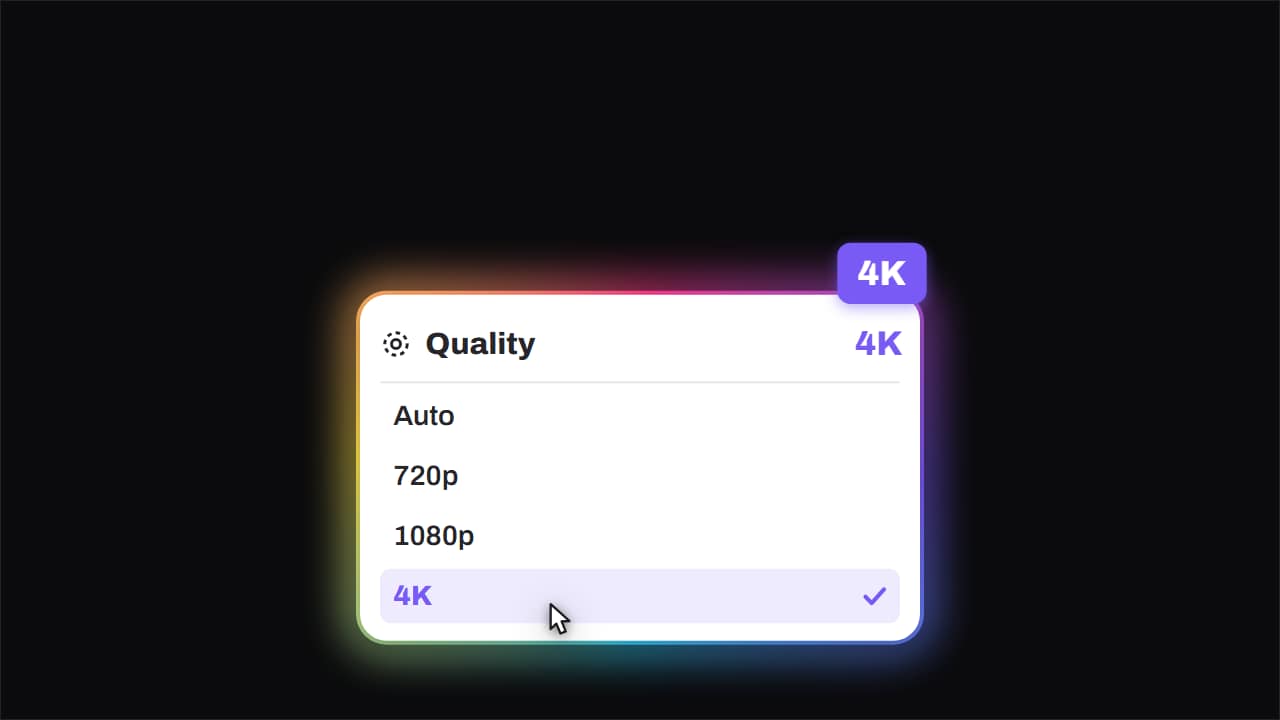 Quality · bumped to 4KThe quality menu opens, the cursor comes down, and the big badge lands rotated in the corner.
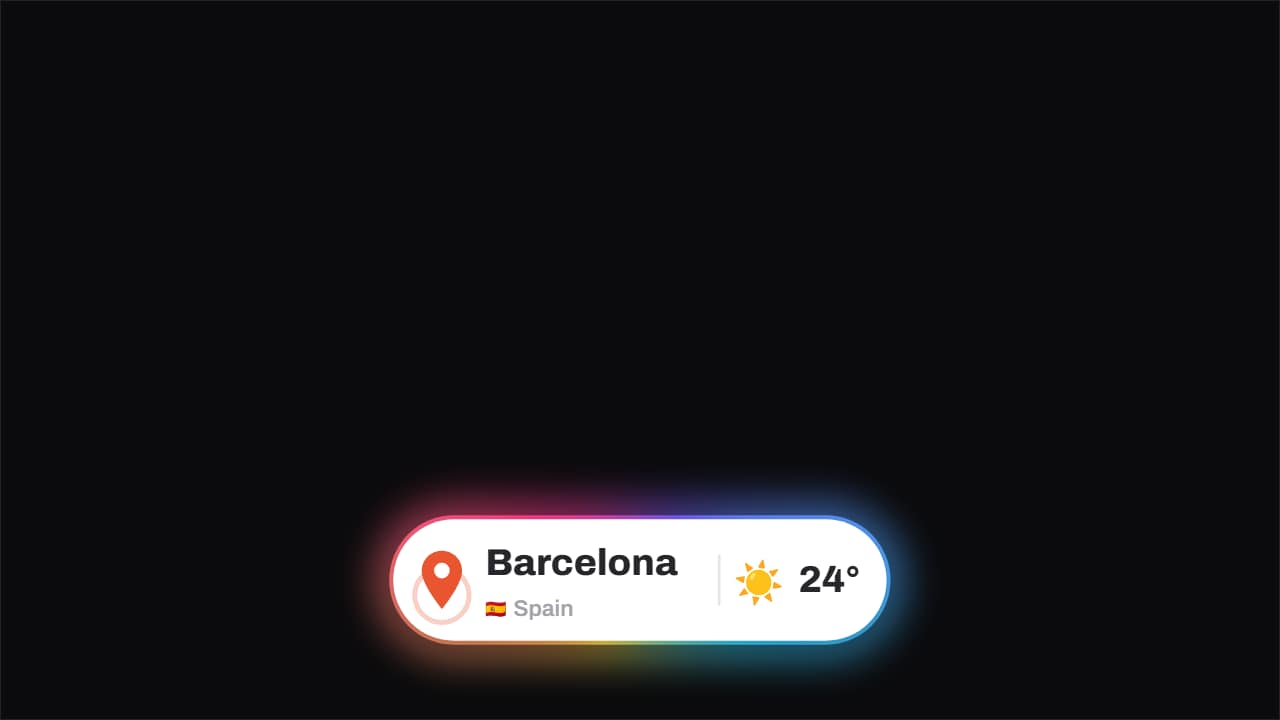 Location · the pin drops and pingsThe pin drops from above with its bounce and keeps ringing out, the place and country with its flag sit…