Lower Third Templates for Final Cut Pro — Transparent ProRes 4444
Final Cut's built-in lower thirds are quick, but everyone has seen them, and custom ones usually mean Motion or a paid plugin pack. These are styled and animated in the browser: you type the name and the role, choose the side, the color and the style, and export a ProRes 4444 .mov with a transparent background. ProRes is Final Cut's own format, so the transparency is read without any setting.
It sits on a connected clip above your interview, and because it's a file and not a title, it looks the same on every Mac you open the library on.
 Lower third · BarA dark panel with an accent bar unfolding, name and job title. The classic interview strap, done properly.
 Lower third · PillA translucent rounded pill with the initial in a colored circle. Modern, works well on social.
 Lower third · HairlineNo box: a colored rule drawing itself and the text rising. Documentary and clean.
 Lower third · StickerA tilted flat-color sticker with a hard shadow. Fun, for vlogs and fast content.
 Glass name lower thirdThe «who's talking» strap in glass: name, role and your handle.
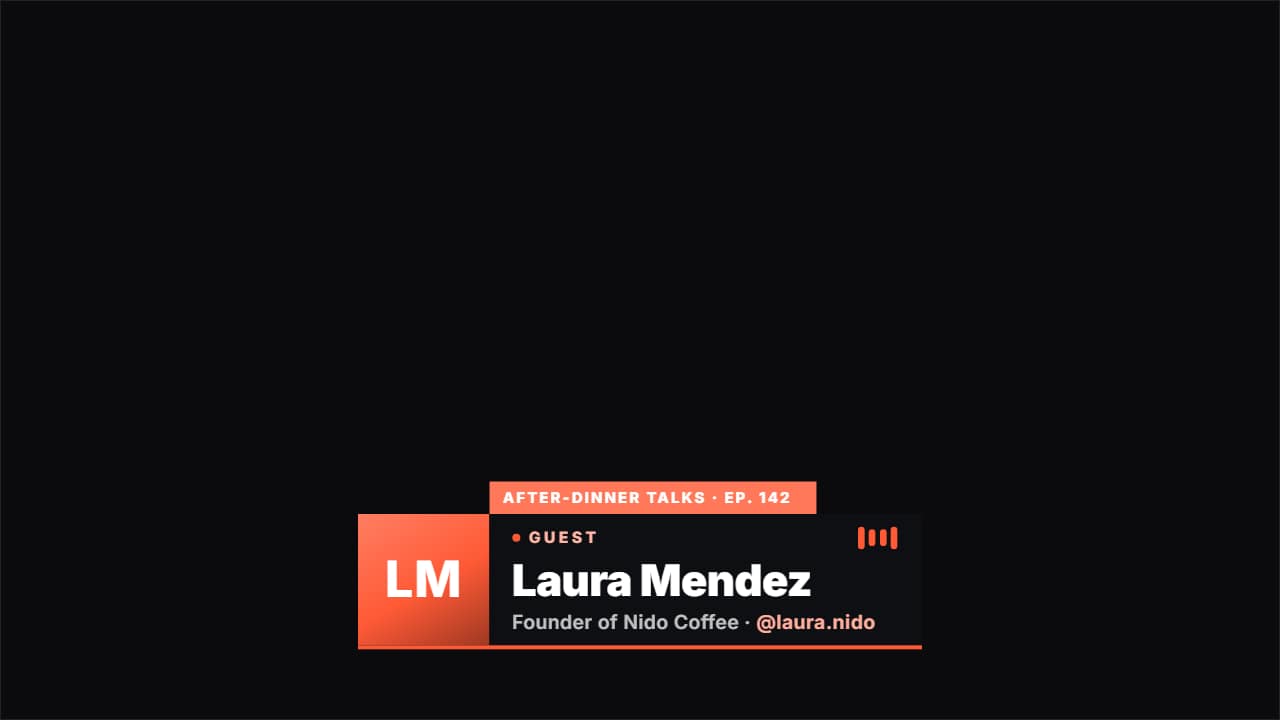 Podcast guest lower thirdIntroduces whoever is on the show: their photo, their name, what they do and their @, with a «GUEST» badge…
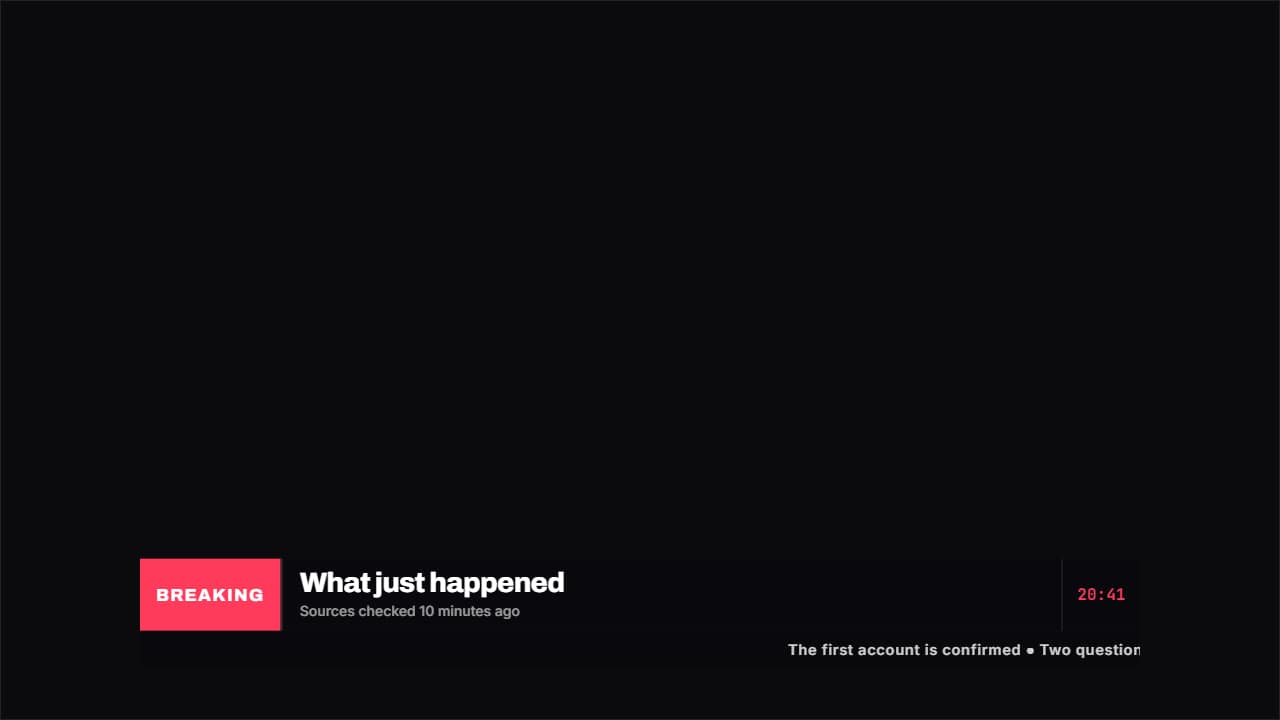 Breaking news with tickerThe news bar: a colored block with the label, a big headline, the time to one side and a ticker of headlines…
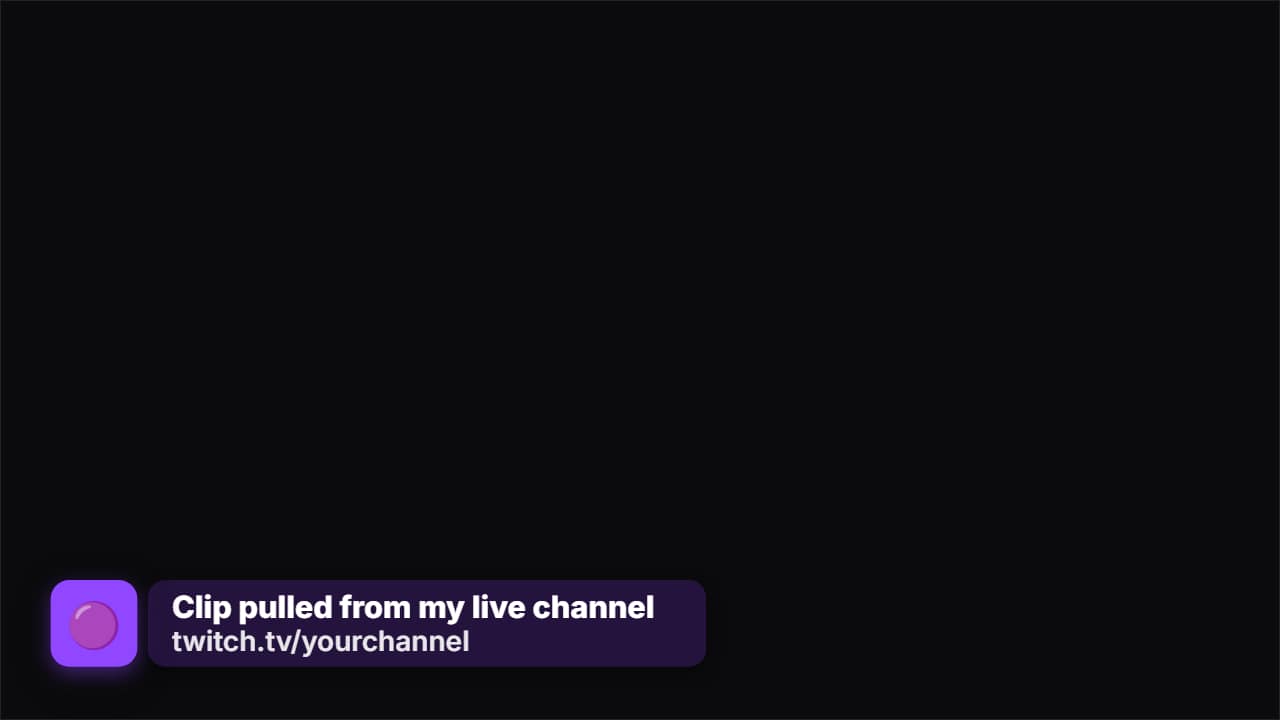 Source creditThe strap that says where the clip came from. First only the badge with the logo appears, it waits a beat…
How to add it in Final Cut Pro
1. Fill it in and export
Open a template below, type the name and the role, set the side and the distance from the bottom, and export without background. Make one file per speaker.
2. Import the files
File → Import → Media (Cmd+I) and choose the .mov files, or drag them into your event.
3. Connect it above the storyline
Put the playhead a beat after the person starts speaking, select the strap in the browser and press Q to connect it above the primary storyline.
4. Copy it to the next appearance
Hold Option and drag the connected clip along the timeline to duplicate it where the same person speaks again.
5. Adjust if needed
In the Video inspector, Transform changes position and scale. For big resizes, export the strap at 2× (4K) instead of scaling it up.
Connected clips move with the shot they're attached to, so if you trim the interview, the strap follows its speaker. In a vertical project, keep it higher than usual: the bottom of a Short is covered by the caption.
Questions
- Do I need Motion or a plugin?
- No. The lower third arrives as a finished ProRes 4444 .mov with an alpha channel, which Final Cut reads natively. You only import it and connect it.
- Does it work in a 4K project?
- Yes. Export at 2× (4K) so it matches your project pixel for pixel; a Full HD strap scaled up in a 4K timeline looks softer.
- Do I need After Effects?
- No. Every template is edited in your browser: type your text, choose colors and format (16:9, 9:16 or 1:1), watch the live preview and export.
- What do I export, and does it work in my editor?
- Most templates export as a ProRes 4444 .mov with a transparent background, which you place on a track above your clip in CapCut, Premiere Pro, DaVinci Resolve or Final Cut Pro. You can also export an MP4 with your own clip behind it. Always in Full HD.
- Is it free?
- Editing and previewing are free and need no account. To export you sign in with Google; during the open beta, new accounts get export credits at no cost.