How to add an animated subscribe button in CapCut (no green screen)
5 min · 7 steps
An animated subscribe button reminds viewers to subscribe without you having to stop and ask. Most tutorials tell you to download a green screen clip and key the green out. That works, but the edges rarely come out clean. This guide shows a cleaner way: a button with your own channel name, exported with a real transparent background and placed on a track above your video in CapCut.
It takes about five minutes. The steps for the desktop app and for the phone app are both below.
The short answer
Make the button in the free subscribe button maker and export it with no background (a .mov with transparency). In CapCut, put it on a track above your main clip: on desktop, drag it onto the timeline above your video; on the phone, use Overlay → Add overlay. If CapCut shows a black box instead of your video, export the button already placed on your clip as an MP4 and use that.
Try it now: Subscribe button maker (free)
Type your channel name and watch these buttons play with it, before opening any of them.
What you need
- CapCut on Windows, Mac, iPhone or Android.
- Your channel name or @handle, exactly as you want it to appear.
- An AnimateMyVideo account to download the file (you sign in with Google).
- Optional: the clip you want the button on, if you'd rather get it already placed.
The templates in this guide
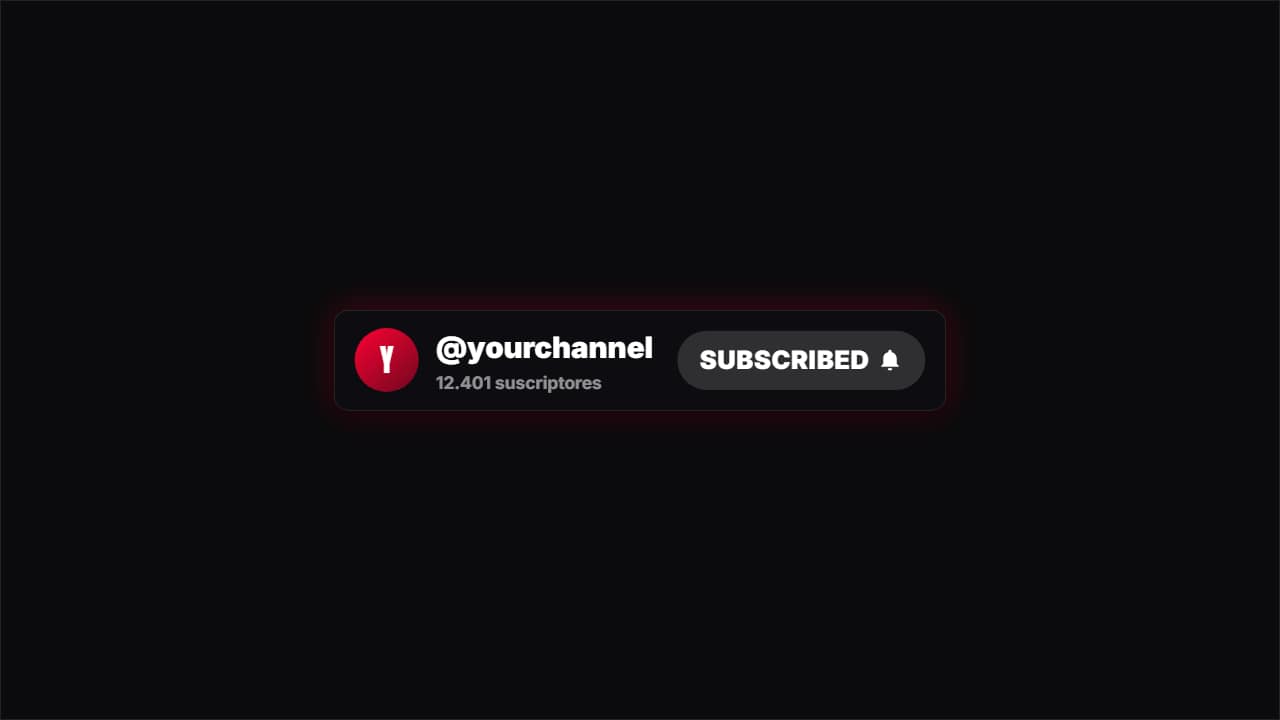 SubscribeA channel card with a red button a cursor presses, turning to "SUBSCRIBED" with the bell.
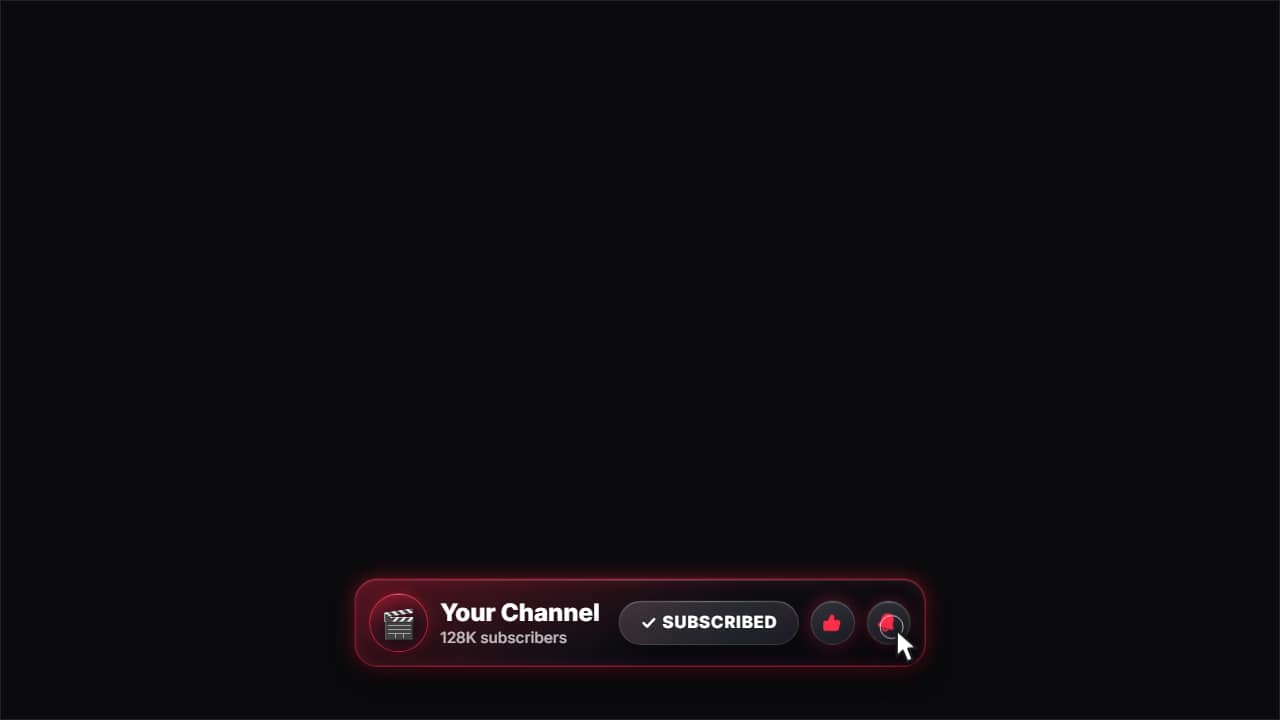 Glass subscribe cardYour channel card in glass: avatar, name and subscriber count.
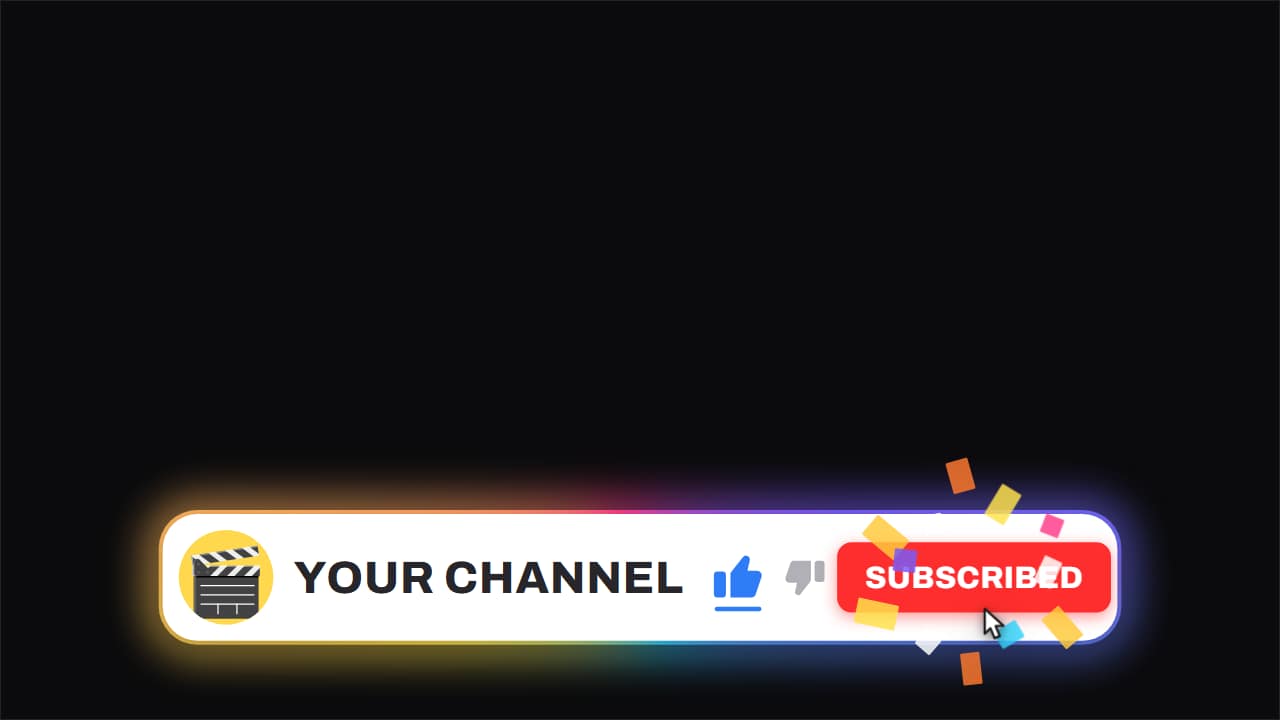 Channel bar · like and subscribeThe white capsule with the ROTATING gradient edge, floating over the video while it keeps running underneath.
Step by step
Step 1: Type your channel name in the subscribe button maker
Open the free subscribe button maker and type your channel name. Five animated buttons start playing with your name right on the page: a classic subscribe button with a cursor click, a glass version, a channel bar with like and subscribe, a like button and a notification bell. Pick an accent color that matches your channel.
Step 2: Pick a style and open it in the editor
Click «Customize & export» under the one you like. The editor opens with your name already filled in. There you can change the button labels, the color, the position on screen, the size and the length.
Step 3: Choose the format and the background
Pick the format of your video first: 16:9 for regular YouTube videos, 9:16 for Shorts, TikTok and Reels. Then choose how you want the file:
- No background: a .mov (ProRes 4444) with real transparency. Best for CapCut on desktop, where you can move and resize it freely.
- On my video: you upload your clip, choose the second where the button appears and get an MP4 with the button already on it. The safest choice on a phone.
Step 4: Export and download the file
Click Export and sign in with Google to download. During the open beta, new accounts get export credits at no cost.
The file comes out in Full HD. Choose 2× (4K) only if you plan to make the button bigger in CapCut or your project is 4K; it uses twice the credits.
Step 5: Add it to CapCut on top of your video
The button goes on its own track, above your footage, so your video shows through around it.
- CapCut desktop: Import the .mov into your media, then drag it to a track above your main video. Move it in the preview, and drag its ends on the timeline to set when it shows up.
- CapCut mobile: Open your project, tap Overlay → Add overlay and pick the file. On a phone the file has to be in your gallery or Files first. ProRes files are large, so the MP4 from «On my video» is often easier.
- Black box instead of transparency?: Your CapCut version isn't reading the alpha channel. Export again with «On my video» and use that MP4 as your clip.
Step 6: Place it where it won't get covered
In a long video, show it after you've given viewers something useful, usually within the first minute rather than the first seconds. Keep it in a corner with some space from the edges.
In Shorts, keep it in the middle band of the screen: the app covers the bottom with the caption and the right edge with the like and comment buttons. Add a click sound from CapCut's sound effects if you want it to land.
Step 7: Export your video from CapCut
Play it through once at full screen to check the timing, then export as usual. The button keeps sharp edges because it was drawn at Full HD (or 4K at 2×), not scaled up from a small GIF.
If you'd rather use a green screen subscribe button
Green screen clips are the classic free option, and they still work. In CapCut, select the clip on its overlay track and look for Chroma key (it sits with the background removal or cutout options, depending on your version). Pick the green with the color picker, raise the intensity until the green is gone, then use the shadow setting to soften the edges.
The trade-off: soft shadows and glows turn into a green-tinted halo, thin outlines can get eaten, and anything green in the button disappears with the background. A transparent file has none of those problems, which is why we export one instead of a green screen version.
The same button in Premiere Pro and DaVinci Resolve
Premiere Pro: import the .mov and place it on V2, above your footage on V1; the transparency is kept. DaVinci Resolve: place it on Video 2, and if you see black, right-click the clip, open Clip Attributes and set Alpha Mode to Premultiplied. For a green screen clip, Premiere's Ultra Key effect and Resolve's keyer effects do the same job as CapCut's chroma key.
Questions
- Does CapCut support transparent videos?
- CapCut on desktop reads a .mov with an alpha channel and shows your video through it. On phones it depends on the app version and the device, so if you see a black background, use the MP4 version with the button already on your clip.
- Is the subscribe button free?
- Typing your name and watching the previews is free and needs no account. To download you sign in with Google; during the open beta, new accounts get export credits at no cost.
- Can I use it in YouTube Shorts?
- Yes. Choose 9:16 in the editor and keep the button in the middle band of the screen, away from the caption at the bottom and the buttons on the right.
- How long should a subscribe animation be?
- Three to five seconds is enough: long enough to read your name and see the click, short enough not to pull attention from the video.
Try it now: Subscribe button maker (free)
Type your channel name and watch these buttons play with it, before opening any of them.