How to make a countdown timer for a video (real seconds, transparent)
5 min · 6 steps
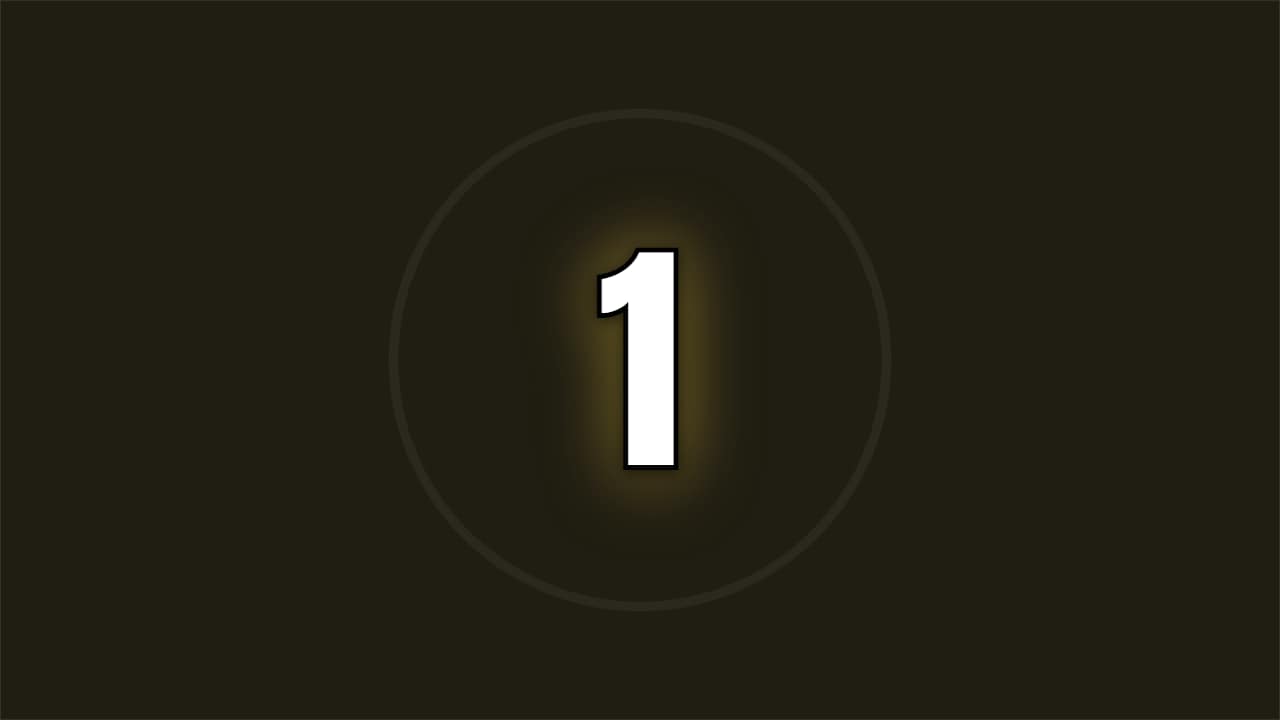 Countdown timer makerTry it now — free →
A countdown builds tension in a way nothing else does: the start of a race, a giveaway winner, a product reveal, the drop of a song, the last seconds of a challenge. It also has one job that is easy to get wrong. If the numbers don't last exactly a second, viewers notice, and the moment you were building up to lands early or late.
This guide makes a countdown that counts real seconds, sits over your footage instead of a black screen and ends on the exact frame you choose. It takes about five minutes in the browser, and the same steps work for YouTube, Shorts, TikTok and Reels.
The short answer
Open the free countdown timer maker, pick the number it starts from (3 to 10), type the word at zero and choose a style: a ring, a full-screen flash or sports digits. Click «Customize & export», check the format, export it as a transparent .mov (or over your own clip as an MP4) and place it on a track above your footage so that zero lands on the moment that matters.
Try it now: Countdown timer maker (free)
Pick a number from 3 to 10, type the word at zero and watch four countdowns play it.
What you need
- The clip where the countdown goes, and a clear idea of the moment zero has to land on.
- Any editor that imports video: CapCut, Premiere Pro, DaVinci Resolve or Final Cut Pro.
- An AnimateMyVideo account to download the file (you sign in with Google).
The templates in this guide
- Countdown · FlashA full-screen number with a color hit and a shockwave on every tick. Maximum energy before the key moment.
 Countdown · RingA ring emptying each second with the number inside and a final flourish. For challenges and openers.
 Countdown · SportsA clean number with a progress bar per second. Understated, fits any video.
Step by step
Step 1: Find the moment zero has to land on
Work backwards. Mark the frame where the thing happens, the reveal, the jump, the beat, and count back as many seconds as your countdown has numbers. A countdown from 5 has to start five seconds before that frame. If the clip before it is too short, a 3-2-1 is usually enough: anything longer than ten seconds stops being a countdown and starts being a wait.
Step 2: Pick the number and the words
In the countdown timer maker, choose where it starts, from 3 to 10, and type the word that appears at zero: «GO!», «NOW», «REVEAL», the name of the winner. The small line above the number is optional; it works for context, like «Doors open in» or «Round 2».
Every preview plays at real speed with what you wrote, so you can watch the timing before you open anything.
Step 3: Choose a style
The three 3-2-1 styles do different jobs:
- Ring: a ring empties around each number. Calm and clear, good for tutorials, workouts and openers.
- Flash: a full-screen number with a burst of color and a shockwave on every tick. Maximum energy before a reveal.
- Sports digits: scoreboard numbers with a progress bar. Fits gaming, sports and challenge videos.
Step 4: Open it in the editor and set the format
Click «Customize & export» on the one you like. The editor opens with your number and words already in place, on «Download». In «Format & background» pick 16:9 for a regular video, 9:16 for Shorts, TikTok and Reels or 1:1 for a square post. In «Your content» you can still change the color and the seconds per number (the size is under «Fine-tune (optional)»): under one second for a fast, punchy count, up to three for a slow, dramatic one.
If you change the starting number or the seconds per number in the editor, lengthen «Duration (seconds)» to match: the count needs its numbers plus about a second for the word at zero.
Step 5: Export with or without a background
Choose how the file comes out:
- No background: a ProRes 4444 .mov with transparency. It sits on top of your footage, so the action stays visible behind the number.
- On my video: upload your clip and the countdown is burned on top of it, as one MP4. The safest choice for CapCut on a phone.
- With a background: an MP4 with a solid background, if you want the countdown as its own shot.
Step 6: Place it so zero lands on the beat
Export and sign in with Google to download (during the open beta, new accounts get export credits at no cost). In your editor, put the file on a track above your clip and slide it until the word at zero sits exactly on the frame you marked in step 1. Play it back with sound: the count should feel like it causes the moment, not like it was dropped on top.
Add your own sound
The file is silent on purpose, so it never fights your music. A short tick on every number and a bigger hit at zero makes a countdown twice as strong. Because each number lasts exactly one second (or whatever you set), you can place the ticks on the second marks of your timeline and they will line up.
Longer timers: minutes and hours
The 3-2-1 styles count from up to 10. For a cooking step, a plank or a study session, the cooking timer counts real minutes in a corner and turns red in the last stretch; the circuit timer alternates work and rest for workouts; and the 24-hour challenge clock shows the time left in a challenge at however many hours per second of video you choose. They are all in the countdown timer collection.
Vertical videos
In 9:16, keep the number in the middle of the frame and away from the bottom fifth and the right edge, where Shorts, TikTok and Reels put their captions and buttons. The flash style fills the screen anyway, so it is the easiest one to use in vertical.
Questions
- Does the countdown count in real seconds?
- Yes. By default every number lasts one second, and you can set anything from 0.3 to 3 seconds per number in the editor. What you see in the preview is what you get in the file.
- Can I make a 60-second countdown?
- Not with the 3-2-1 styles, which count from up to 10, or the New Year countdown, which counts from up to 30. For a minute or more, use the cooking timer or the 24-hour challenge clock.
- Will it work in CapCut on my phone?
- Many phones don't read the transparency of a ProRes .mov. Export «On my video» with your clip and use the MP4: the countdown is already on top of it.
- Is it free?
- Choosing the numbers and watching the previews is free and needs no account. To download you sign in with Google; during the open beta, new accounts get export credits at no cost.
Try it now: Countdown timer maker (free)
Pick a number from 3 to 10, type the word at zero and watch four countdowns play it.