Subscribe Button Animation for Final Cut Pro — Transparent ProRes 4444
Final Cut reads ProRes 4444 transparency natively, which makes it the easiest editor for an animated subscribe button: no keyer, no plugin, no Motion template. You make the button here with your channel name, avatar and colors, export it without background and connect it above your clip.
Choose the classic button with a cursor click, the glass channel card that also likes and rings the bell, the like-and-subscribe bar, a like, a bell or a follow card for vertical videos.
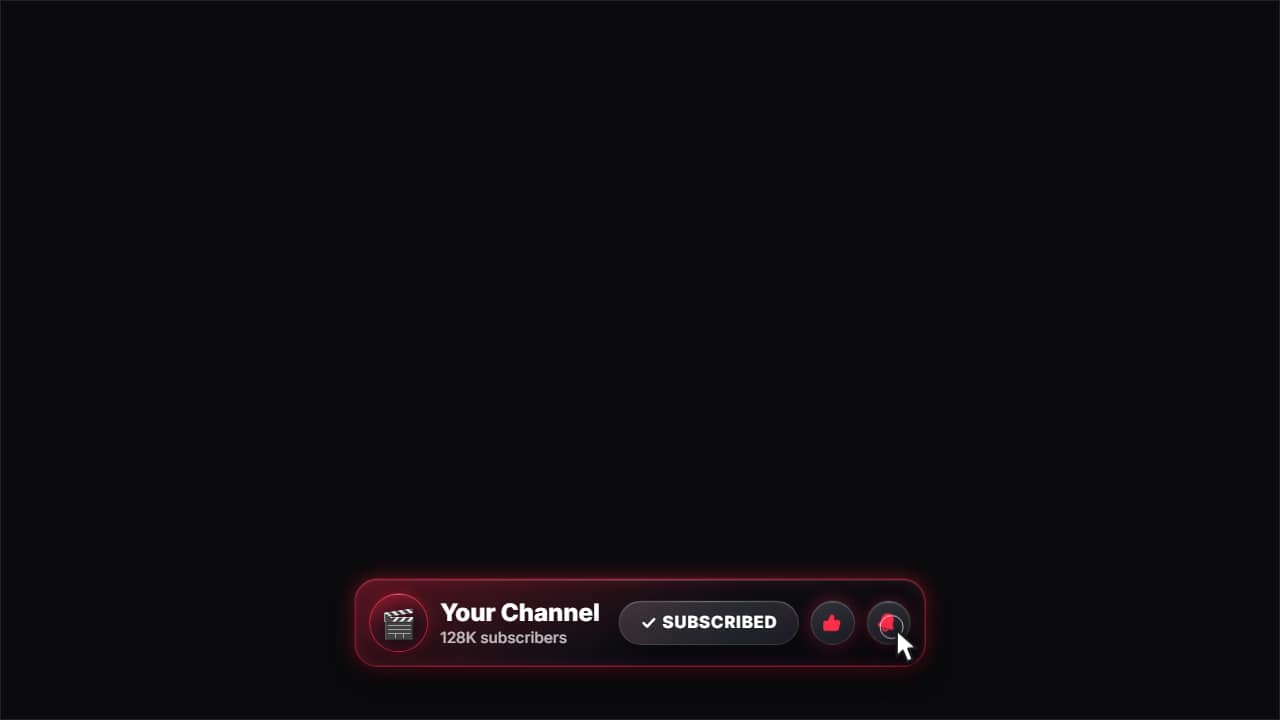 Glass subscribe cardYour channel card in glass: avatar, name and subscriber count.
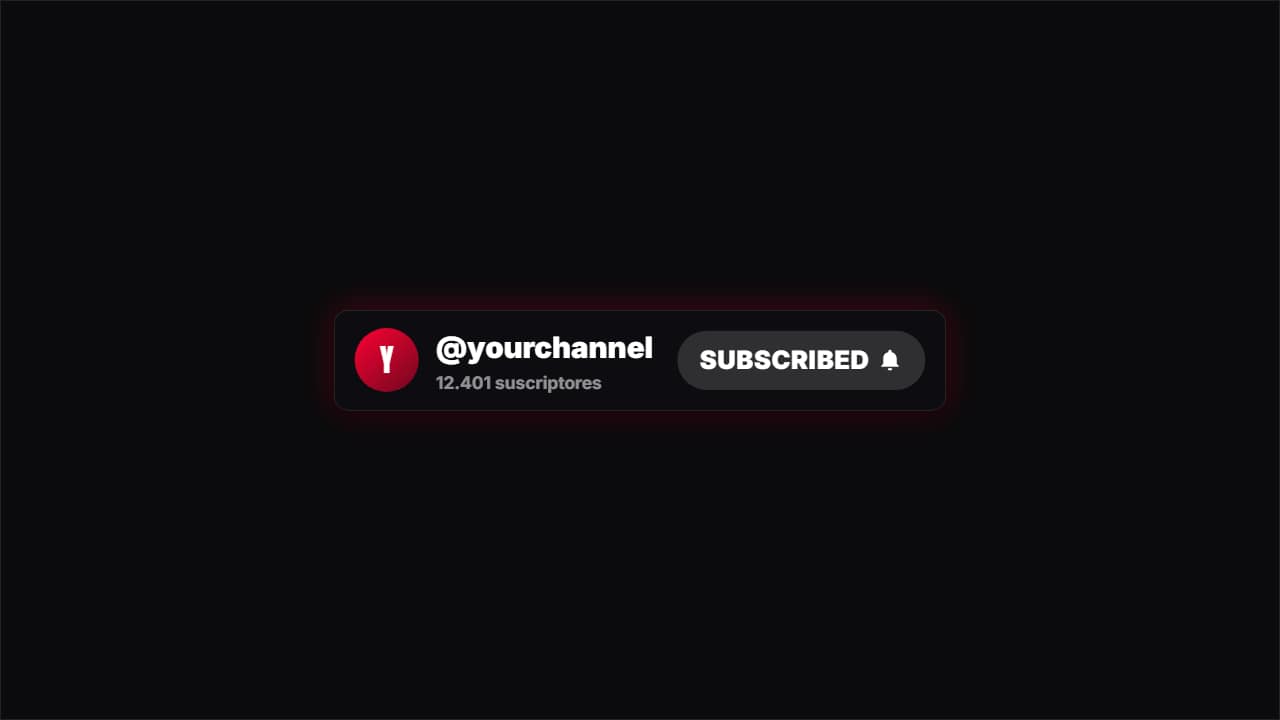 SubscribeA channel card with a red button a cursor presses, turning to "SUBSCRIBED" with the bell.
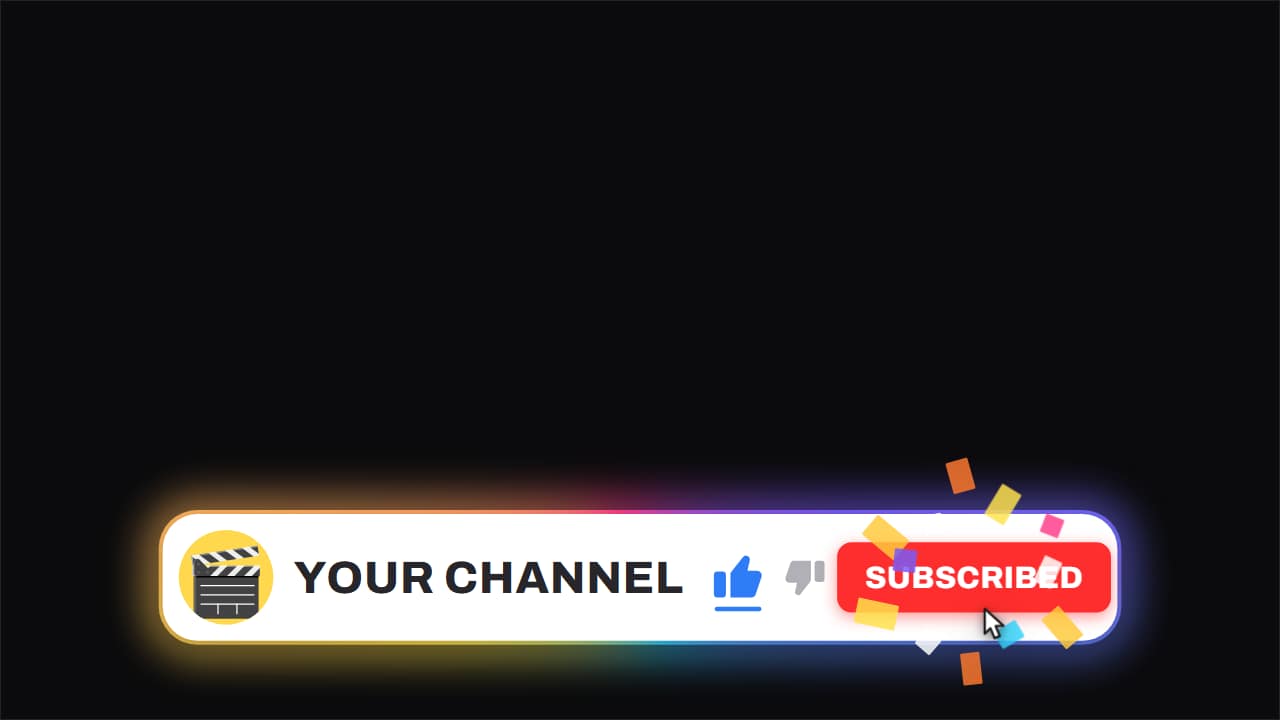 Channel bar · like and subscribeThe white capsule with the ROTATING gradient edge, floating over the video while it keeps running underneath.
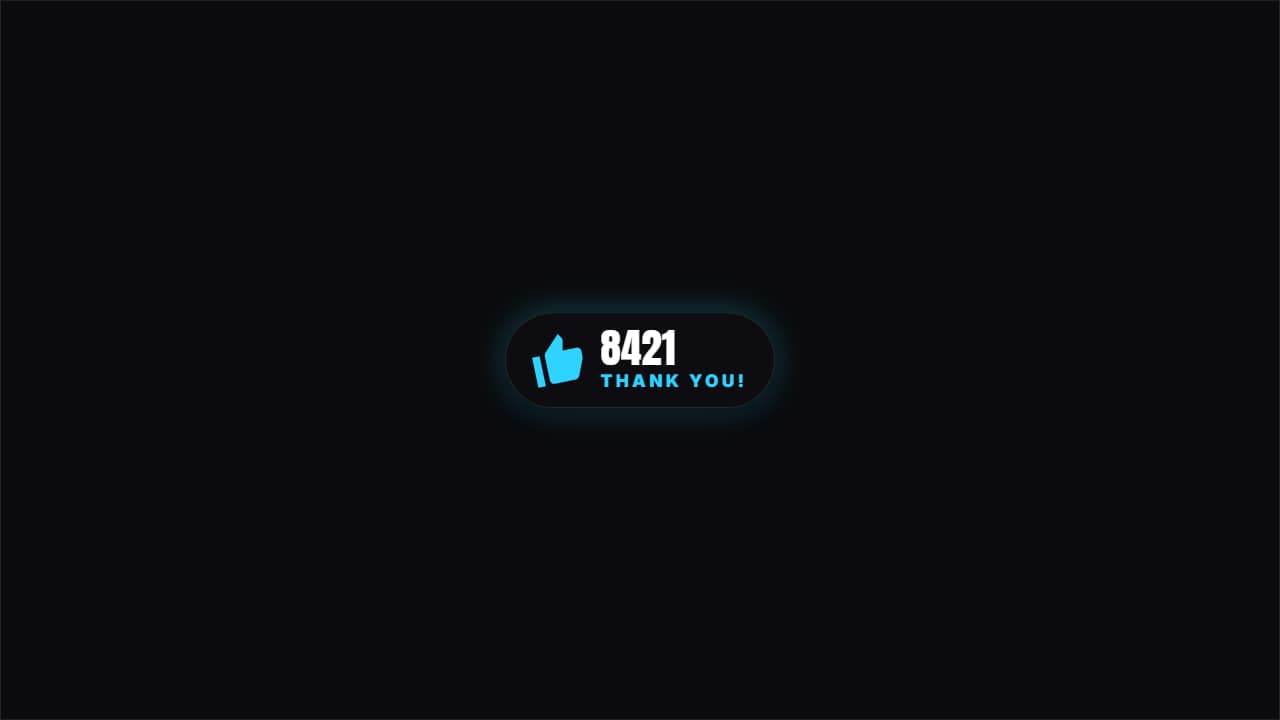 Hit likeA thumb being pressed, a burst of particles and the counter ticking up one. Short and effective.
 Ring the bellA bell swinging and letting off ripples when pressed. The notification reminder without being a nag.
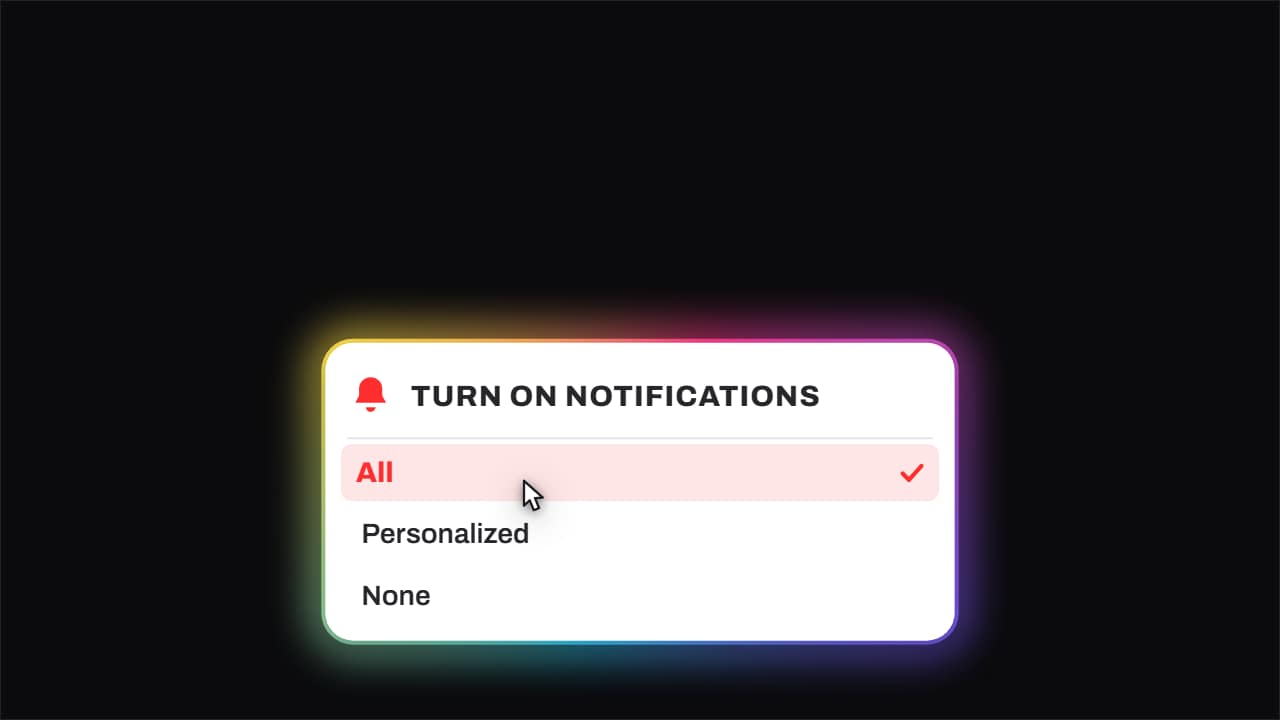 Bell · it rings and «All» gets pickedThe bell genuinely shakes with its sound arcs, the notifications menu opens, and the cursor comes down to…
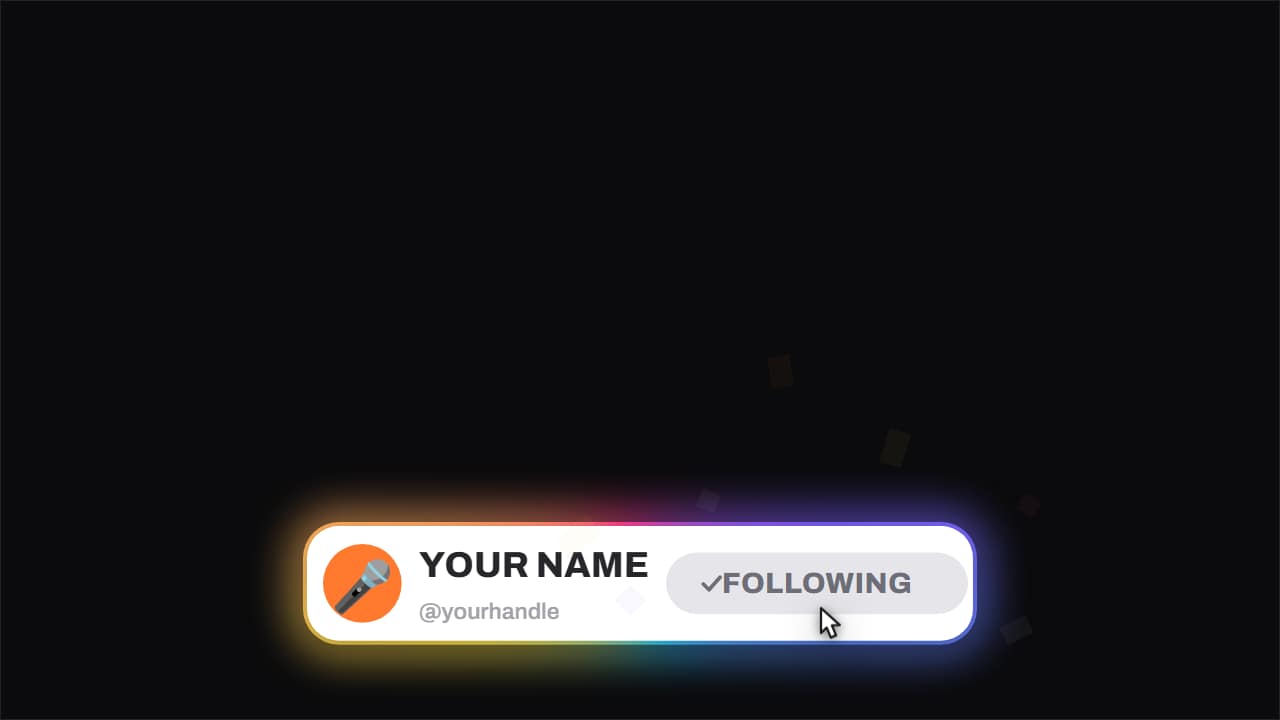 Follow card · with confettiThe short version of the channel bar, the one built for vertical feeds: avatar, name, handle and a button…
How to add it in Final Cut Pro
1. Make the button
Open a template below, type your channel name, add your avatar if the style has one and choose the color. Pick the format of your project: 16:9, 9:16 or 1:1.
2. Export without background
You get a ProRes 4444 .mov with transparency. Use 2× (4K) for a 4K project.
3. Import it
File → Import → Media (Cmd+I), or drag the file into your event.
4. Connect it at the right moment
Put the playhead where you ask viewers to subscribe, select the button in the browser and press Q to connect it above the primary storyline.
5. Add the click and reuse it
Connect a click sound at the frame where the cursor presses the button. Option-drag the button to copy it to a second reminder near the end.
Because the button is a connected clip, it stays with the shot it's attached to when you move things around. Keep it three to five seconds and away from the corners YouTube uses for its own buttons at the end of the video.
Questions
- Do I need a Final Cut plugin for this?
- No. The button is a ProRes 4444 .mov with an alpha channel, and Final Cut shows your video through it without any setting.
- Can I resize it in Final Cut?
- Yes, with Transform in the Video inspector. For a much bigger button, export it at 2× (4K) so it stays sharp, or set the size in the editor before exporting.
- Do I need After Effects?
- No. Every template is edited in your browser: type your text, choose colors and format (16:9, 9:16 or 1:1), watch the live preview and export.
- What do I export, and does it work in my editor?
- Most templates export as a ProRes 4444 .mov with a transparent background, which you place on a track above your clip in CapCut, Premiere Pro, DaVinci Resolve or Final Cut Pro. You can also export an MP4 with your own clip behind it. Always in Full HD.
- Is it free?
- Editing and previewing are free and need no account. To export you sign in with Google; during the open beta, new accounts get export credits at no cost.