Subscribe Button Animation for DaVinci Resolve — No Green Screen
In Resolve, a green screen subscribe button means a keyer in the Color page or an effect on the Edit page, and fine edges like the button's glow tend to come out tinted. These buttons skip that: you make one with your channel name, avatar and colors, export it with a transparent background and put it on Video 2. It works the same in the free version and in Studio.
There's a classic button with a cursor click, a glass channel card, a like-and-subscribe bar, a like, two bells and a follow card for vertical videos.
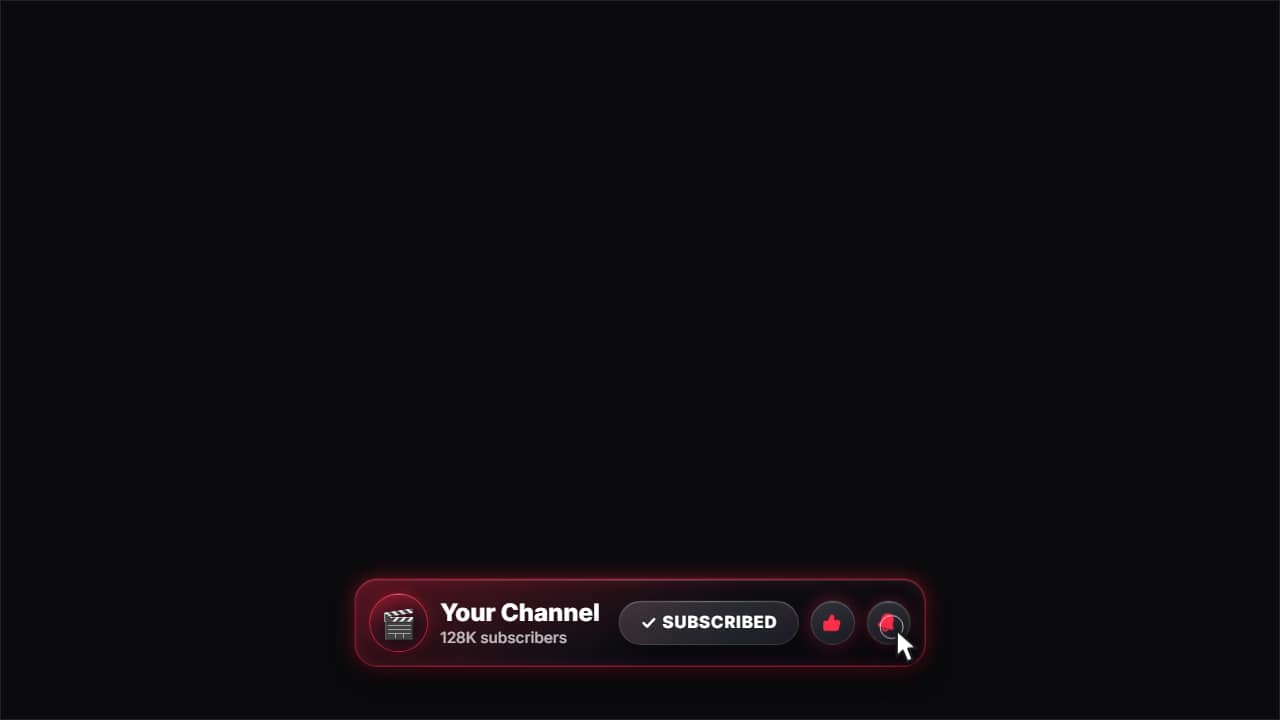 Glass subscribe cardYour channel card in glass: avatar, name and subscriber count.
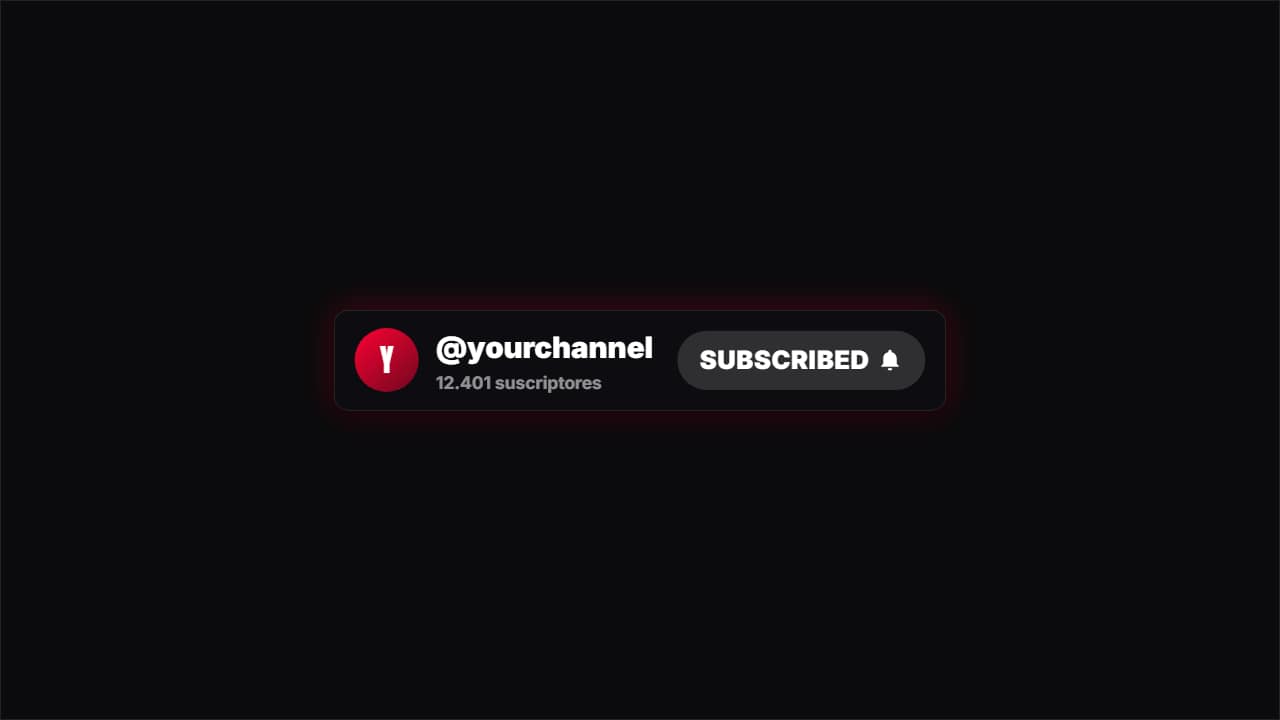 SubscribeA channel card with a red button a cursor presses, turning to "SUBSCRIBED" with the bell.
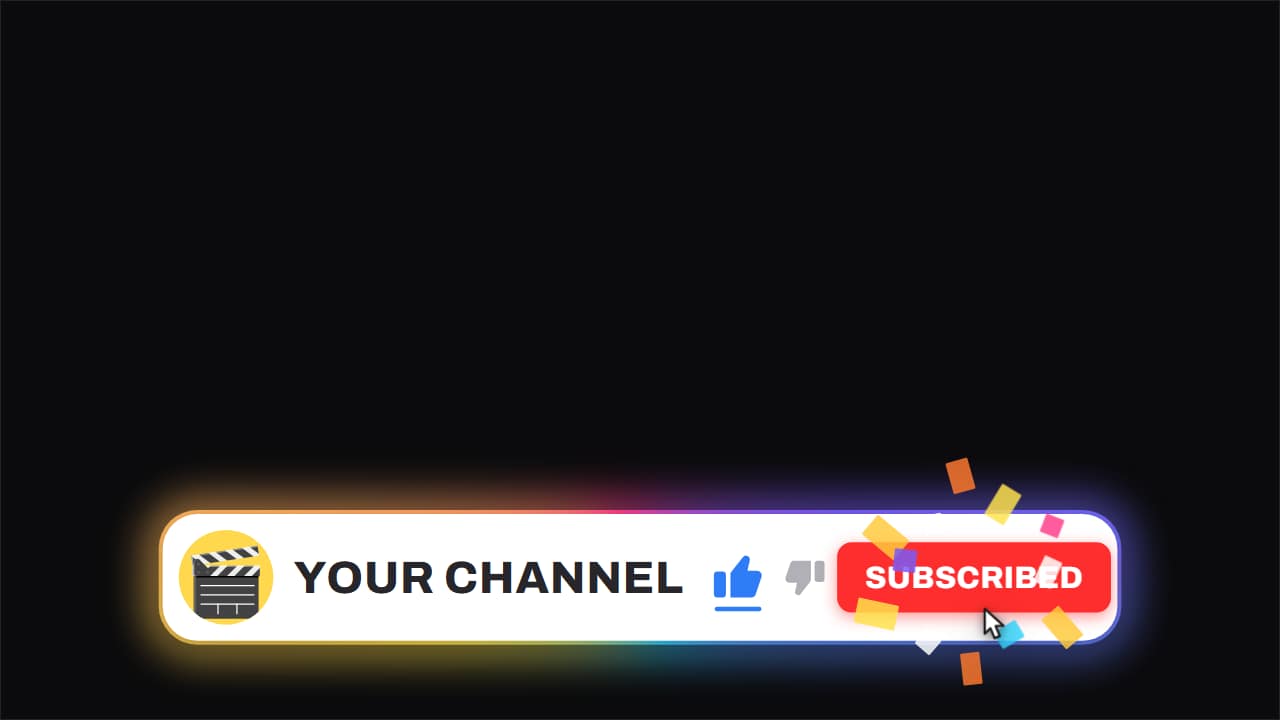 Channel bar · like and subscribeThe white capsule with the ROTATING gradient edge, floating over the video while it keeps running underneath.
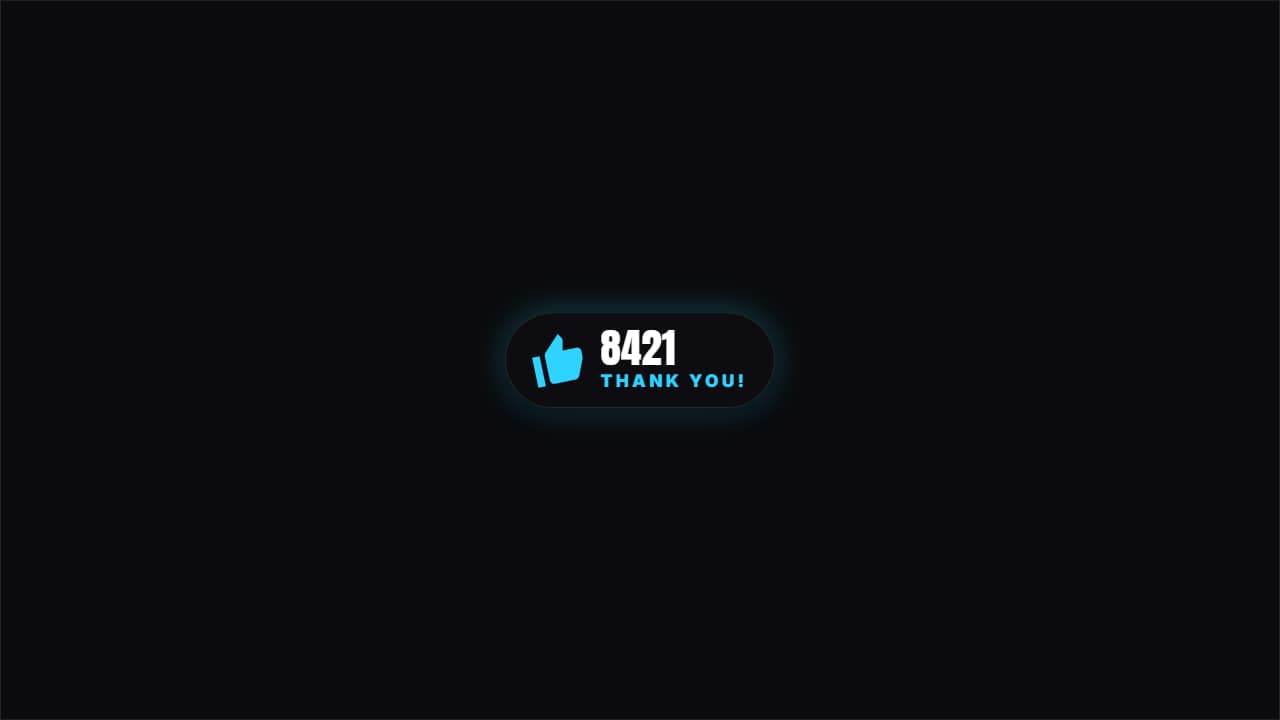 Hit likeA thumb being pressed, a burst of particles and the counter ticking up one. Short and effective.
 Ring the bellA bell swinging and letting off ripples when pressed. The notification reminder without being a nag.
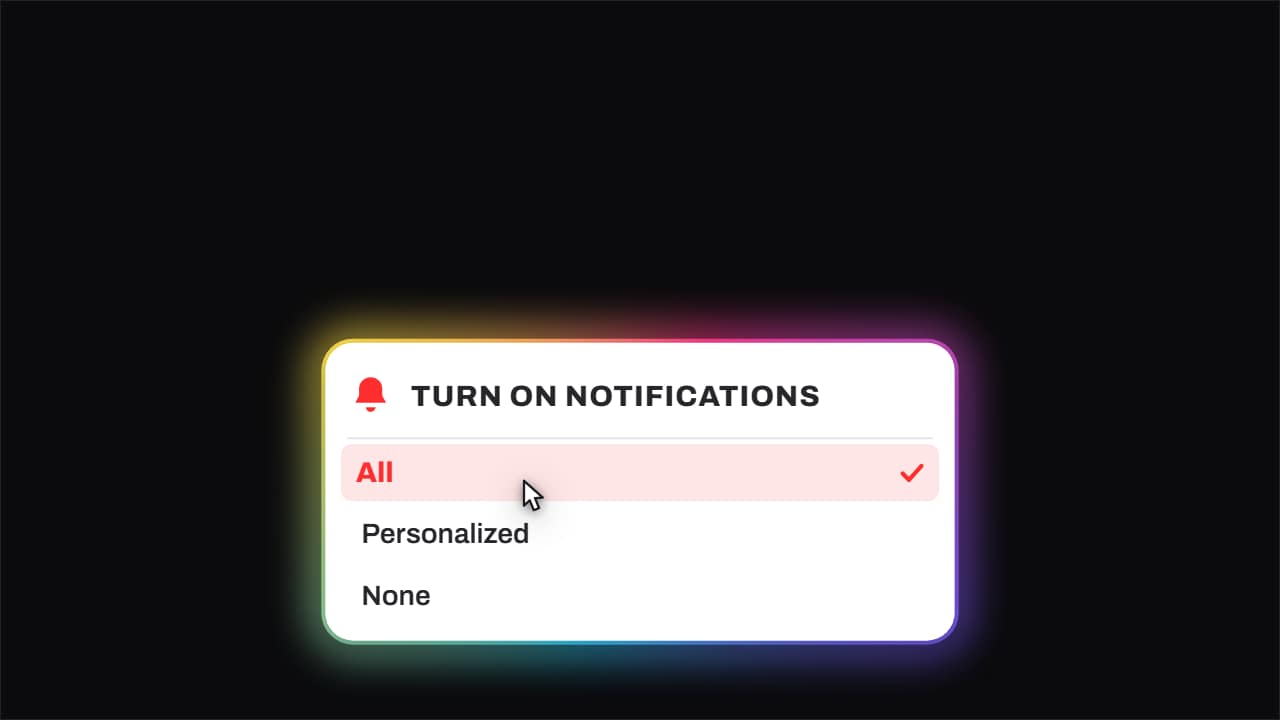 Bell · it rings and «All» gets pickedThe bell genuinely shakes with its sound arcs, the notifications menu opens, and the cursor comes down to…
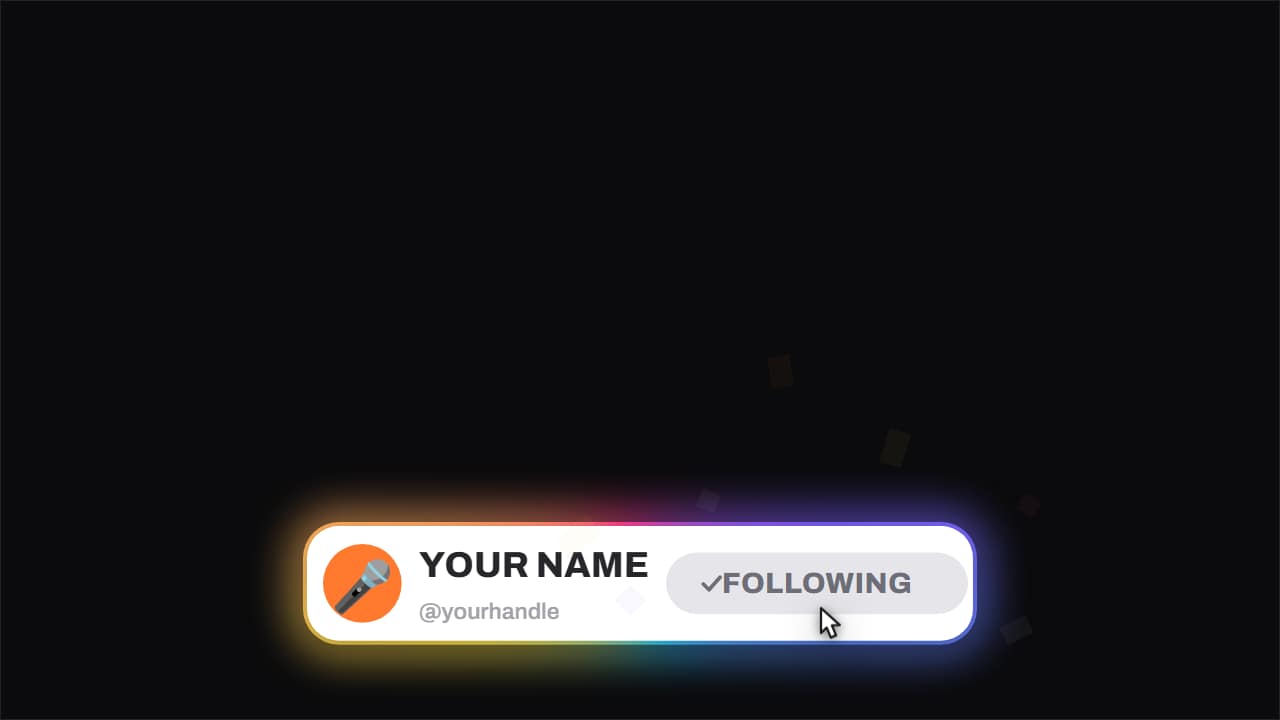 Follow card · with confettiThe short version of the channel bar, the one built for vertical feeds: avatar, name, handle and a button…
How to add it in DaVinci Resolve
1. Make the button
Open a template below, type your channel name, add your avatar if the style has one and choose the color and the format.
2. Export without background
You get a ProRes 4444 .mov with transparency, in Full HD or, at 2×, in 4K.
3. Import and place it
On the Edit page, import the file into the Media Pool and drag it onto Video 2 at the moment you ask viewers to subscribe.
4. Fix a black background
If you see black around the button, right-click it in the Media Pool → Clip Attributes → Alpha Mode: Premultiplied.
5. Add the click sound
Find the frame where the cursor presses the button and put a click sound on an audio track there. Use Transform in the Inspector to move it to a corner if you need to.
One reminder after you've given value and one near the end is plenty; three to five seconds each. For a vertical timeline, export the button in 9:16 so it's laid out for the phone instead of scaling a 16:9 file.
Questions
- Does it work in the free DaVinci Resolve?
- Yes. The free version reads ProRes 4444 .mov files with their alpha channel. If the background looks black, set Alpha Mode to Premultiplied in Clip Attributes.
- Can I make it say «Follow» instead of «Subscribe»?
- Yes. The button text and the text after the click are fields, and there are follow cards made for vertical videos.
- Do I need After Effects?
- No. Every template is edited in your browser: type your text, choose colors and format (16:9, 9:16 or 1:1), watch the live preview and export.
- What do I export, and does it work in my editor?
- Most templates export as a ProRes 4444 .mov with a transparent background, which you place on a track above your clip in CapCut, Premiere Pro, DaVinci Resolve or Final Cut Pro. You can also export an MP4 with your own clip behind it. Always in Full HD.
- Is it free?
- Editing and previewing are free and need no account. To export you sign in with Google; during the open beta, new accounts get export credits at no cost.