Aspect ratio1920×1080this is how it downloads
Preview doesn't change the file
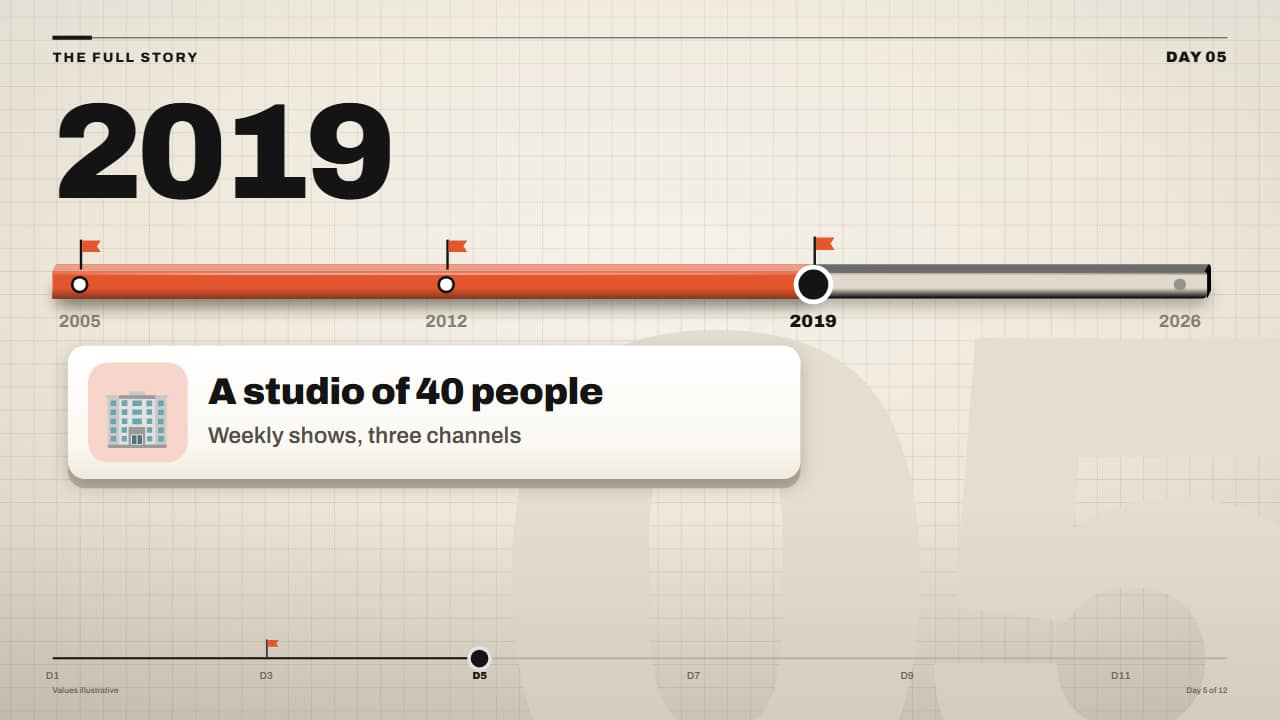
You'll download 1920×1080, 3.5 s, with no background (.mov).
BetaFree during the beta: create an account and export at no cost. No credit card.How it works →Free during the beta · no card →
You'll download 1920×1080, 3.5 s, with no background (.mov).
The story of something, milestone by milestone, in the Editorial 3D style: the giant year rolls on its wheels from one milestone to the next, the dot moves along a 3D track, a flag rises at each milestone and its white card with a 3D edge appears (title, line and emoji or image); the previous one shrinks away as the new one lands. Up to 8 milestones «year | title | text | emoji». For documentaries, biographies, «the history of a brand» and faceless channels. Transparent it sits clean over your video.
Plus the typeface and an optional letter outline, in every template.
Export it without background and put it on a track above your clip: the animation plays over your video.
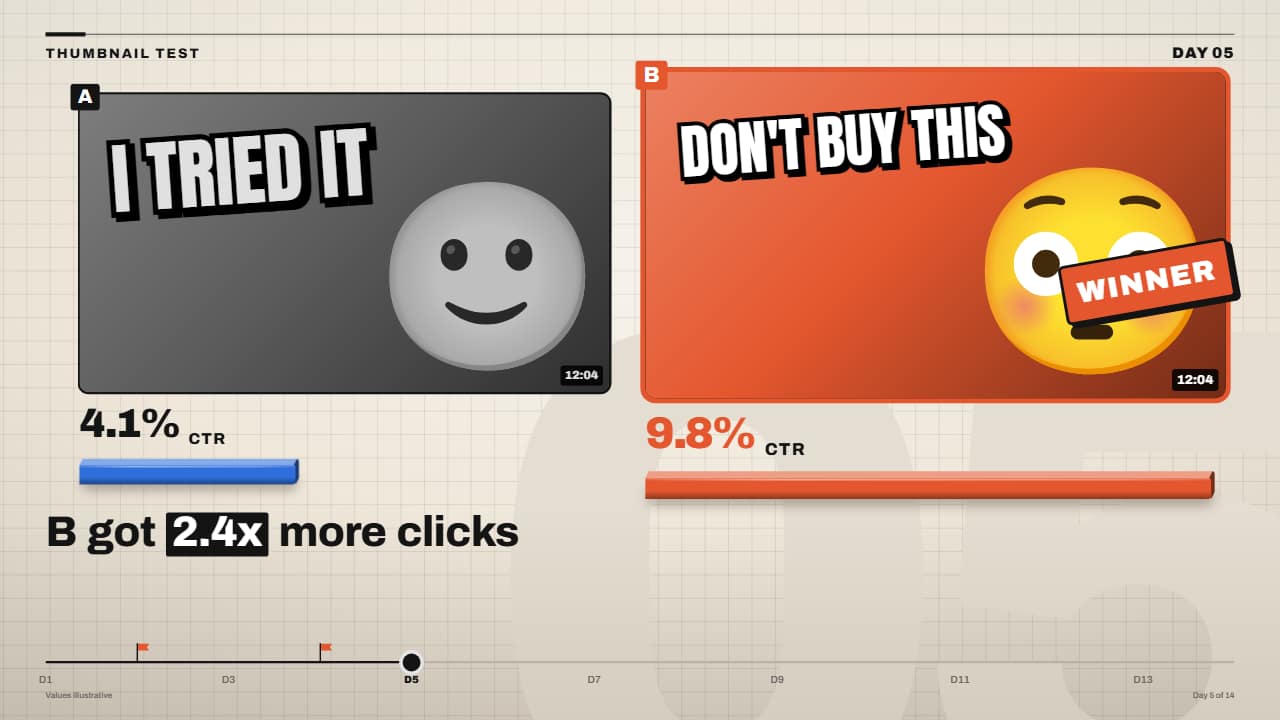 Thumbnail A/B testTwo thumbnails side by side: each click-through rate rolls on its wheels, a 3D bar per thumbnail, and at the…
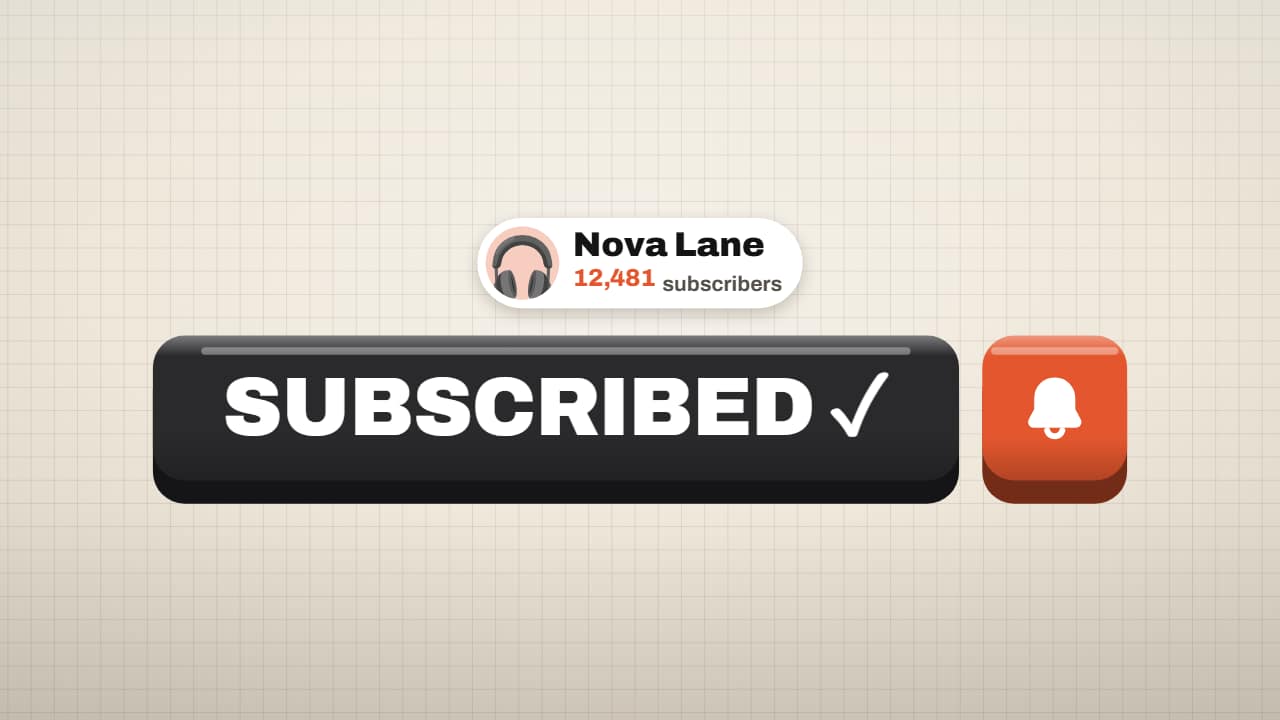 Subscribe button on a 3D keyThe subscribe button in the Editorial 3D style: the giant orange key, the cursor arrives in an arc, the key…
 3D lower third: slab, stack or cardThe name lower third in the Editorial 3D style. Three styles: the slab in your color that whips in with the…
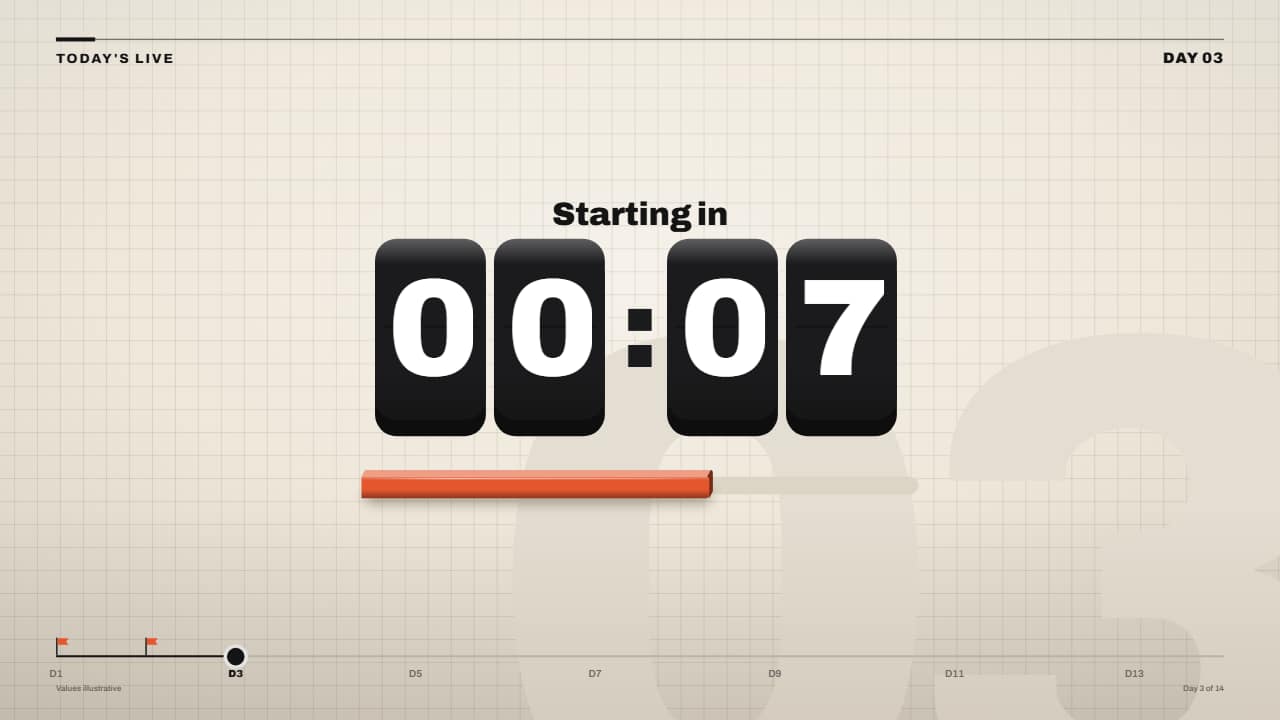 Countdown timer on 3D keysMinutes and seconds on black 3D keys: each wheel rolls down at the last instant of its second (with motion…
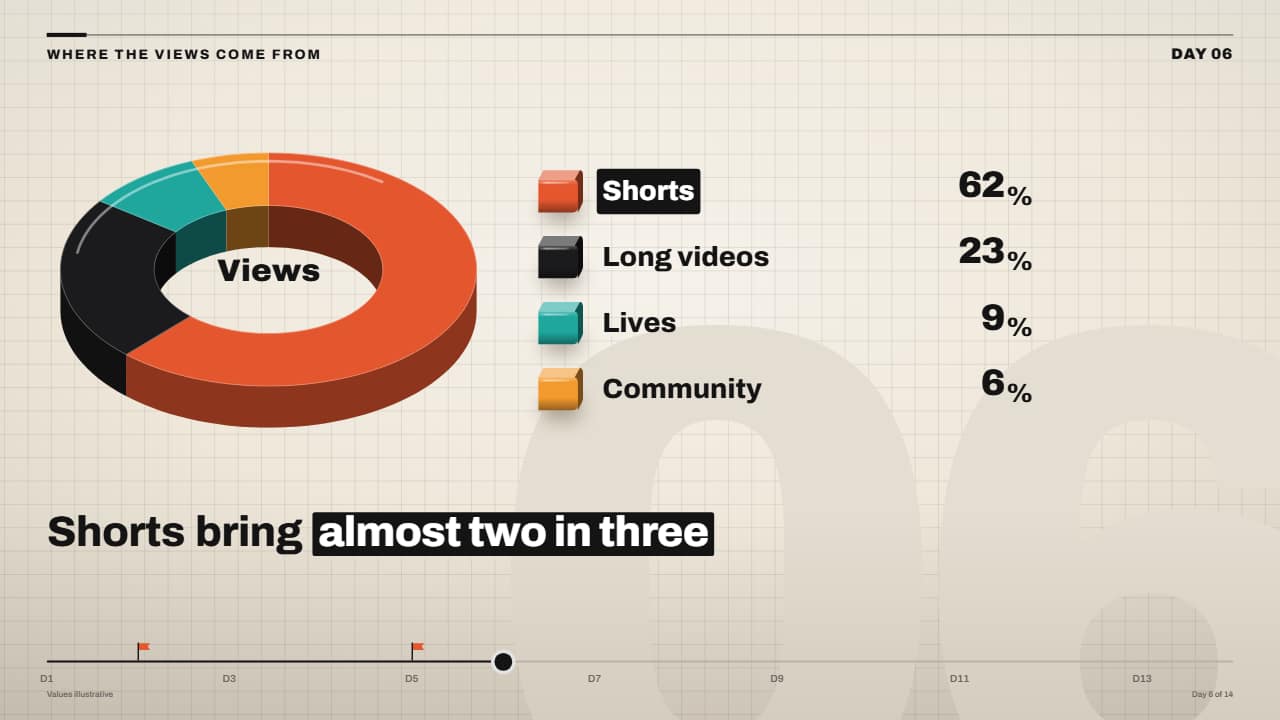 3D pie (donut) chart with rolling percentagesThe missing pie chart: a 3D donut with an edge where each slice sweeps its angle one after another, a legend…
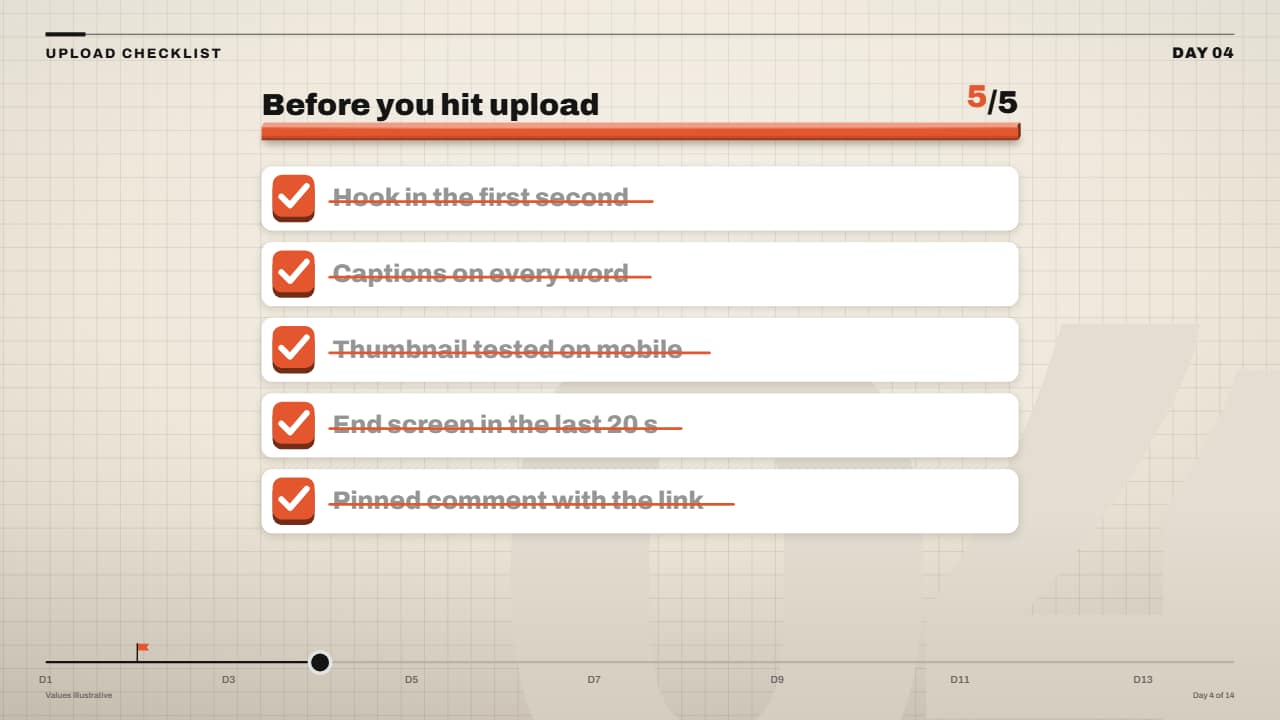 Checklist that ticks off (3D checkboxes)Each task on its white card with a checkbox that is a 3D key: on its turn it sinks, the tick draws itself, a…
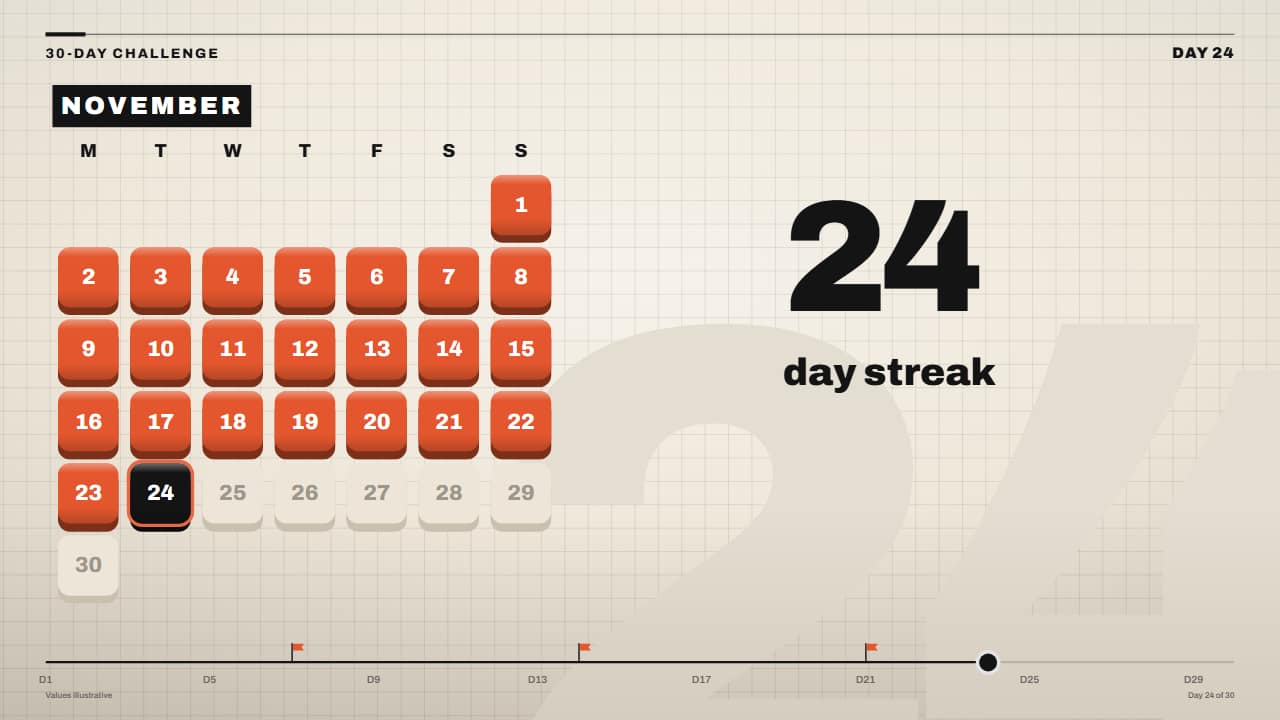 Calendar streak (3D days)The month in tiles: each done day pops like a 3D key in your color, missed days stay gray with a drawn…
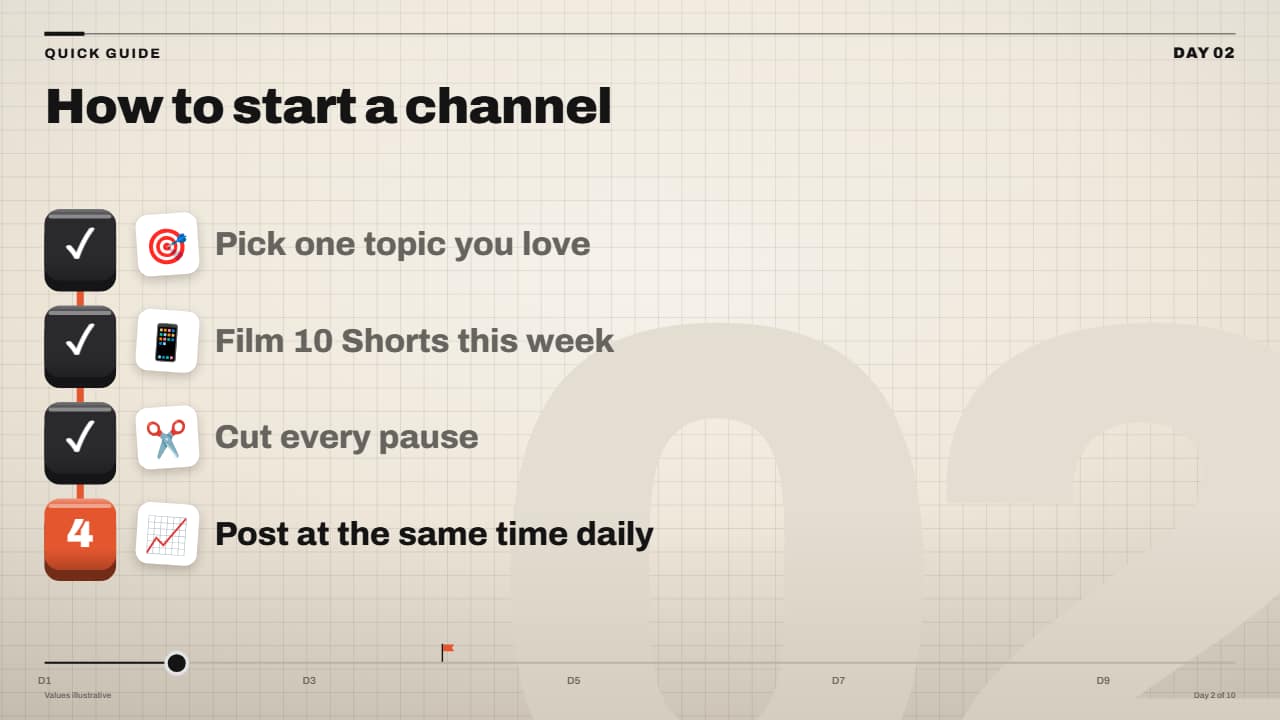 Step-by-step guide on 3D keysYour tutorial steps in the Editorial 3D style: each step is a 3D key with its number that sinks as it lands…