Aspect ratio1920×1080this is how it downloads
Preview doesn't change the file
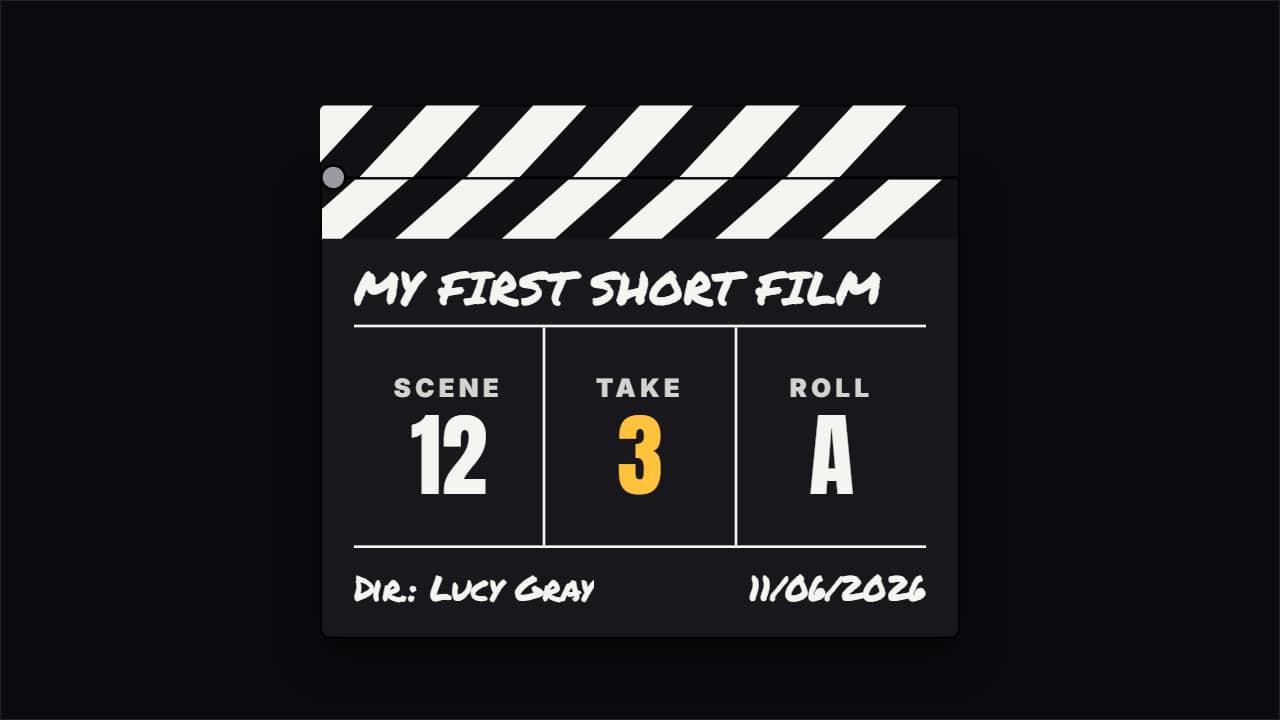
You'll download 1920×1080, 3.5 s, with no background (.mov).
BetaFree during the beta: create an account and export at no cost. No credit card.How it works →Free during the beta · no card →
You'll download 1920×1080, 3.5 s, with no background (.mov).
The clapperboard behind-the-scenes vlogs, short films and movie channels open a scene with: the slate comes in with the production, director and date written in chalk, the three big numbers (scene, take and roll), and the striped stick comes down and SNAPS shut with a bounce, a shake and rays at the hinge. Everything is editable, including the box labels and when the clap happens. Three styles: classic (black), white and your color.
Plus the typeface and an optional letter outline, in every template.
Export it without background and put it on a track above your clip: the animation plays over your video.
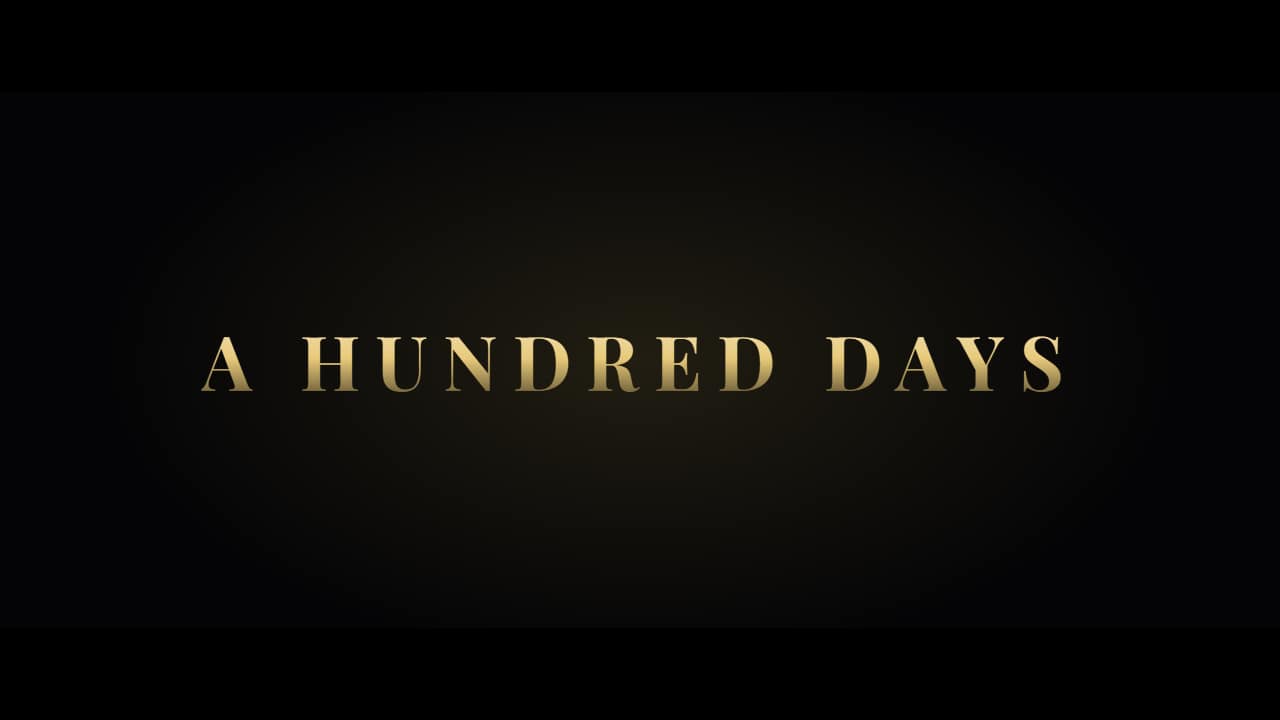 Movie trailer title cardsThe «movie» intro from vlogs and home cinema: short lines on black coming in one by one between light…
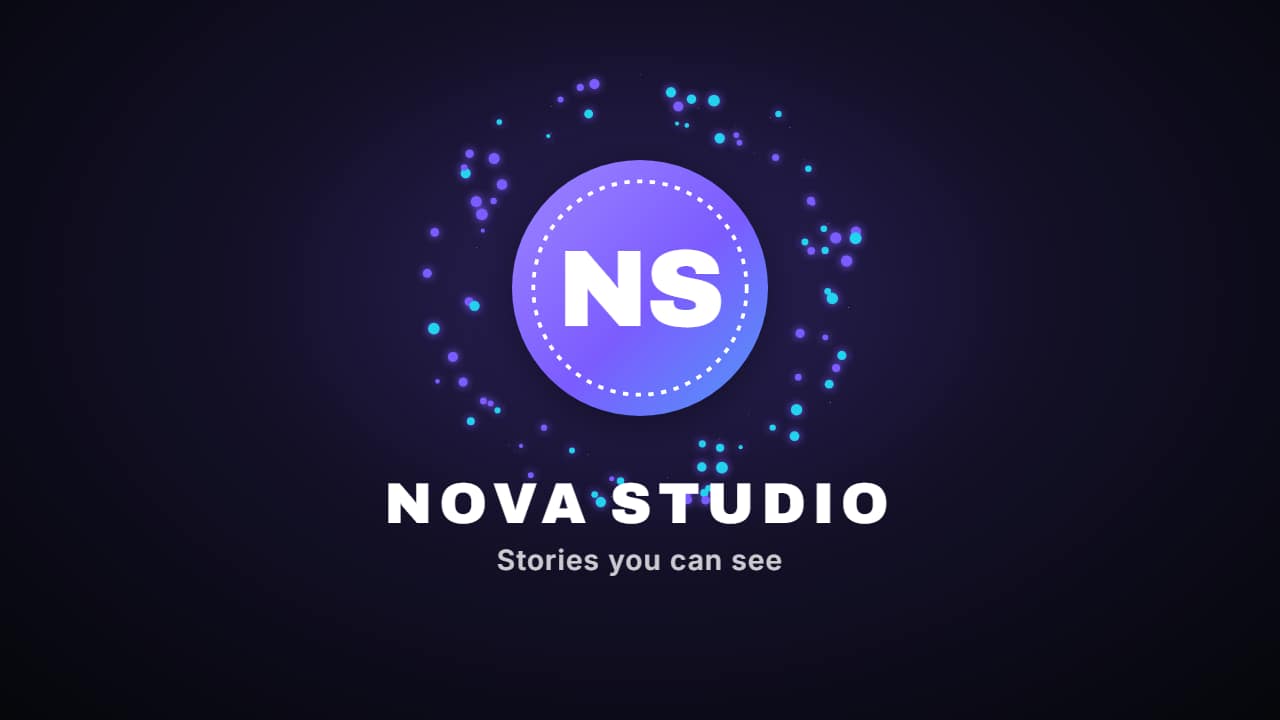 Logo revealYour logo appears in two or three seconds with your channel name and your tagline: the intro or the…
 Logo stingerYour logo crosses the screen and covers the cut between two clips: your brand colors fill it, the logo lands…
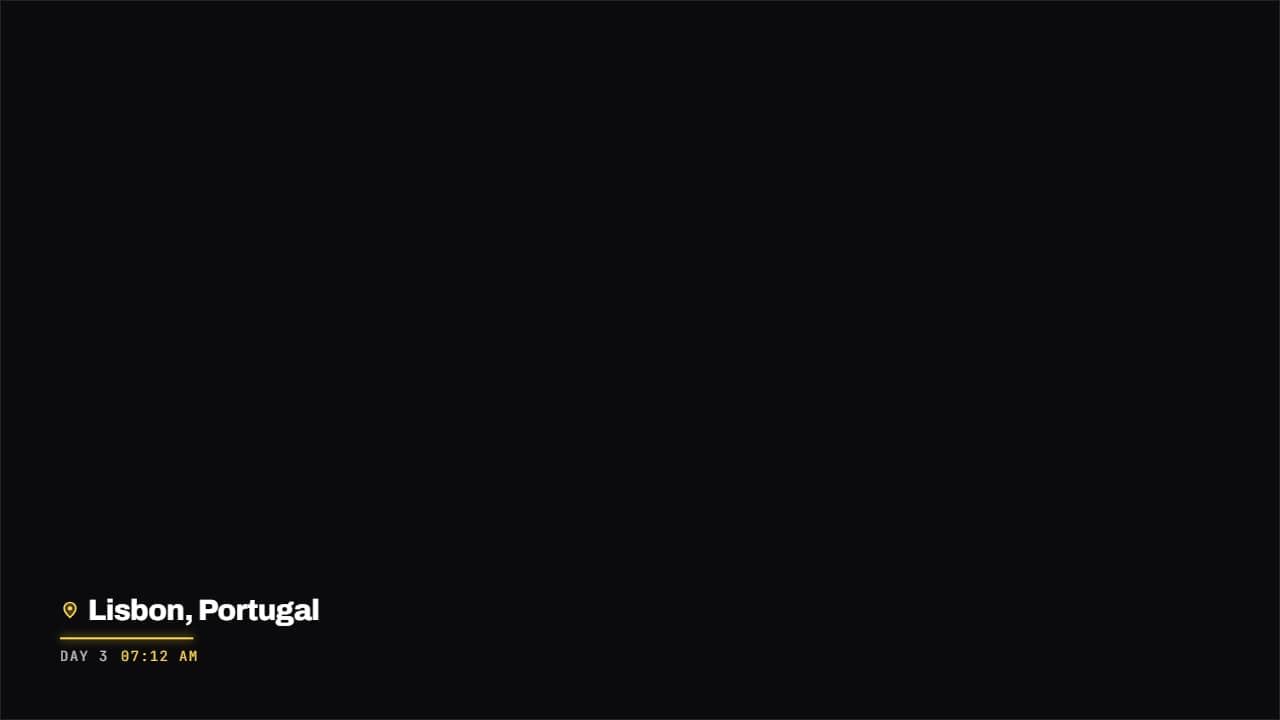 Place and date stampA map pin, the name of the place and the date underneath in monospace, with a colored rule drawing itself.
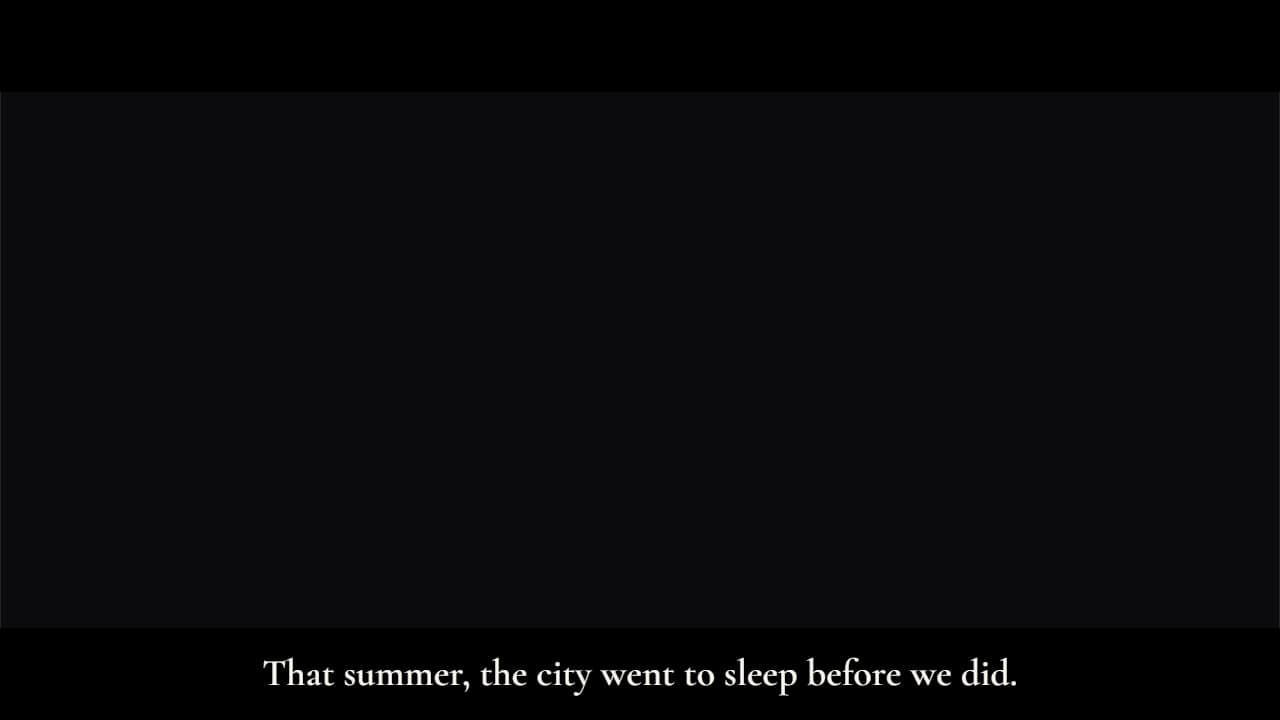 Cinematic subtitlesLike a film: the whole sentence at once, with slow fades, and black letterbox bars that slide in (in 16:9…
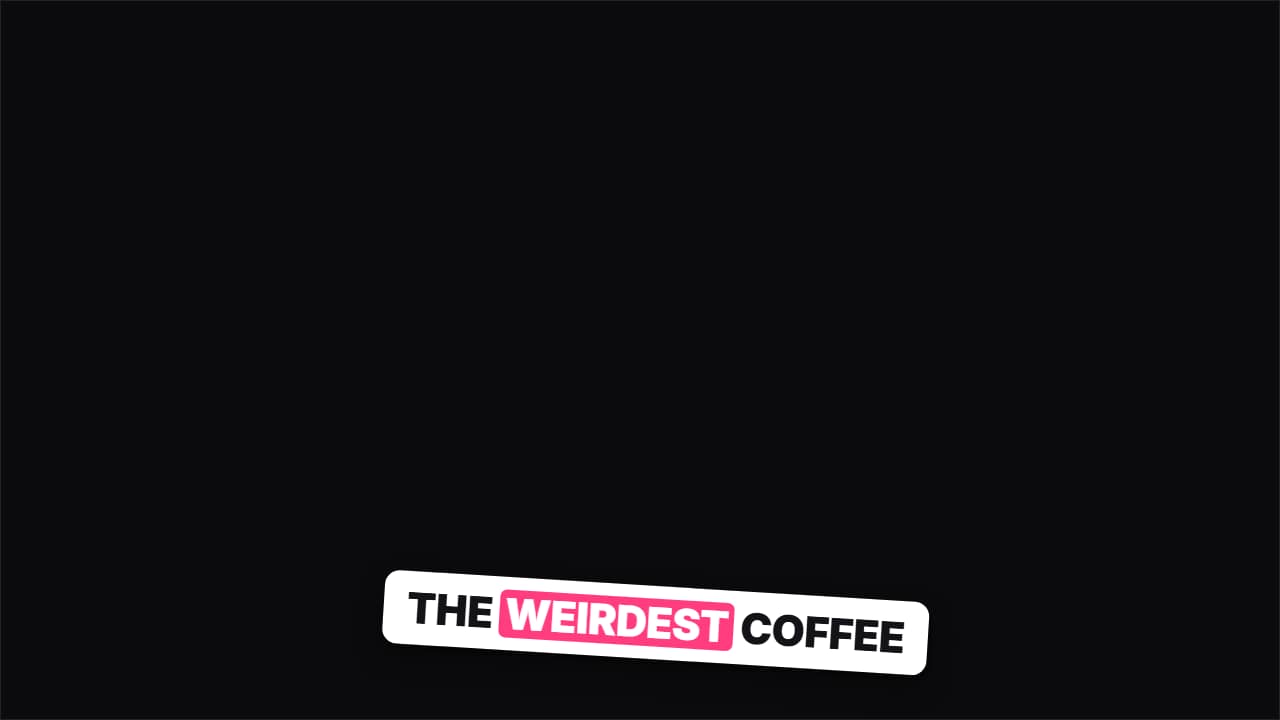 Sticker captionsEvery phrase is a tilted sticker that slaps onto the screen; the previous one stays underneath for a moment…
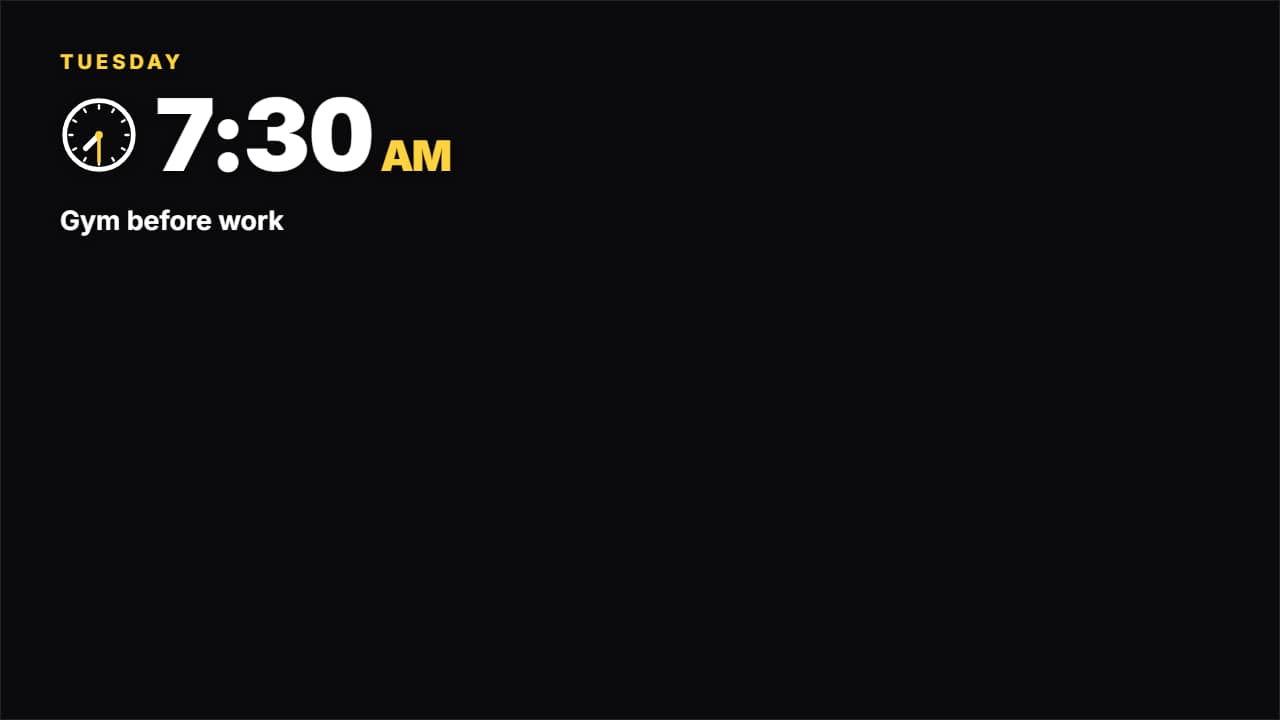 Time of day stamp (day in my life)The stamp from «day in my life» videos: the weekday, a clock whose hands spin to the time, «7:30» with the…
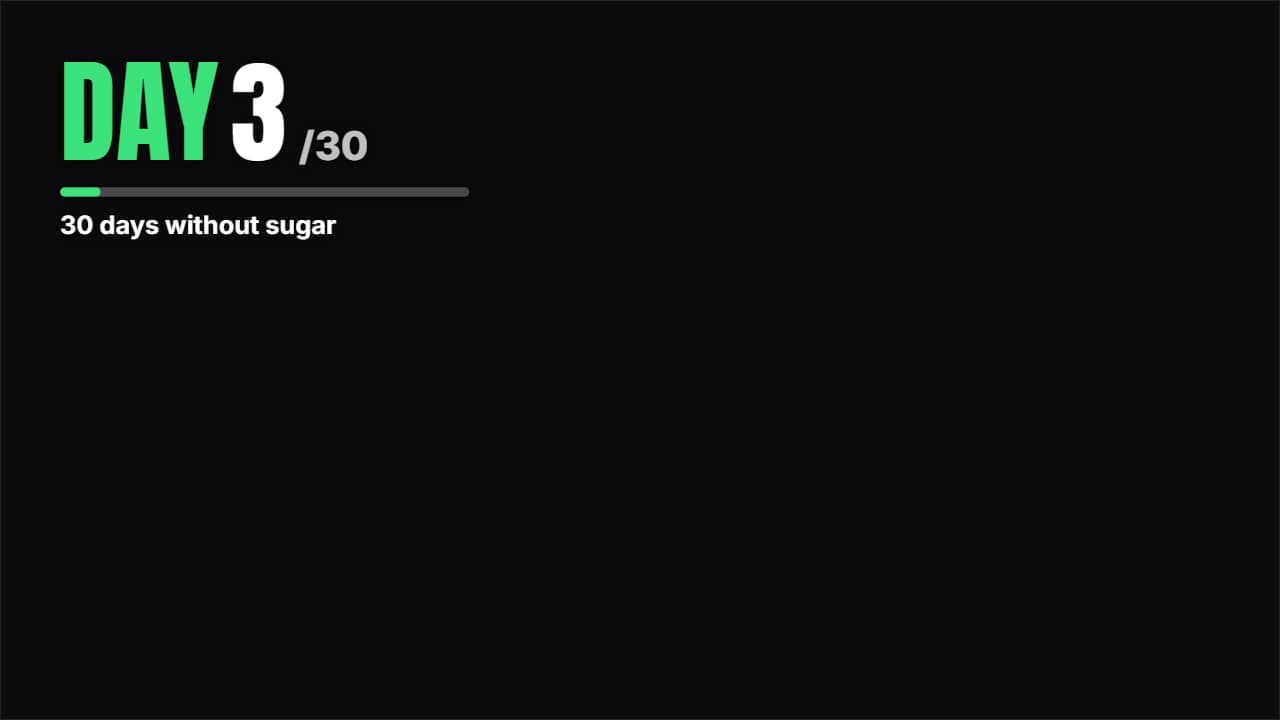 Day 3 of 30 counterThe title for N-day challenges and vlog series: «DAY 3» with the number rolling from the previous one…