Format (important)1920×1080this is how it downloads
Preview doesn't change the file
You'll download 1920×1080, 3.5 s, with no background (.mov).
You'll download 1920×1080, 3.5 s, with no background (.mov).
The bell genuinely shakes with its sound arcs, the notifications menu opens, and the cursor comes down to the right option, which keeps its tick. Asking for the bell without showing the menu is wasted breath: hardly anyone knows there are three options and that only one of them counts.
Plus the typeface and an optional letter outline, in every template.
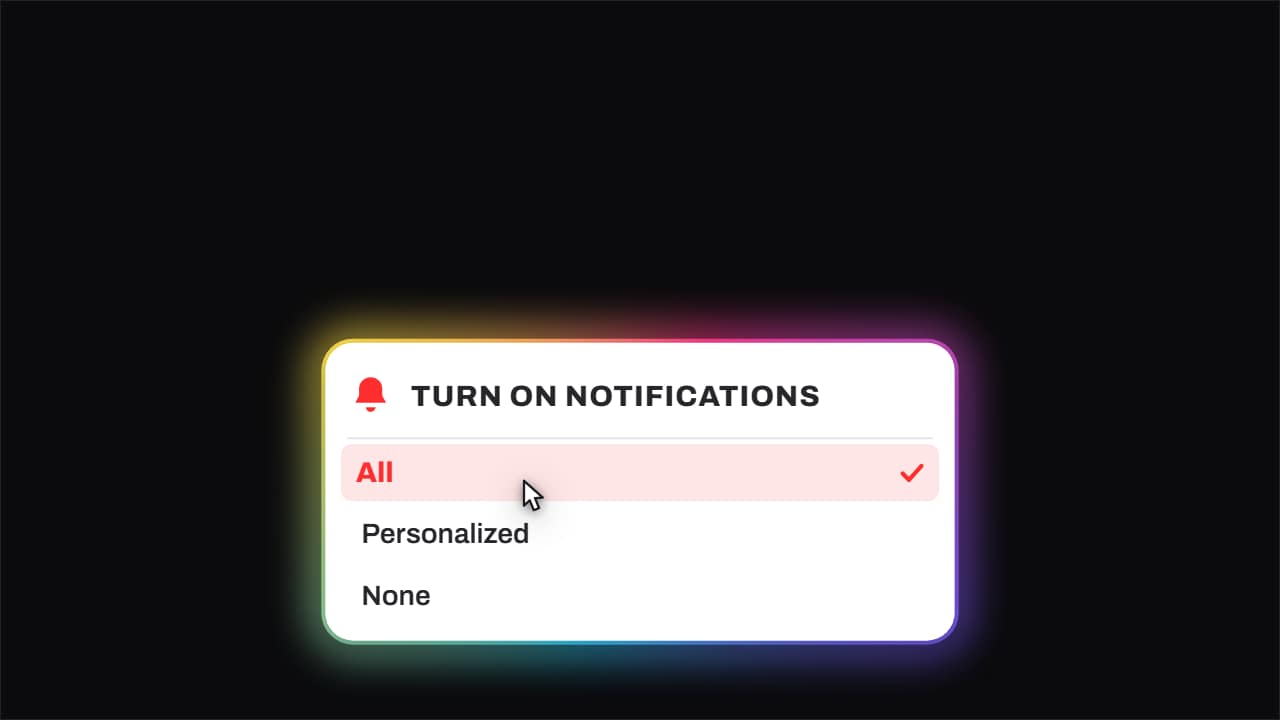
Export it without background and put it on a track above your clip: the animation plays over your video.
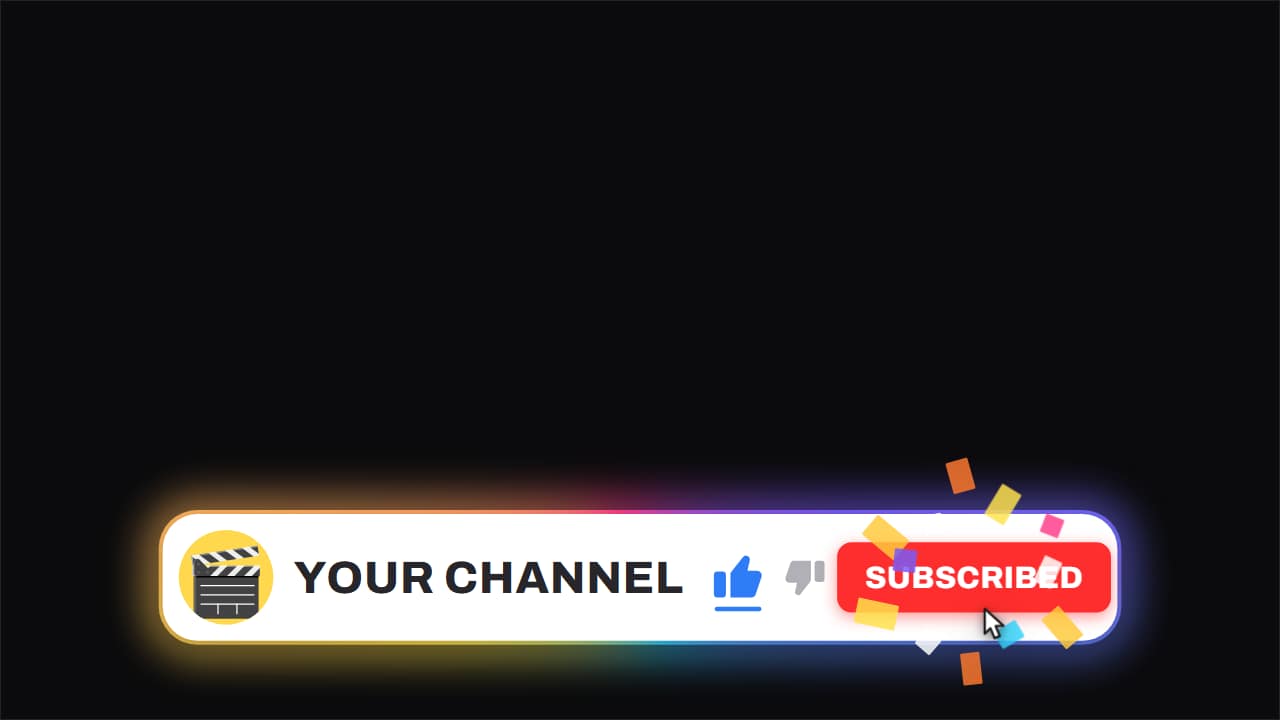 Channel bar · like and subscribeThe white capsule with the ROTATING gradient edge, floating over the video while it keeps running underneath.
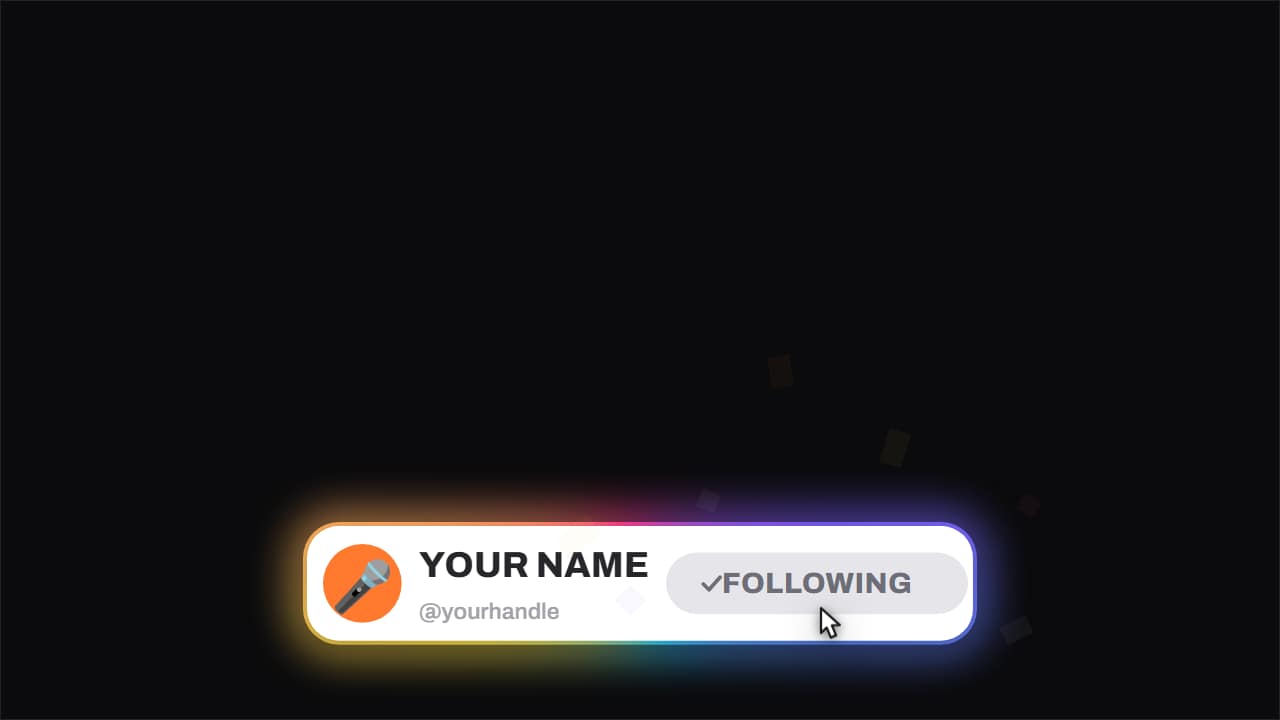 Follow card · with confettiThe short version of the channel bar, the one built for vertical feeds: avatar, name, handle and a button…
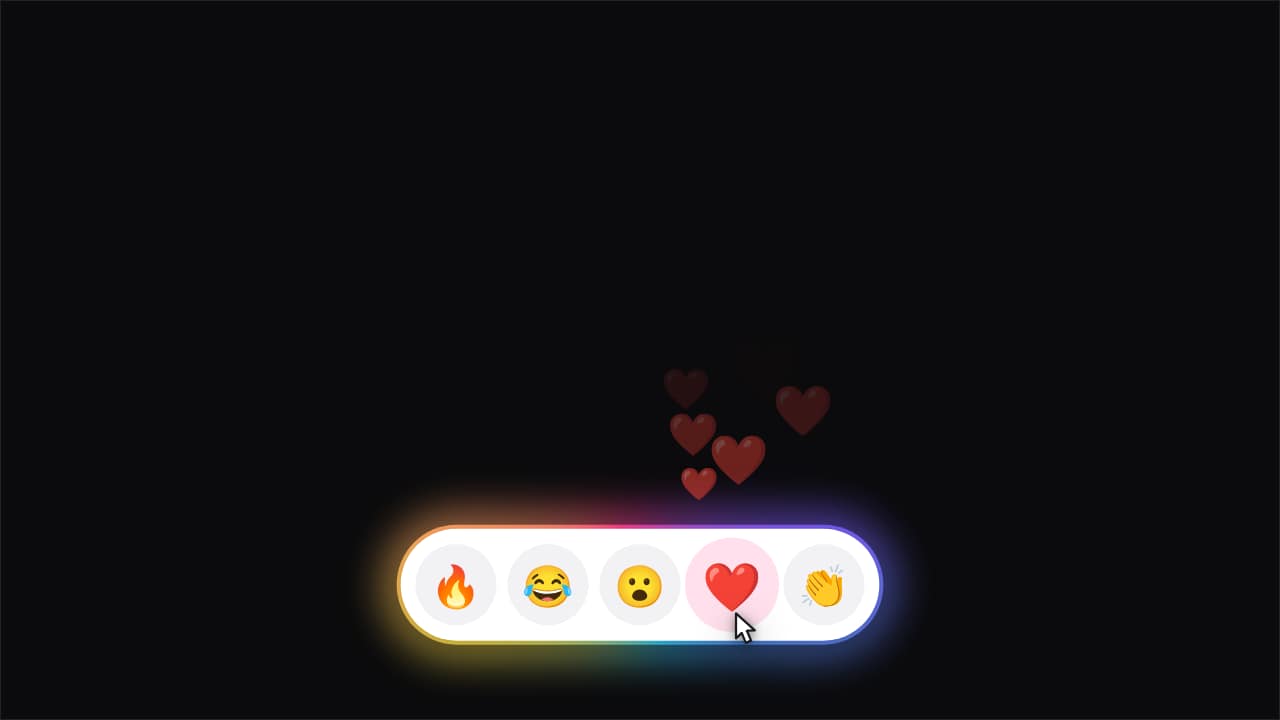 Reactions · the one you tap pours outA row of emoji inside the capsule. The cursor reaches one, taps it, and a stream of copies of that emoji…
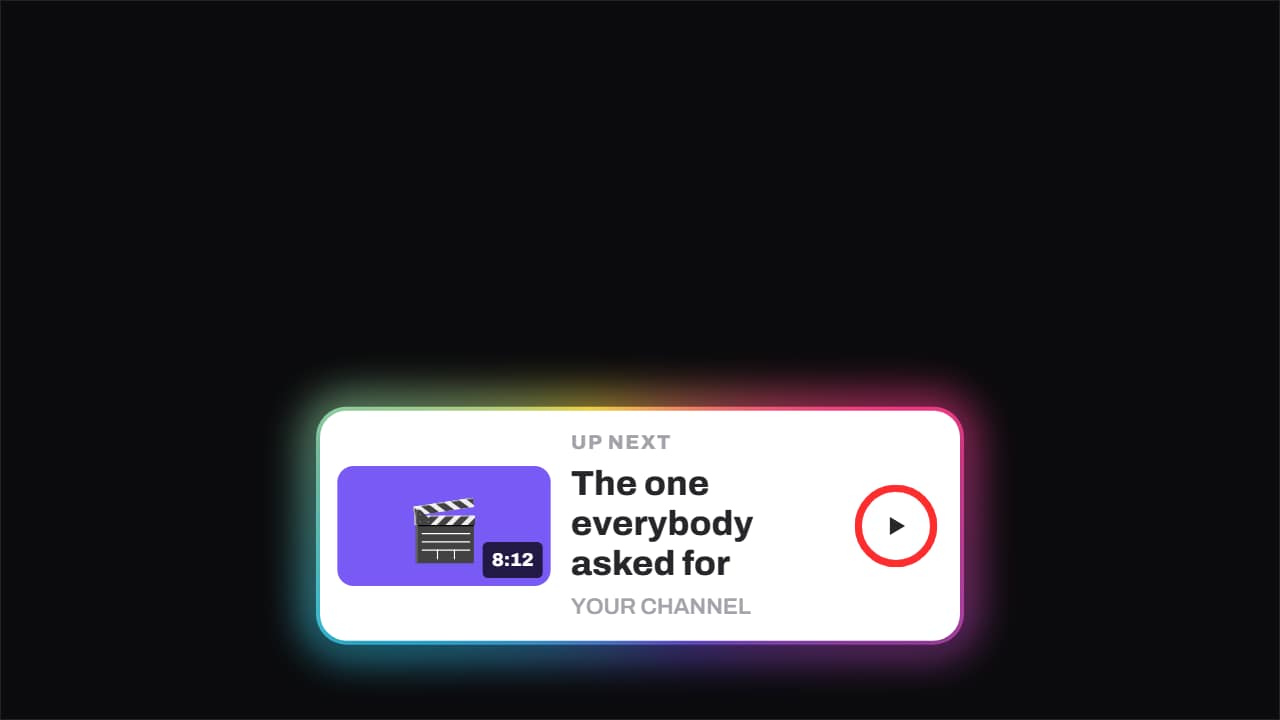 Up next · the ring runs outThe up-next card: thumbnail with its runtime, title, channel and a ring that fills until it fires on its own.
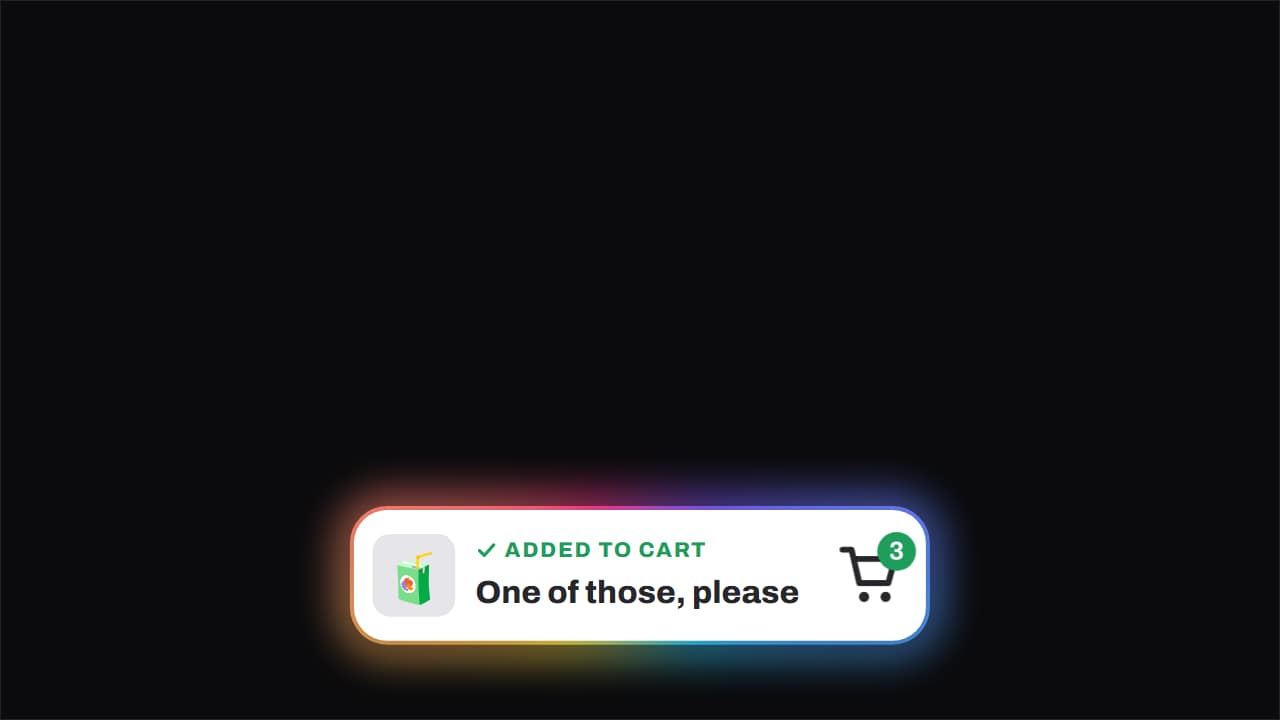 Added to cart · the item flies inThe item arcs across into the cart, the badge ticks up with a pop and the green tick appears.
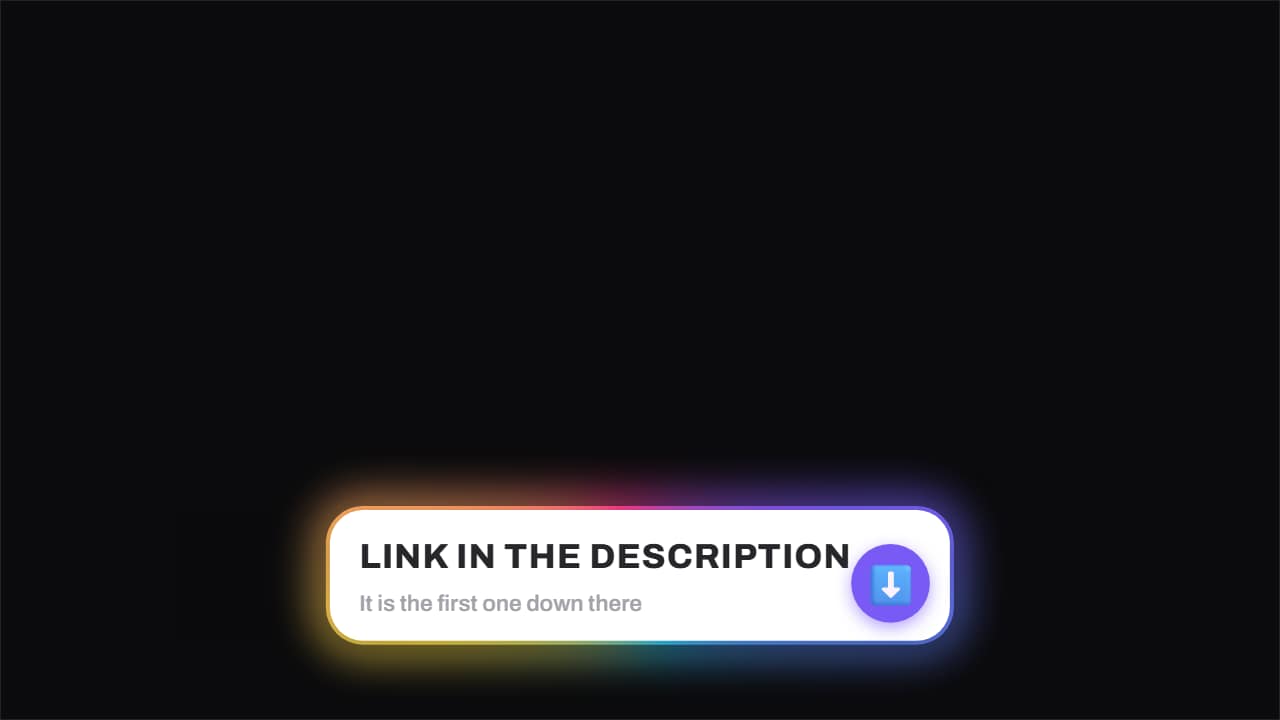 Link in the description · the arrow won't stopThe notice that the link is down there, with the arrow bouncing and a highlight sweeping very slowly across…
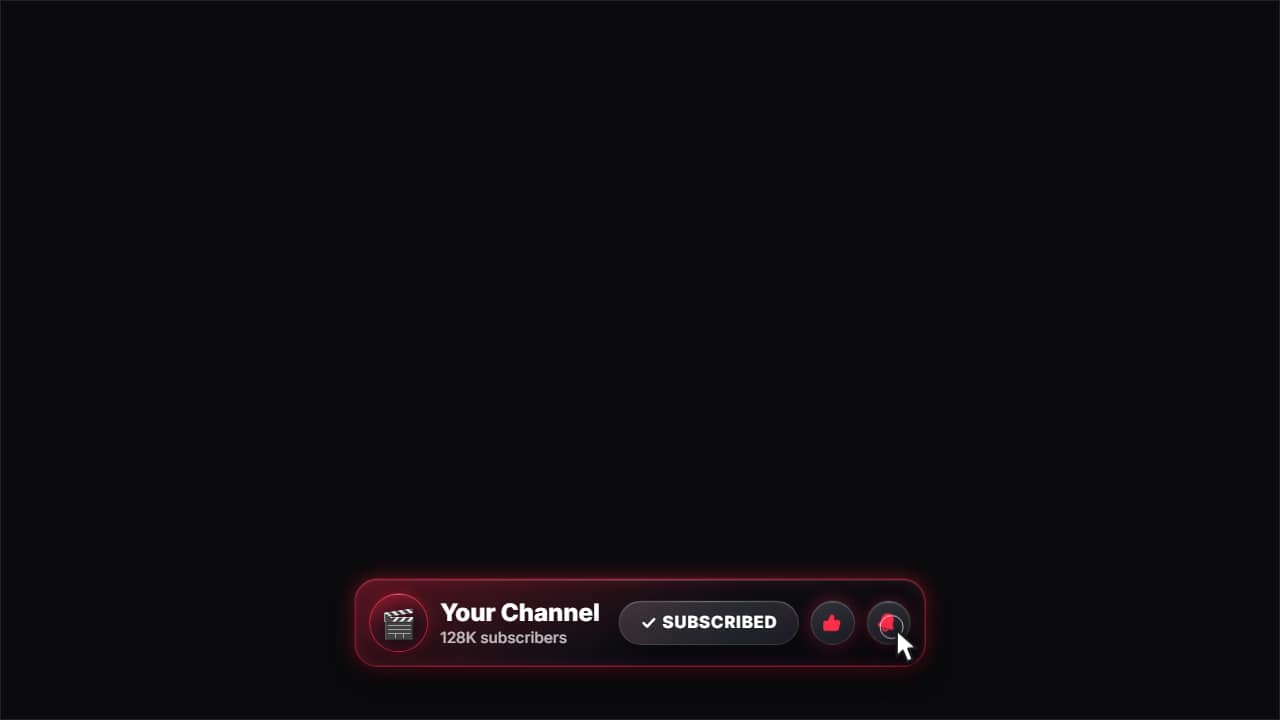 Glass subscribe cardYour channel card in glass: avatar, name and subscriber count.
 Ring the bellA bell swinging and letting off ripples when pressed. The notification reminder without being a nag.