Aspect ratio1920×1080this is how it downloads
Preview doesn't change the file
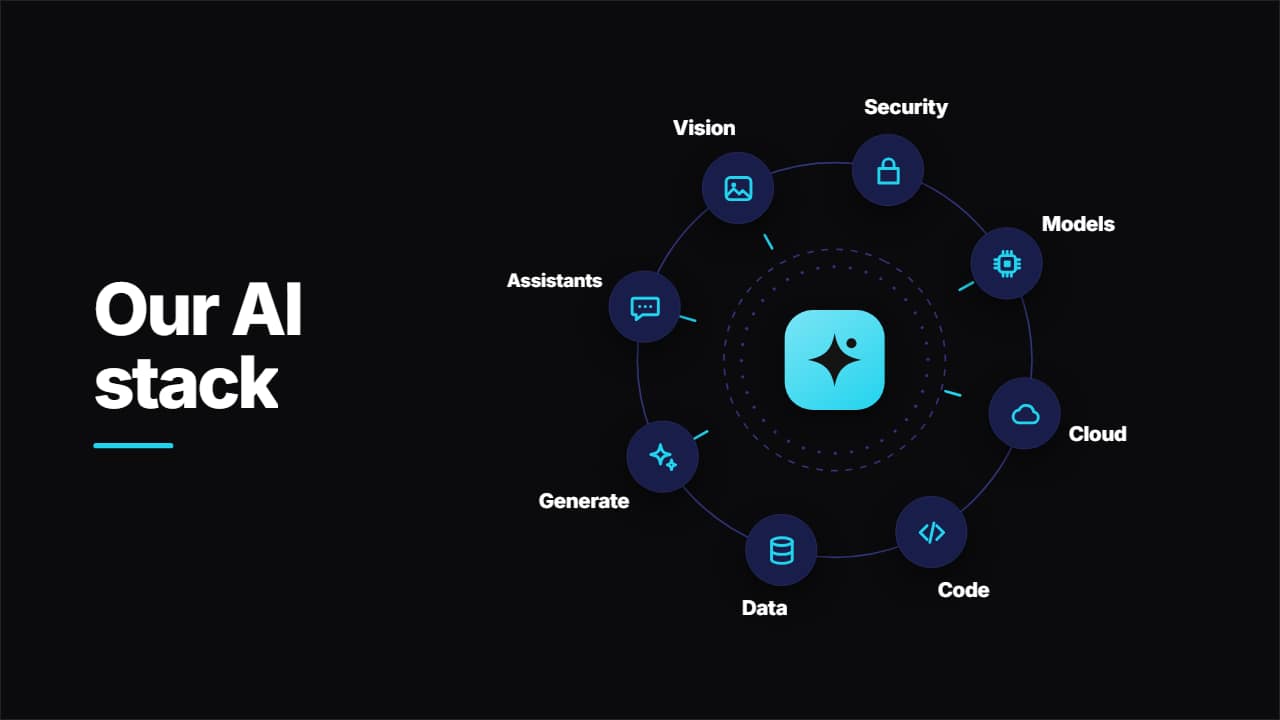
You'll download 1920×1080, 3.5 s, with no background (.mov).
BetaFree during the beta: create an account and export at no cost. No credit card.How it works →Free during the beta · no card →
You'll download 1920×1080, 3.5 s, with no background (.mov).
Your logo in the middle, the title beside it and up to 8 tools circling on a ring that draws itself, with a dashed inner ring spinning the other way and sending data pulses to each one. Each tile carries a generic drawn icon (chip, cloud, code, data, sparkles, chat, image, lock…), your image or an emoji, and its name pointing outwards, never overlapping the others. To explain your stack, your workflow or the parts of a product. Indigo, light, cyan or glass.
Plus the typeface and an optional letter outline, in every template.
Export it without background and put it on a track above your clip: the animation plays over your video.
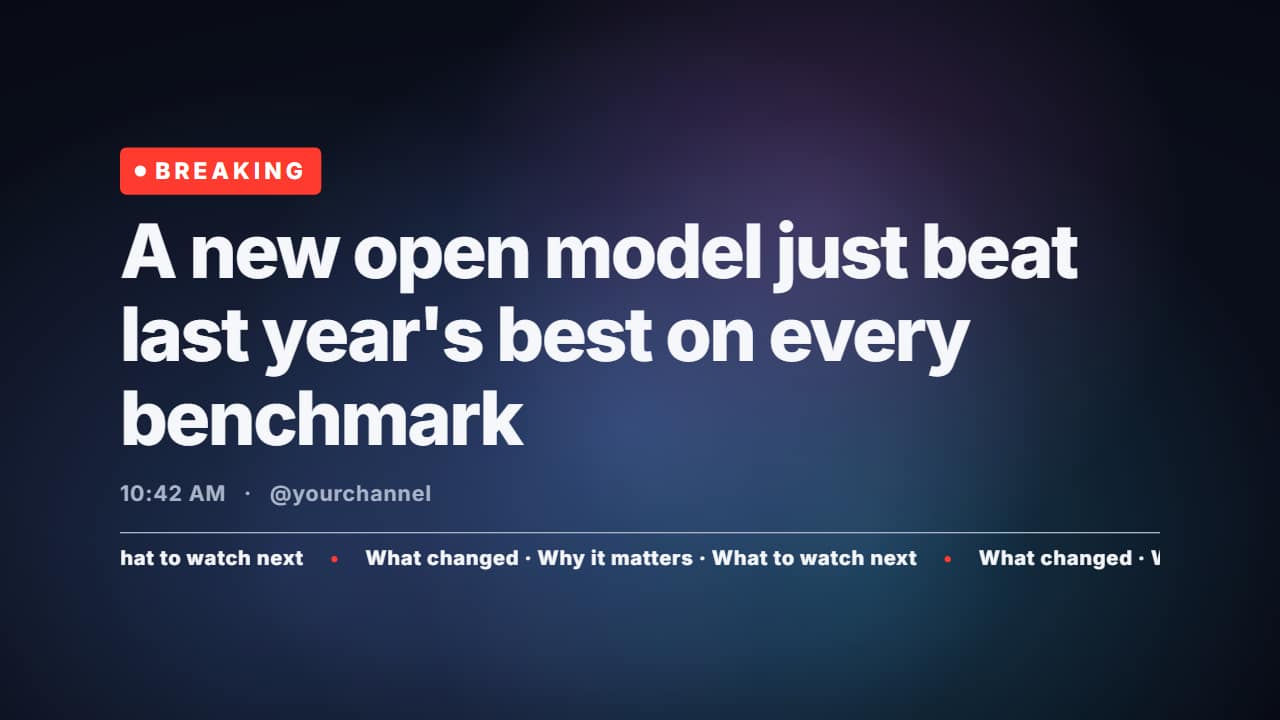 Breaking news headline on a looping gradientFor AI and tech news: the «BREAKING» pill with its pulsing dot, the big headline rising line by line, the…
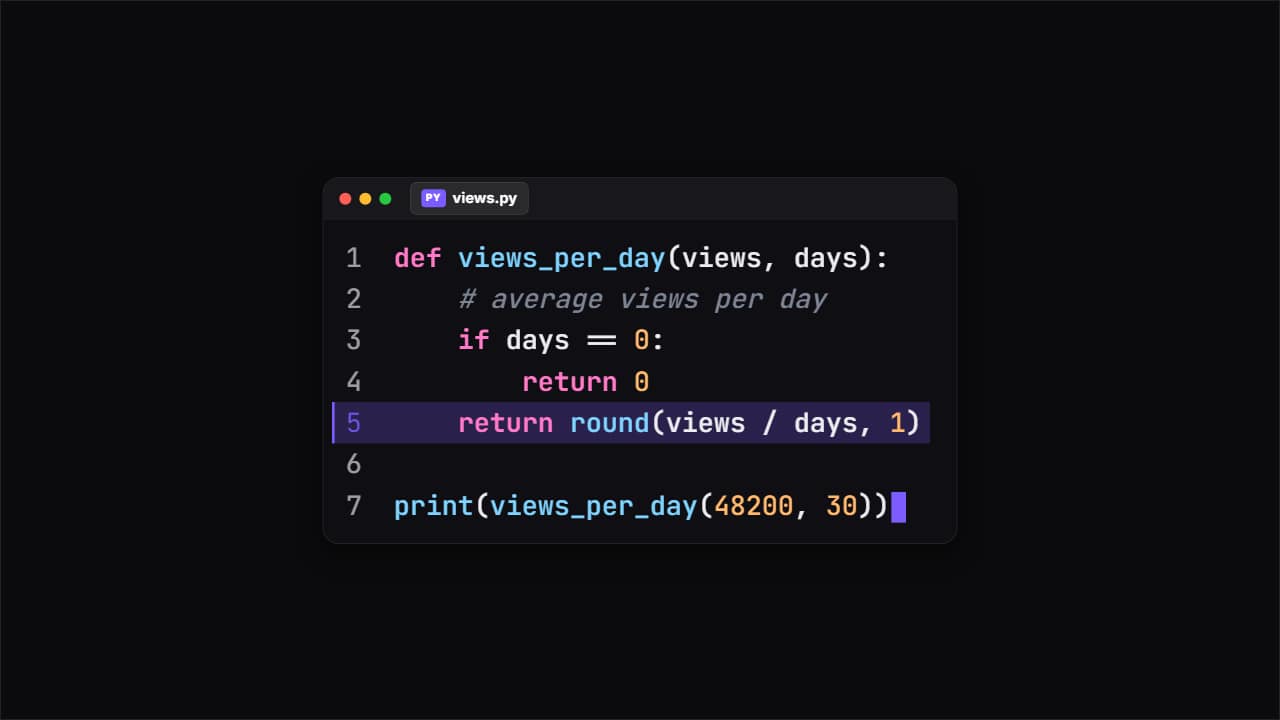 Code snippetThe editor window with your code typing itself, with its colors, the file name and line numbers.
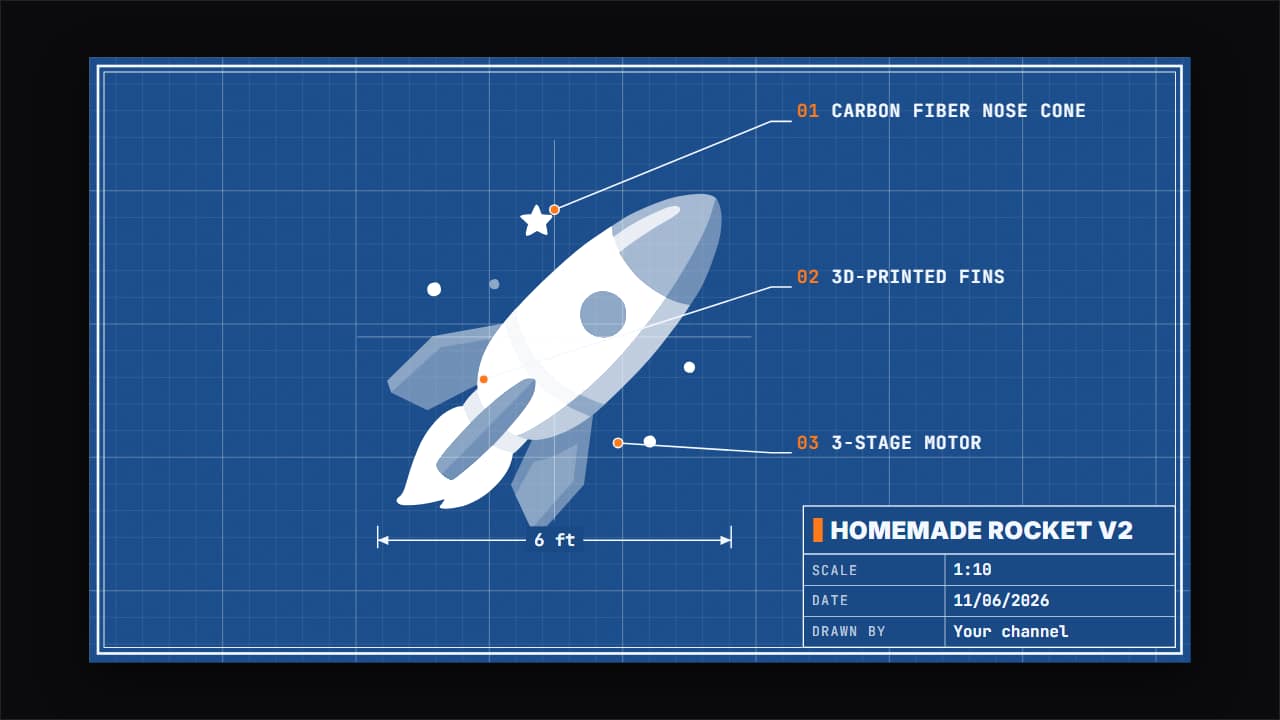 Blueprint of your buildWhat you build, shown as an engineering drawing: the grid draws itself, the double border closes, your photo…
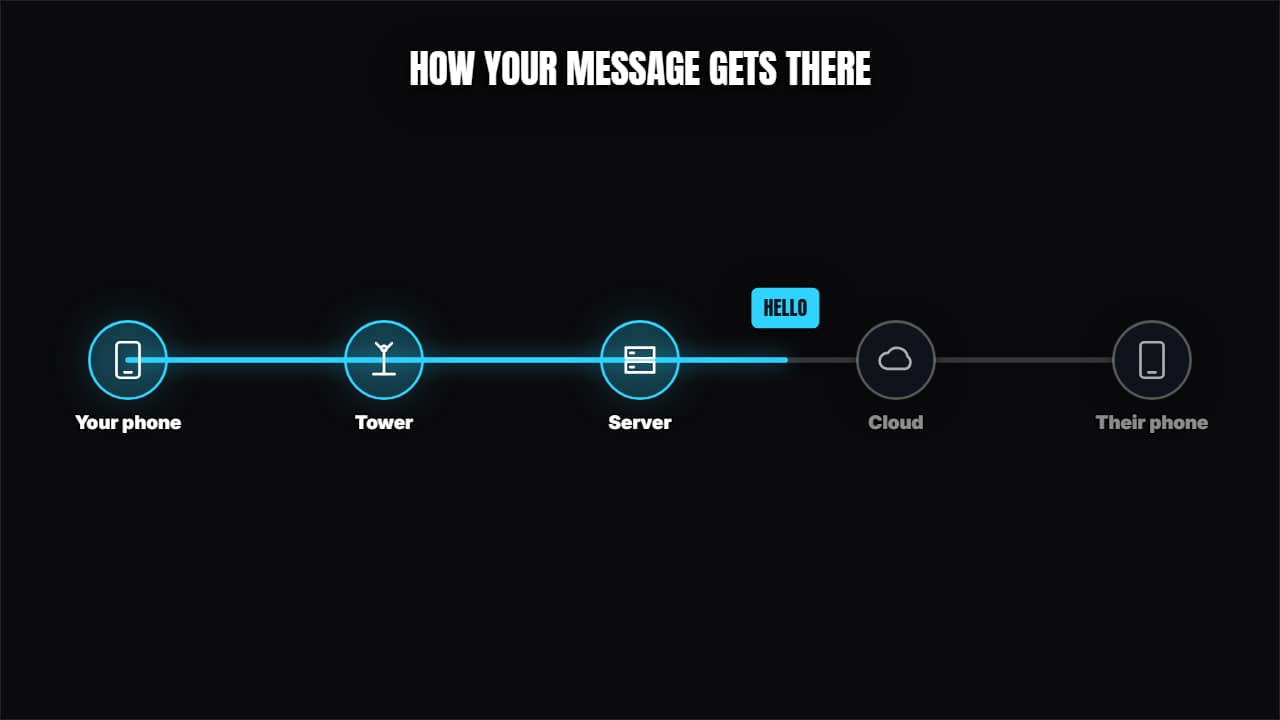 How a message travelsNodes with icons joined by cables and a packet traveling through, lighting them up.
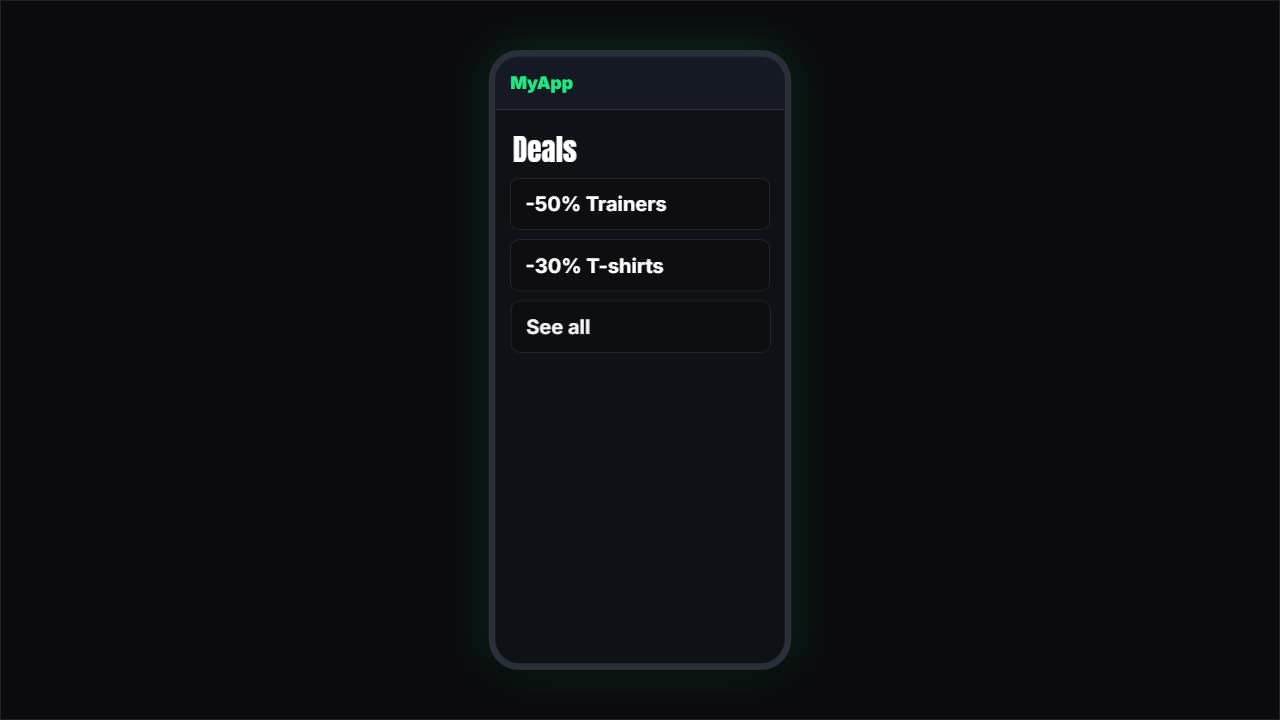 App or web demoA simulated phone (or browser) where a finger taps and the screens change.
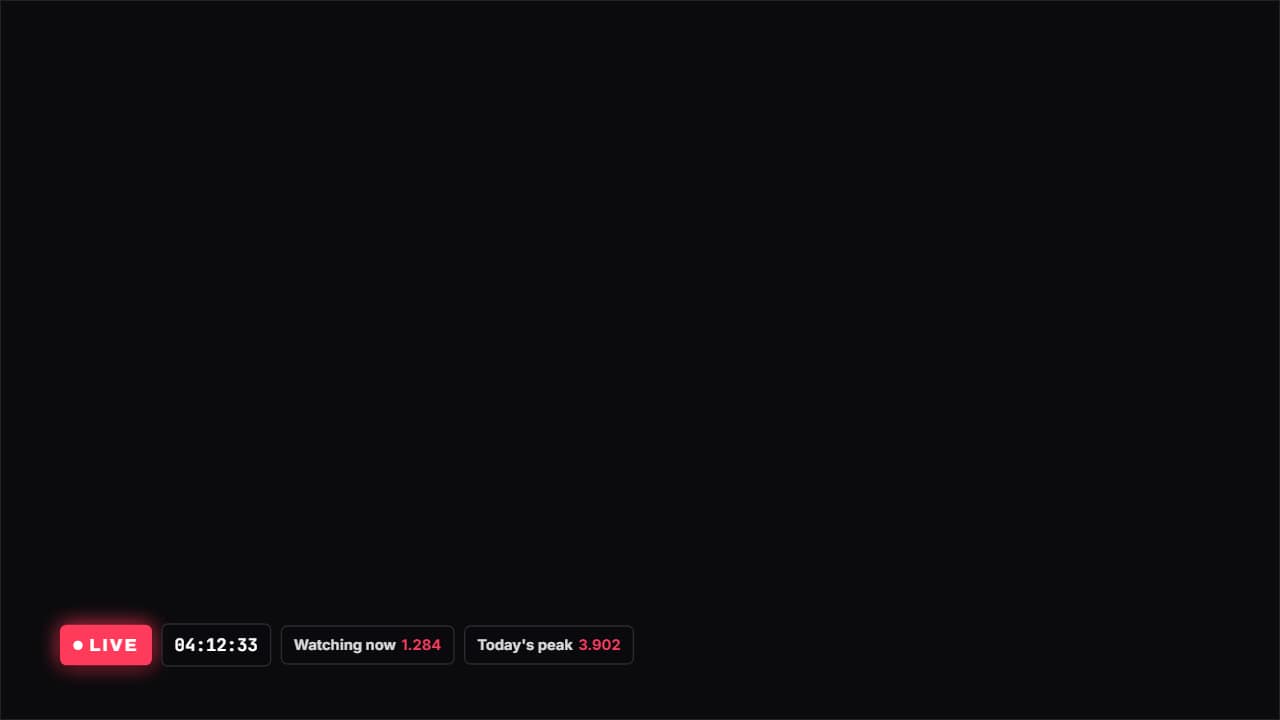 Live with a stopwatchA LIVE badge with the red dot pulsing, a stopwatch and whatever figures you want beside it (viewers…
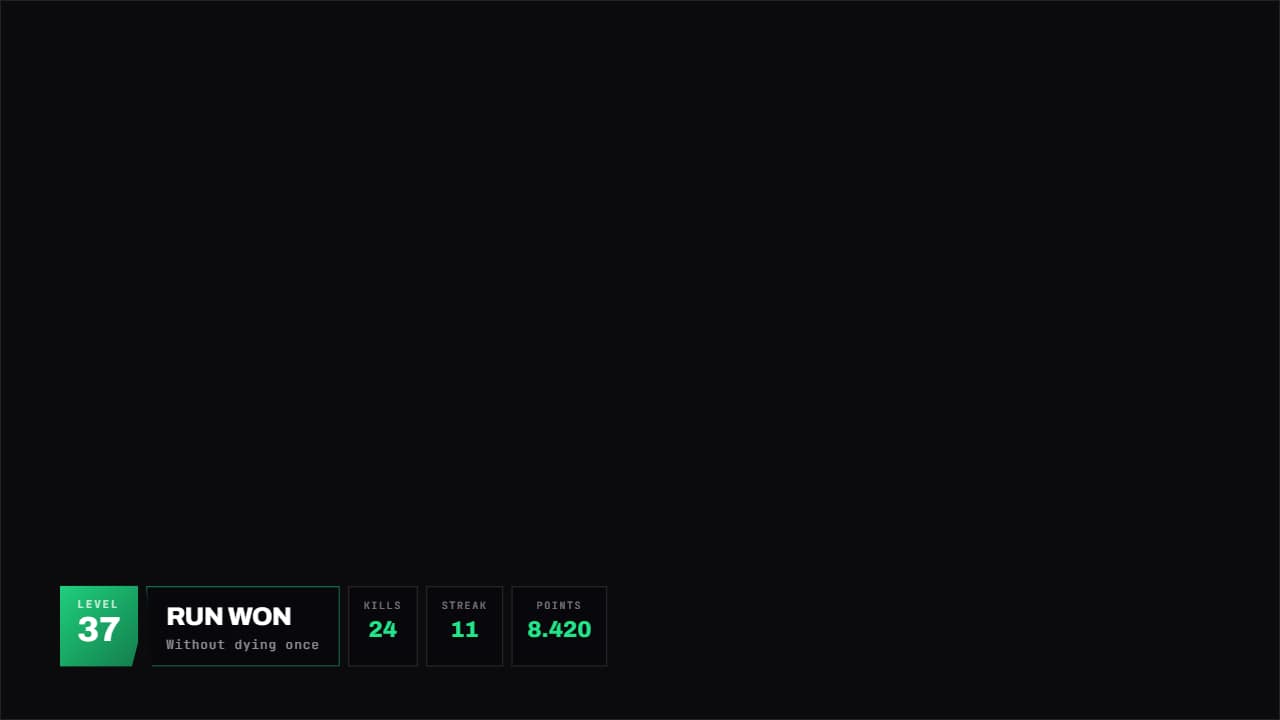 Gaming panelA HUD panel with corners cut on the diagonal: level large on one side, title in the middle and whatever…
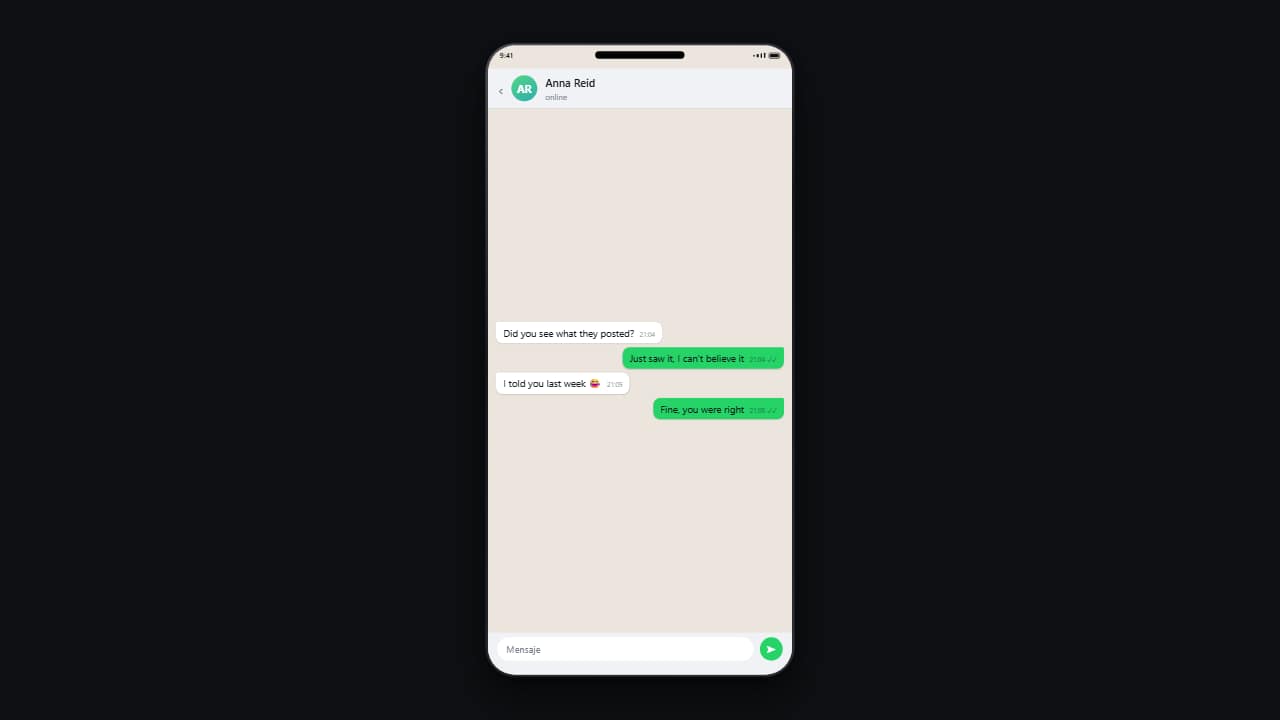 Phone conversationMessages drop in one by one on a phone, with their timestamps and read ticks.