Aspect ratio1920×1080this is how it downloads
Preview doesn't change the file
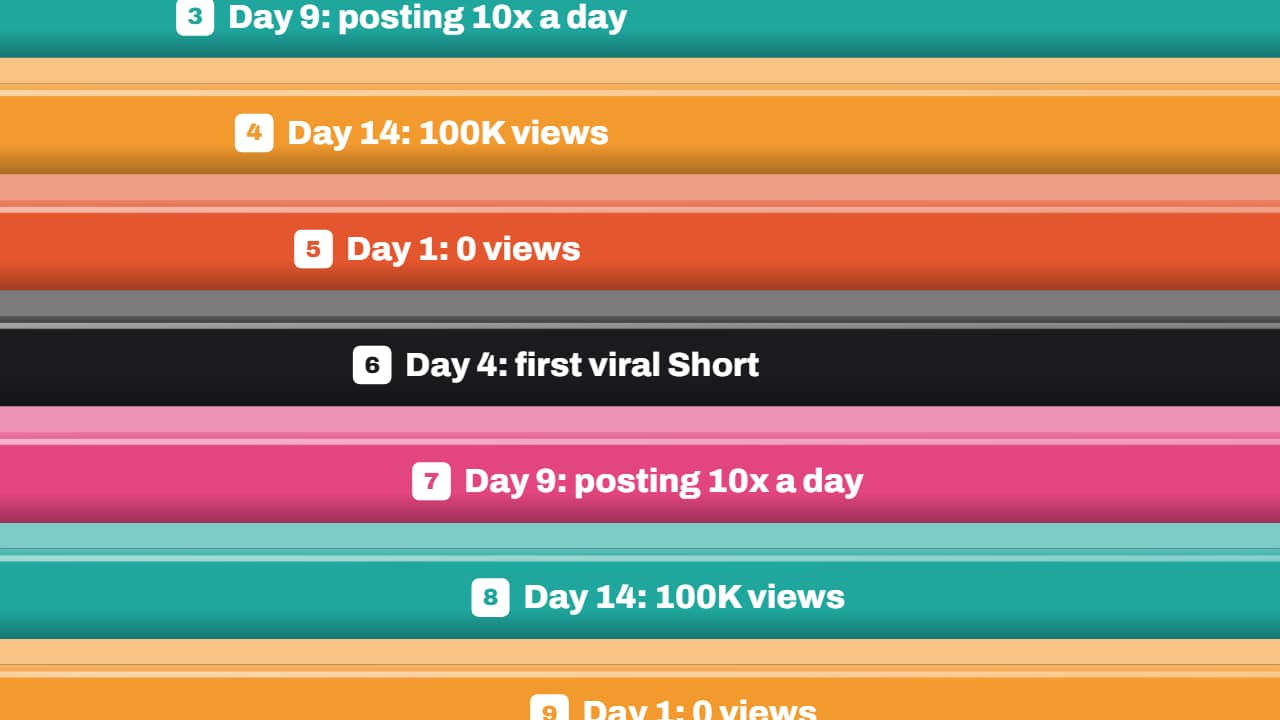
You'll download 1920×1080, 3.5 s, with no background (.mov).
BetaFree during the beta: create an account and export at no cost. No credit card.How it works →Free during the beta · no card →
You'll download 1920×1080, 3.5 s, with no background (.mov).
A stack of glossy labelled 3D bars whips diagonally across the screen (fast in, slowing in the middle while it covers everything, fast out) and hides the cut between two scenes. Transparent before and after. Labels, colors, direction and speed are editable. Put it over the cut in your editor.
Plus the typeface and an optional letter outline, in every template.
Export it without background and put it on a track above your clip: the animation plays over your video.
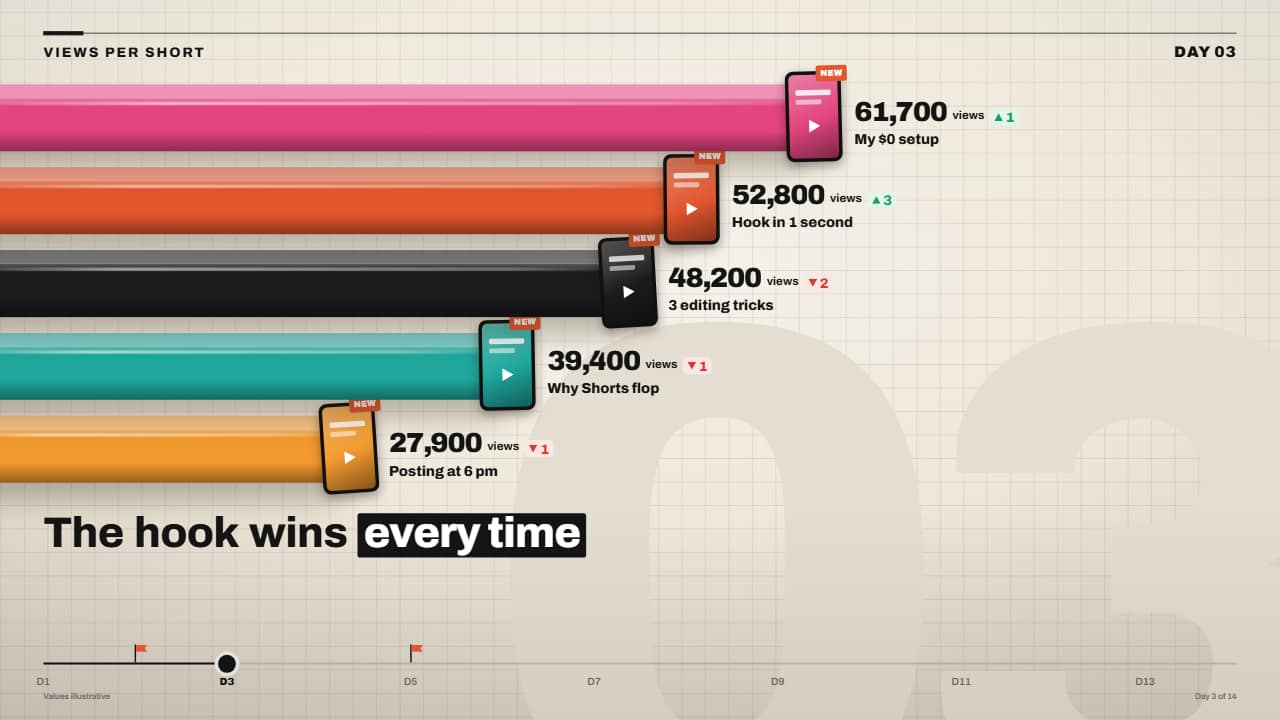 3D bar race with rolling numbersChunky, glossy 3D bars that grow from the edge and overtake each other in a tenth of a second, each with its…
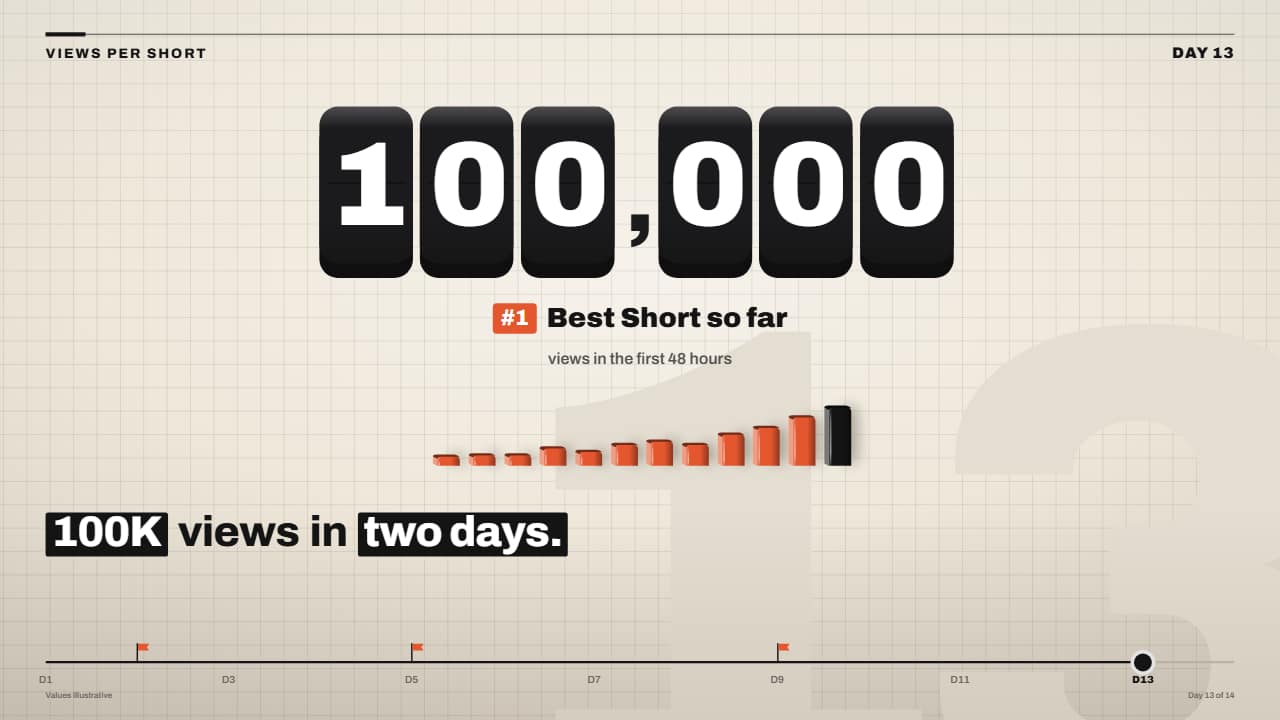 Giant odometer counter on 3D keysThe big number on black 3D keys, one rolling wheel per key: the right ones spin so fast they blur and the…
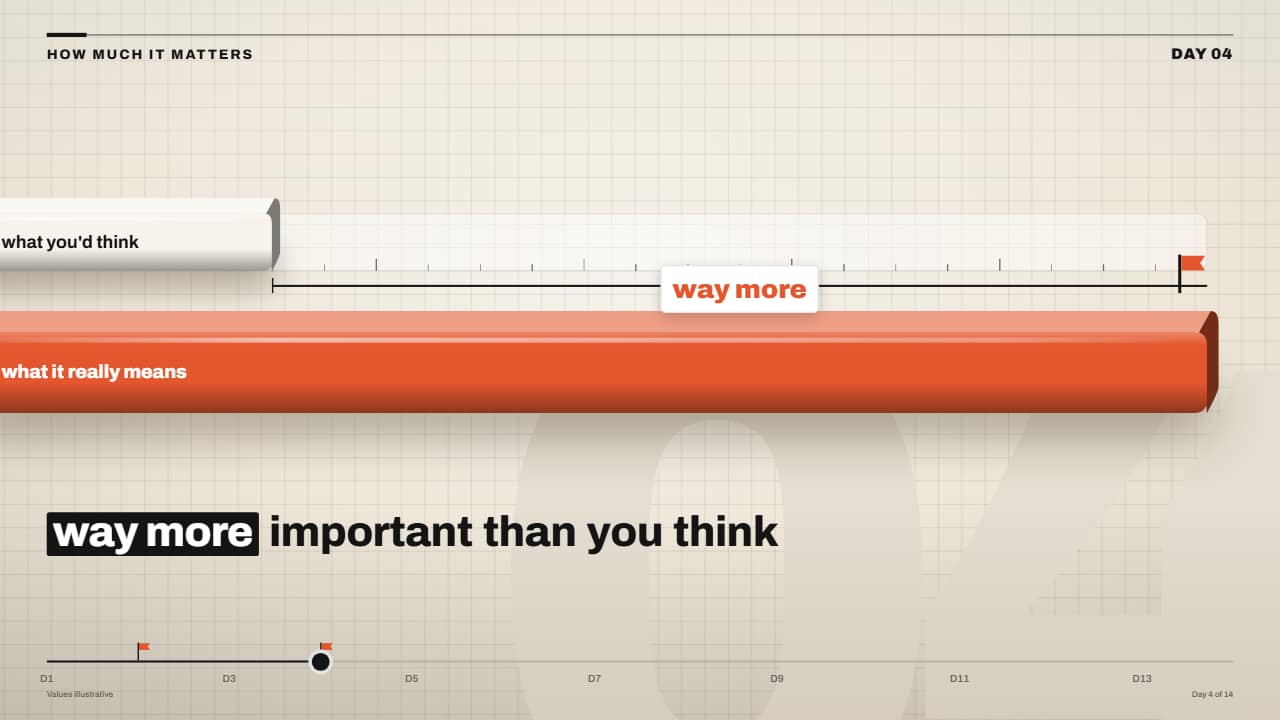 Expectation vs reality ruler that shattersA short light bar with a dashed marker («what you'd think») and a chunky orange bar («what it really means»)…
 «Comment the keyword» 3D keycap CTAThe faceless channel call to action: a giant orange keycap with the keyword drops and presses down, the…
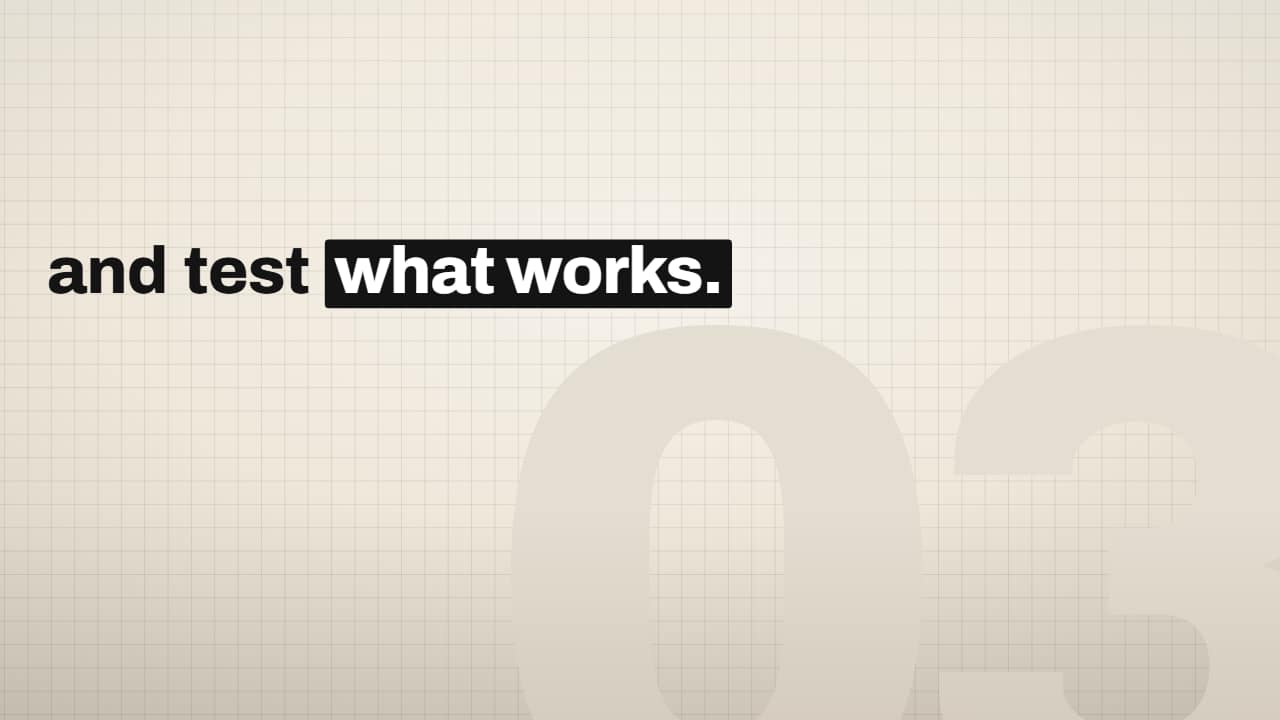 Editorial word-by-word caption with highlight boxPaste your sentence and mark the key words with *asterisks*: every word lands grey and slightly low, then…
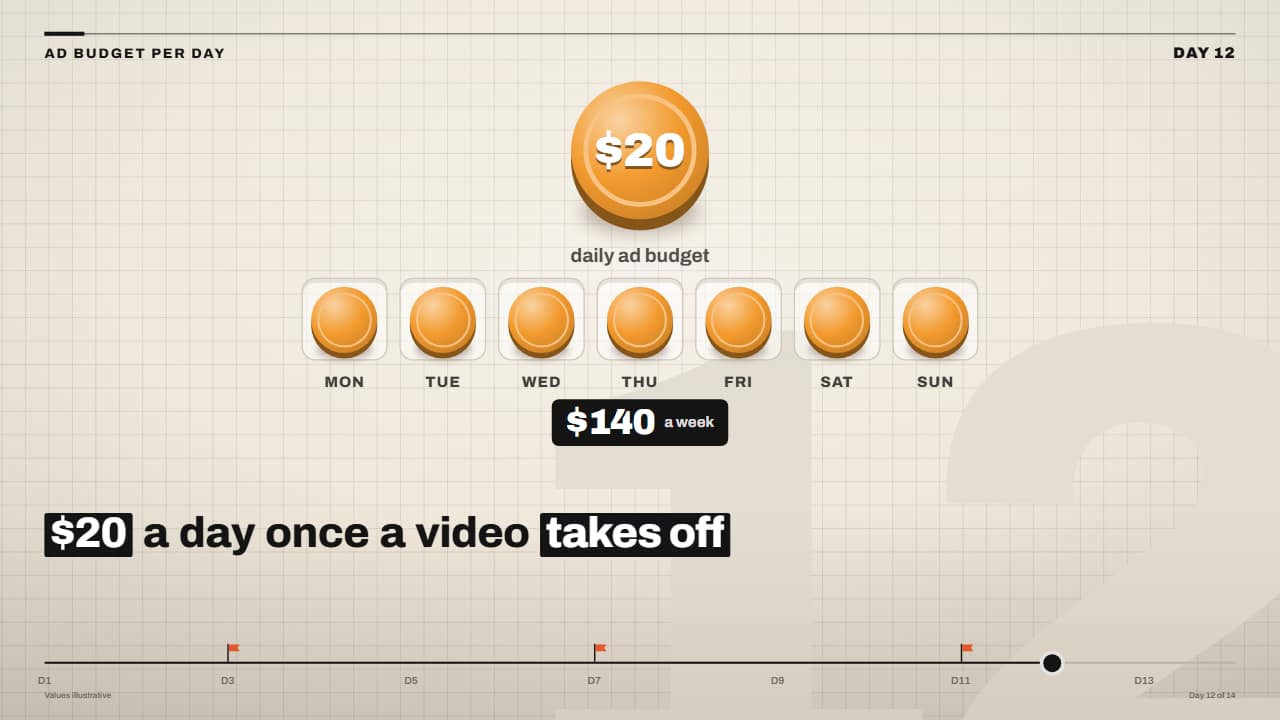 Daily budget coins filling the weekThe big coin with the amount drops in spinning and, one after another, a coin jumps into each slot of the…
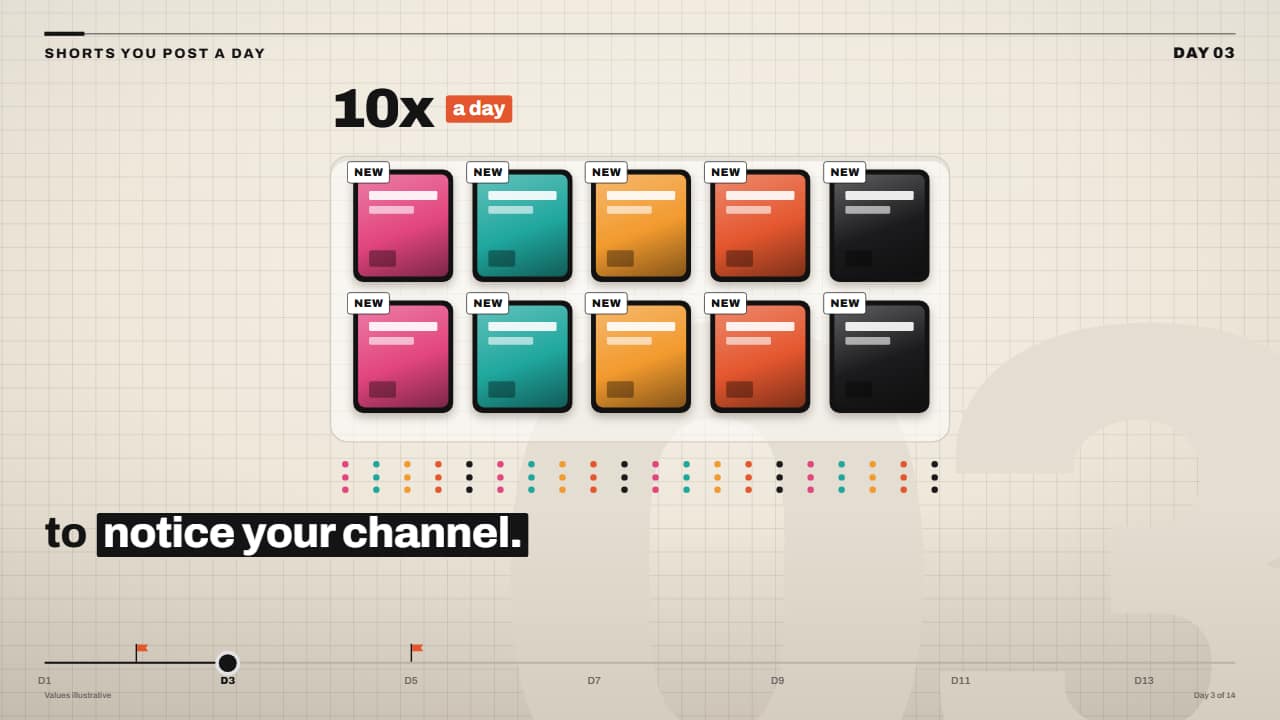 «10x a day» card tray with counterA tray with slots where video cards drop in one by one, each with its tag, while the number on top rolls up…
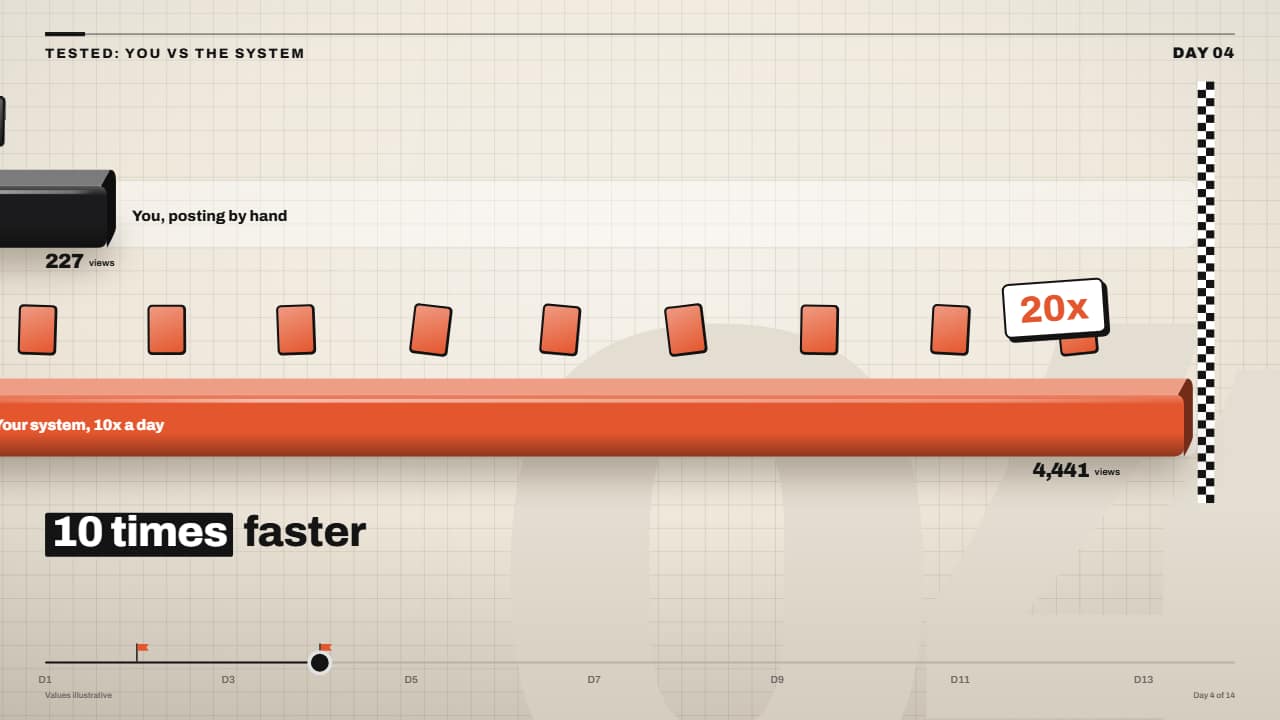 You vs them race lanes with finish lineTwo or three lanes, each with its 3D bar: every bar moves at its own pace and drops little cards (each one a…