Aspect ratio1920×1080this is how it downloads
Preview doesn't change the file
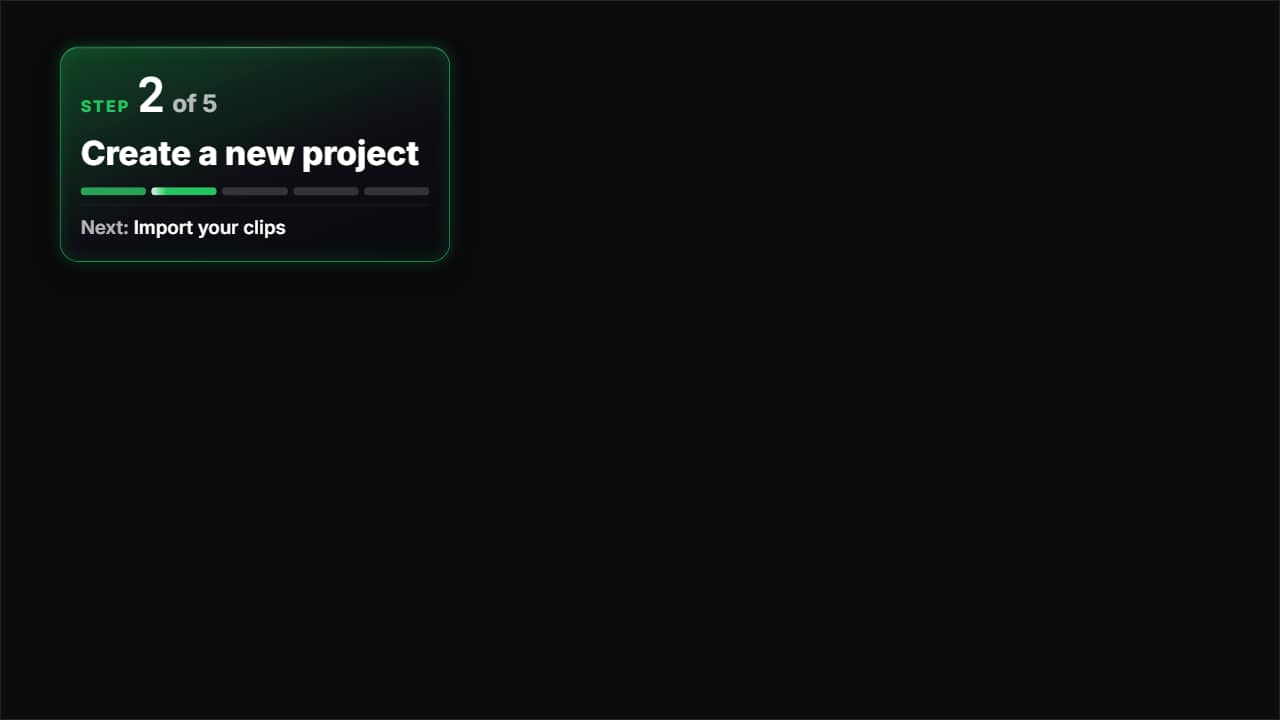
You'll download 1920×1080, 3.5 s, with no background (.mov).
BetaFree during the beta: create an account and export at no cost. No credit card.How it works →Free during the beta · no card →
You'll download 1920×1080, 3.5 s, with no background (.mov).
The badge for tutorials and recipes: the step number, how many there are, this step's title and a bar split into segments. The earlier ones arrive full, the number rolls up from the previous step and the current one fills in front of you; then a shine runs along it. Export one per step by changing «Current step». Optional: «Next: …» underneath. Four styles: glass, dark, light and a one-line pill.
Plus the typeface and an optional letter outline, in every template.
Export it without background and put it on a track above your clip: the animation plays over your video.
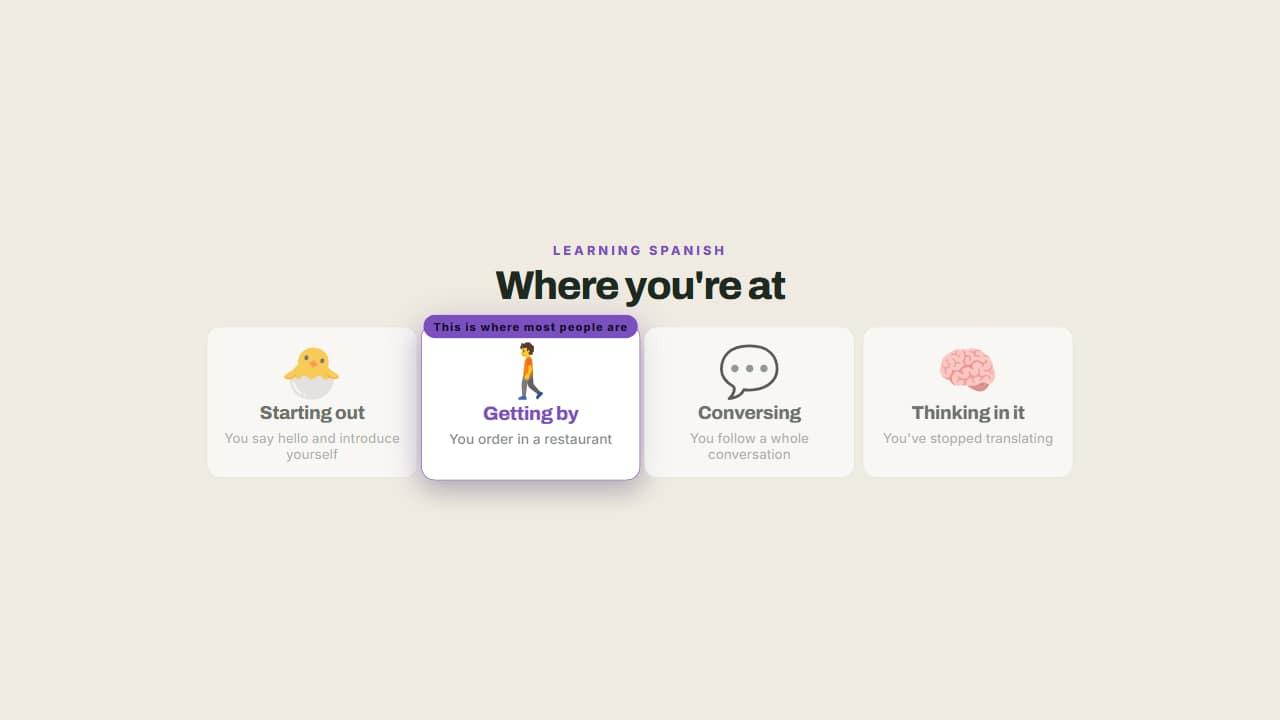 From beginner to expertThe steps of learning something, with a badge marking where the viewer is.
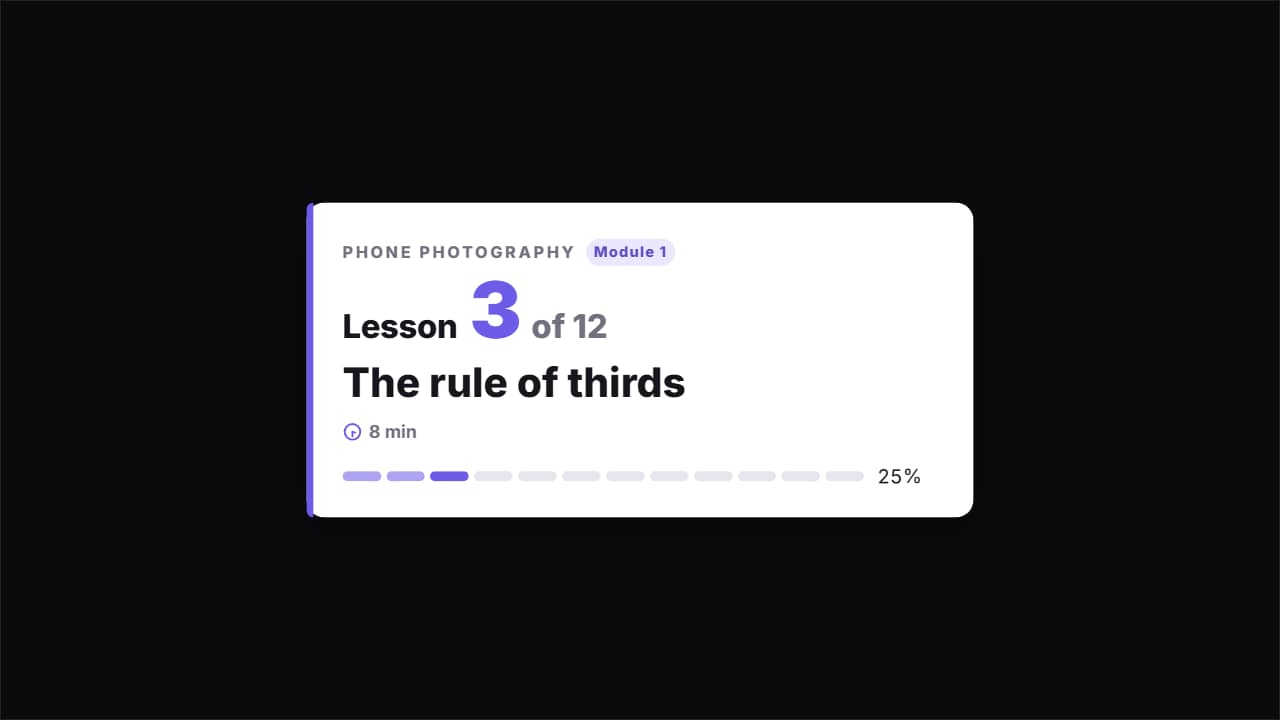 Course lesson card · «Lesson 3 of 12»The card that opens each video in a course or tutorial series: the course and module, «Lesson 3 of 12» with…
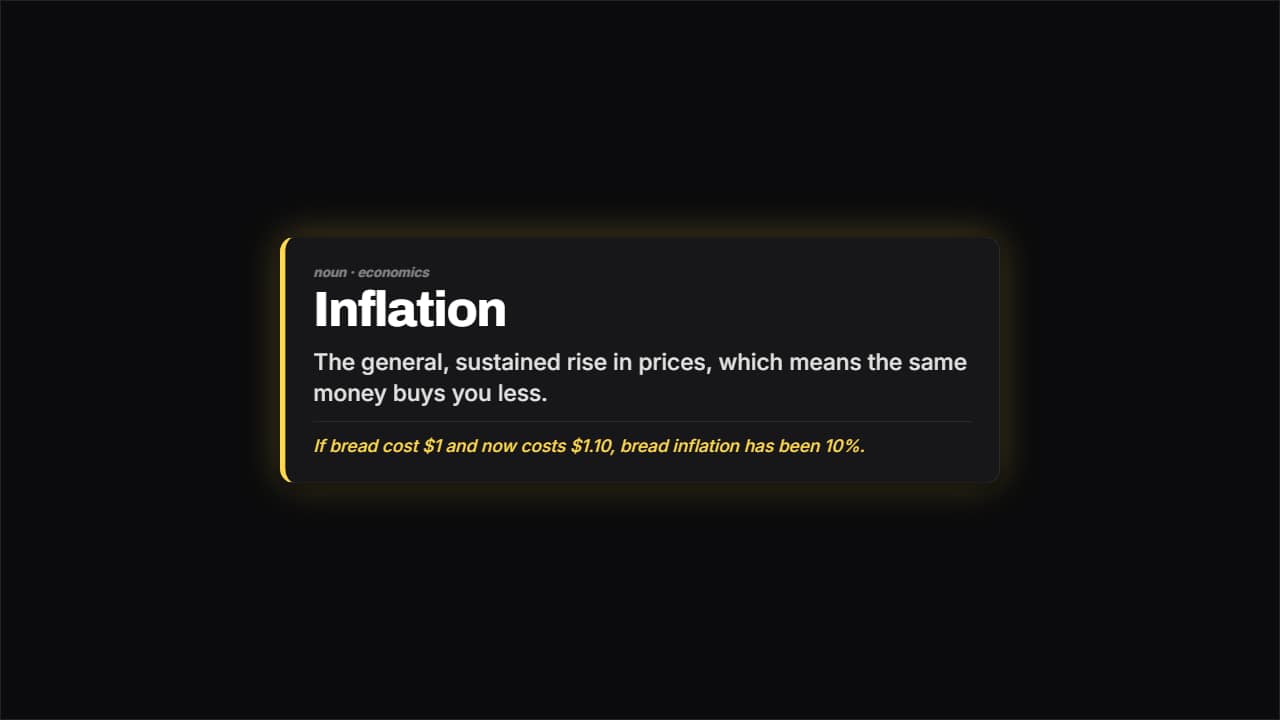 Definition cardThe word large, the meaning underneath and an example separated by a rule.
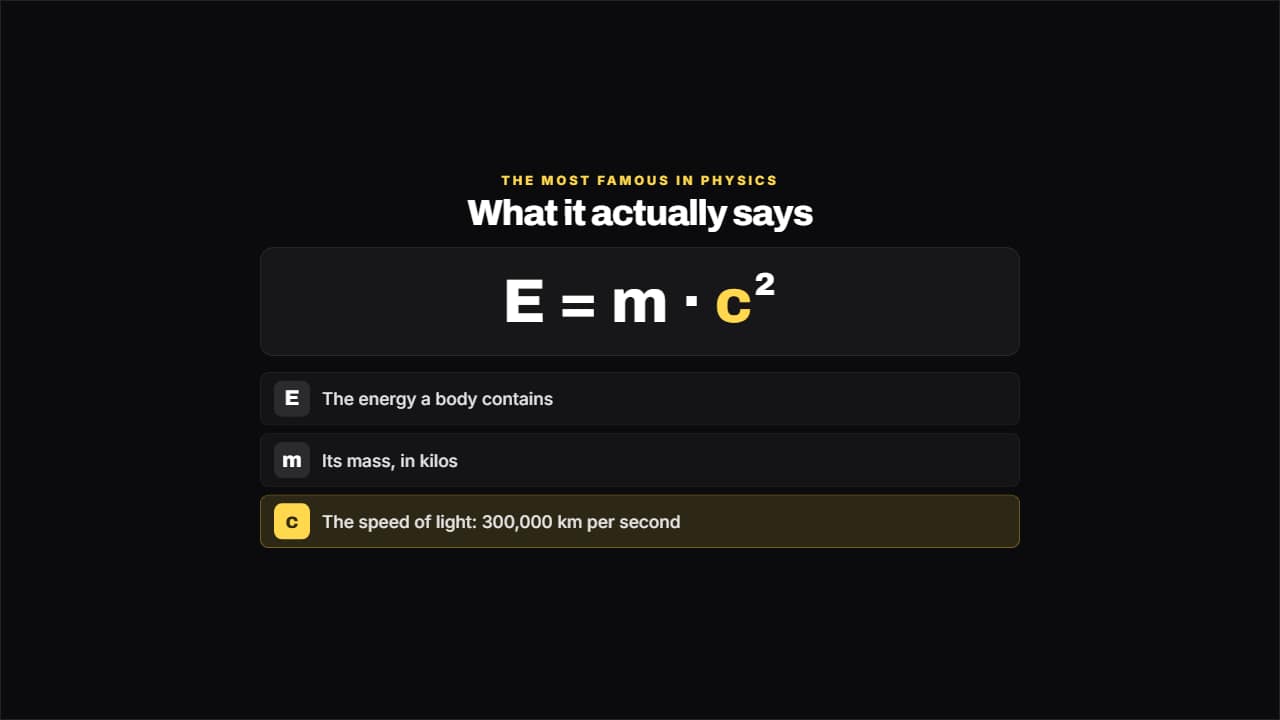 Formula explainedThe formula large and, underneath, what each term means.
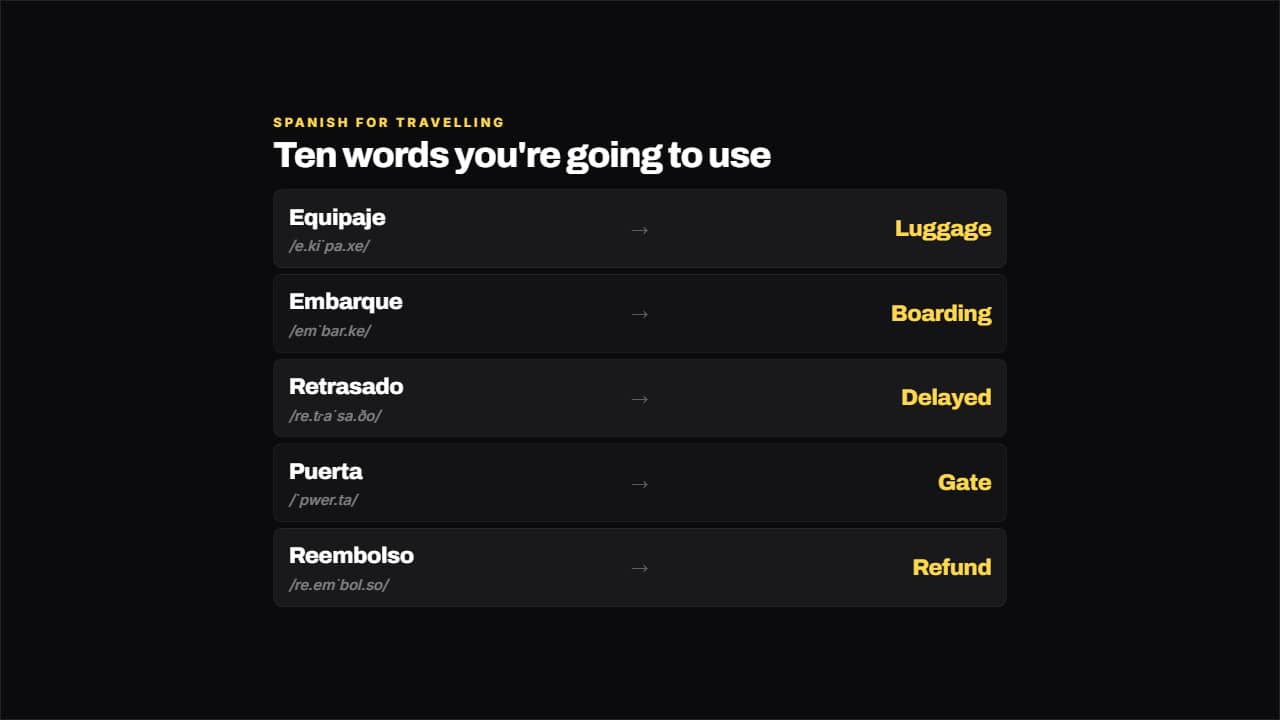 Language vocabularyWord on the left, translation on the right and the pronunciation small underneath.
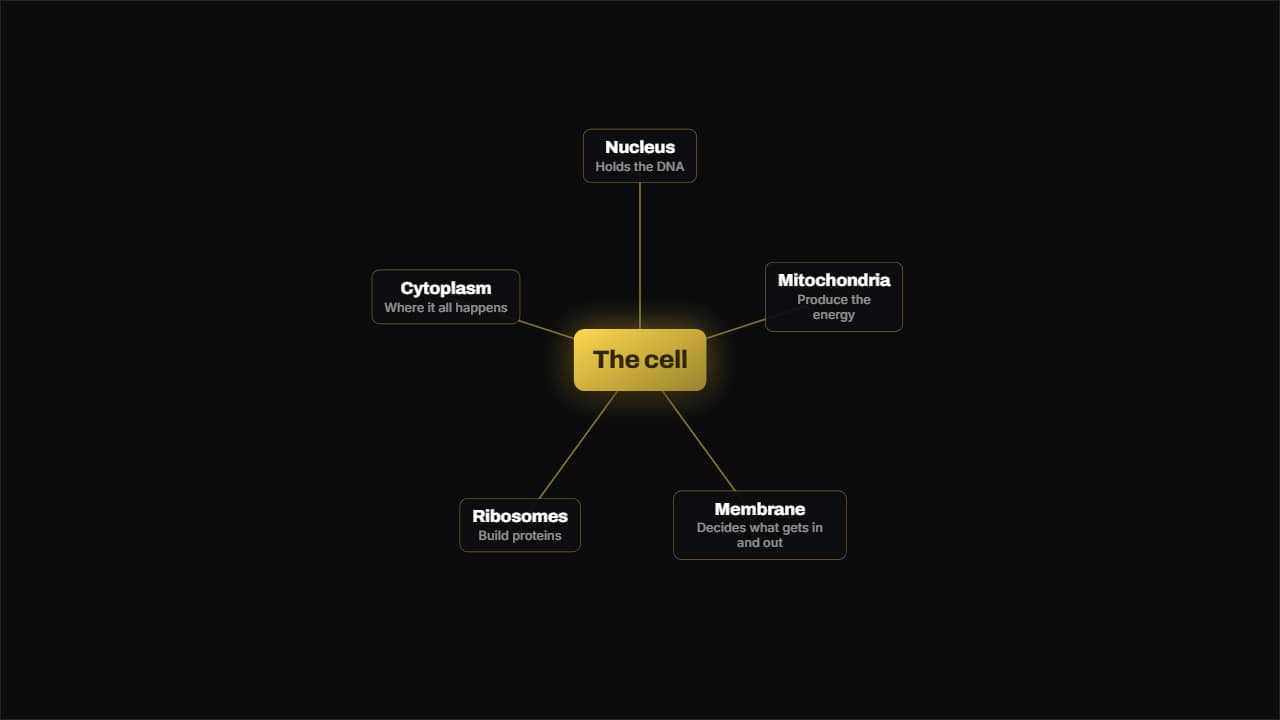 Mind mapOne idea in the middle and its branches spread around it; the lines draw outwards from the center instead of…
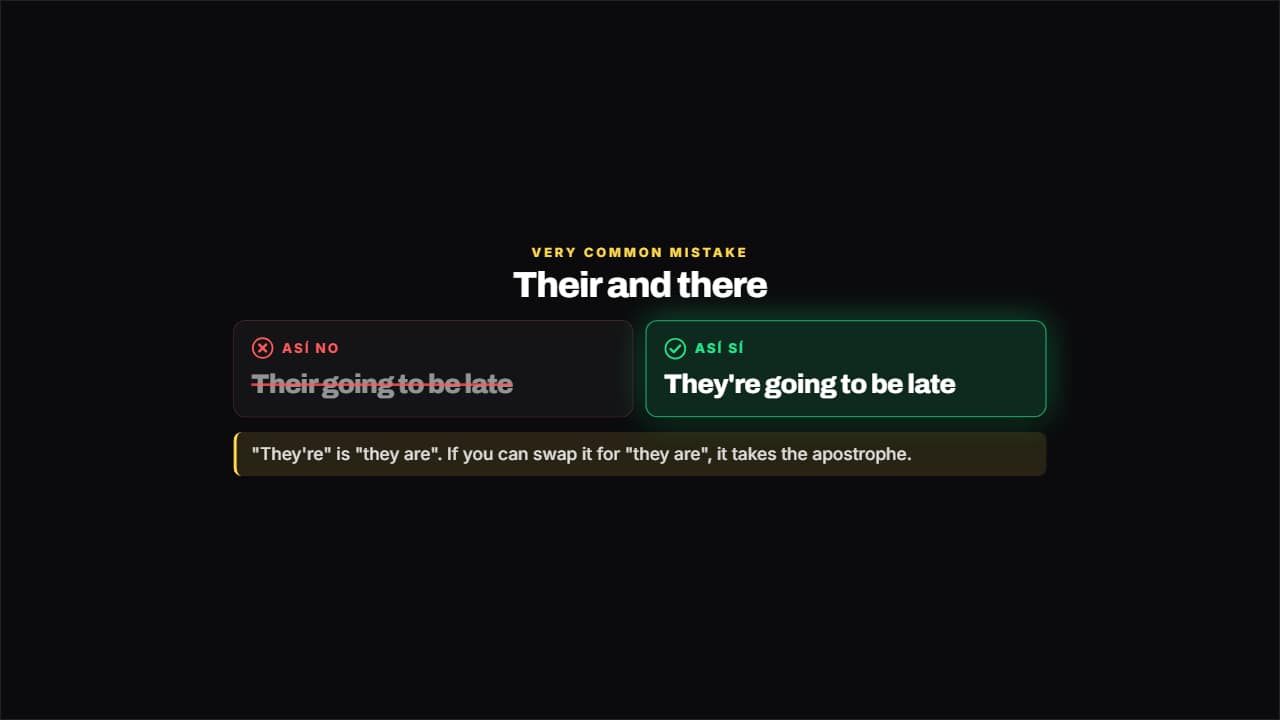 Not like this, like thisThe mistake crossed out and gray on the left, the right way lit on the right and the why underneath.
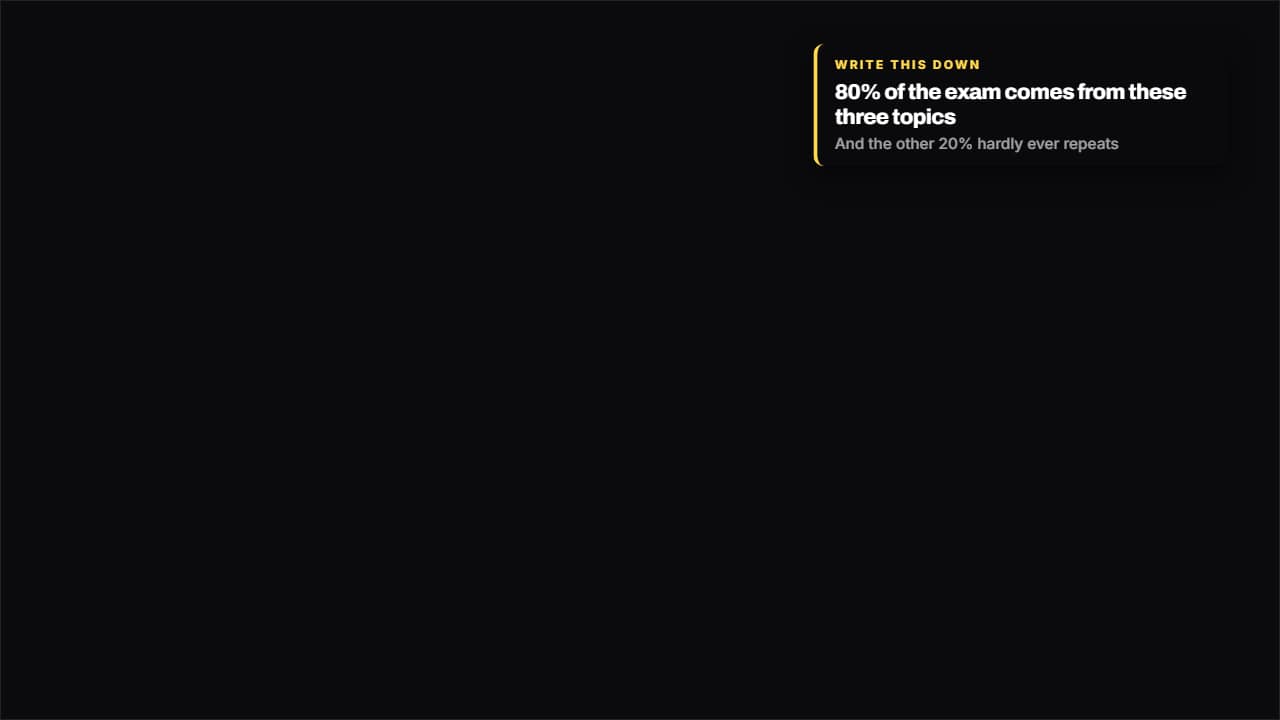 Write this downA side badge for the fact worth keeping: it slides in from the edge, reads, and leaves.