Format (important)1920×1080this is how it downloads
Preview doesn't change the file
You'll download 1920×1080, 3.5 s, with no background (.mov).
You'll download 1920×1080, 3.5 s, with no background (.mov).
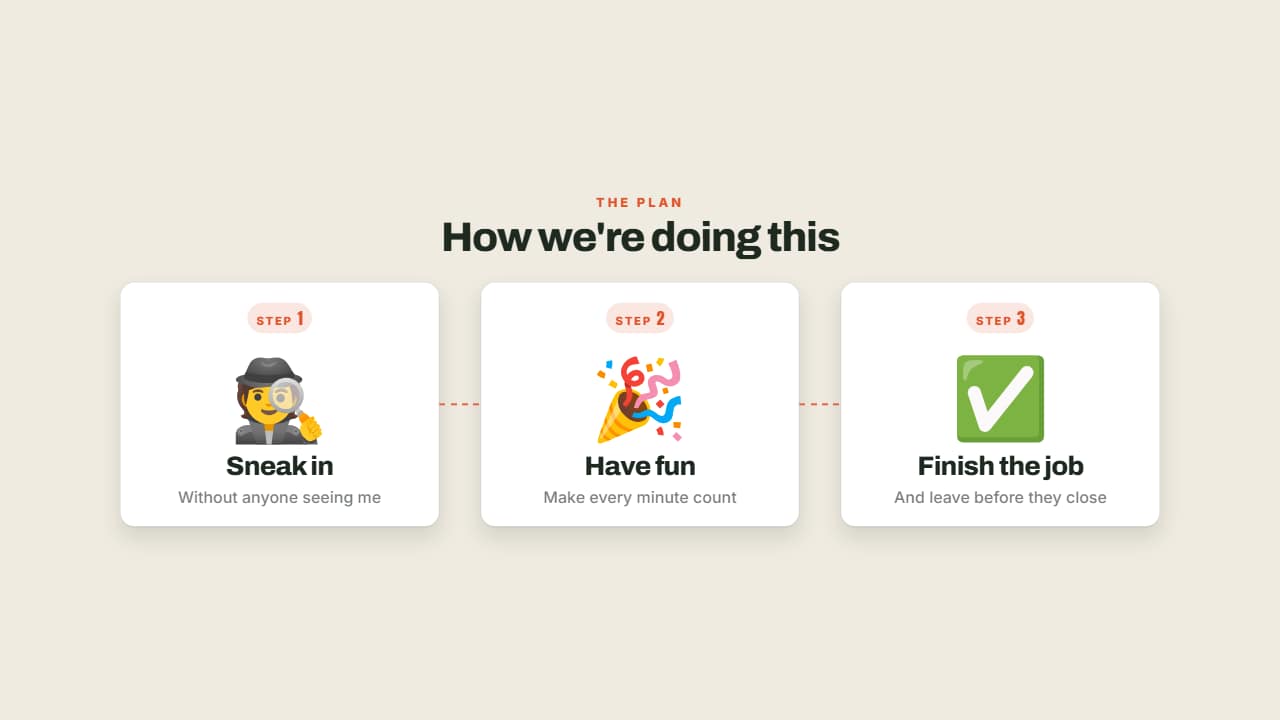
Step 1, step 2, step 3: each with its big emoji, its numbered badge and its title. What holds the sequence together is the dotted connector, drawn from one card to the next just before it appears — without it they're three loose cards. Vertically they stack and the connector stands up on its own. Takes two to six steps.
Plus the typeface and an optional letter outline, in every template.
Export it without background and put it on a track above your clip: the animation plays over your video.
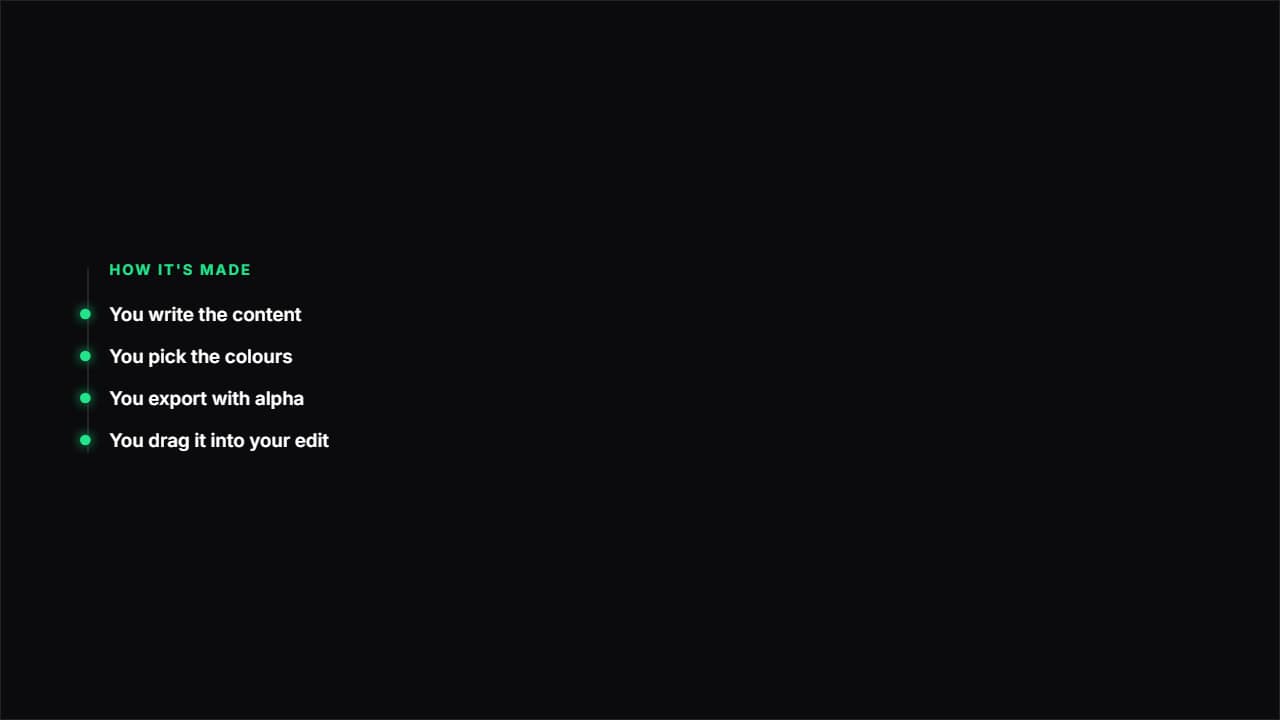 Path with nodesA vertical line drawing itself and a node bursting at each point.
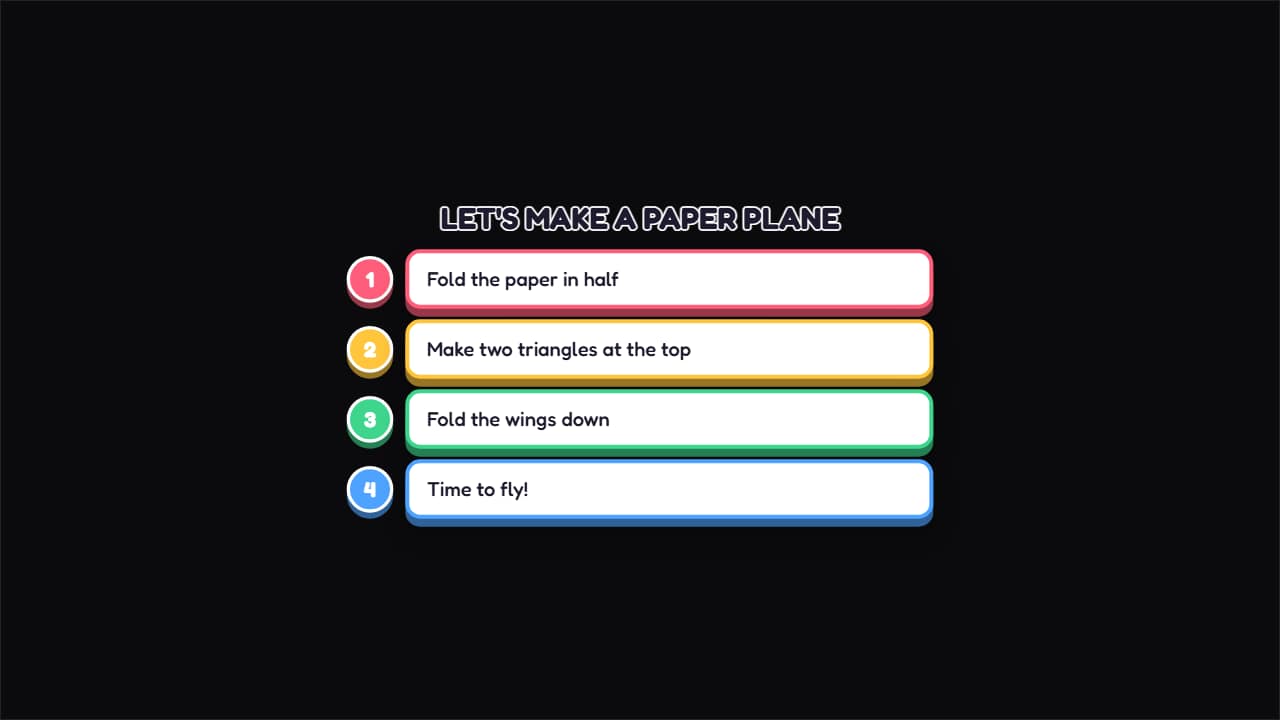 Craft stepsA numbered circle and a colored bubble for each step, coming in from the left.
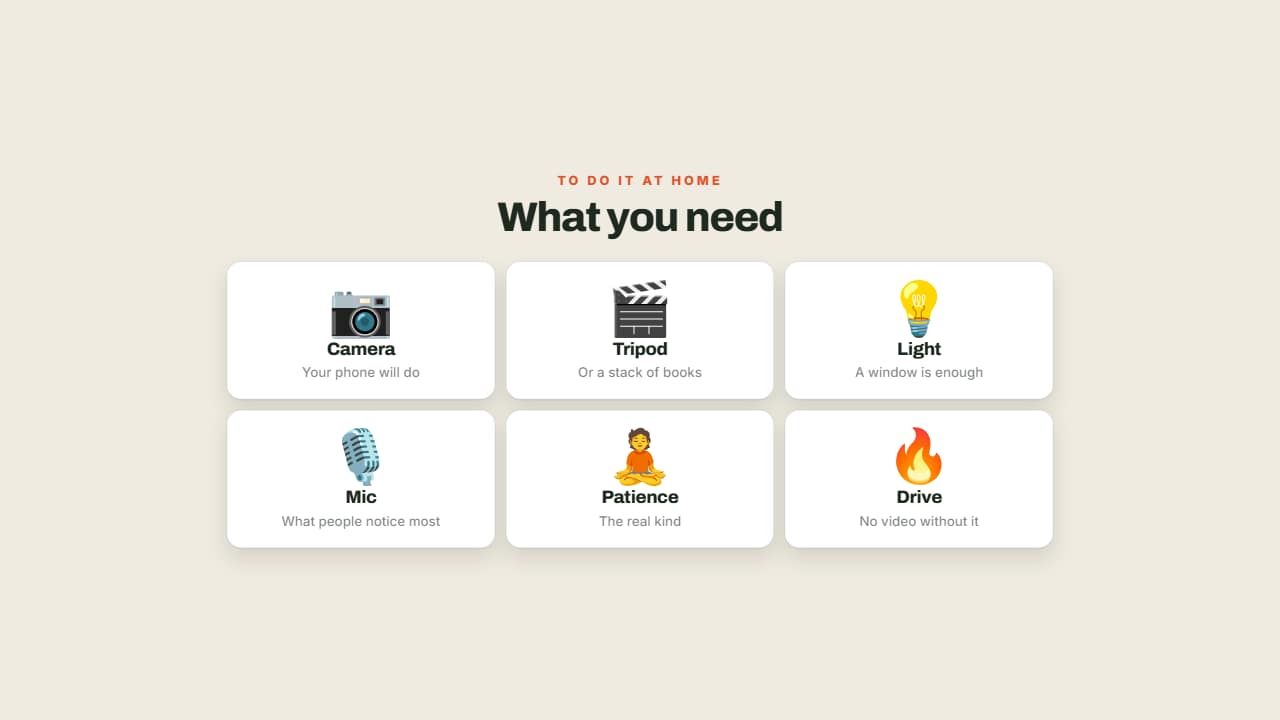 What you needA grid of cards with an emoji, a name and a note: what's in your bag, what the recipe needs, the kit for the…
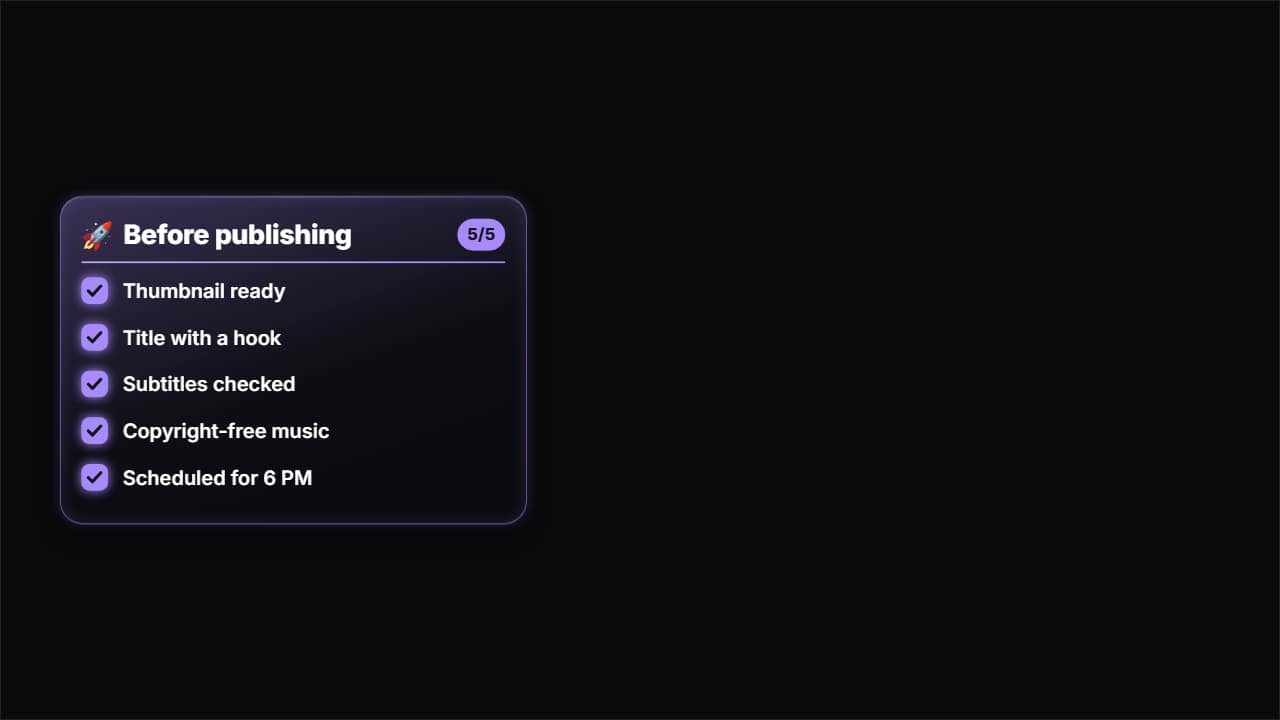 Glass checklistA glass panel with a title and a list that fills itself in: each item comes in and its box fills with color…
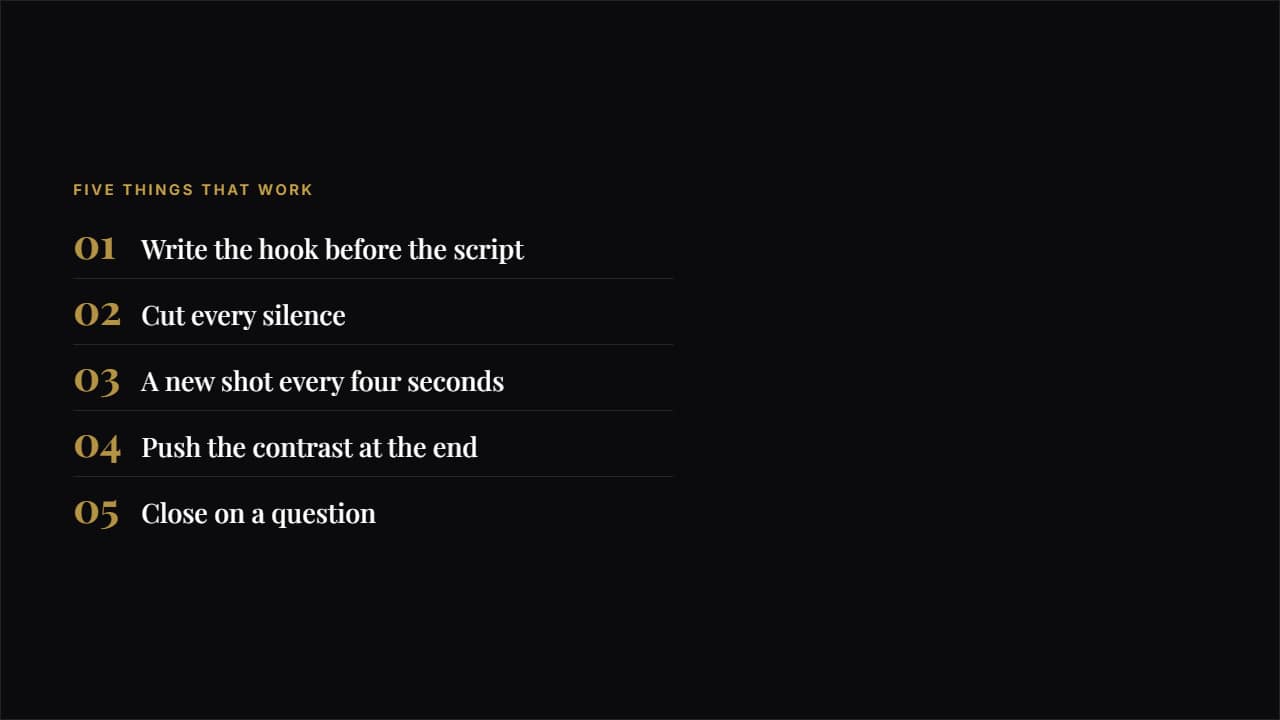 EditorialA big number in magazine type, a hairline rule and plenty of air.
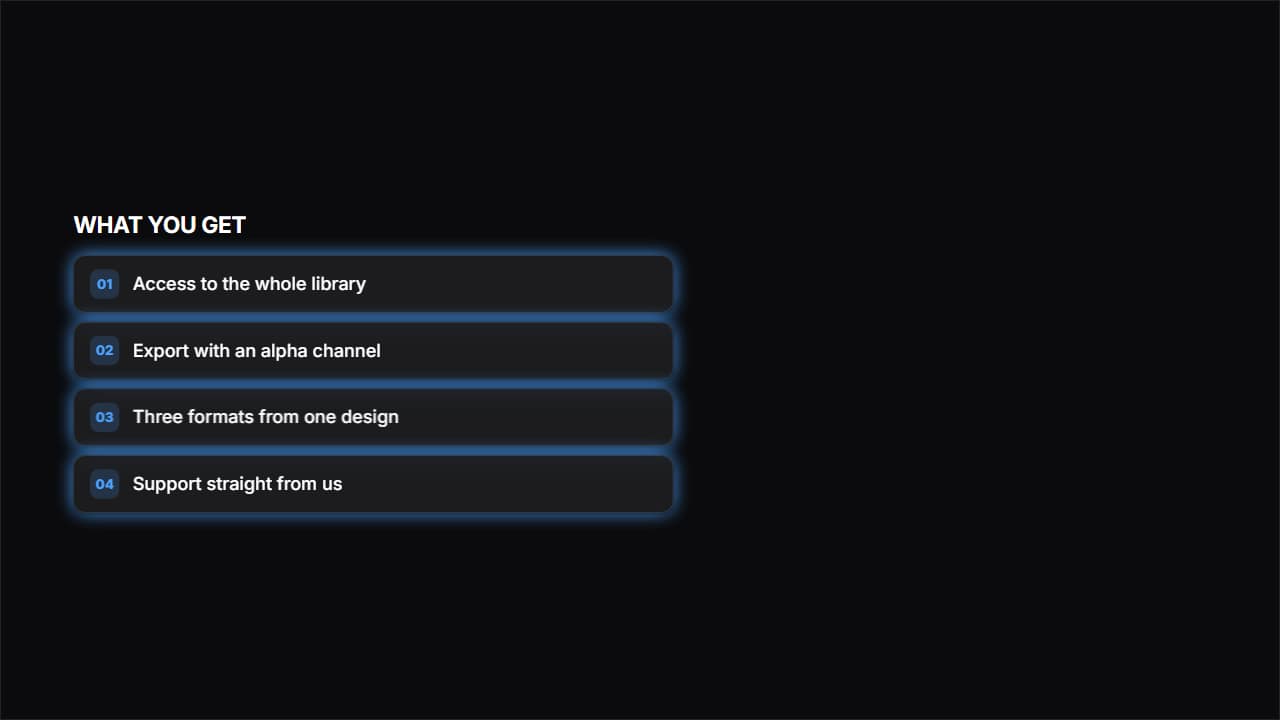 Frosted glassGlass cards with a blur behind them, the look of product websites.
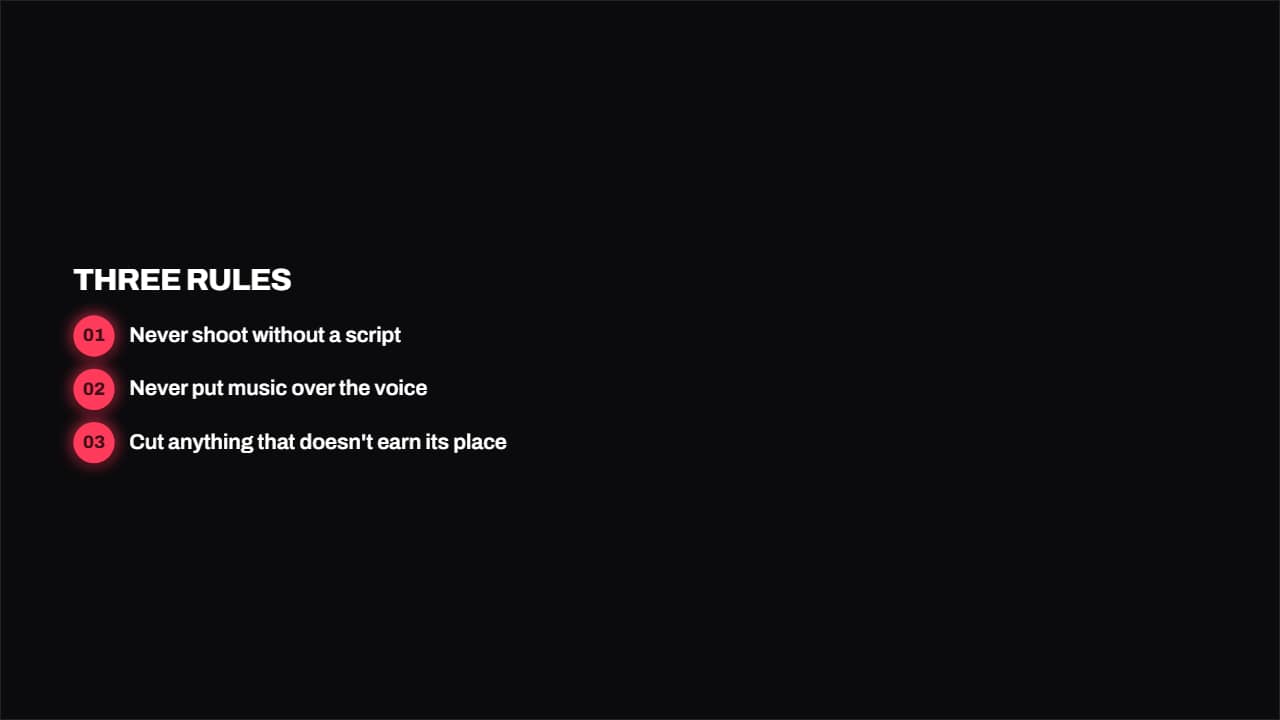 Numbered badgesA round colored badge with the number and the text in bold beside it.
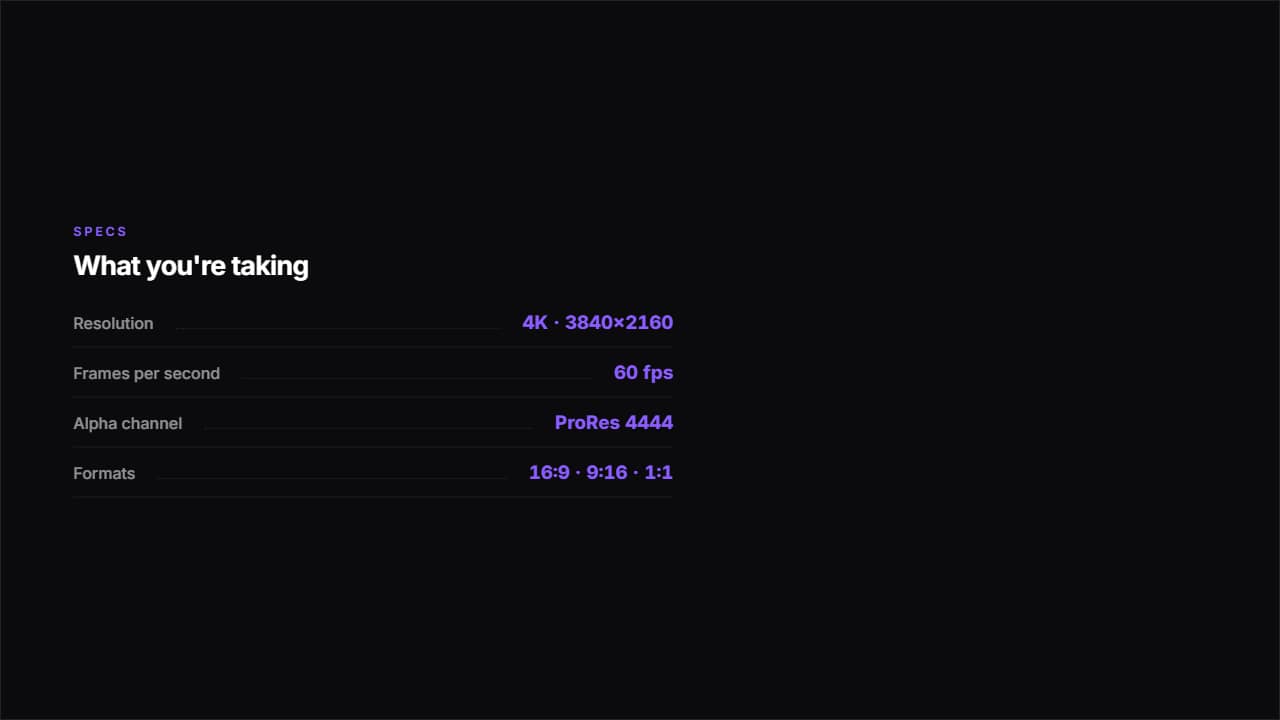 Spec sheetLabel on the left, value on the right and a dotted rule joining them.