Format (important)1920×1080this is how it downloads
Preview doesn't change the file
You'll download 1920×1080, 3.5 s, with no background (.mov).
You'll download 1920×1080, 3.5 s, with no background (.mov).
The brand transition: three layers in your colors sweep across the screen one after another, cover it completely right in the middle and slide out revealing the next shot. Cut your two clips at that moment and put this on top. No background: it sits clean over the cut. Three styles: diagonal bands with a light edge, circles that grow and open into rings, and blinds. Choose which way it sweeps.
Plus the typeface and an optional letter outline, in every template.
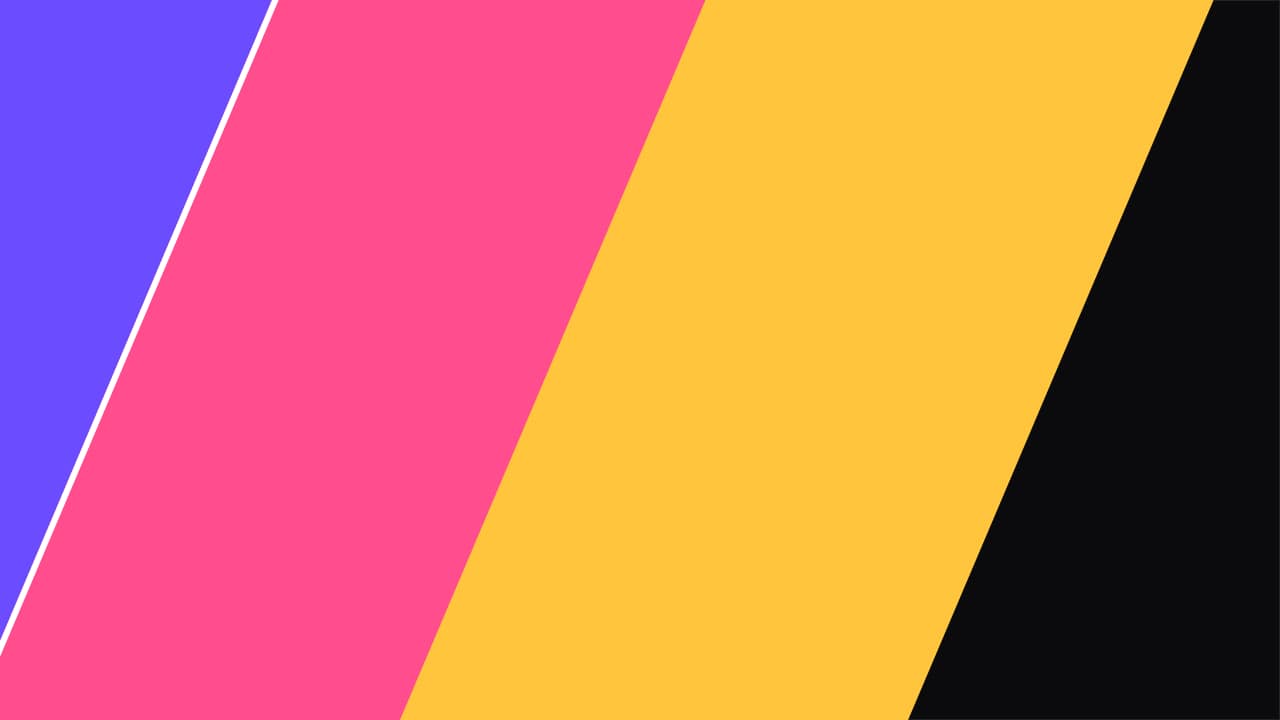
Export it without background and put it on a track above your clip: the animation plays over your video.
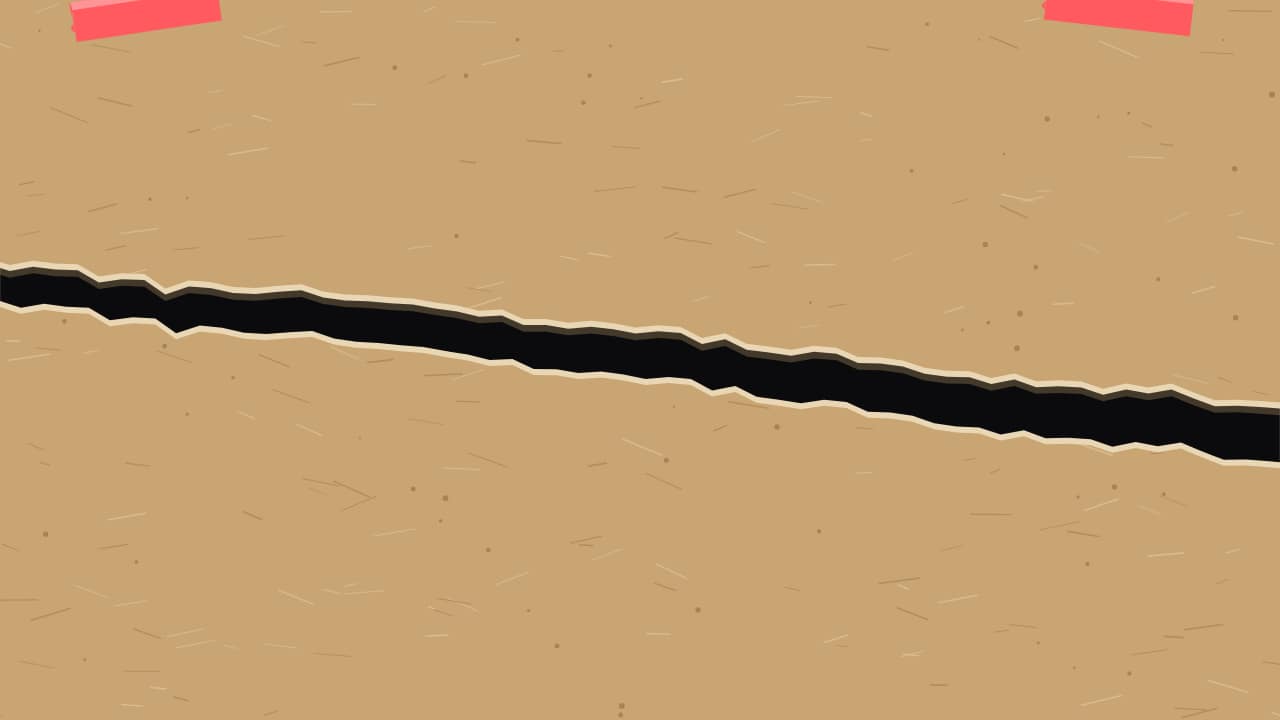 Paper ripA sheet slides up and covers the shot with its torn top edge; in the middle it RIPS diagonally and the two…
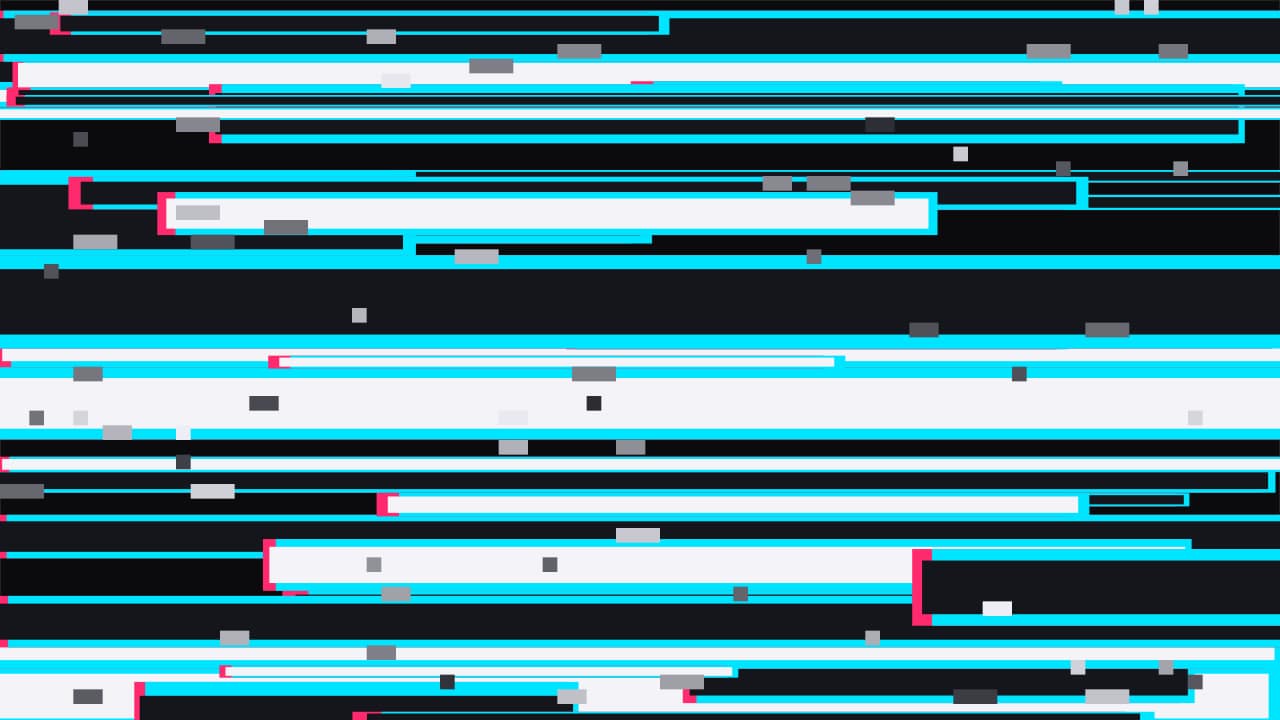 Glitch hitA few frames of broken signal: displaced stripes with split colors and block noise fill the screen, cover it…
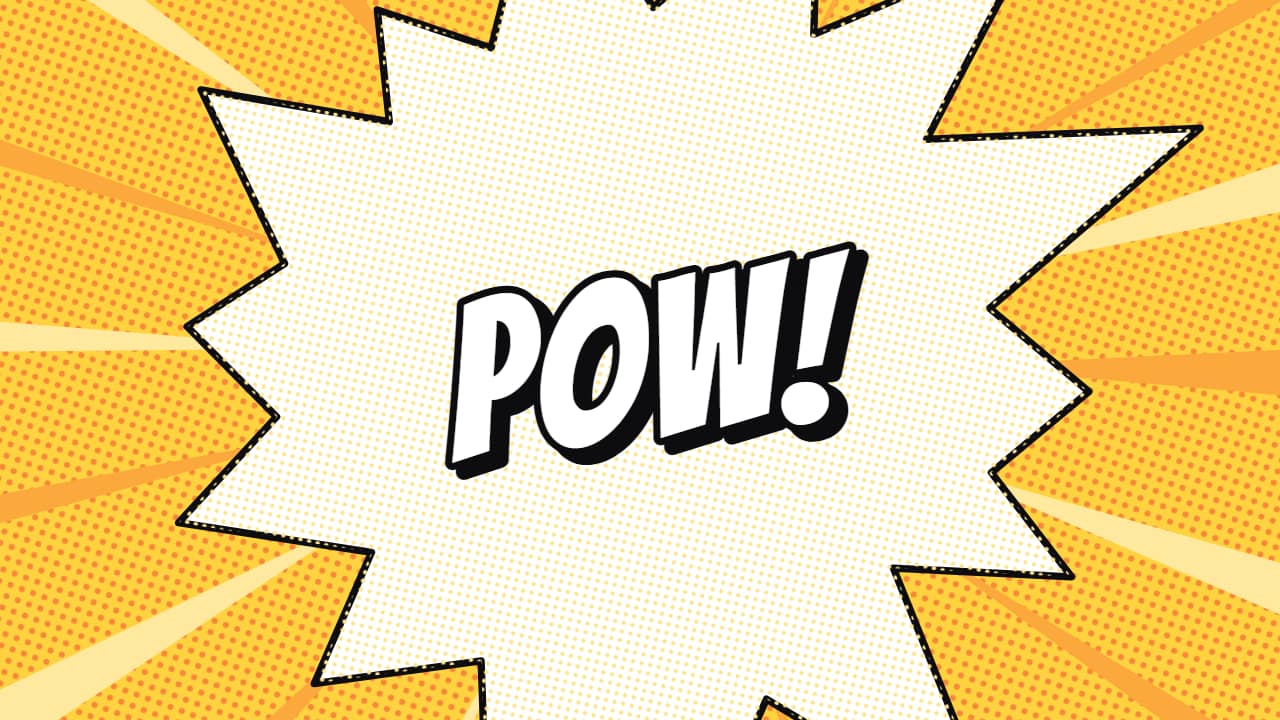 Comic burstA comic-panel explosion: spiky bursts with ink outlines and halftone dots grow from the center, cover the…
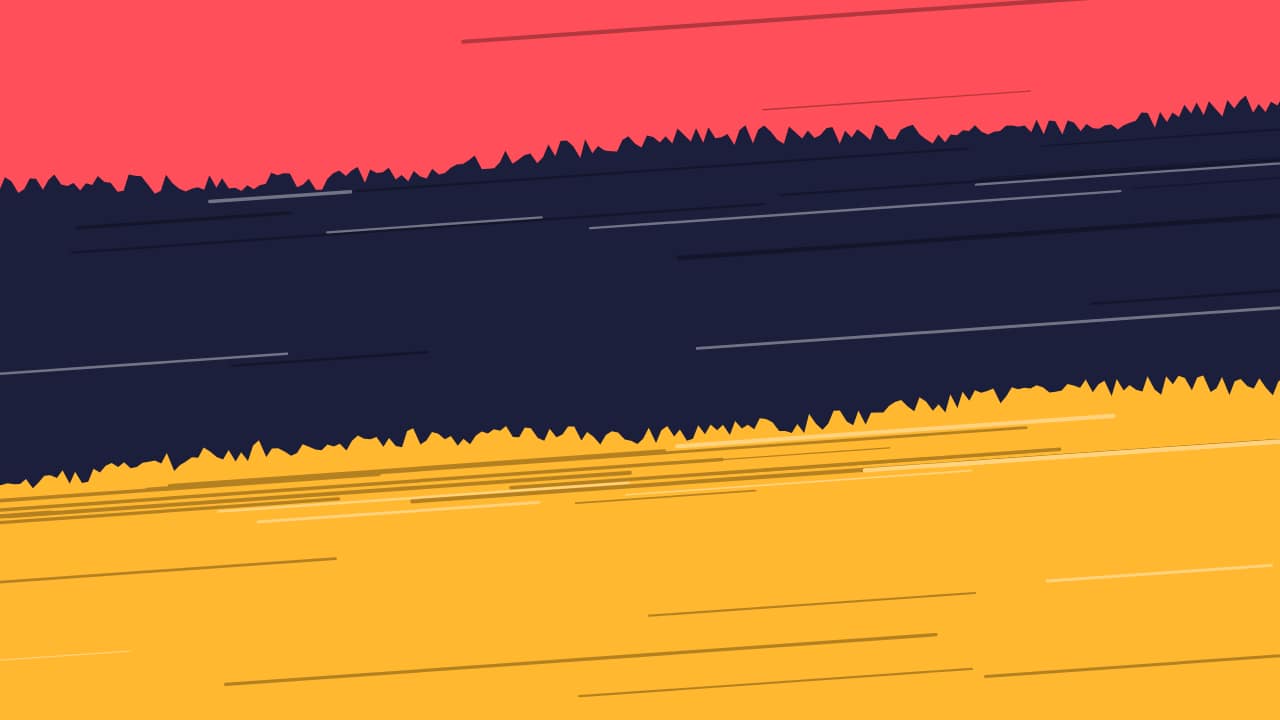 Brush strokesThree brush strokes in your colors sweep across the screen one after another with their rough edge and…
 Logo stingerYour logo crosses the screen and covers the cut between two clips: your brand colors fill it, the logo lands…
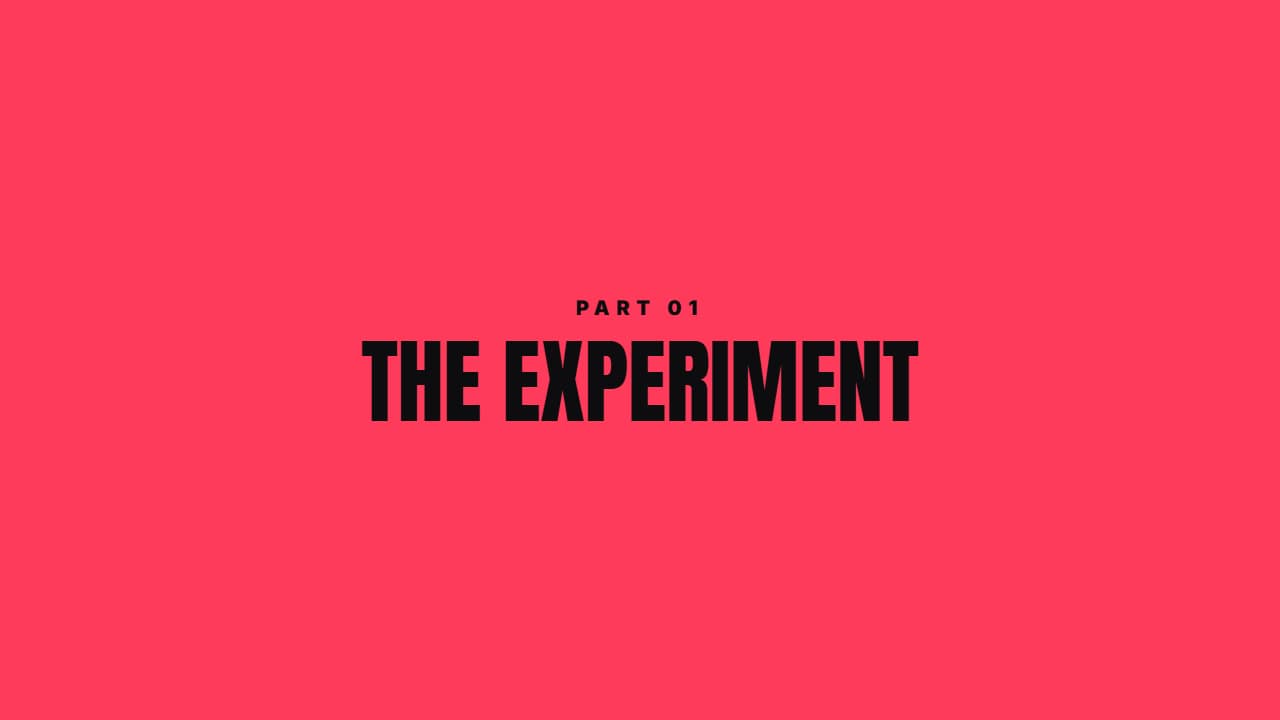 Color sweepA color panel crosses the screen, reveals the section title and leaves. Covers any ugly cut.
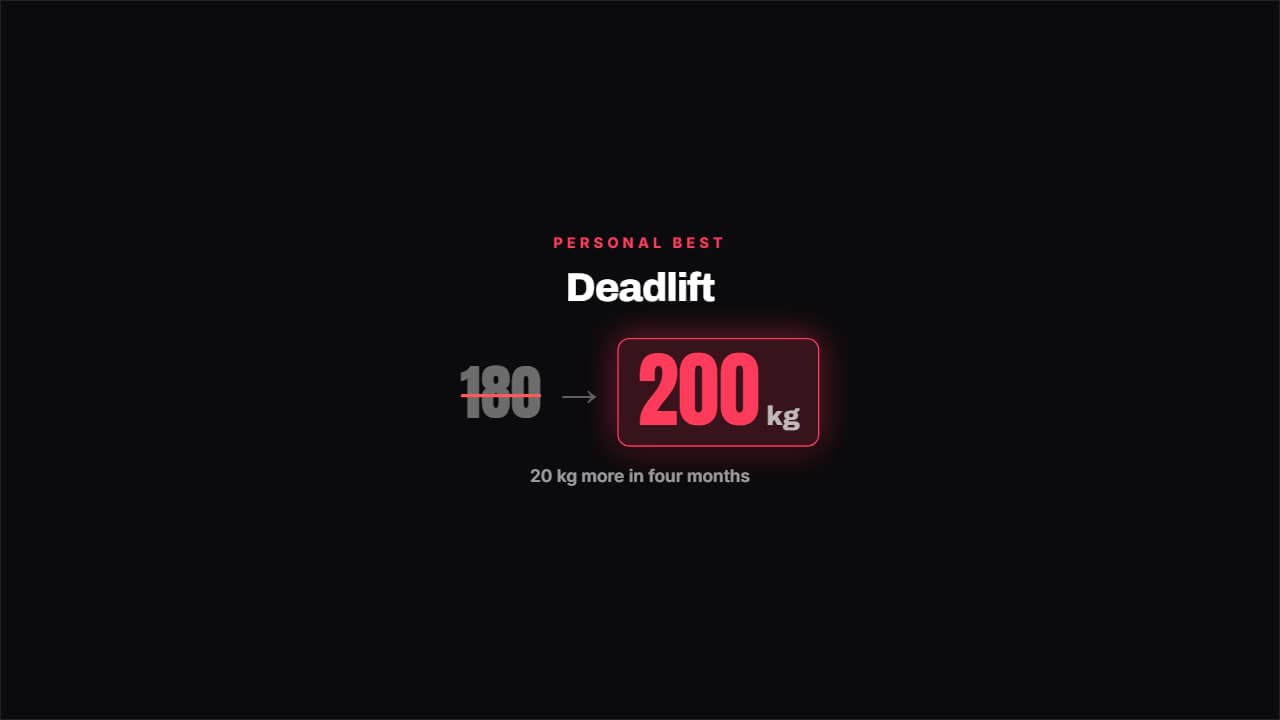 Personal best beatenThe old best gets crossed out in red and the new one bounces in with its unit.
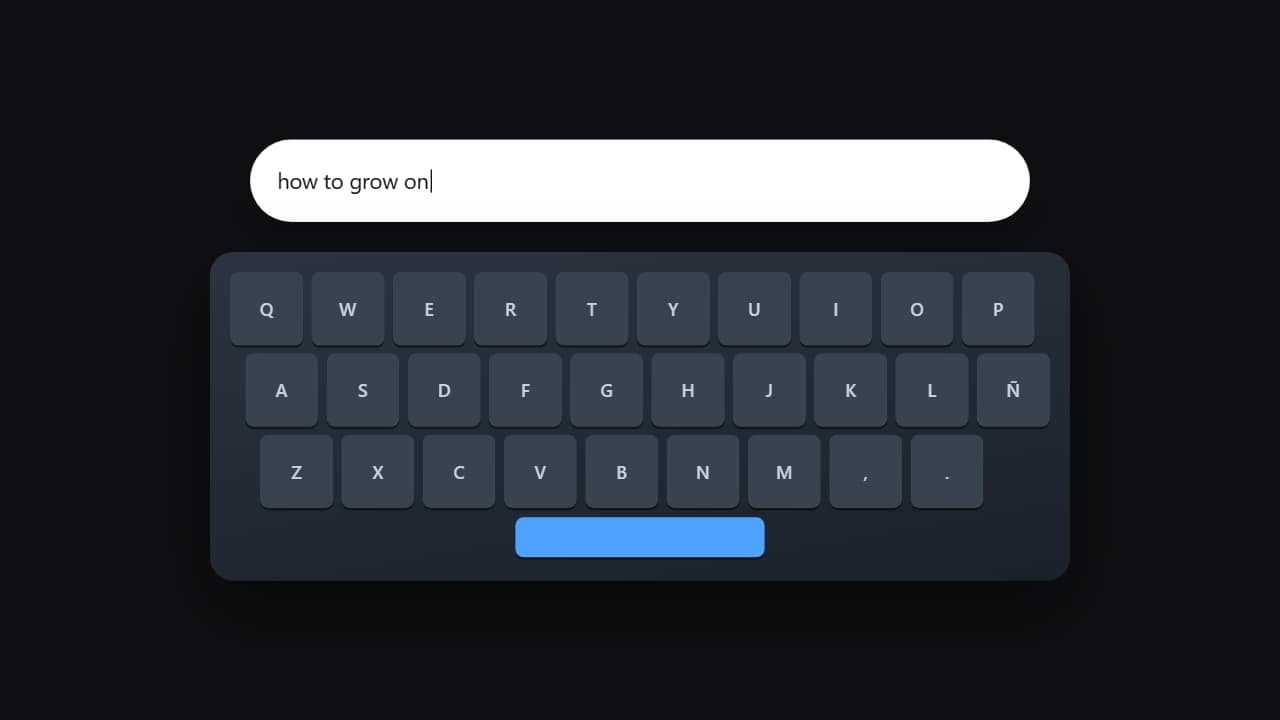 Typing on the keyboardThe keyboard from above with the keys lighting up one by one while the text appears in the field.