Format (important)1920×1080this is how it downloads
Preview doesn't change the file
You'll download 1920×1080, 3.5 s, with no background (.mov).
You'll download 1920×1080, 3.5 s, with no background (.mov).
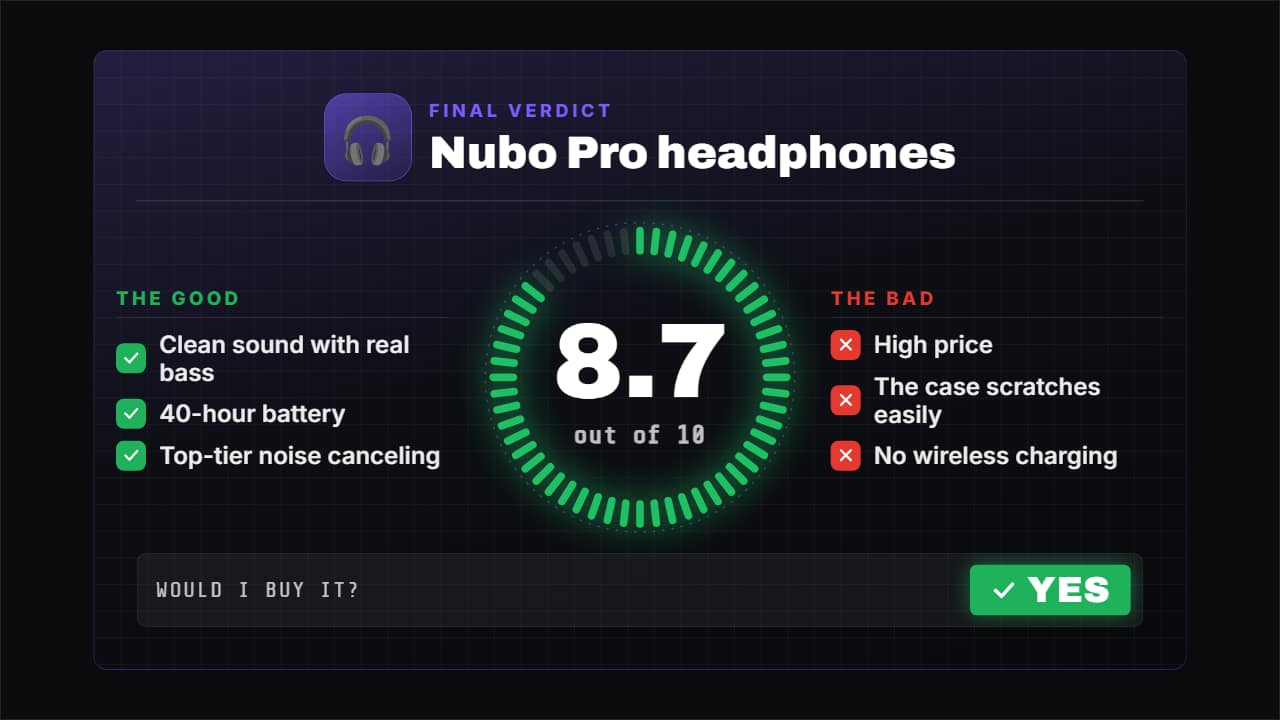
The closer for your review: the score fills its ring while the number rolls («8.7 out of 10»), the good and the bad come in one by one with their ✓ and ✗, and at the end the answer to «would I buy it?». With the product photo (or an emoji). Three styles: dark tech with ticks that light up, a paper magazine with a rubber stamp that slams down with the answer, and glass. The score color goes from red to green depending on how high it is, or uses yours.
Plus the typeface and an optional letter outline, in every template.
Export it without background and put it on a track above your clip: the animation plays over your video.
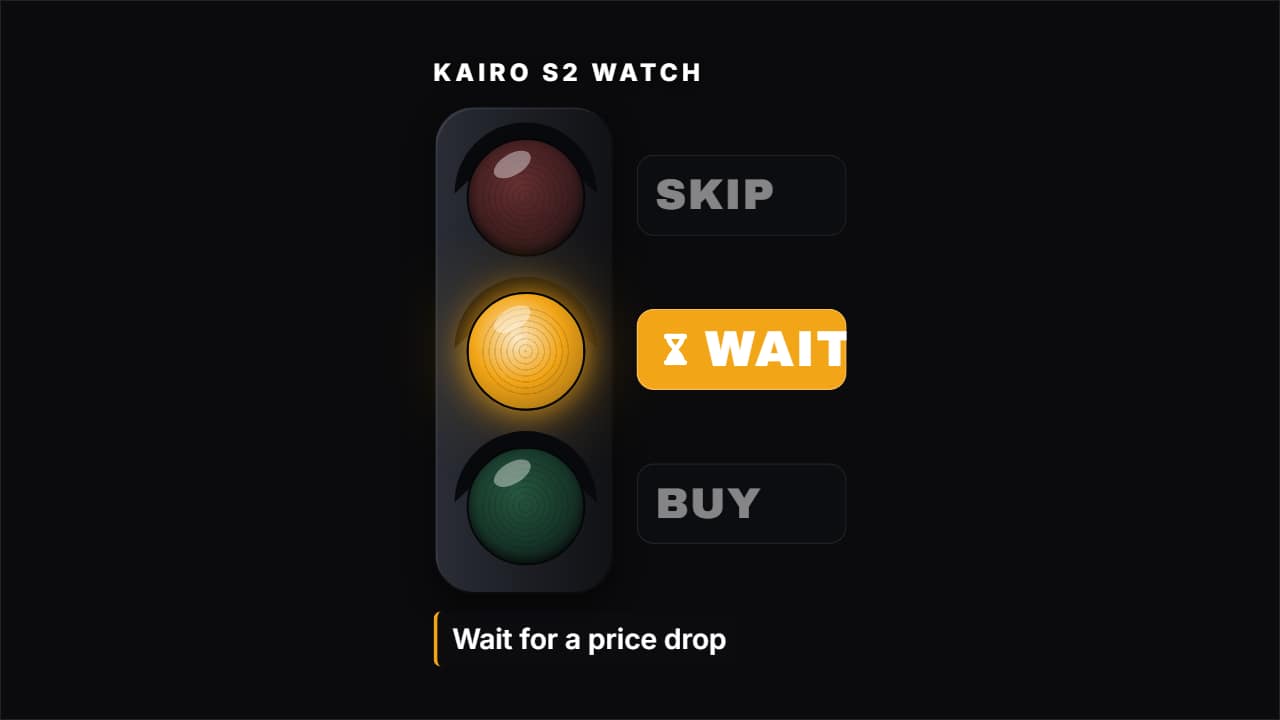 Buy, wait or skipThe short verdict of a review: three options (BUY, WAIT, SKIP) and one lights up, with the product and the…
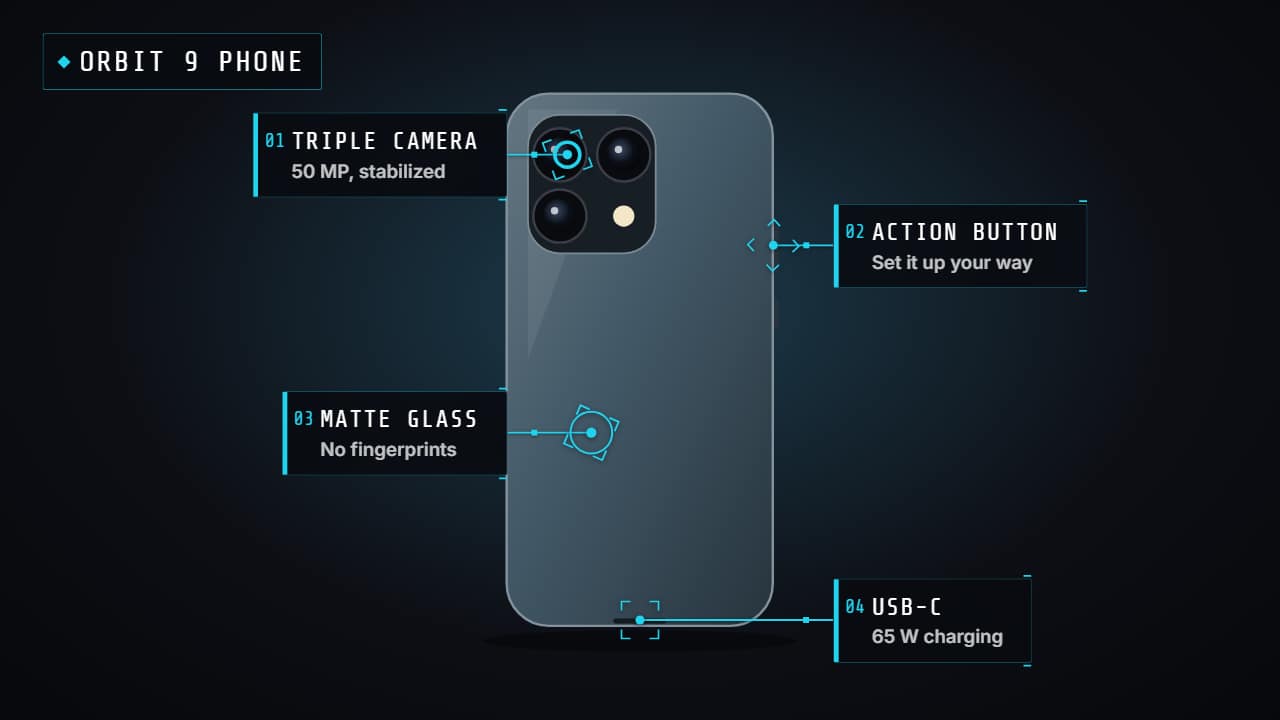 Product hotspotsPoints that pulse over your video (or the product photo) and open their label one by one with a line: the…
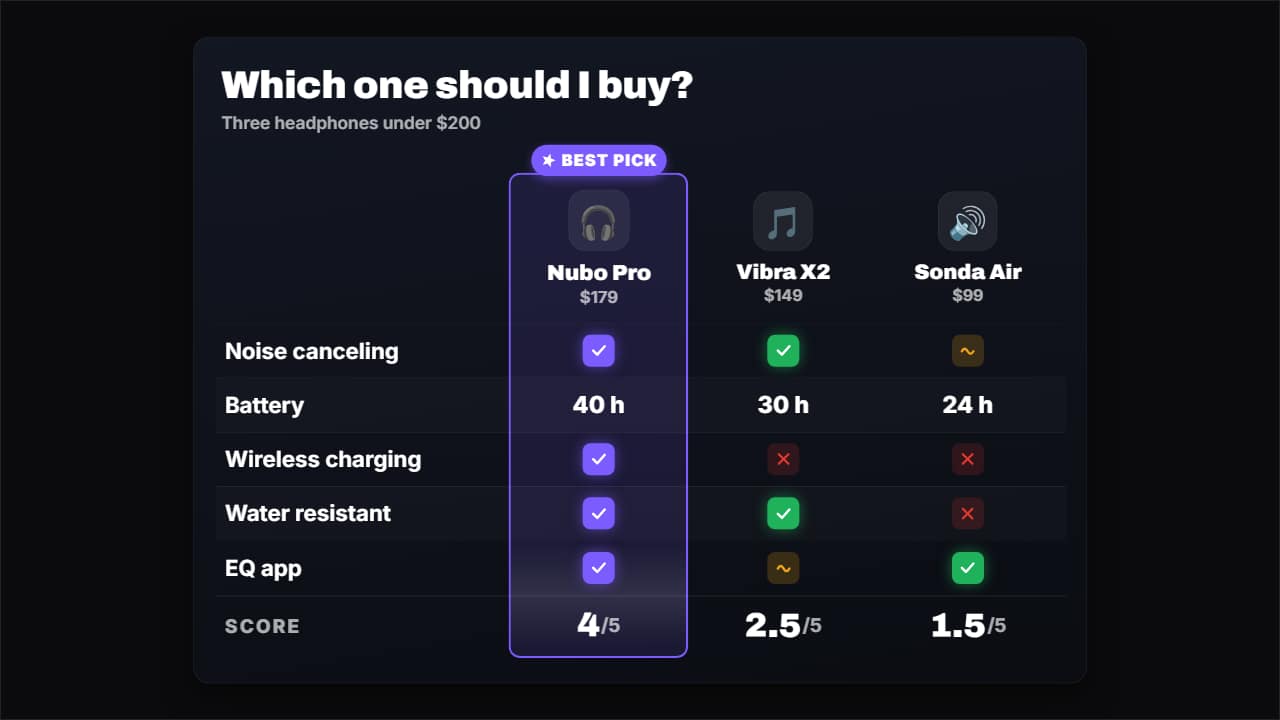 Comparison tableCompare 3 or 4 products (or plans, or apps) in a table: the columns come in with their photo or emoji and…
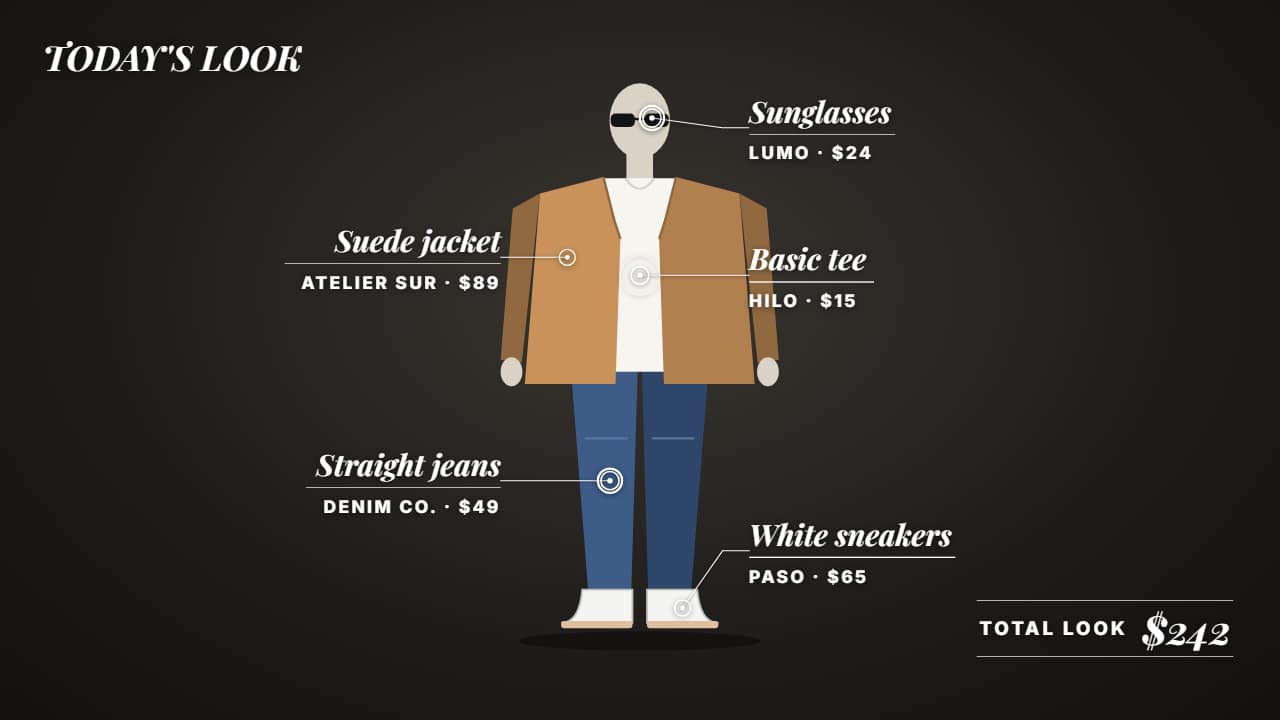 Outfit breakdownFor fashion: each piece of your outfit pointed out over your video with its name, price and where to buy it…
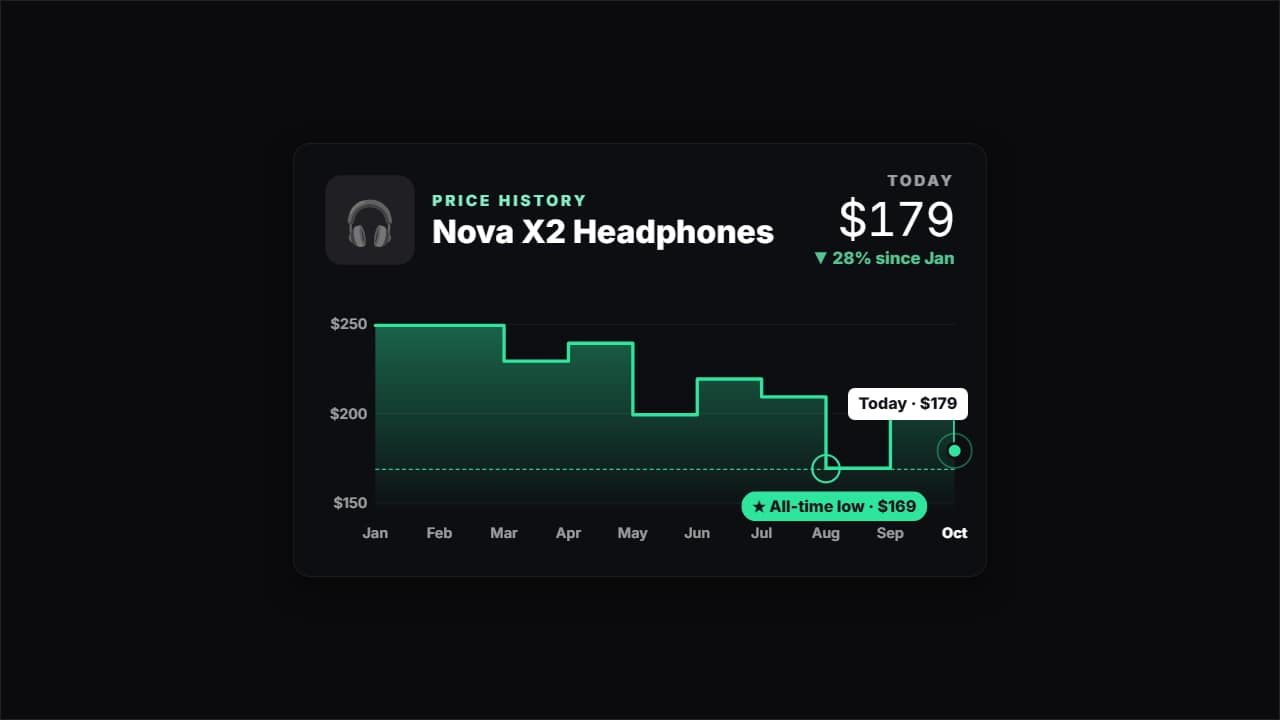 Price historyHow much a product has cost month by month, for deal and tech channels: the line draws itself, the all-time…
 Customer reviewThe stars come in one at a time, the quote after and the signature last, with an avatar if you have one or…
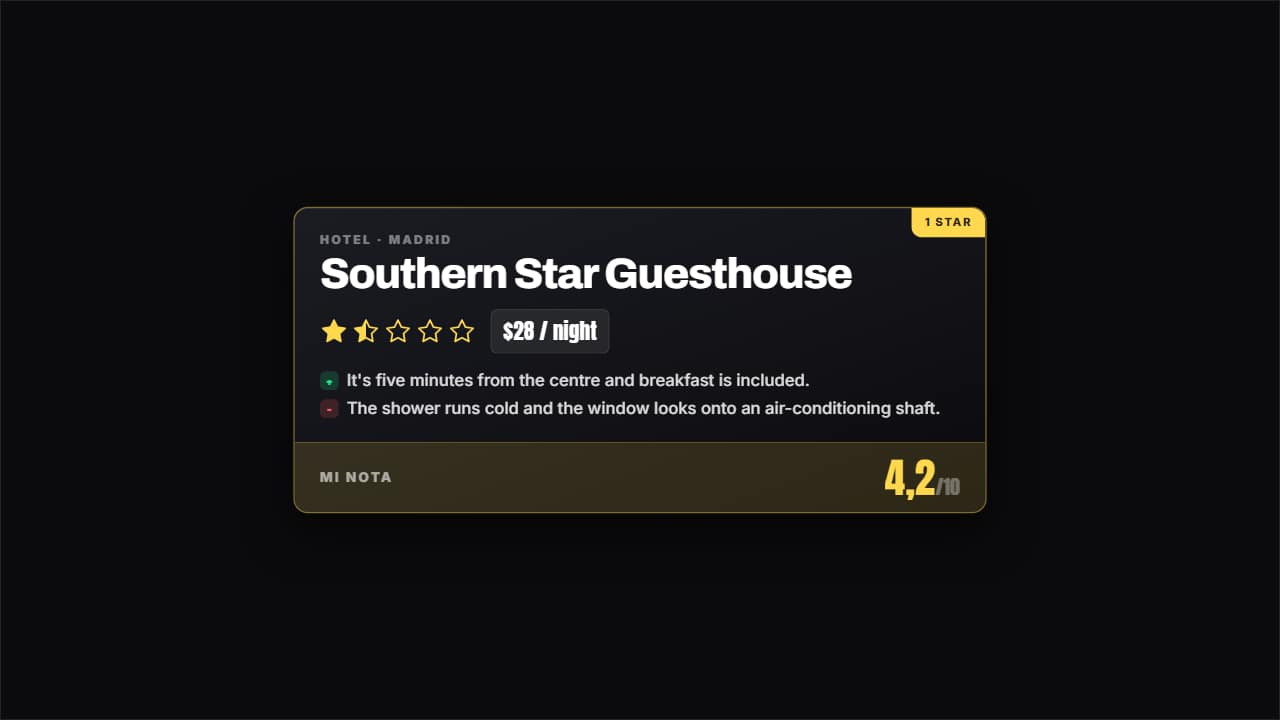 Rating cardCategory, name, stars filling one at a time, price and the verdict in two lines: the good and the bad.
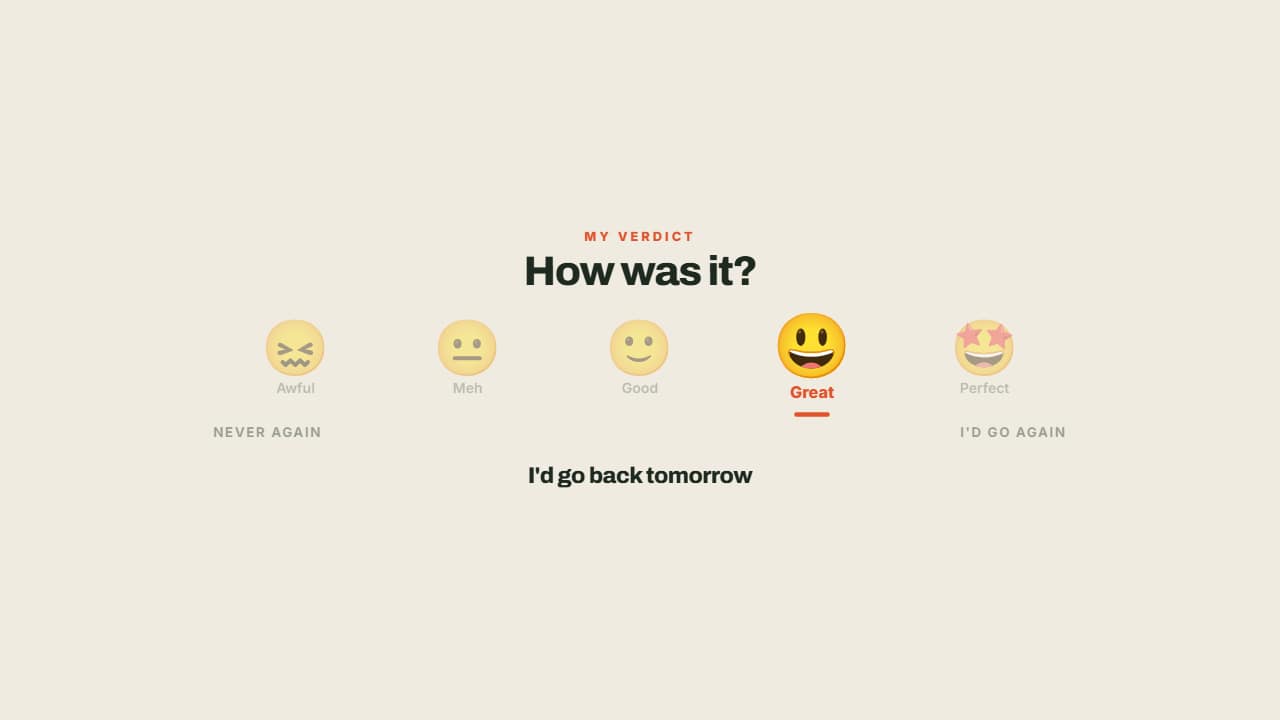 Face scaleFrom 😖 to 🤩, with the needle settling under the right one and the rest dimming.