Format (important)1920×1080this is how it downloads
Preview doesn't change the file
You'll download 1920×1080, 3.5 s, with no background (.mov).
You'll download 1920×1080, 3.5 s, with no background (.mov).
The moment the thing you were looking for shows up: the item pops onto the screen, the title stamps in and the counter goes up by one. For squishy hunts, treasure hunts or collections. Three styles: sticker (burst and stars), a collectible card that flips over to show its rarity (common, rare, epic or legendary) and arcade with a «+1» and a score. Use an emoji or upload a photo of the item. It's clean, with outlines and no shadows behind, so it sits right on top of your video.
Plus the typeface and an optional letter outline, in every template.
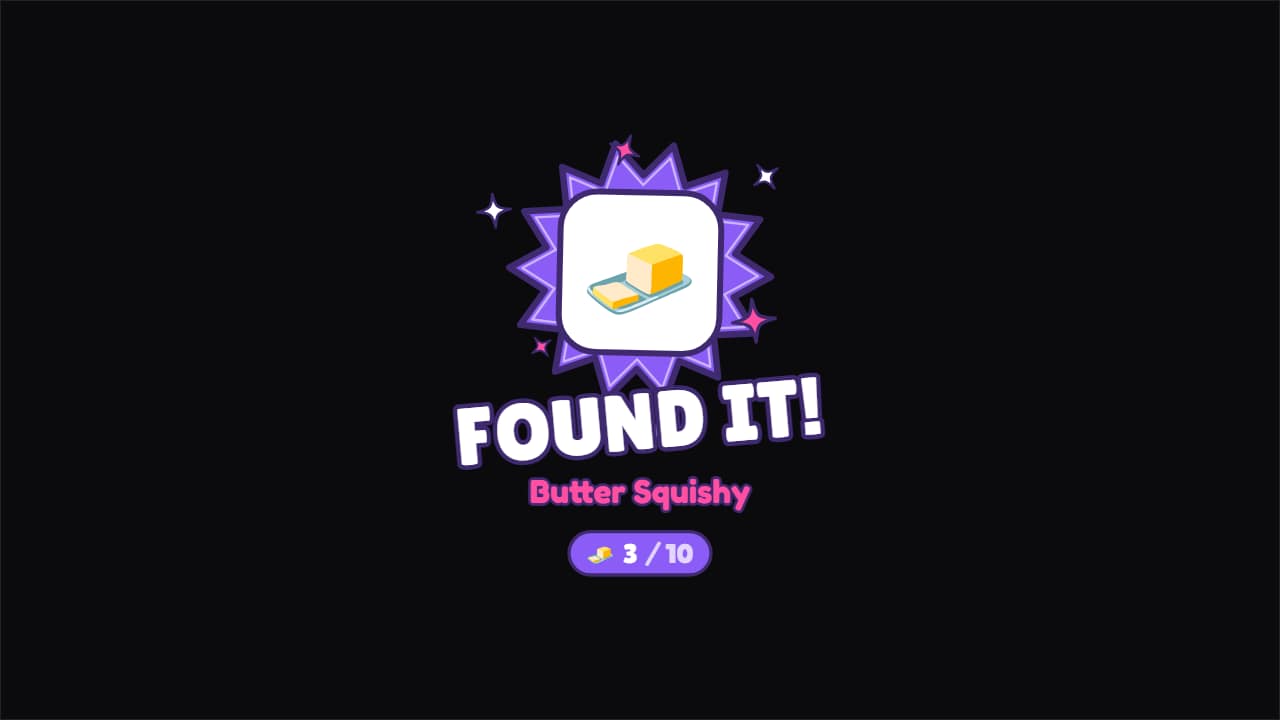
Export it without background and put it on a track above your clip: the animation plays over your video.
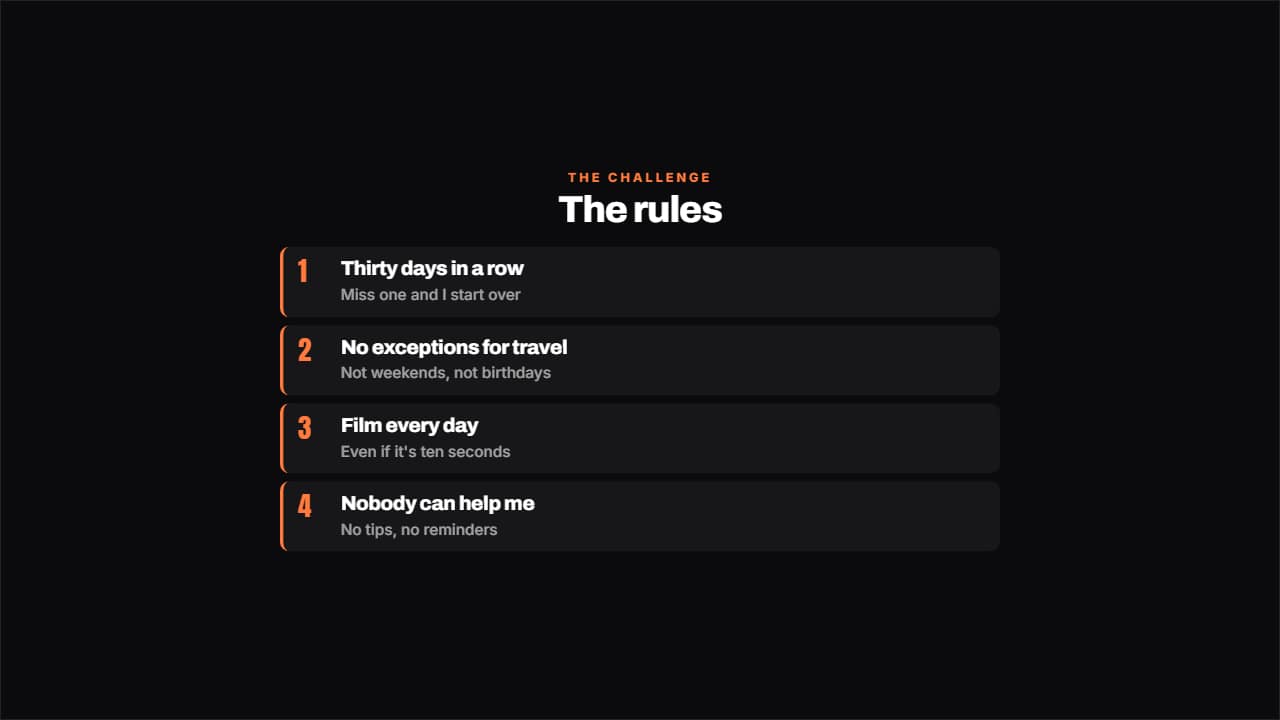 The rules of the challengeThe rules numbered, each with its small explanation underneath.
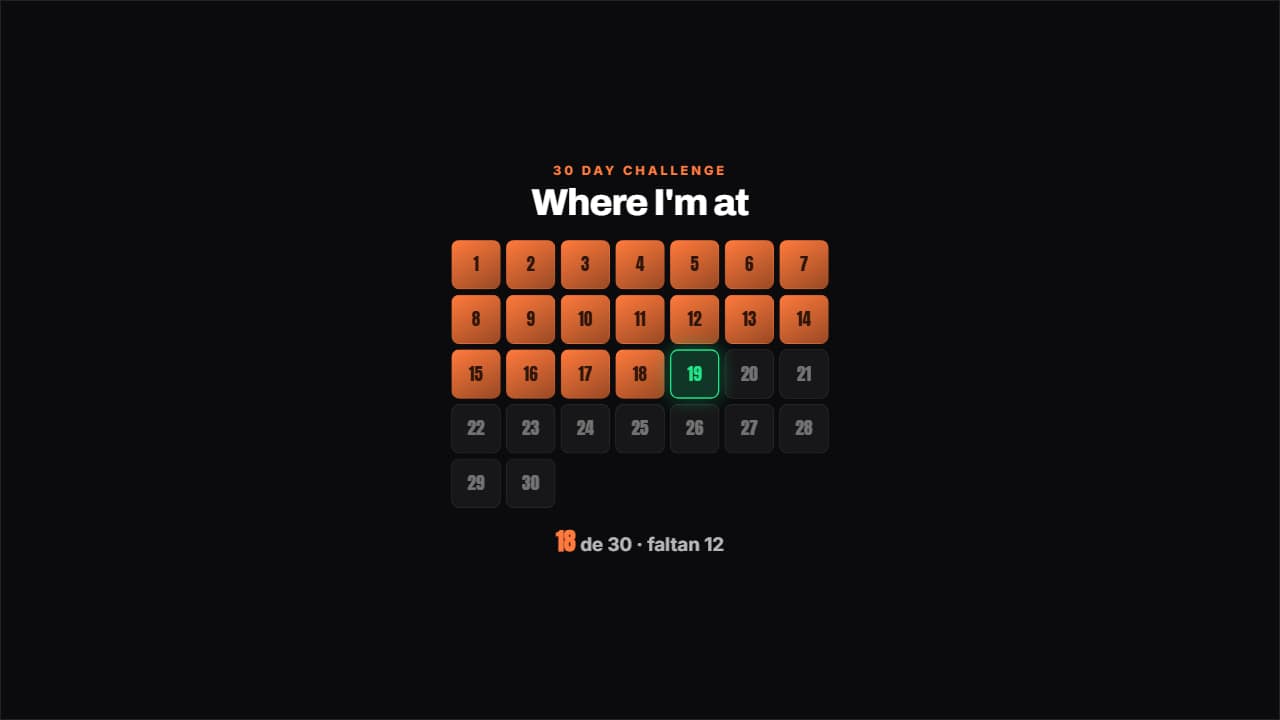 Challenge gridThe days of the challenge in a grid: the done ones filled, today pulsing with its outline and the ones left…
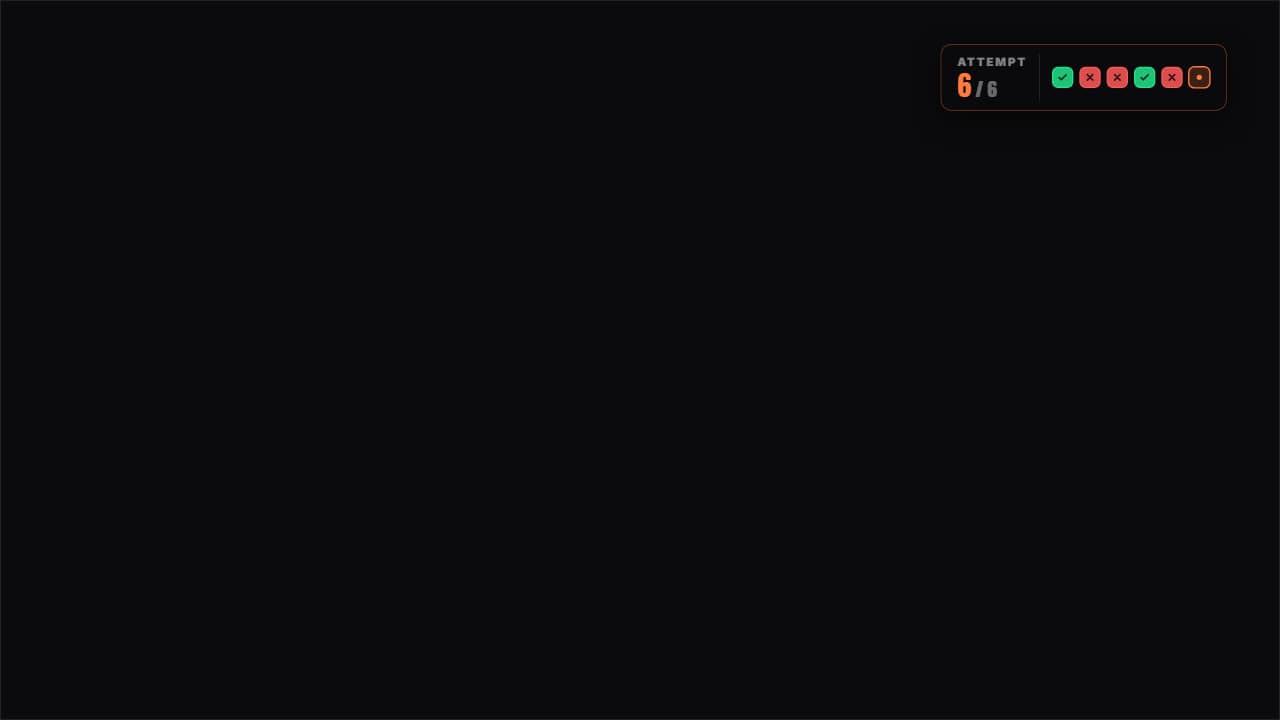 Attempts counterThe attempts as boxes: green for the one that worked, red for the one that failed and the current one pulsing.
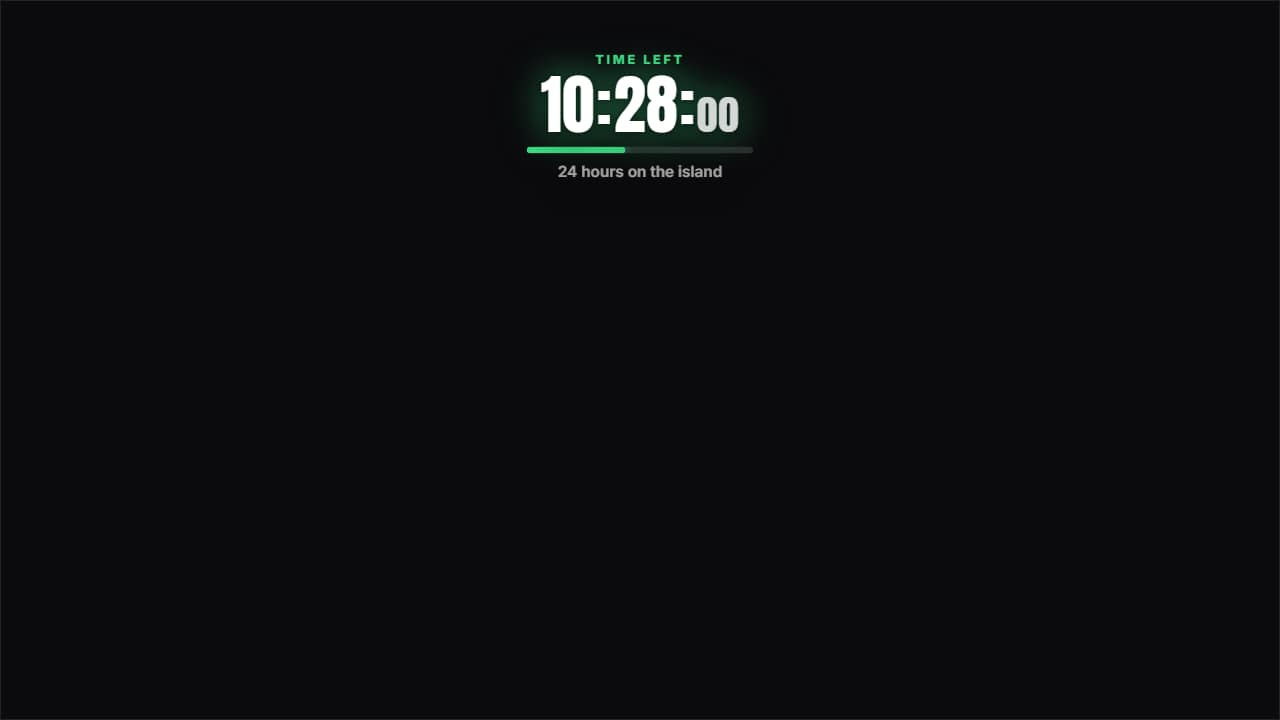 24-hour countdownThe clock running DOWN to zero, which is not the same as the challenge clock: one tells you what time it is…
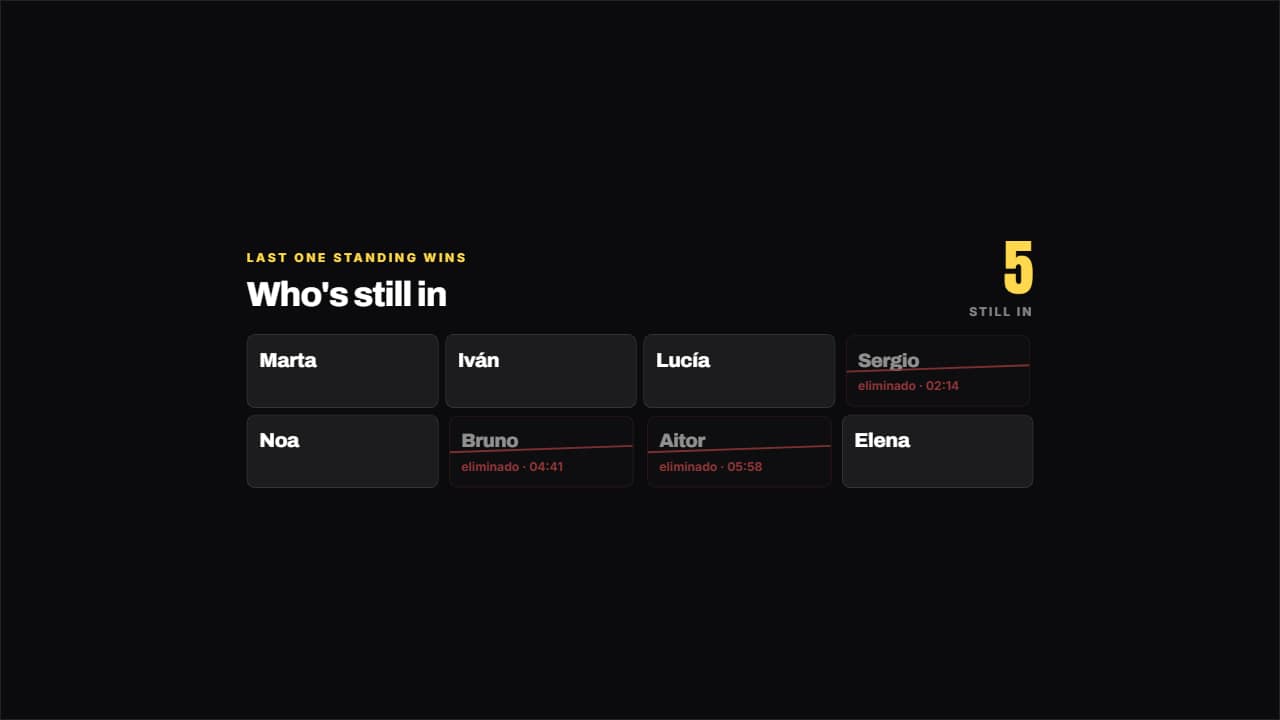 Elimination panelWhat holds up "last one standing wins" isn't who wins: it's how many are left.
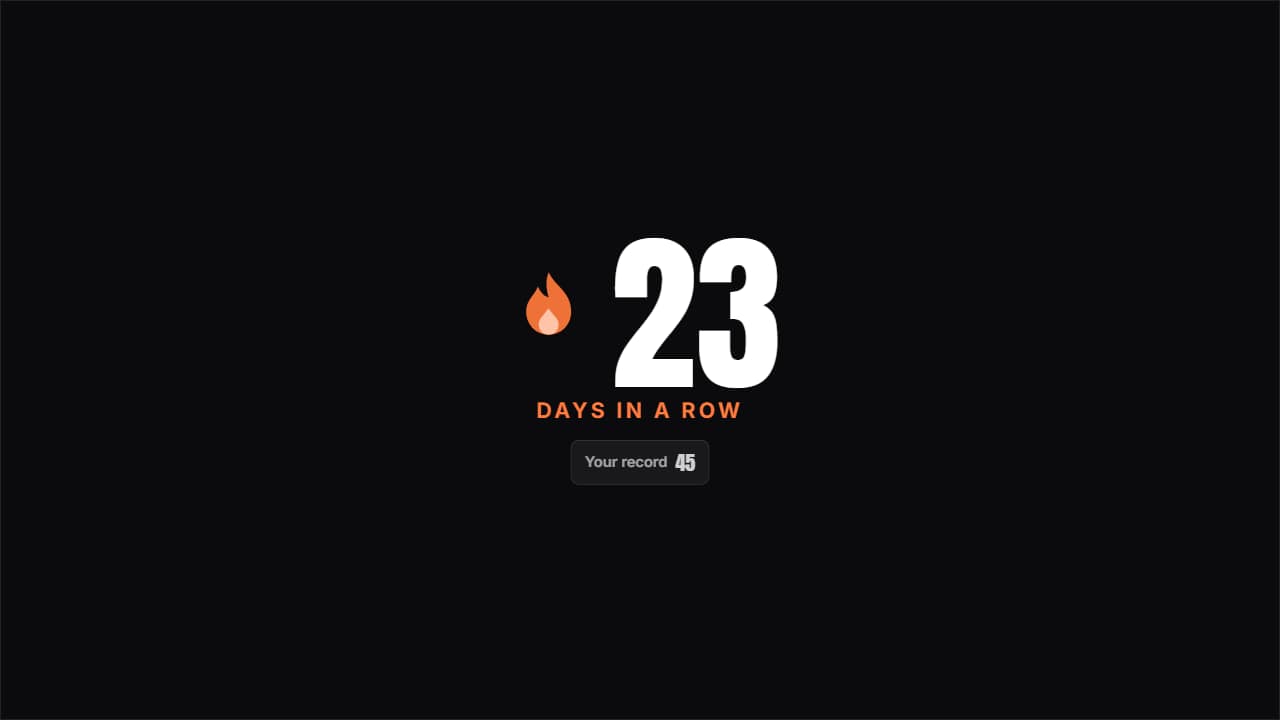 Day streakThe huge number with the flame pulsing beside it and the previous record underneath; beat it and it turns…
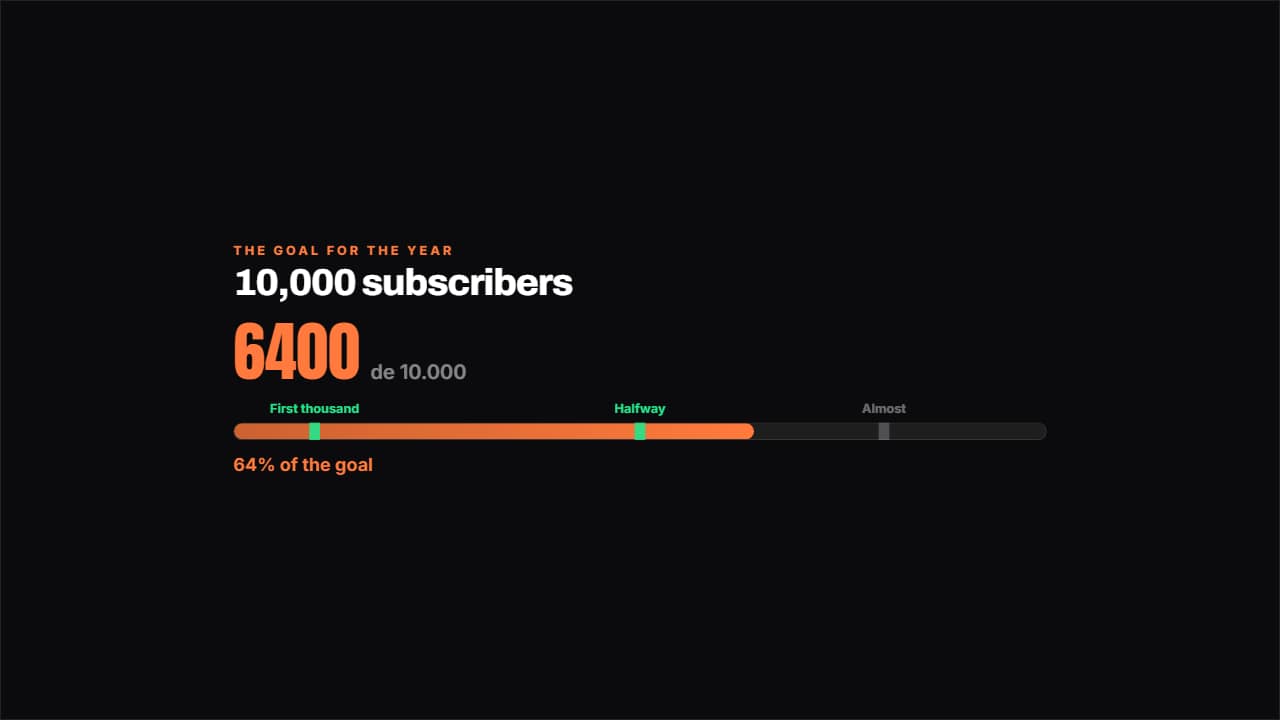 Road to the goalA bar towards the goal with the milestones marked along it: the ones you've passed light up.
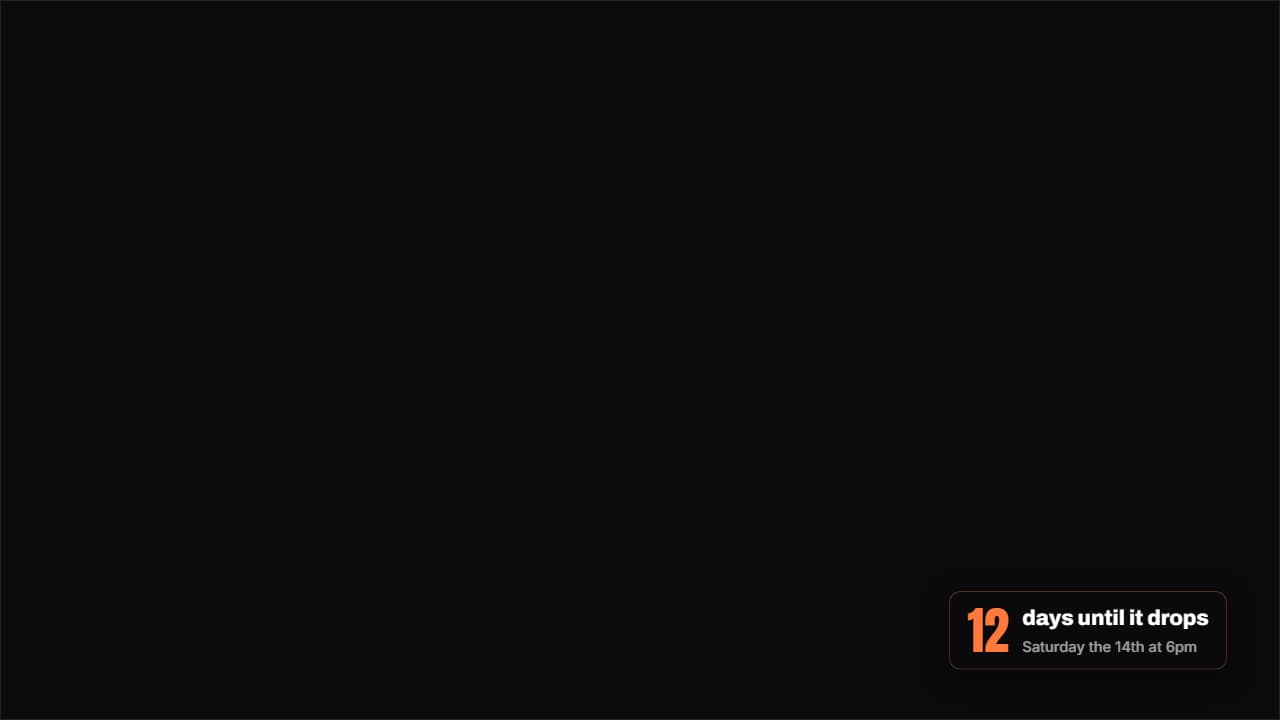 How much is leftA badge with the days (or hours) left until a date, with the number counting as it lands.