Format (important)1920×1080this is how it downloads
Preview doesn't change the file
You'll download 1920×1080, 3.5 s, with no background (.mov).
You'll download 1920×1080, 3.5 s, with no background (.mov).
The idea everyone arrives with, crossed out on the left, and the reality lit up on the right. It's the hook of any destination video: in three seconds you can see that what you're about to tell isn't the usual.
Plus the typeface and an optional letter outline, in every template.
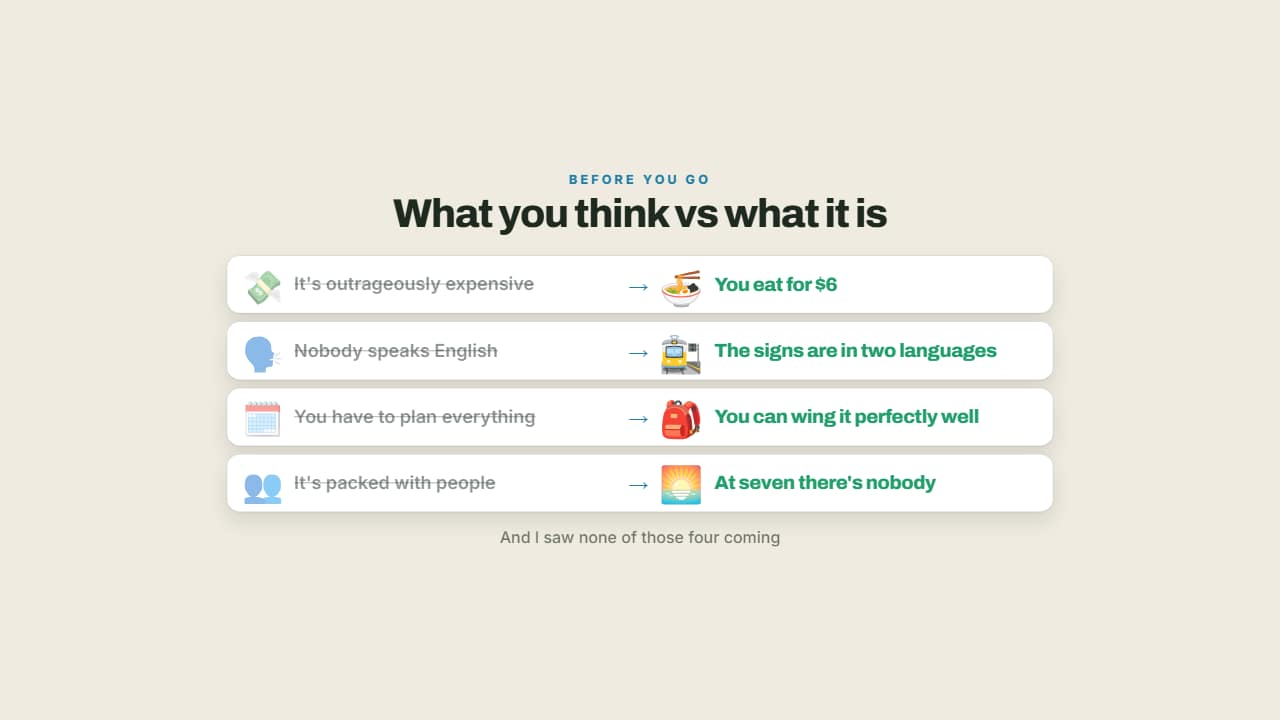
Export it without background and put it on a track above your clip: the animation plays over your video.
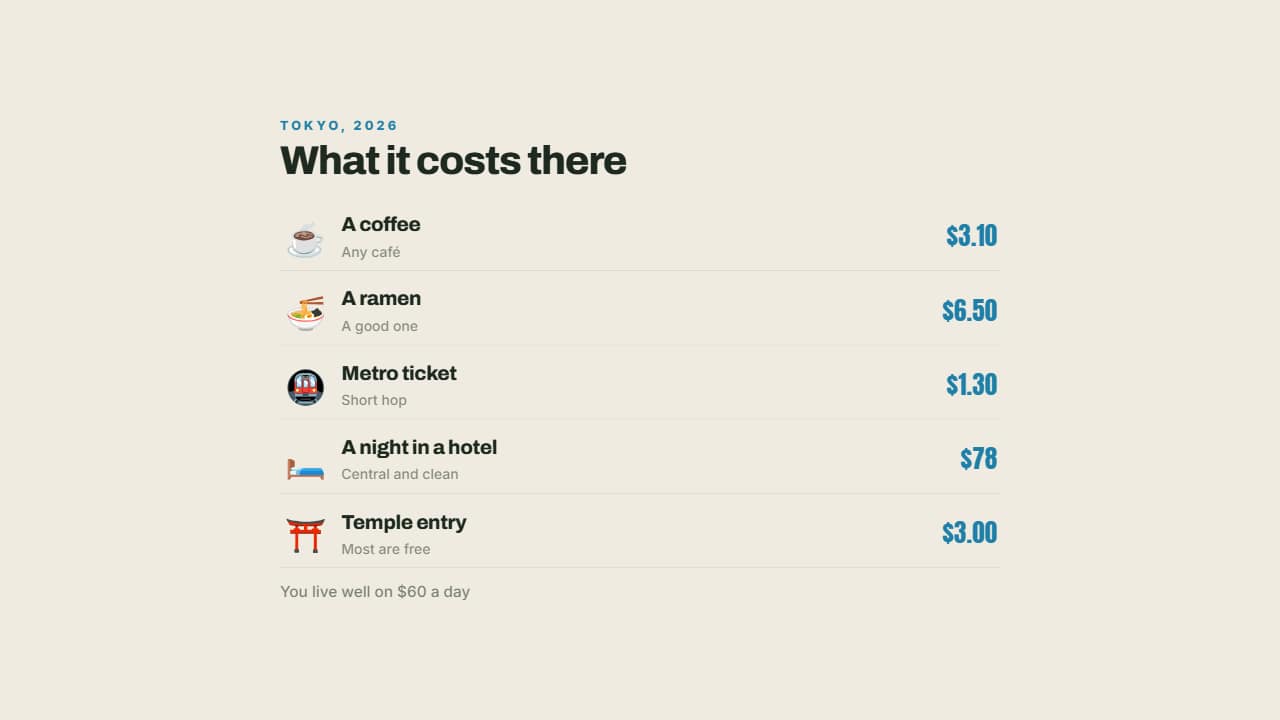 What it costs thereA coffee, the metro, a dinner, a night in a hotel: each with its emoji and its price aligned right.
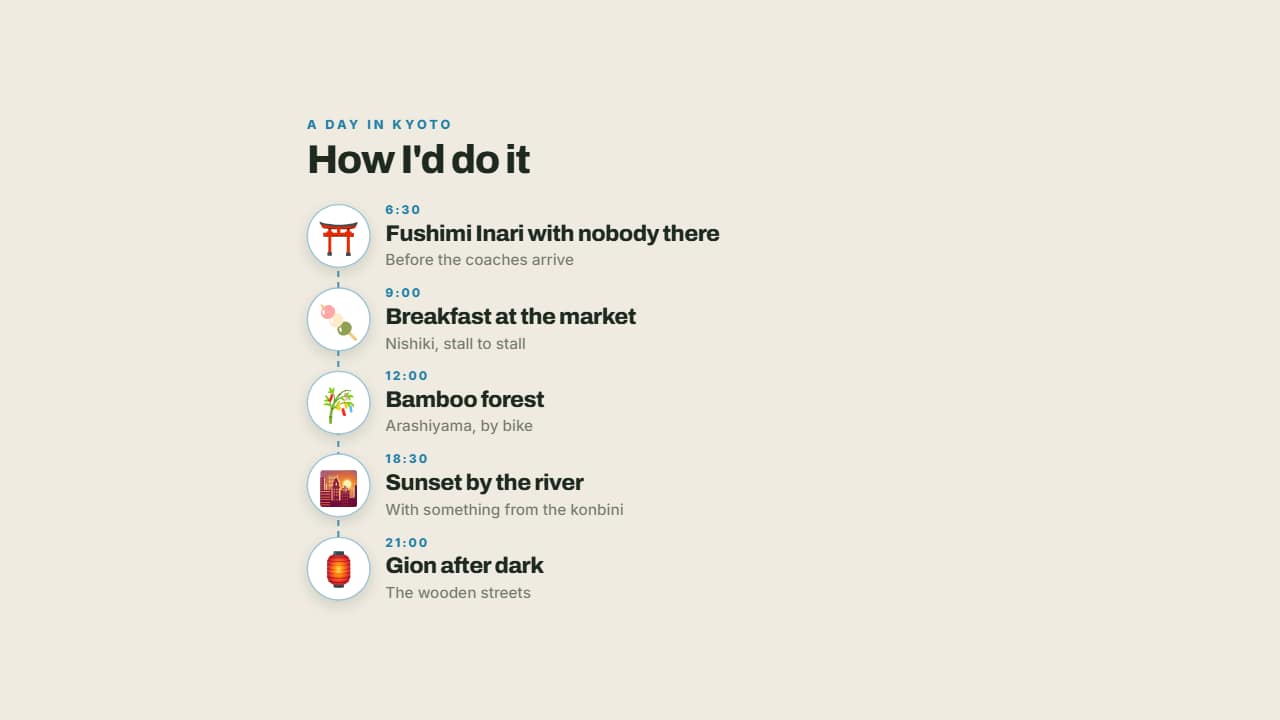 The perfect dayMorning, midday, afternoon and night on a line with their emoji: a day's itinerary told the way it's lived…
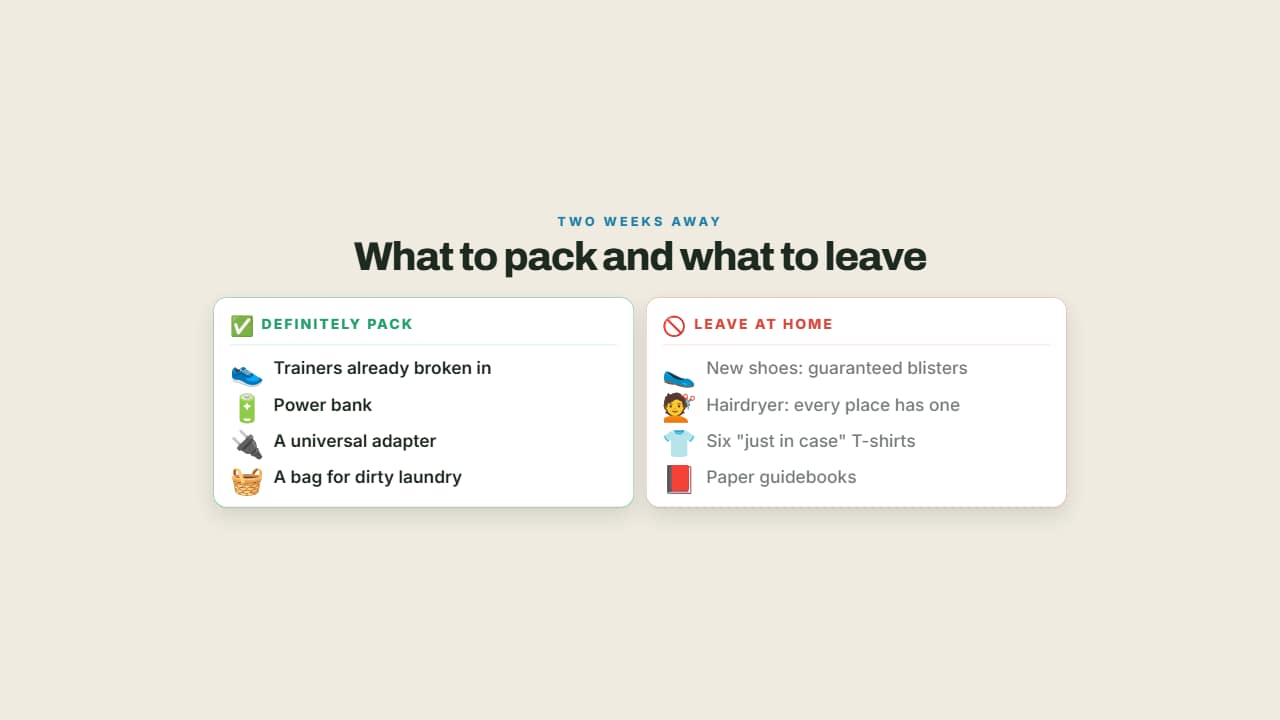 What to pack and what not toTwo columns: what you'll be glad you brought in green and what's dead weight in red.
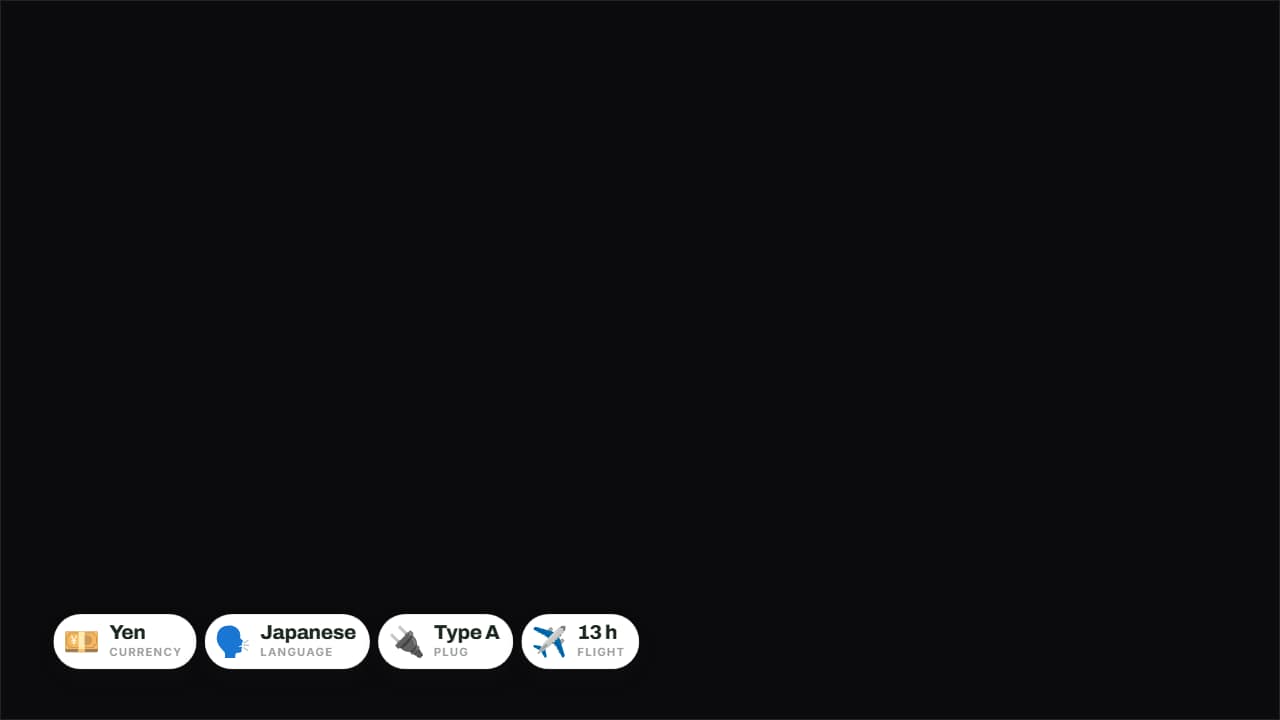 The destination in four badgesCurrency, language, plug and flight time on badges over the image.
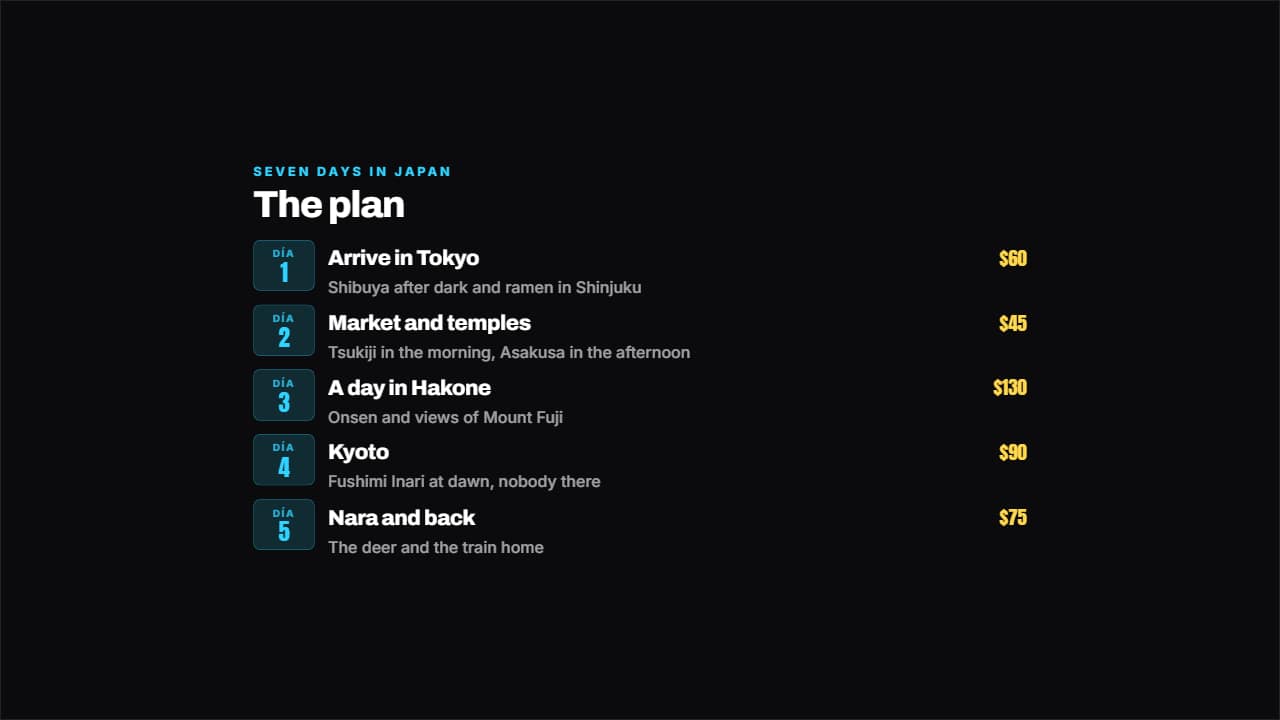 Day by day itineraryEach day on its badge, with the plan beside it and the spend on the right if you want it.
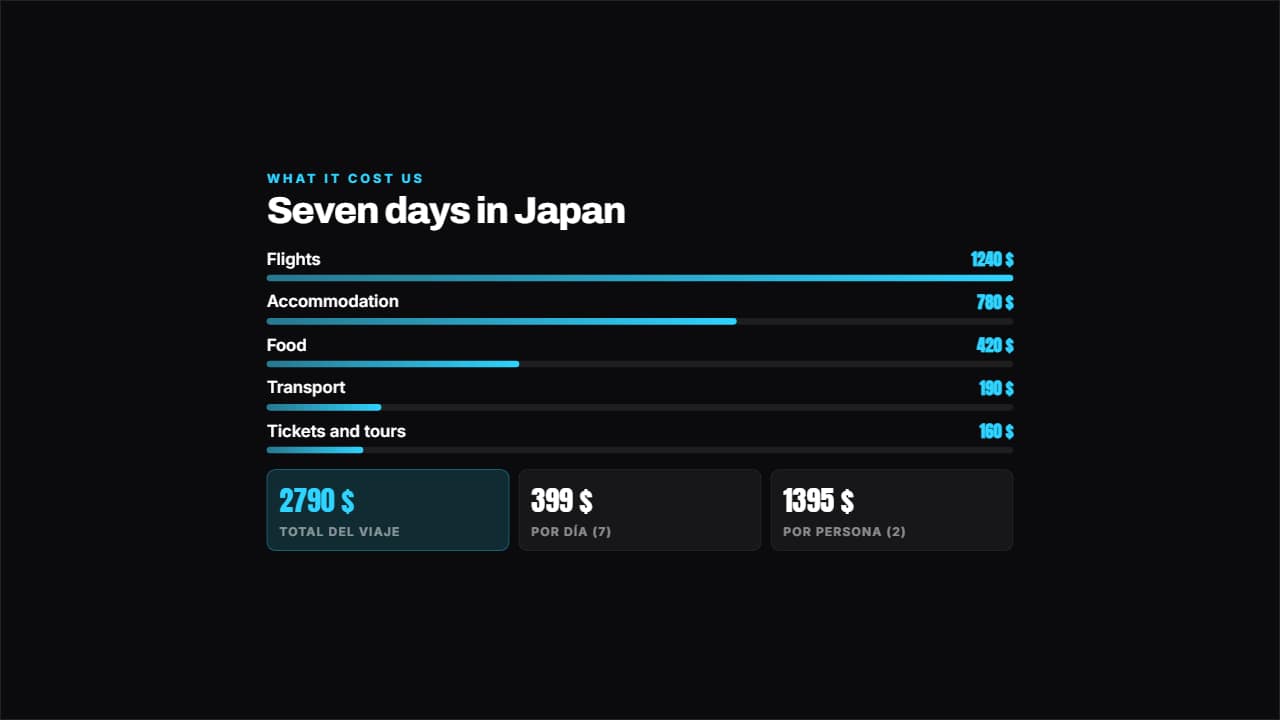 Trip budgetThe items in proportional bars and, underneath, the total with cost per day and per person worked out for you.
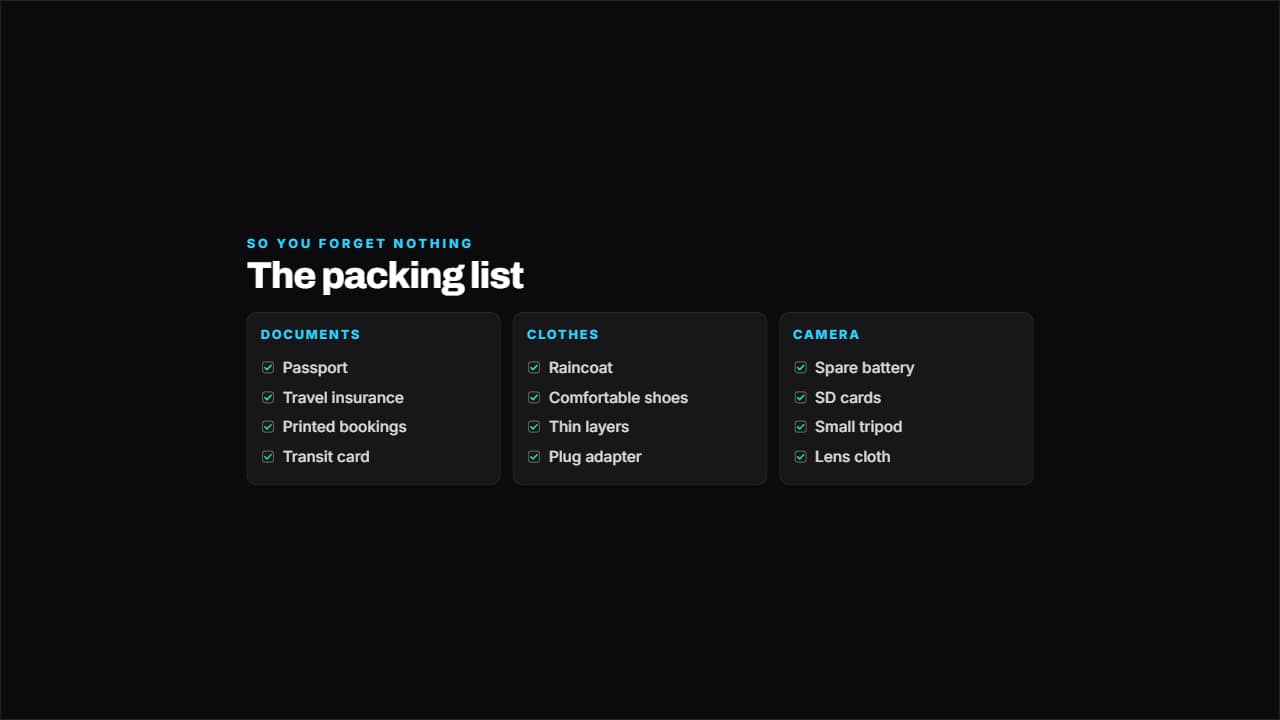 What to packThe packing list by category across several columns, with the boxes ticking one by one.
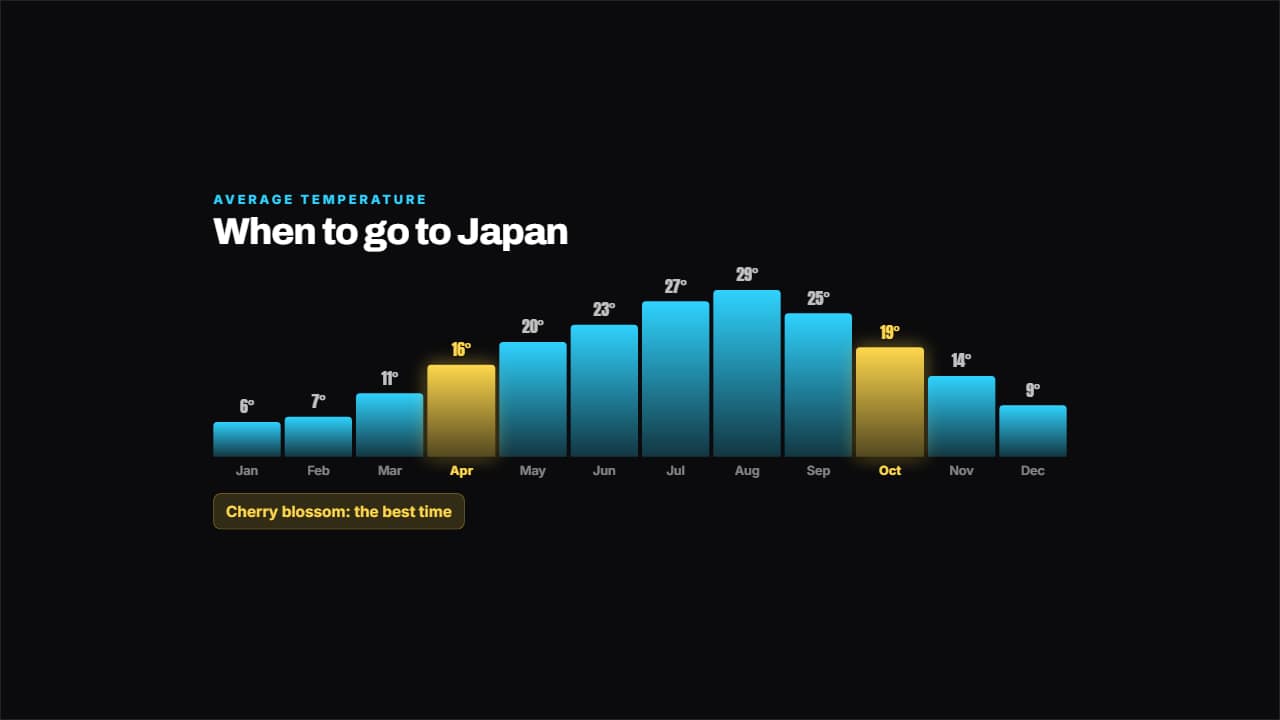 When to goTemperature month by month in bars, with the good months lit and their note.