Format (important)1920×1080this is how it downloads
Preview doesn't change the file
You'll download 1920×1080, 3.5 s, with no background (.mov).
You'll download 1920×1080, 3.5 s, with no background (.mov).
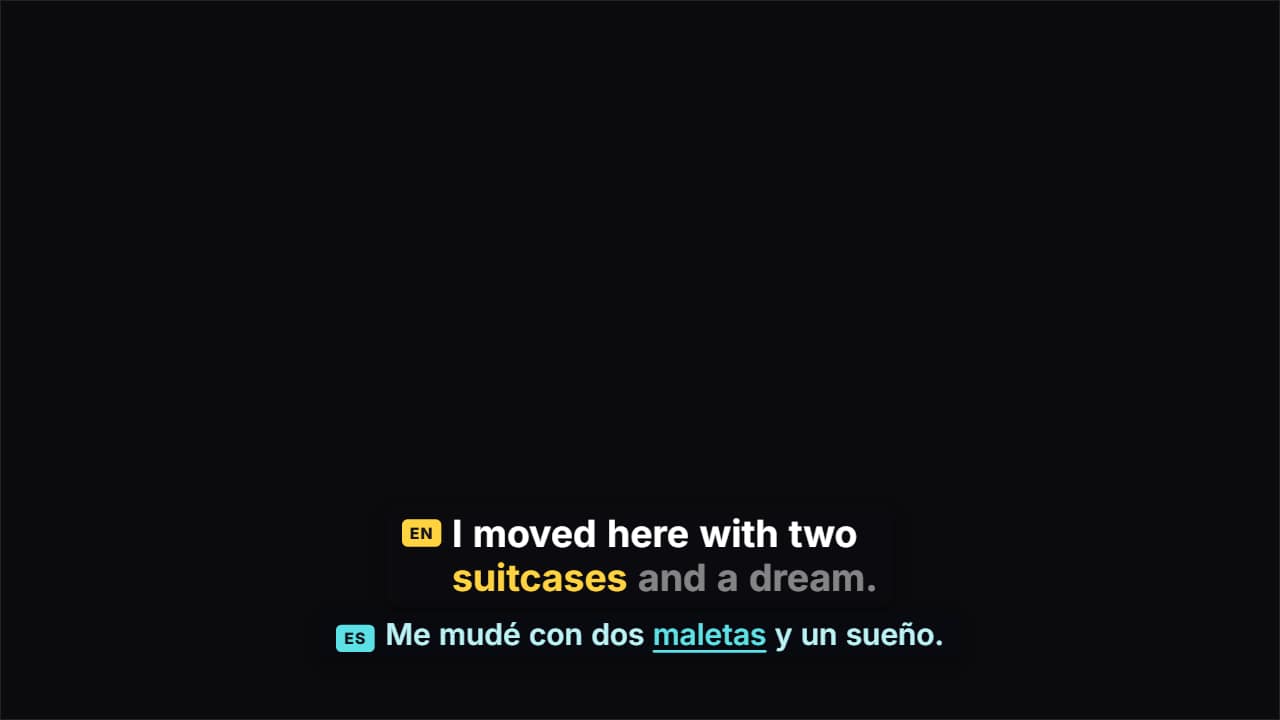
Two lines at once: what you say, word by word, and its translation underneath, moving at the same pace with its word underlined. For bilingual channels, language teachers and anyone talking to two audiences. Each line of the text goes with the same line of the translation. Three styles: box, minimal and glass.
Plus the typeface and an optional letter outline, in every template.
Export it without background and put it on a track above your clip: the animation plays over your video.
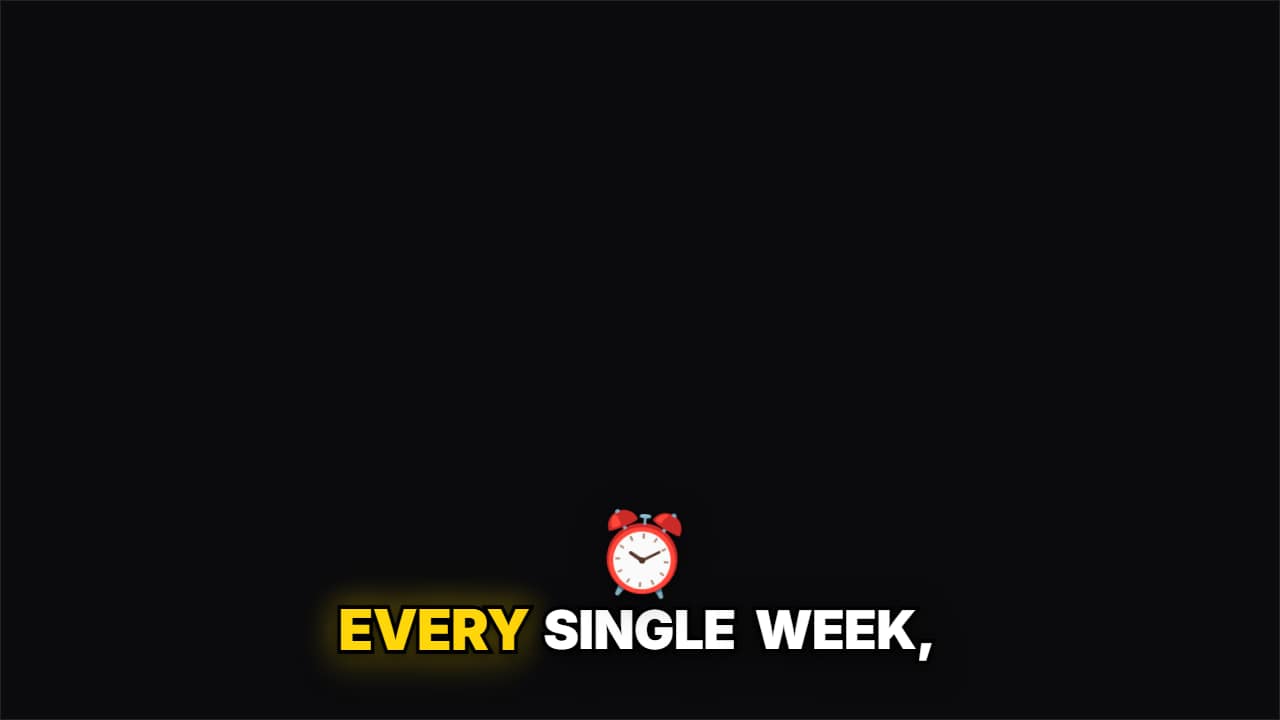 Emoji pop captionsThe classic word-by-word Shorts caption, and when you say a word from your list («money», «time»…) its emoji…
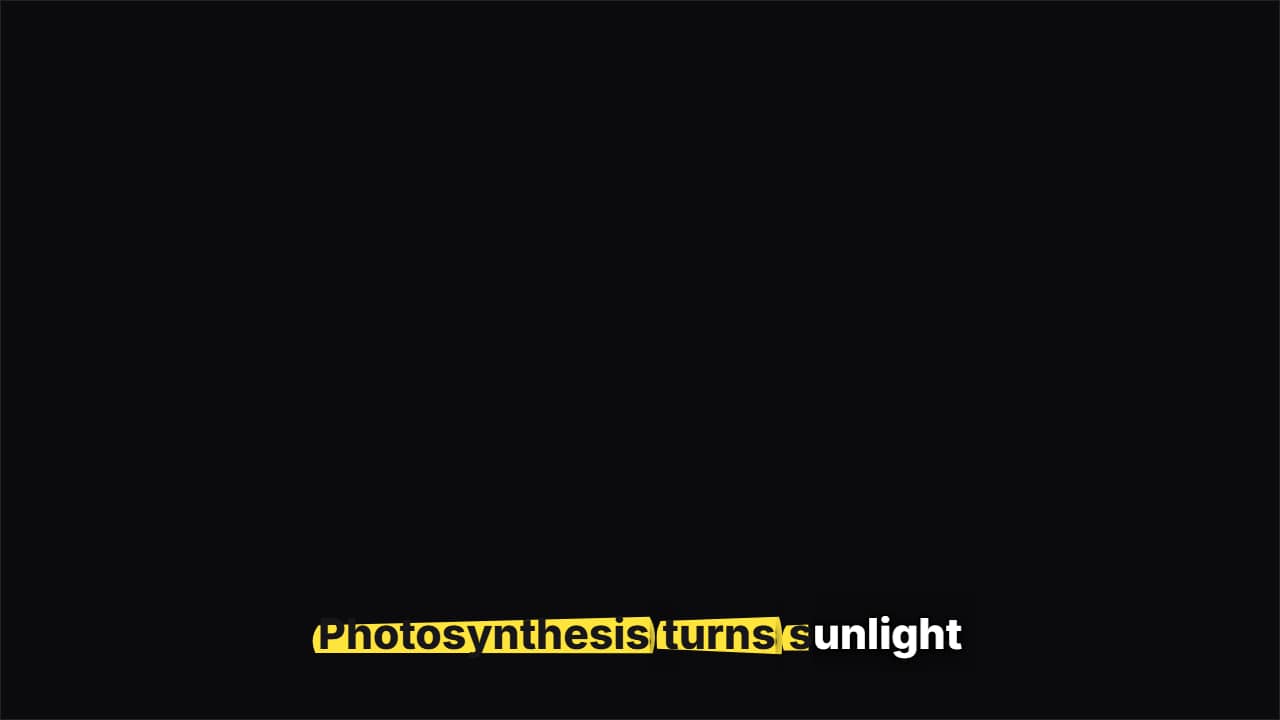 Highlighter captionsA highlighter swipes under each word as you say it and the letters turn to ink, like study notes.
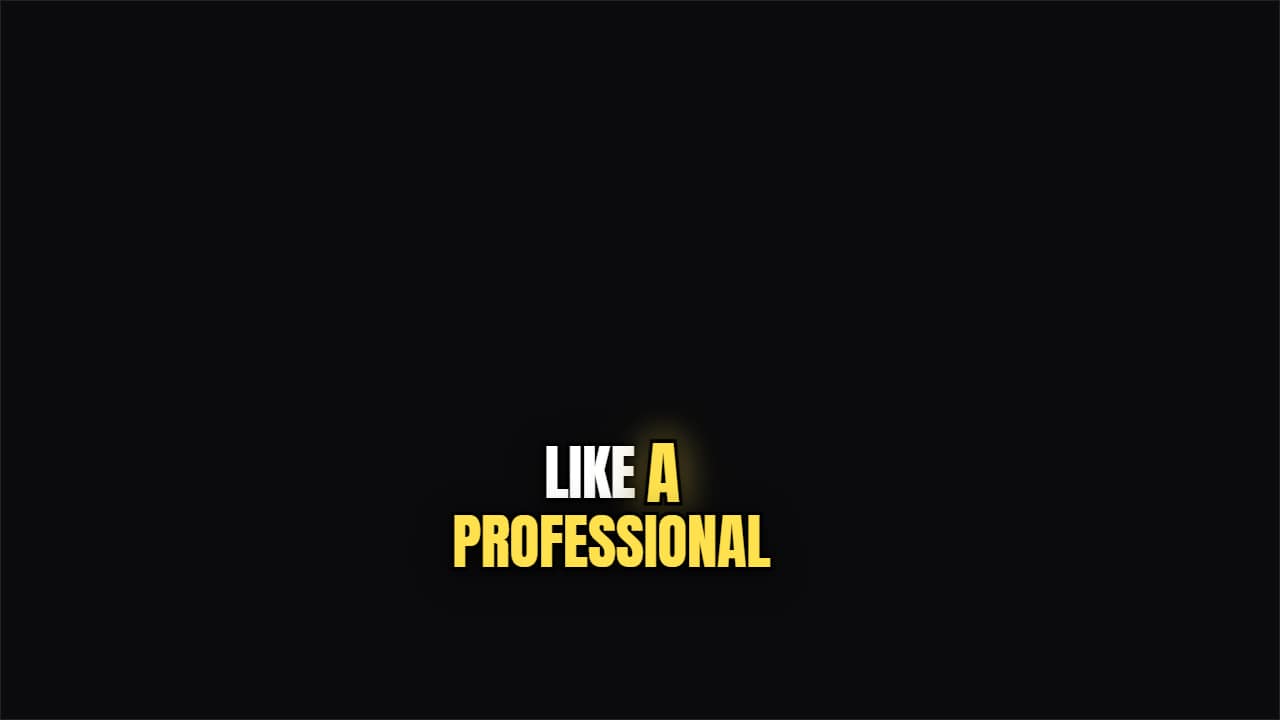 TikTok captionCondensed, thick outline, and the word being spoken jumps and takes color.
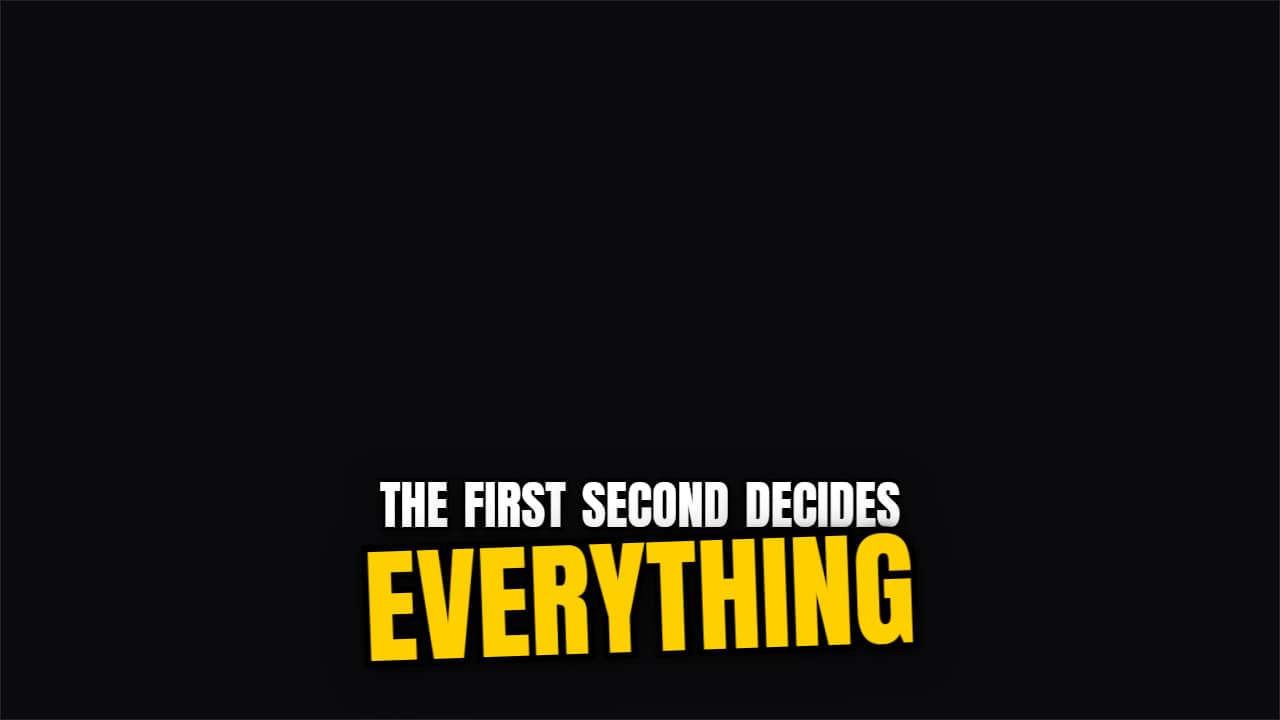 Keyword slam captionsA caption that writes itself word by word and, when the word you mark with *asterisks* arrives, it slams in…
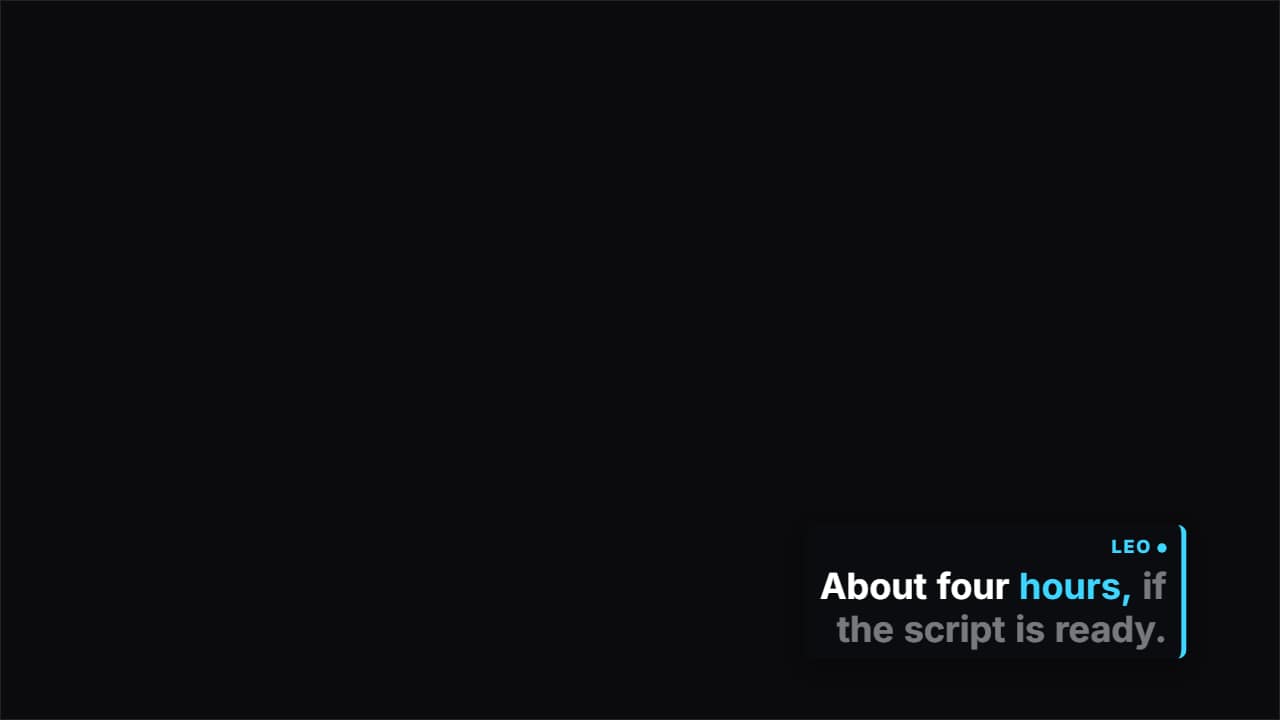 Two-speaker captionsFor podcasts and interviews: write each turn as «NAME: what they say».
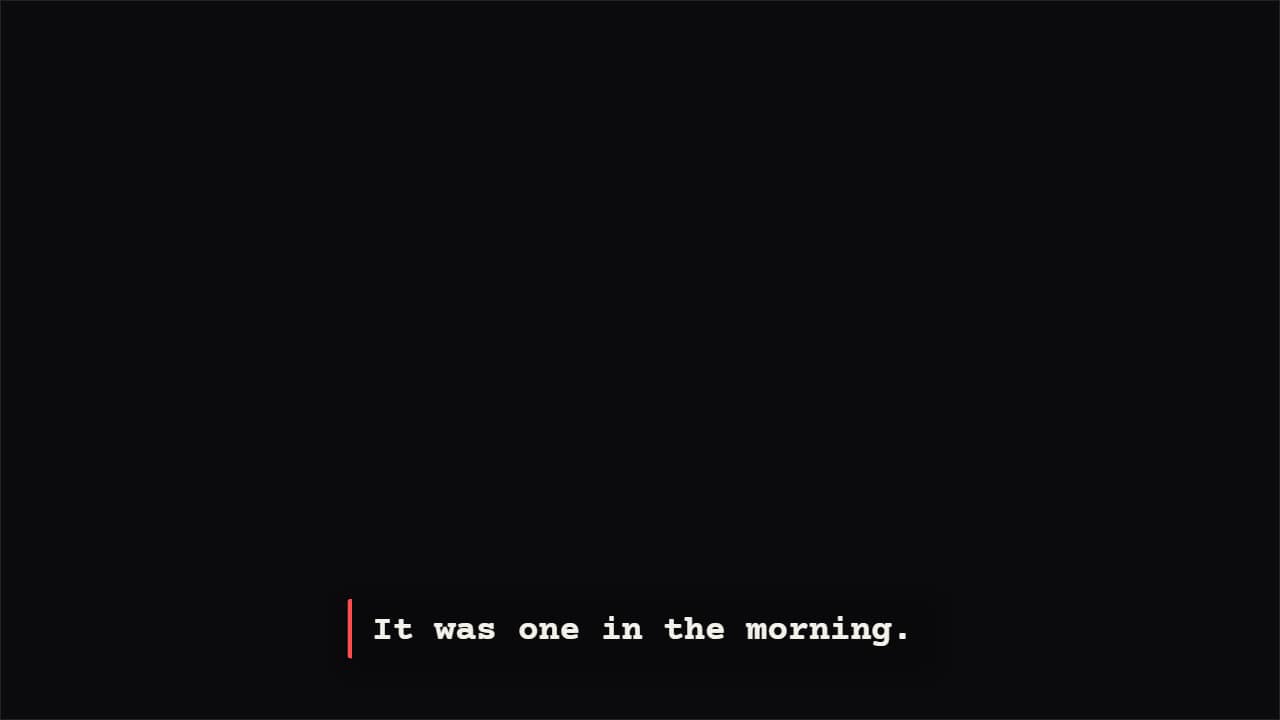 Typewriter captionsLetter by letter at the pace of your voice, with a cursor that blinks in the pauses.
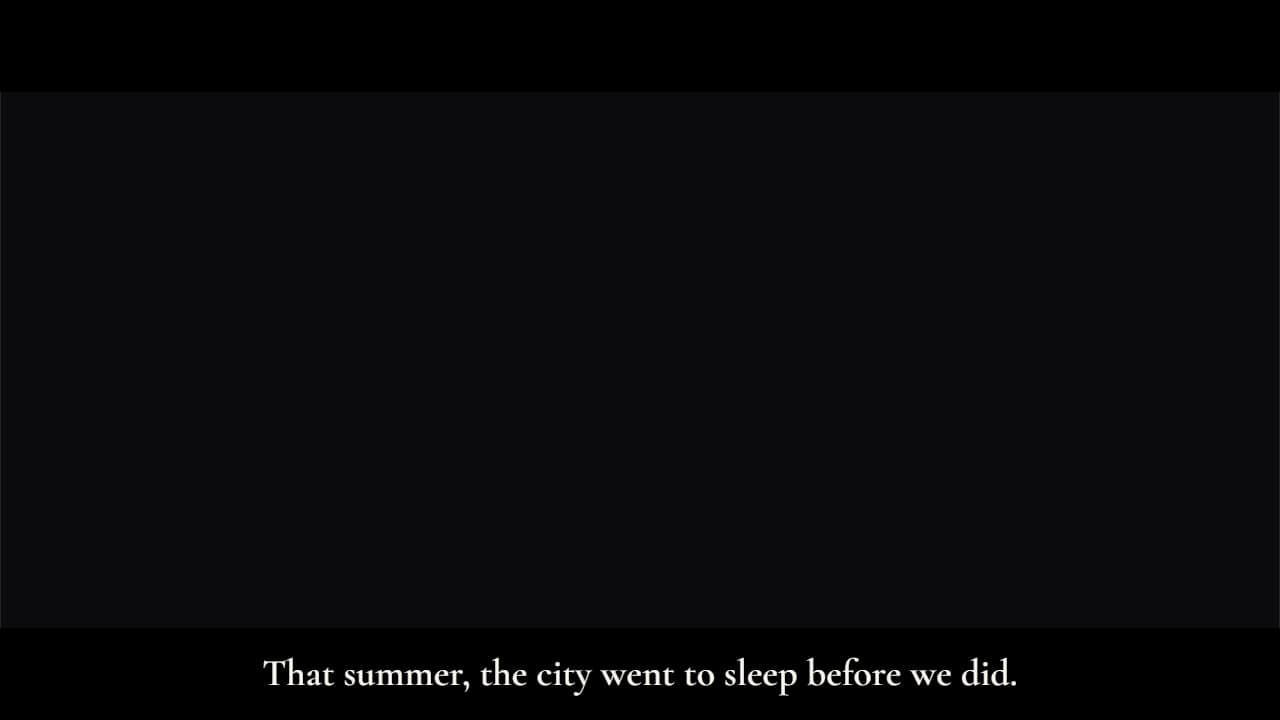 Cinematic subtitlesLike a film: the whole sentence at once, with slow fades, and black letterbox bars that slide in (in 16:9…
 Sticker captionsEvery phrase is a tilted sticker that slaps onto the screen; the previous one stays underneath for a moment…