Format (important)1920×1080this is how it downloads
Preview doesn't change the file
You'll download 1920×1080, 3.5 s, with no background (.mov).
You'll download 1920×1080, 3.5 s, with no background (.mov).
You type with indentation and the tree lays itself out, with the branches drawing themselves. Genealogy, org charts or the structure of anything.
Plus the typeface and an optional letter outline, in every template.
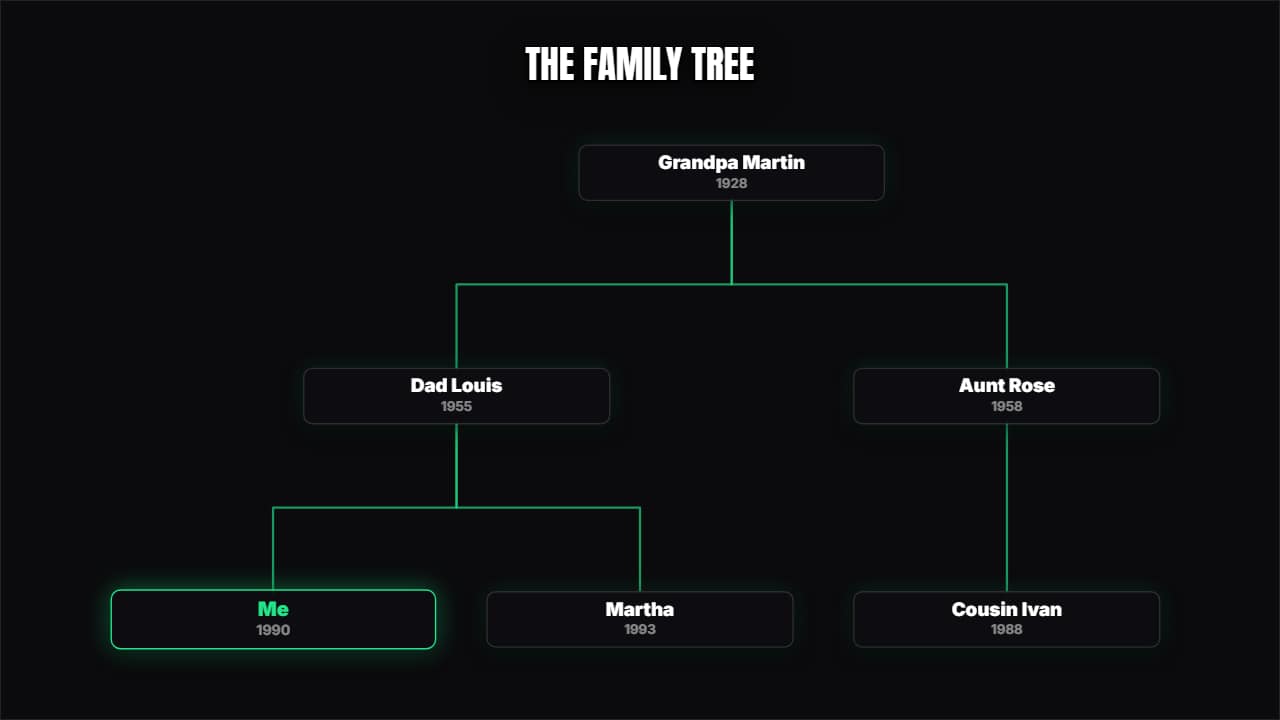
Export it without background and put it on a track above your clip: the animation plays over your video.
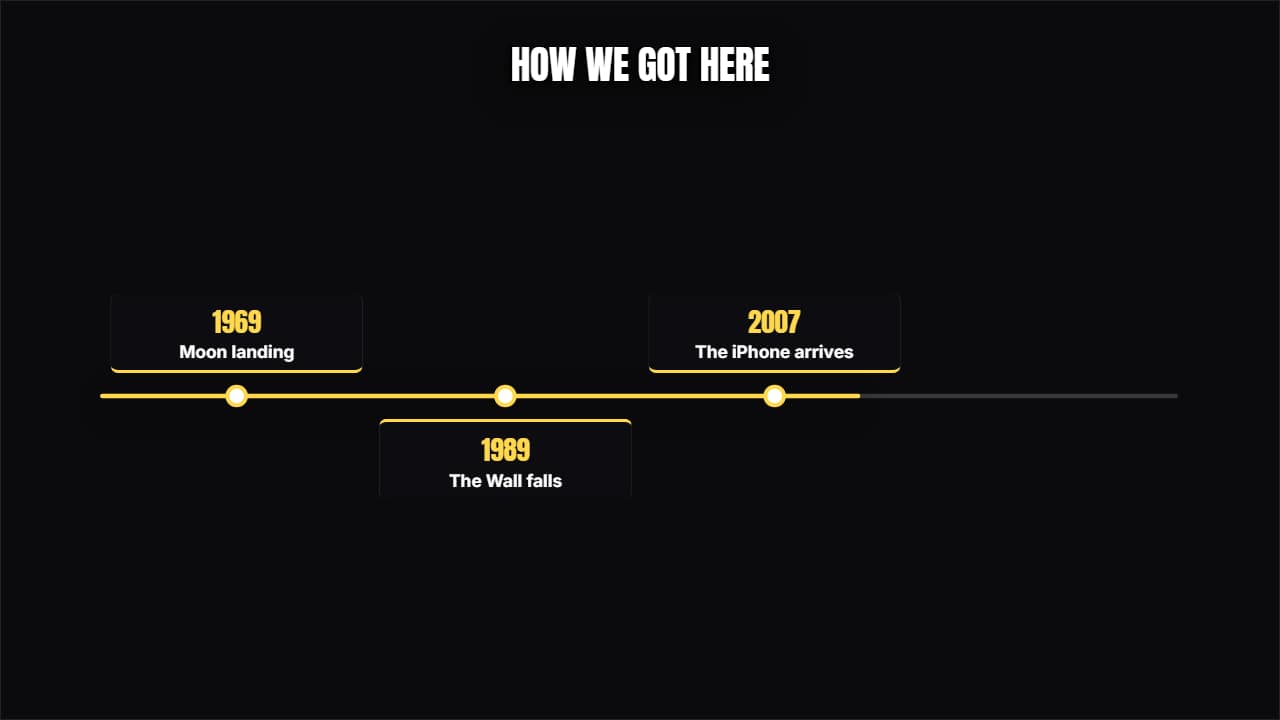 TimelineThe line advances and each milestone opens its card above and below, alternating.
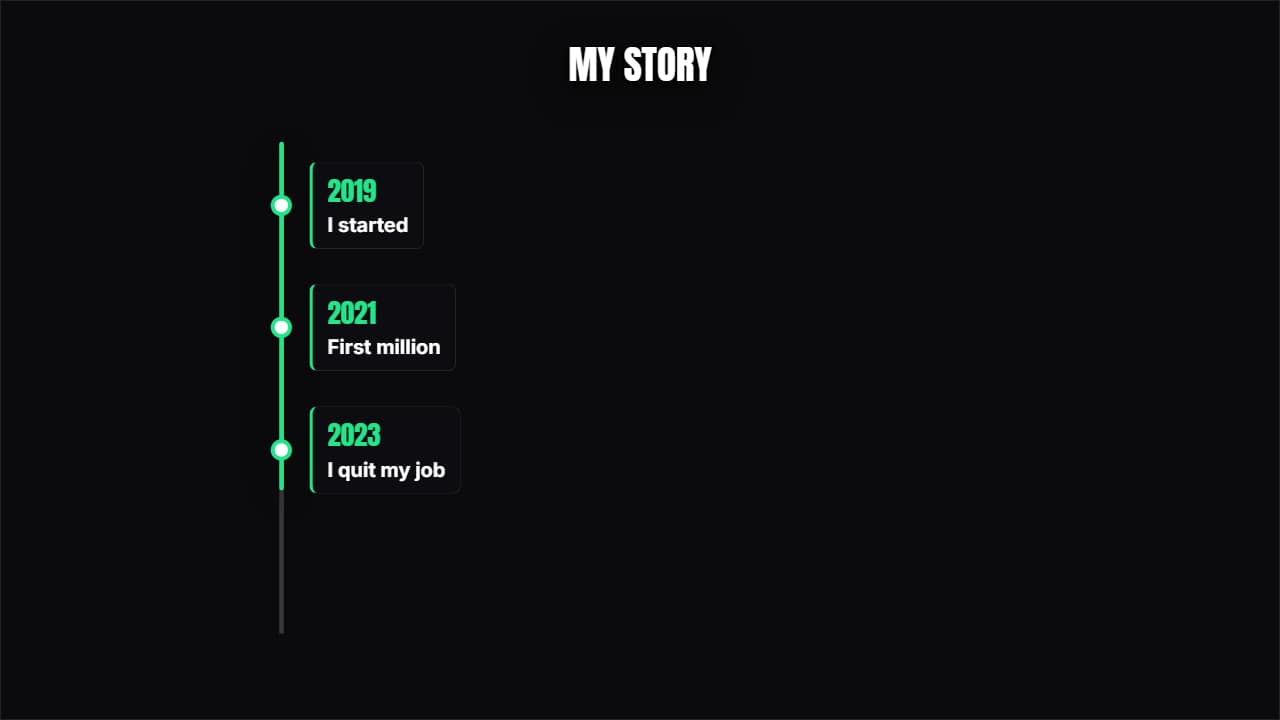 Vertical timelineThe years come down one side and each one opens its card. Built for 9:16 but it works anywhere.
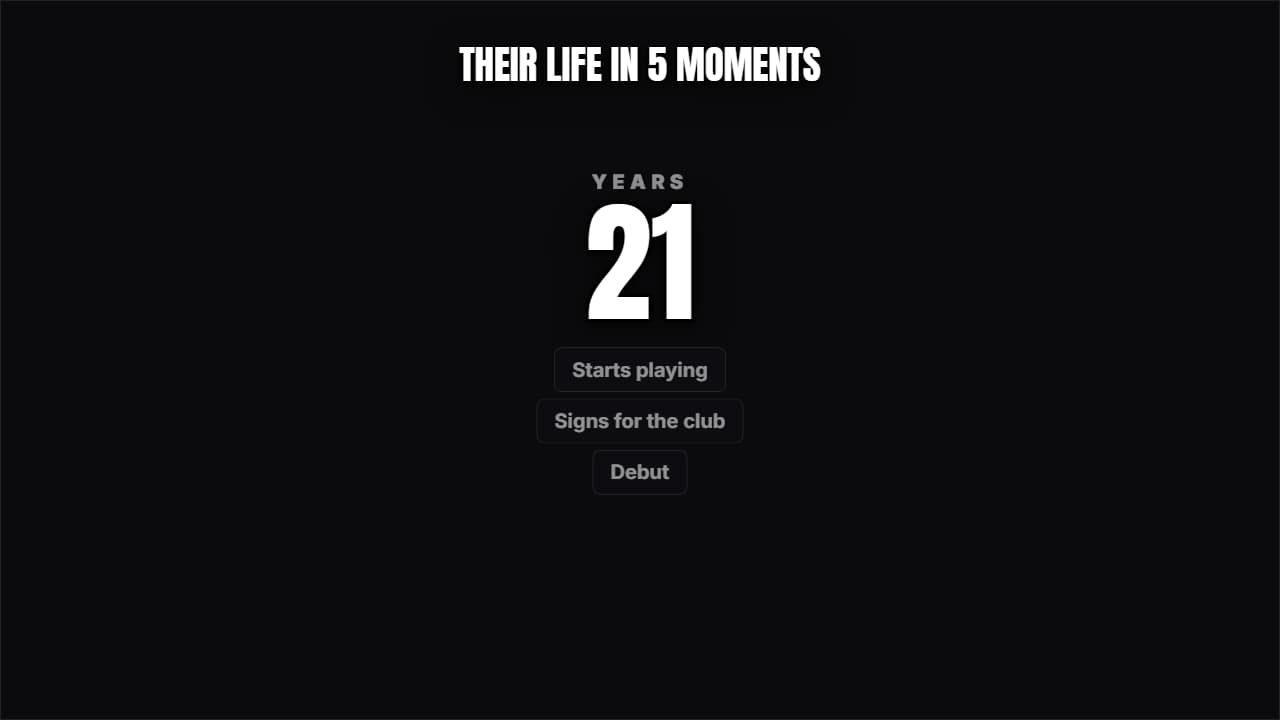 Someone's lifeA giant number (the age or the year) climbing while the milestones pile up underneath.
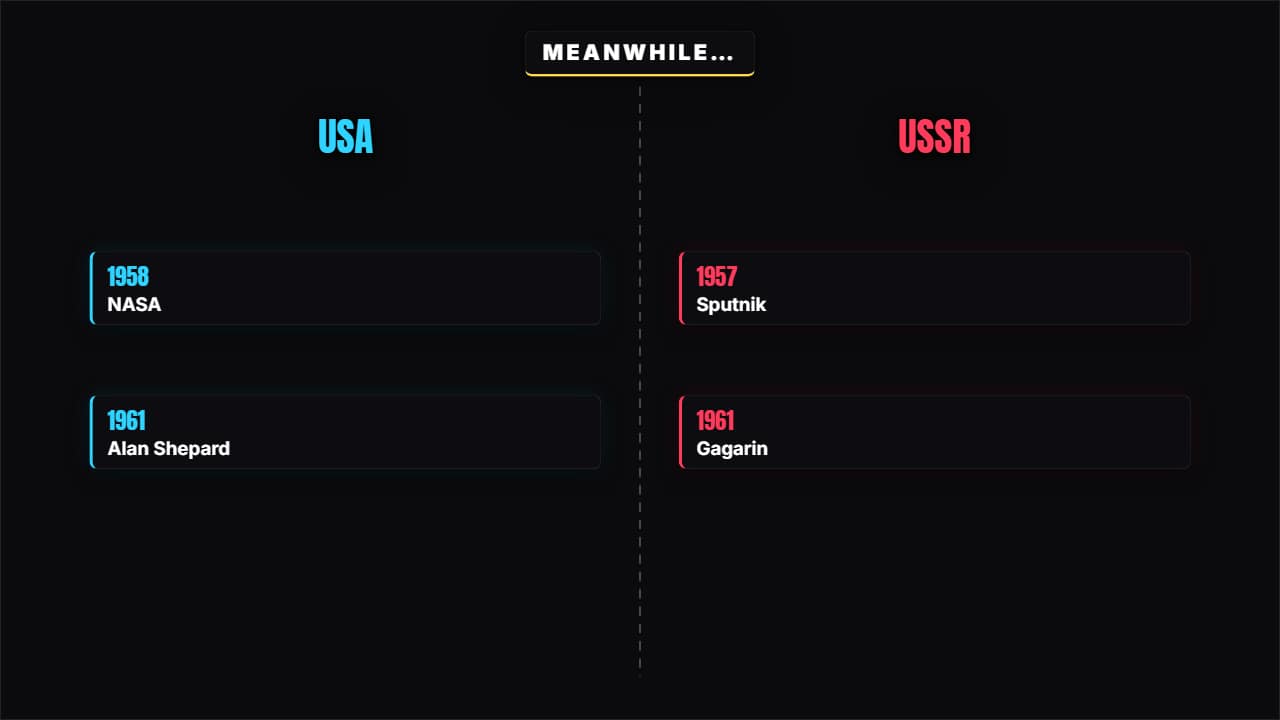 Meanwhile in…A split screen with two timelines advancing at once. For two sides, two companies or two lives in parallel.
 The same place, before and afterA curtain sweeping across the frame between two images with their dates.
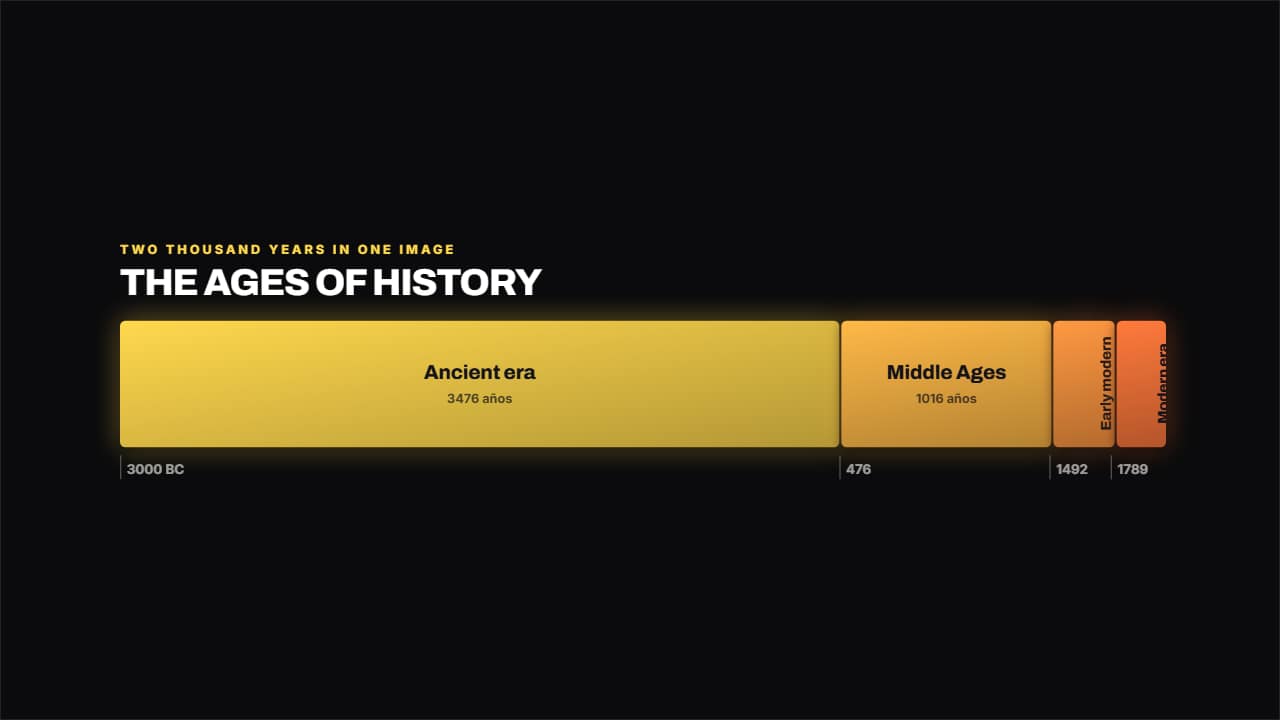 Band of erasEach era takes up exactly as long as it lasted, so at a glance you see that the Middle Ages ran a thousand…
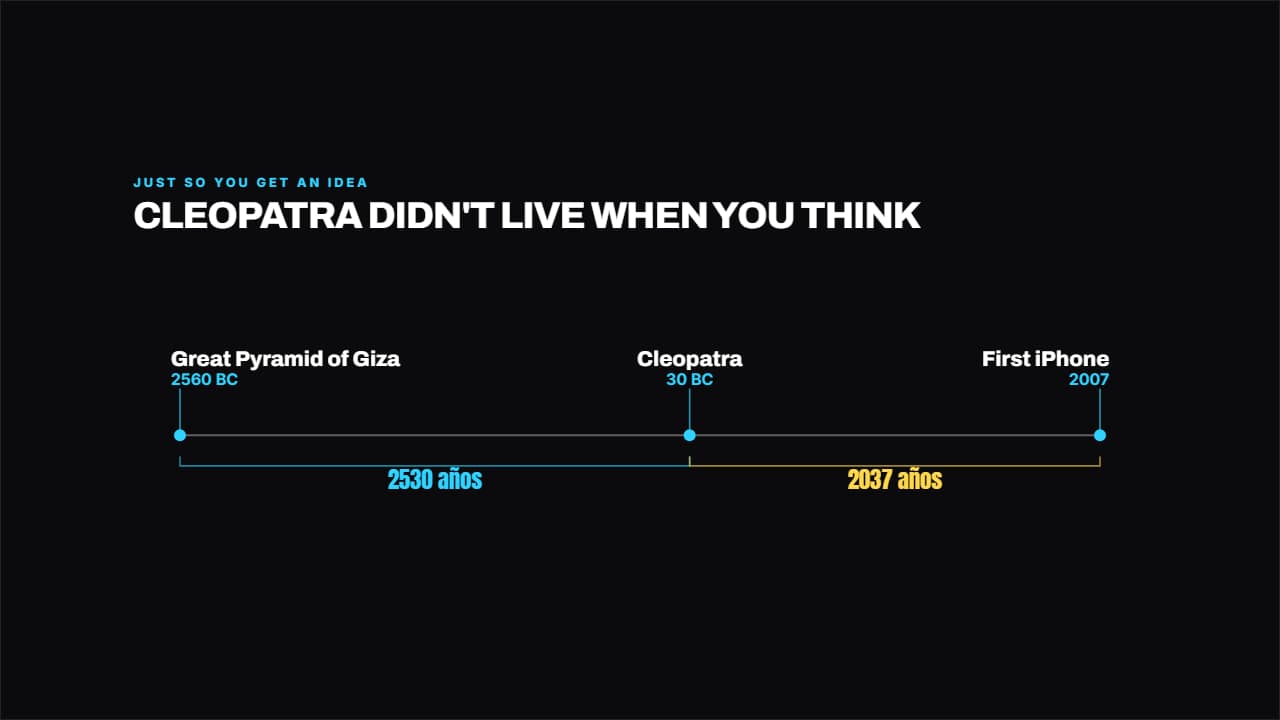 The distance in timePuts two or three dates to scale and measures the years in between.
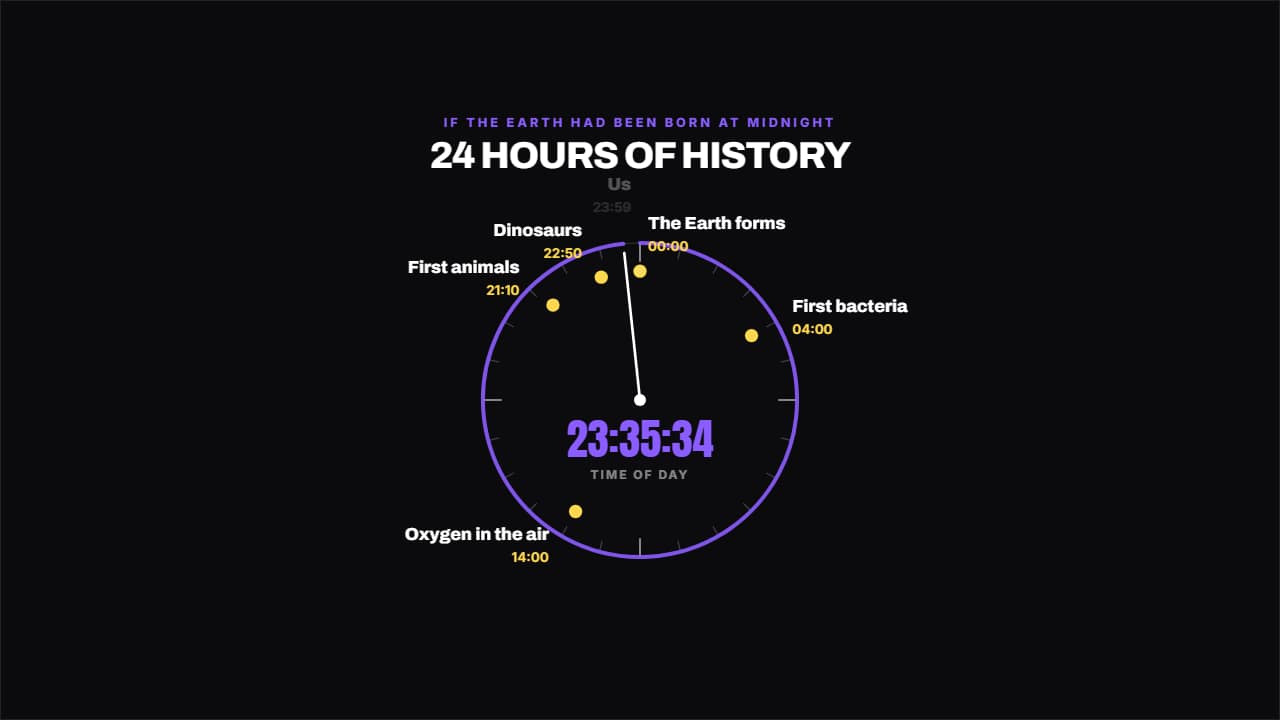 The clock of historyIf it all fitted into 24 hours, what time do we show up?