Format (important)1920×1080this is how it downloads
Preview doesn't change the file
You'll download 1920×1080, 3.5 s, with no background (.mov).
You'll download 1920×1080, 3.5 s, with no background (.mov).
The line from the episode worth clipping, with the photo of who said it, their name, what they do and where it comes from (timestamp and show). The words come in one by one and the ones you wrap in *asterisks* stand out; the photo slowly pushes in until the end. Three styles: editorial serif with giant quote marks and the photo in black and white, a glass card with a round photo, and a caption style for vertical clips with each line in its own black box and the key words on a highlighter.
Plus the typeface and an optional letter outline, in every template.
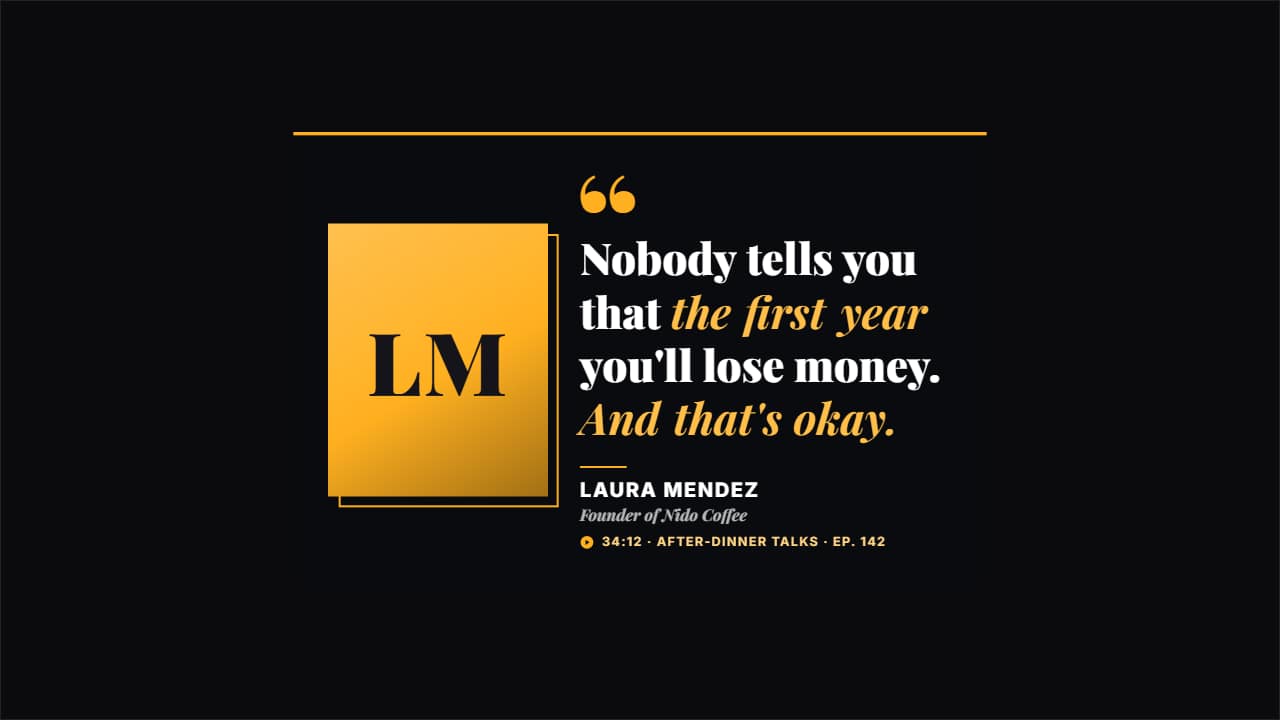
Export it without background and put it on a track above your clip: the animation plays over your video.
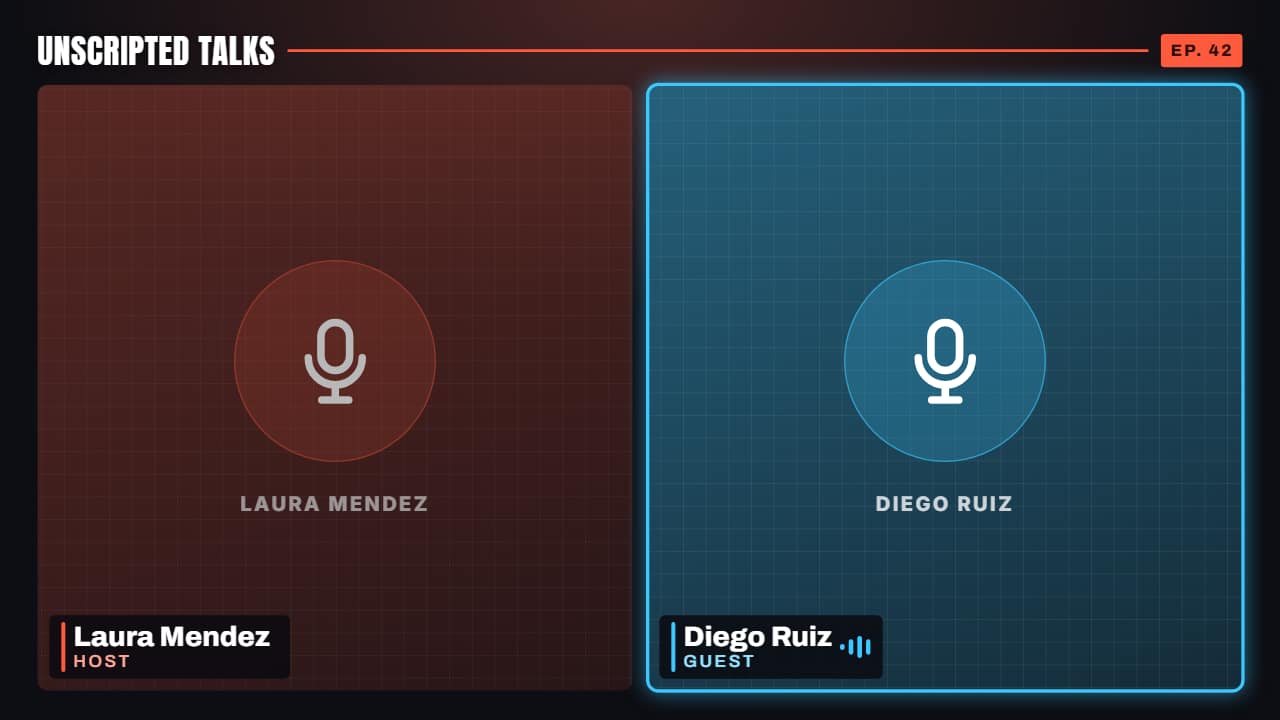 Multi-cam podcast frameTwo or three cameras from your podcast, each with its name and role, plus the show's name and the episode.
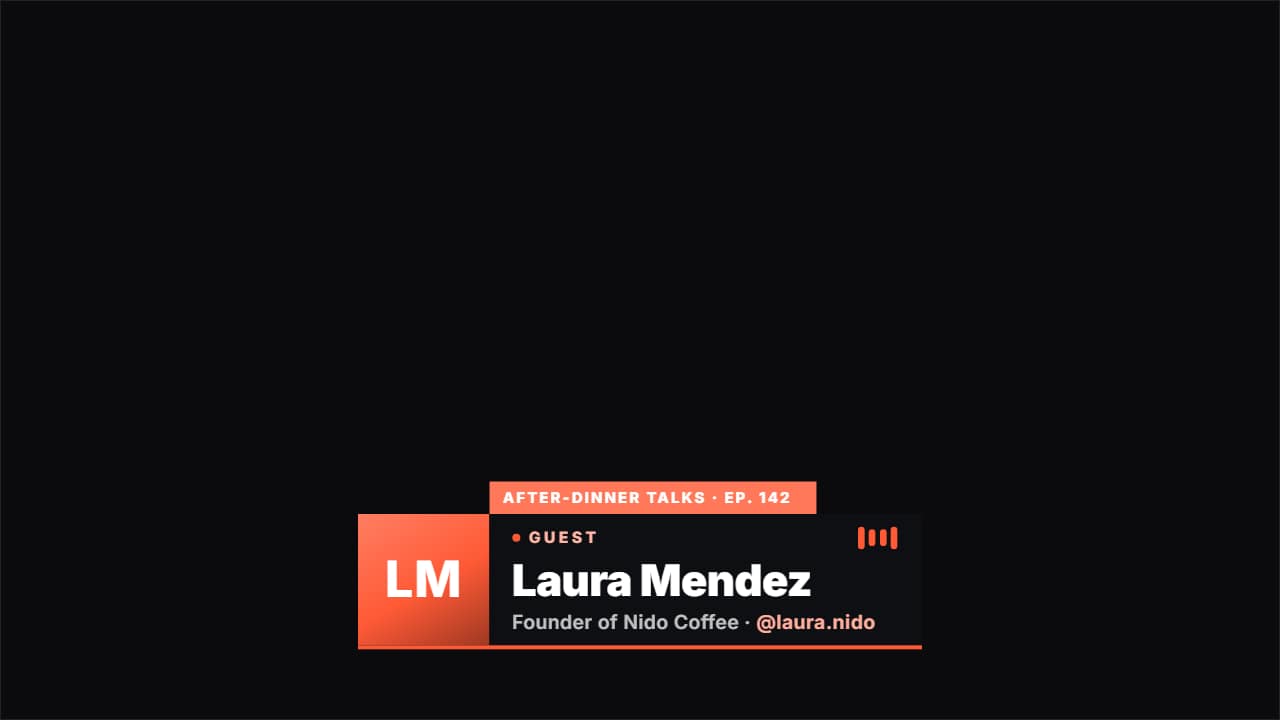 Podcast guest lower thirdIntroduces whoever is on the show: their photo, their name, what they do and their @, with a «GUEST» badge…
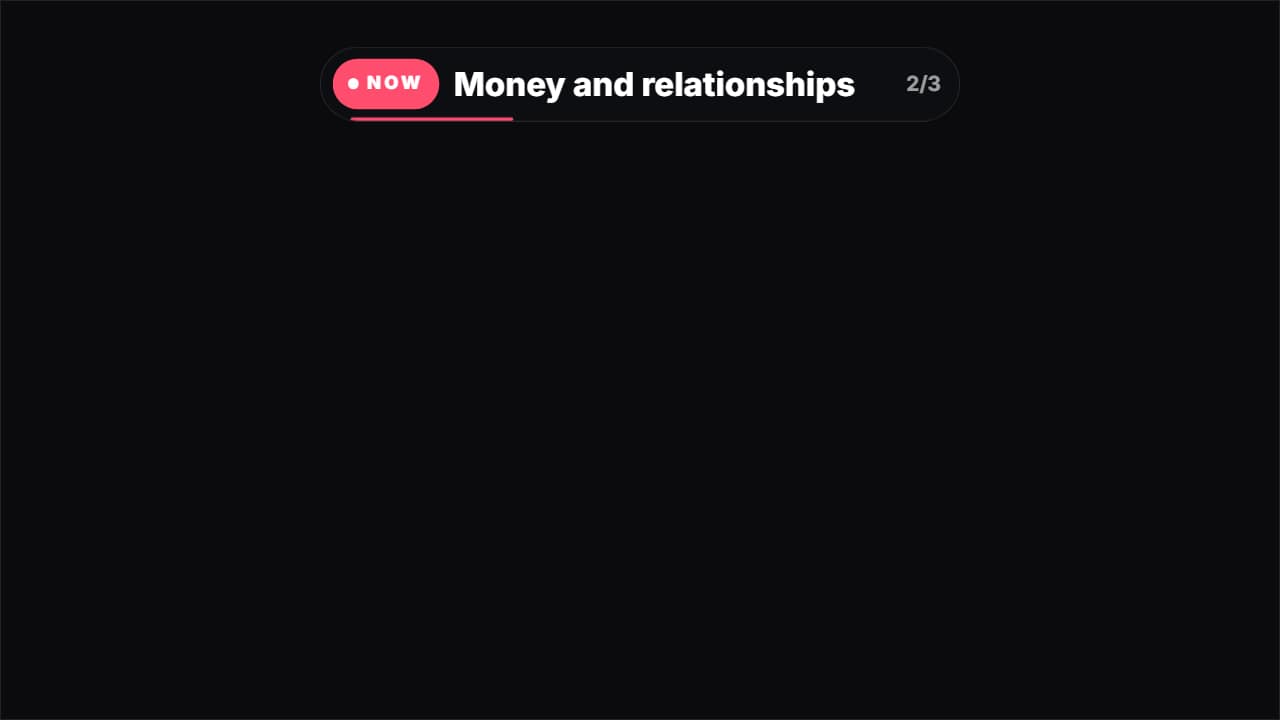 Current topic tagThe tag long podcasts use to say what's being discussed: «NOW · Money and relationships».
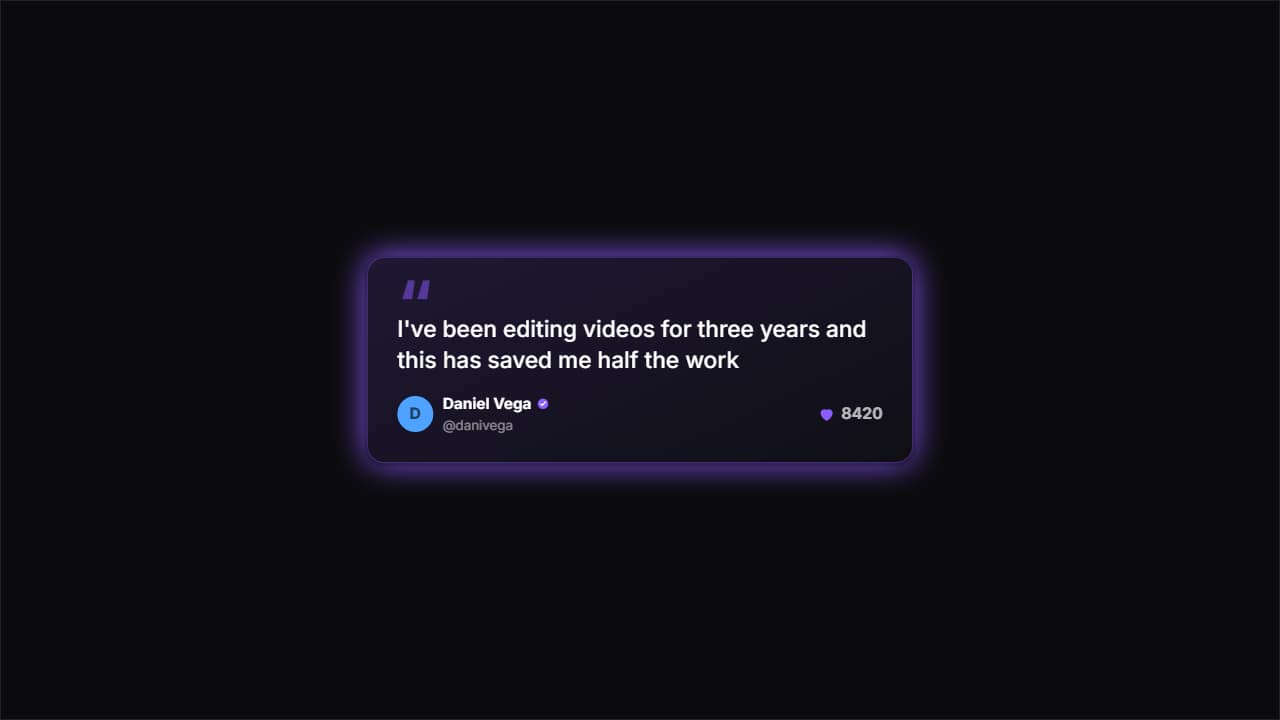 One featured commentA big card with huge quote marks for ONE single comment — the one you really want read.
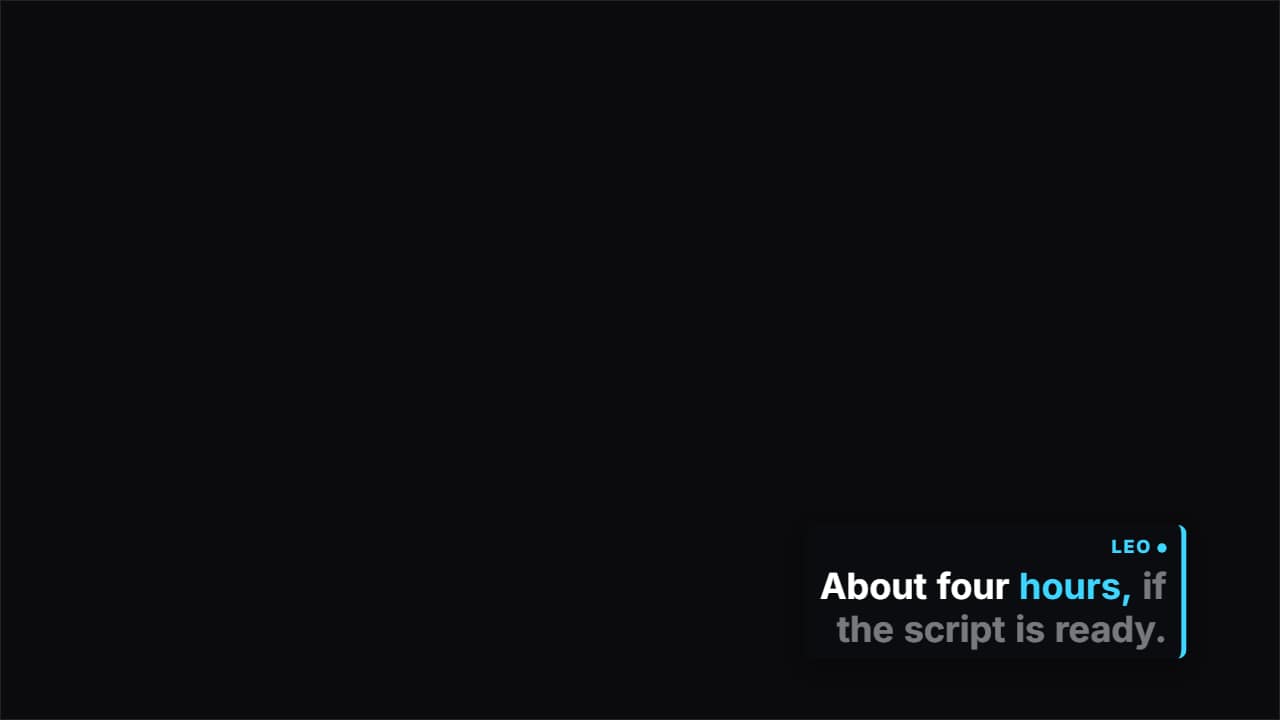 Two-speaker captionsFor podcasts and interviews: write each turn as «NAME: what they say».
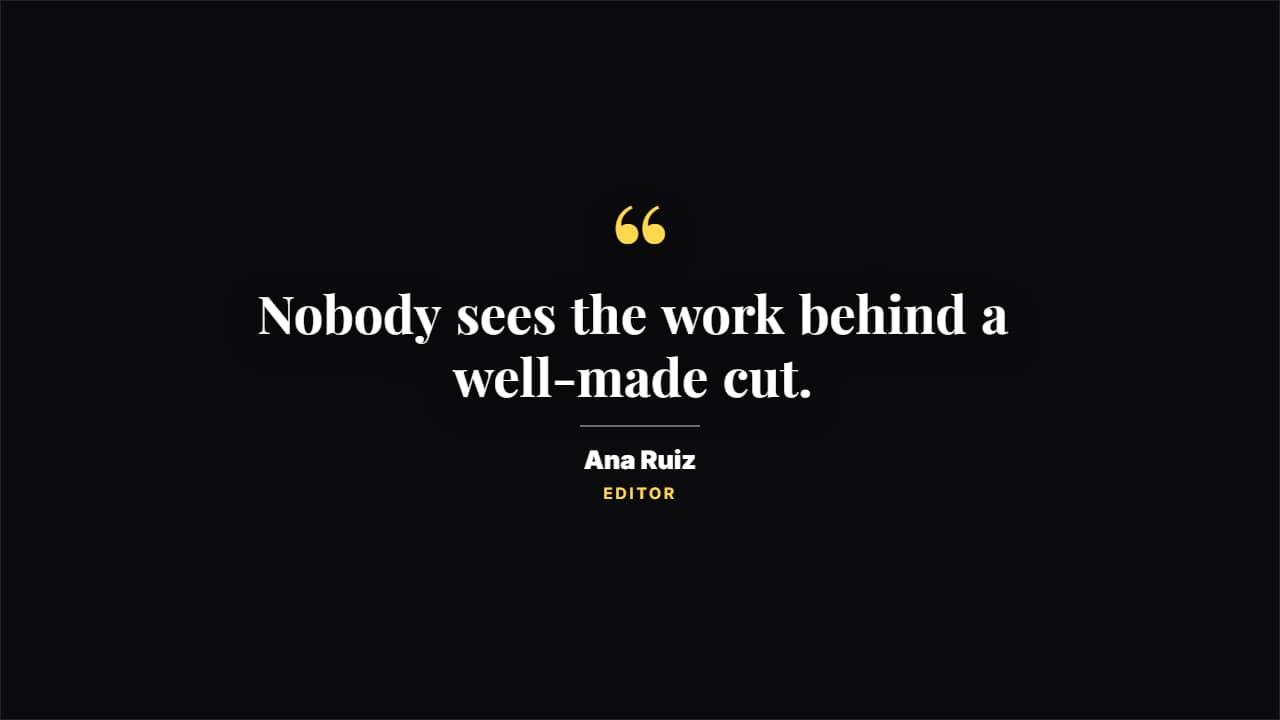 Editorial quoteGiant quote marks, a magazine serif and the signature under a rule. For a line that needs weight.