Format (important)1920×1080this is how it downloads
Preview doesn't change the file
You'll download 1920×1080, 3.5 s, with no background (.mov).
You'll download 1920×1080, 3.5 s, with no background (.mov).
The list of changes in a version, each marked with its type: ▲ buff, ▼ nerf, + new and ✓ fixed. For real gaming and for the joke («patch notes for my life»). The version number rolls up from the previous one and each change comes in at its own pace. Generic, with no game's website. Three styles: a black console where each change types itself with a cursor, colored badges on cards with a giant version number, and a glass panel with a count by type.
Plus the typeface and an optional letter outline, in every template.
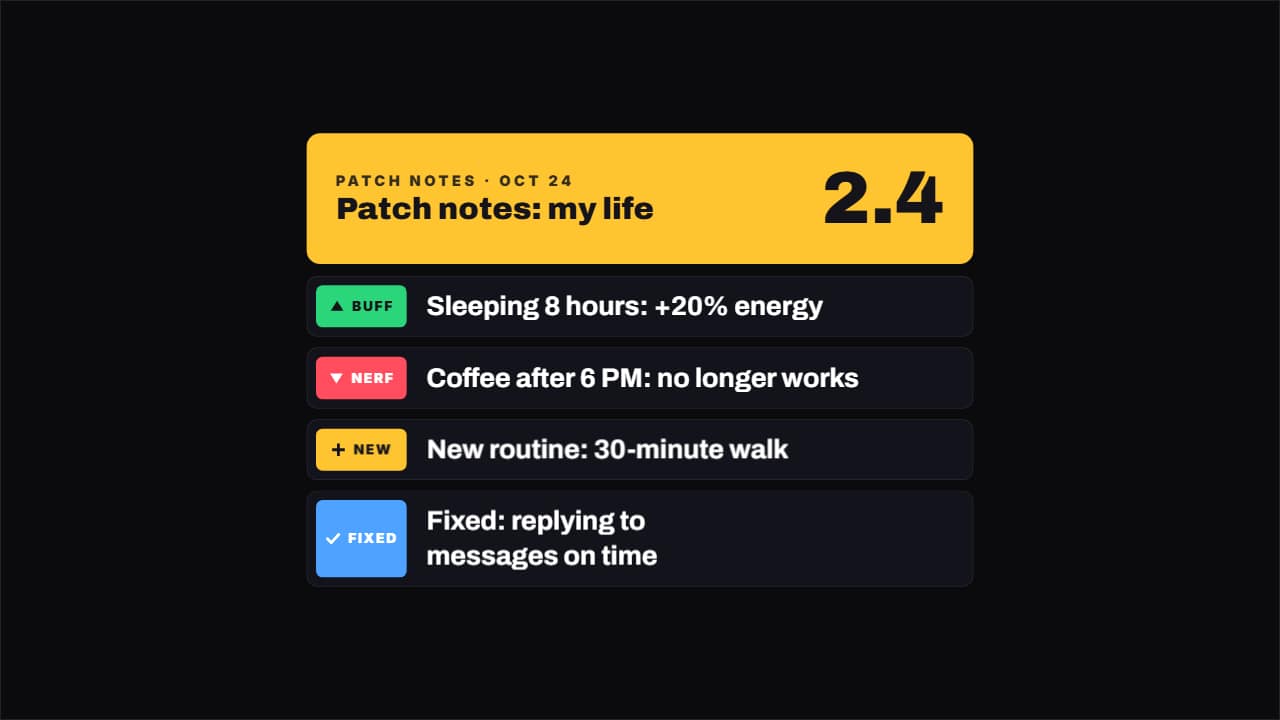
Export it without background and put it on a track above your clip: the animation plays over your video.
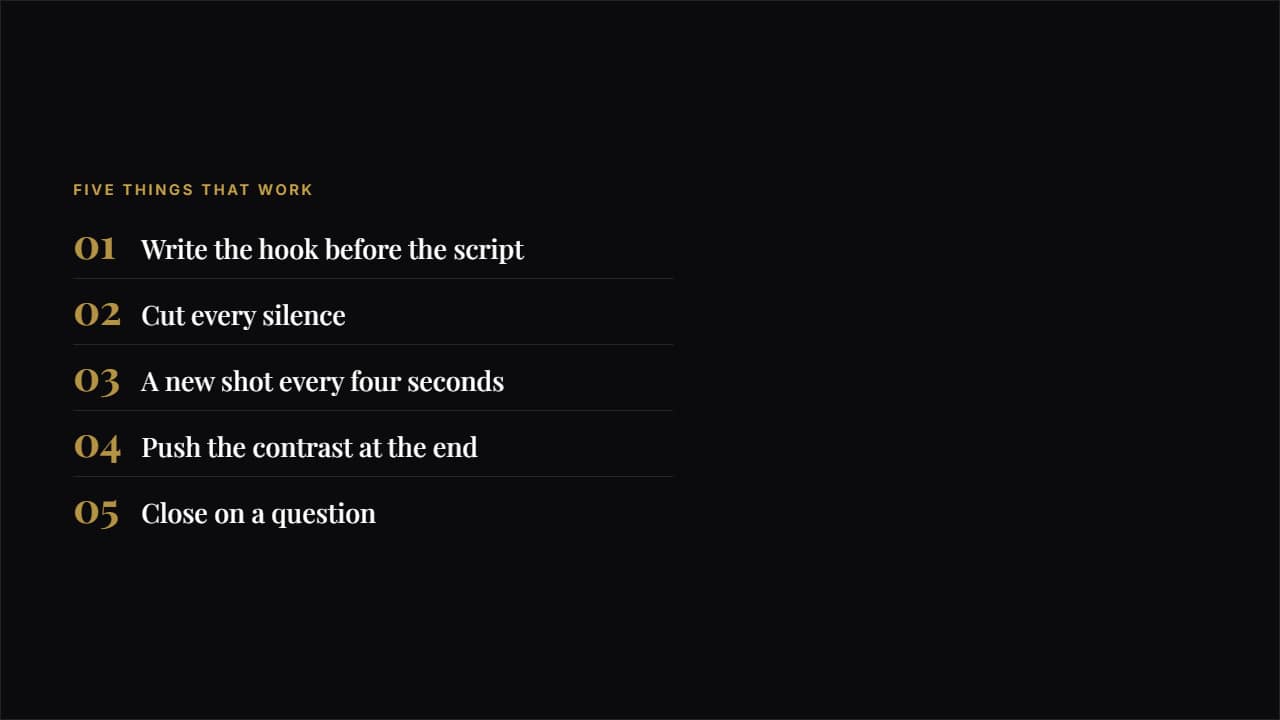 EditorialA big number in magazine type, a hairline rule and plenty of air.
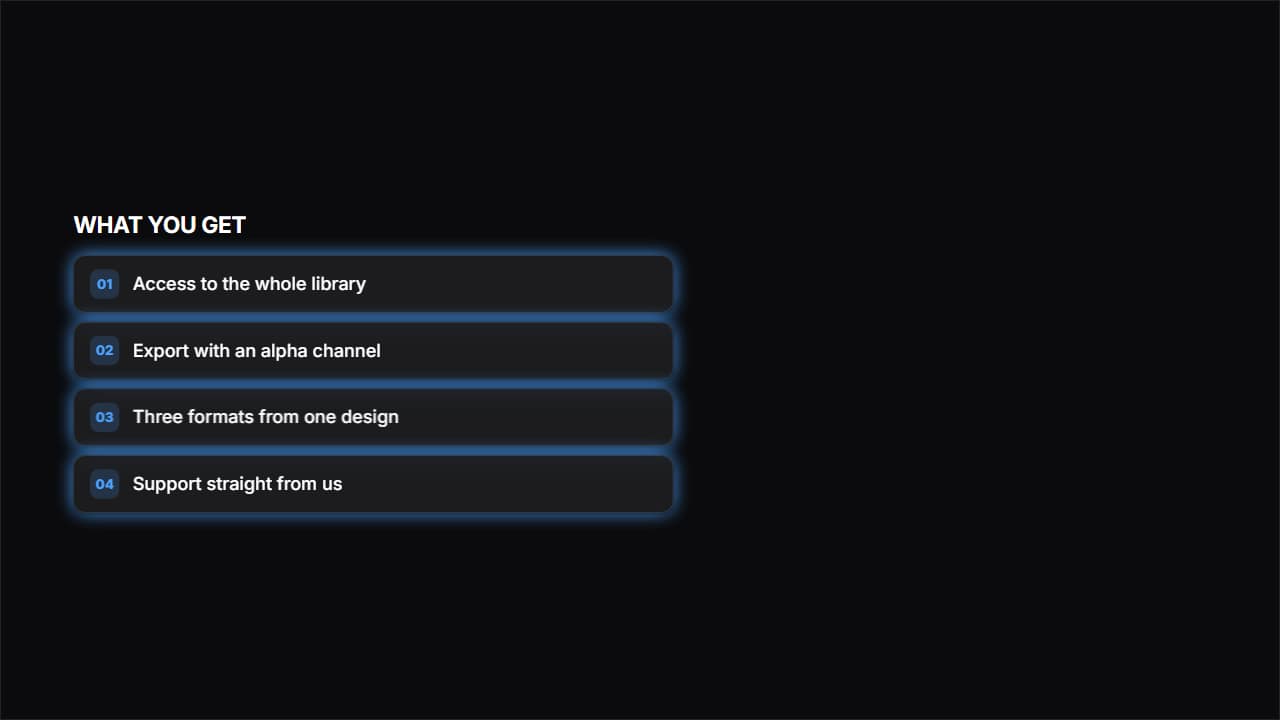 Frosted glassGlass cards with a blur behind them, the look of product websites.
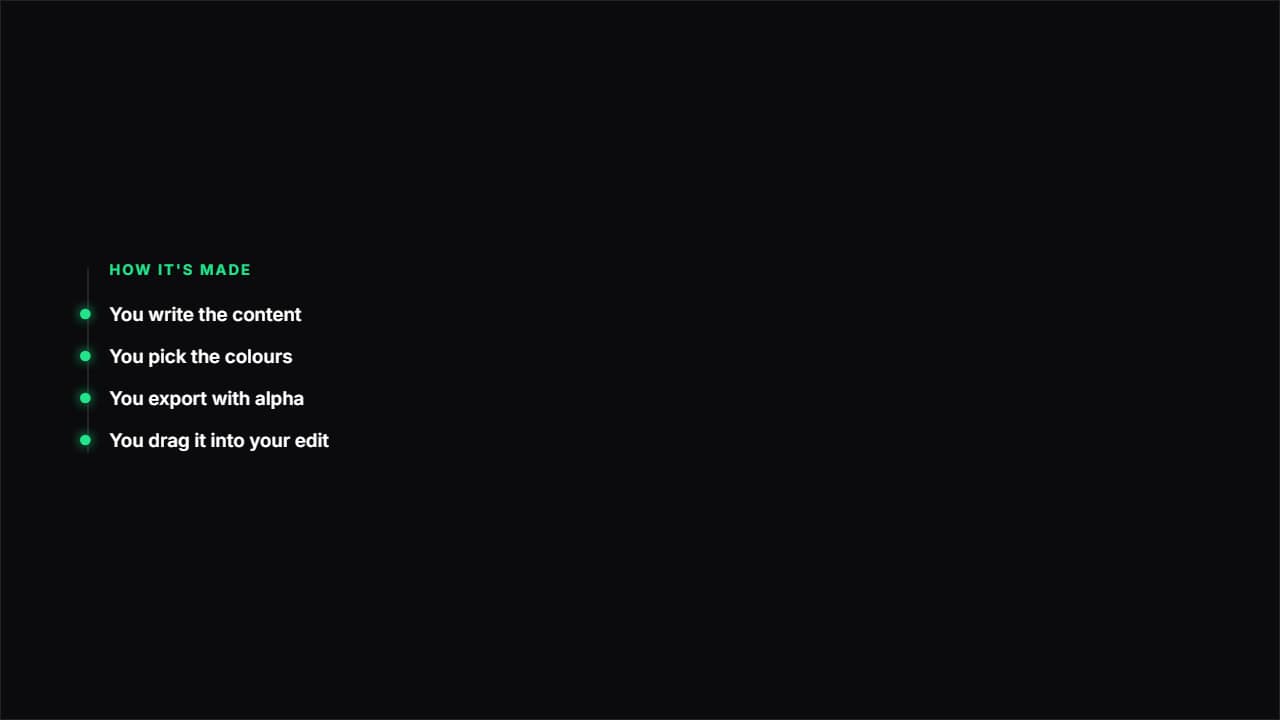 Path with nodesA vertical line drawing itself and a node bursting at each point.
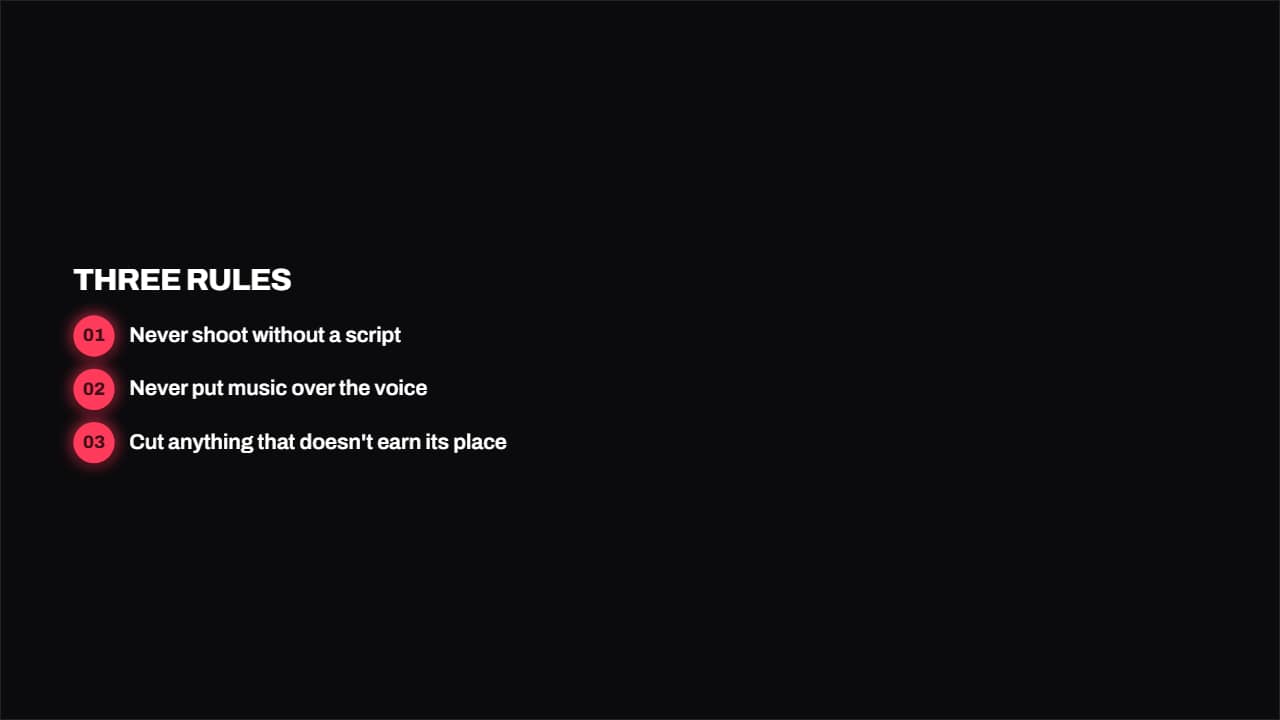 Numbered badgesA round colored badge with the number and the text in bold beside it.
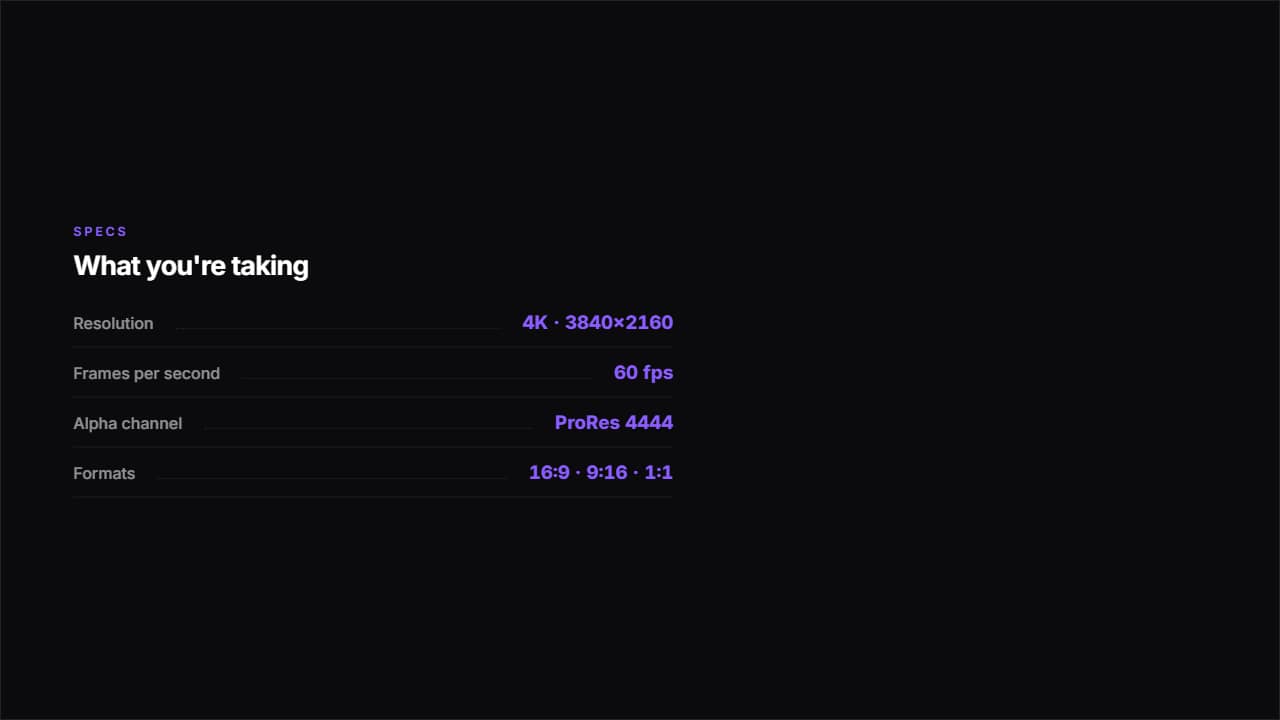 Spec sheetLabel on the left, value on the right and a dotted rule joining them.
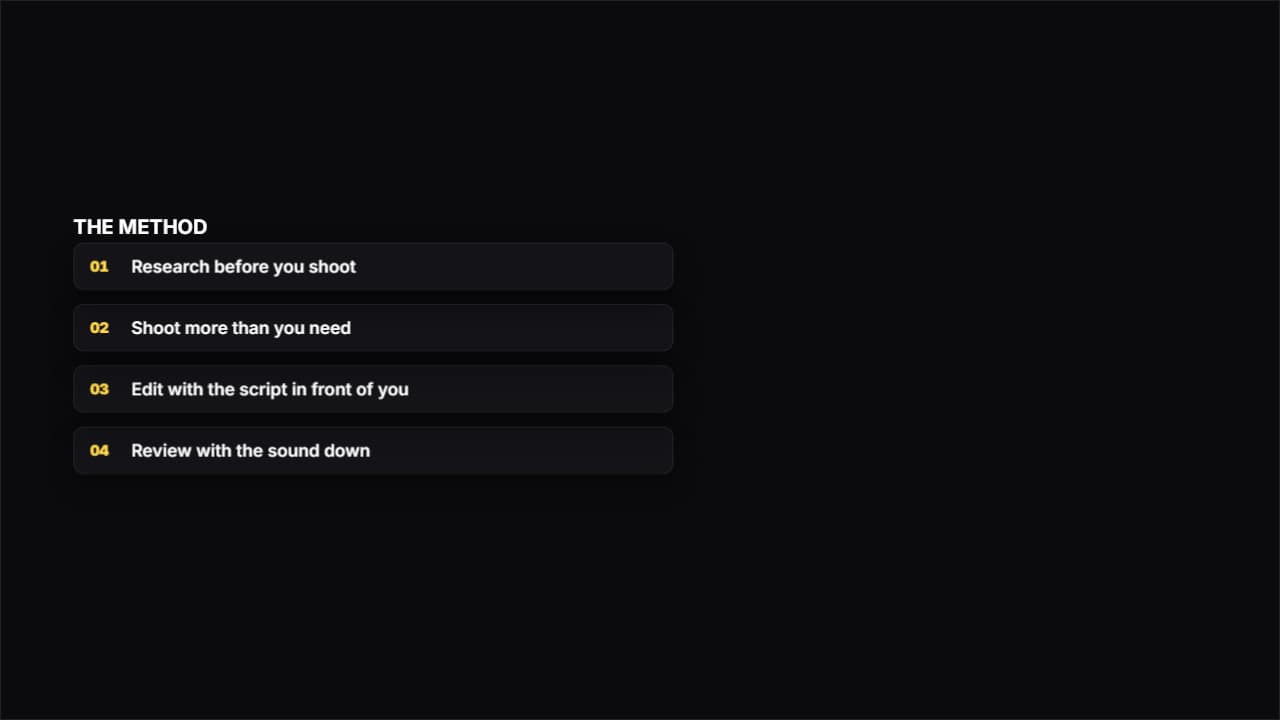 Fanned cardsThe cards start in a pile and fan out in perspective. It draws a lot of attention: use it for the big moment…
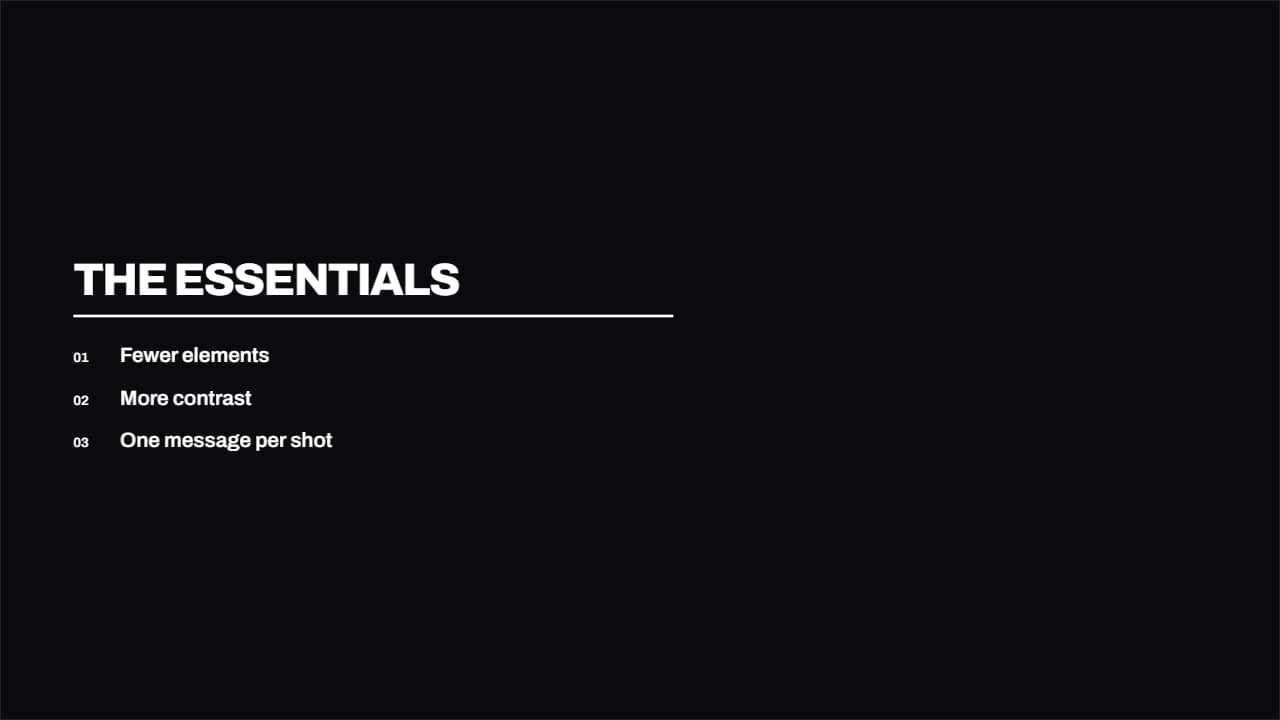 SwissType and a colored rule, nothing else. The cleanest in the library: for when the content is already strong…
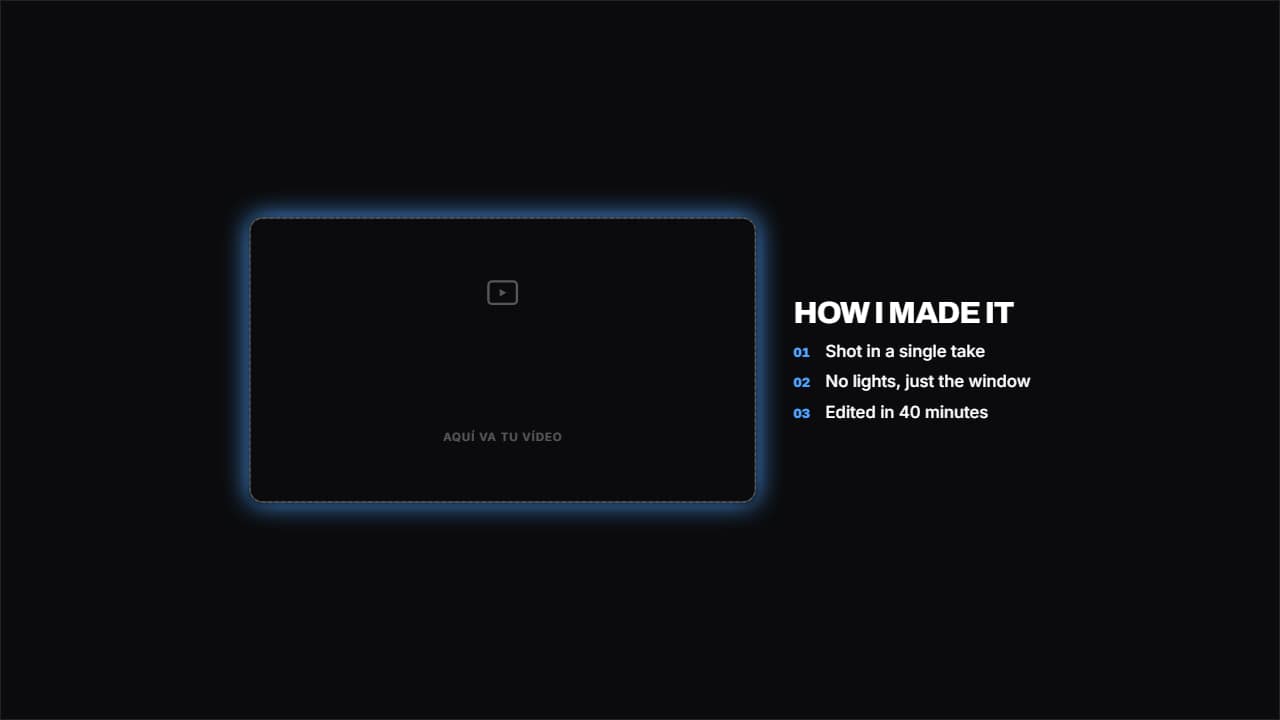 Your video beside the listYour clip in a frame on the left and the list on the right.