Format (important)1920×1080this is how it downloads
Preview doesn't change the file
You'll download 1920×1080, 3.5 s, with no background (.mov).
You'll download 1920×1080, 3.5 s, with no background (.mov).
The corner badge that keeps adding up while you buy: you show the plate, the total climbs. The digits roll like an odometer, with thousands separators, and land with a little bump. Five genuinely different looks — pill, scoreboard, receipt, neon and handwritten sticker — so it matches the video you're making, not just its color.
Plus the typeface and an optional letter outline, in every template.

Export it without background and put it on a track above your clip: the animation plays over your video.
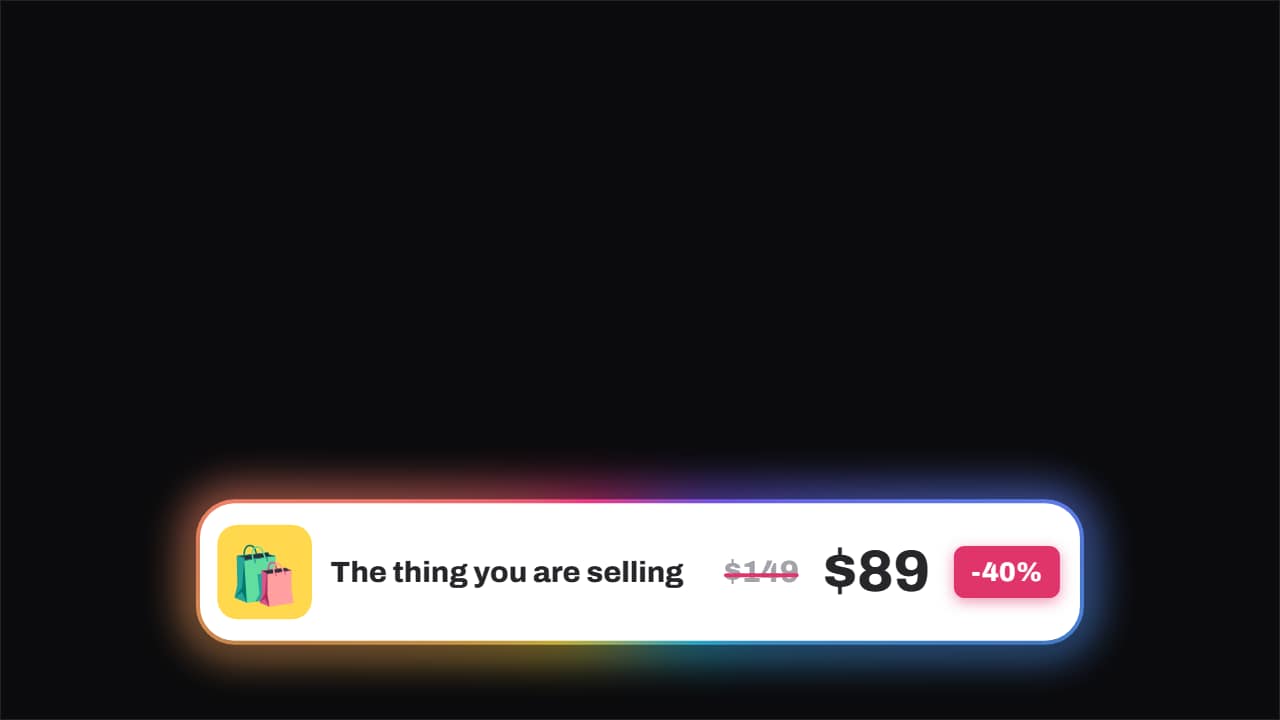 Price · struck through, and the new one slamsThe old price gets struck through by a line that draws itself and, a beat later, the new one slams in beside…
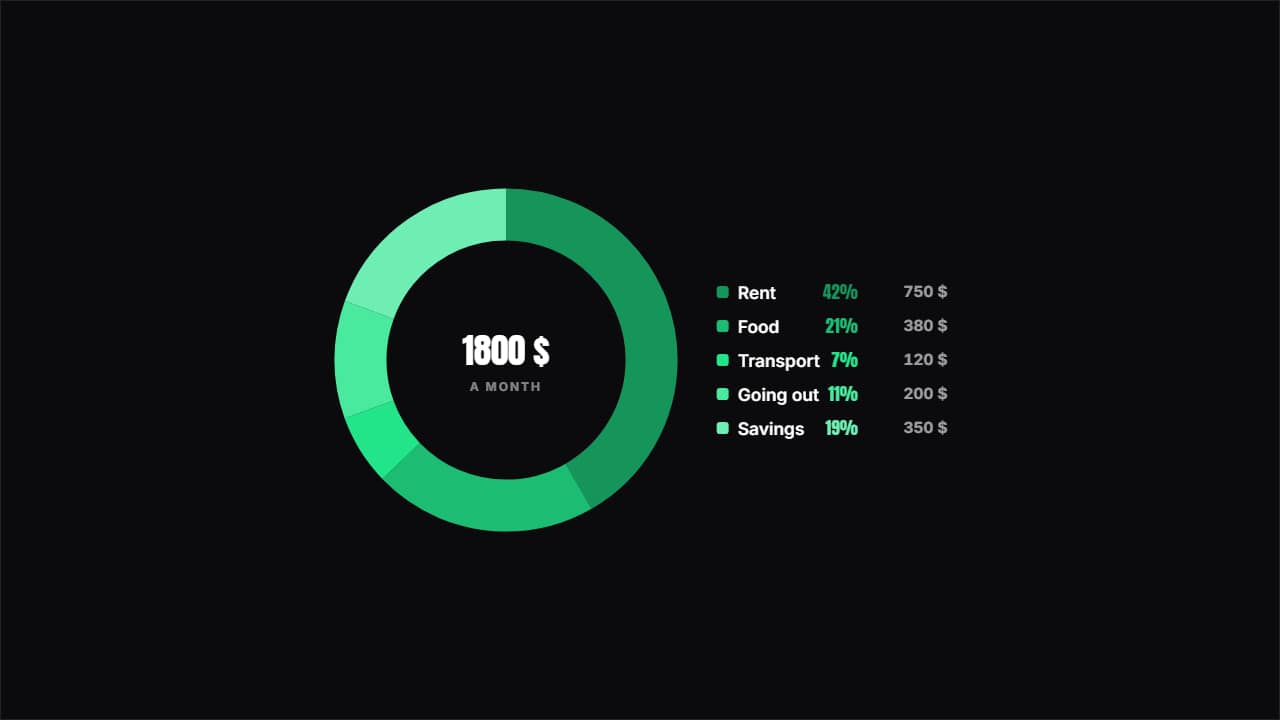 Where the money goesA ring with the split and the key beside it showing each item's percentage and amount.
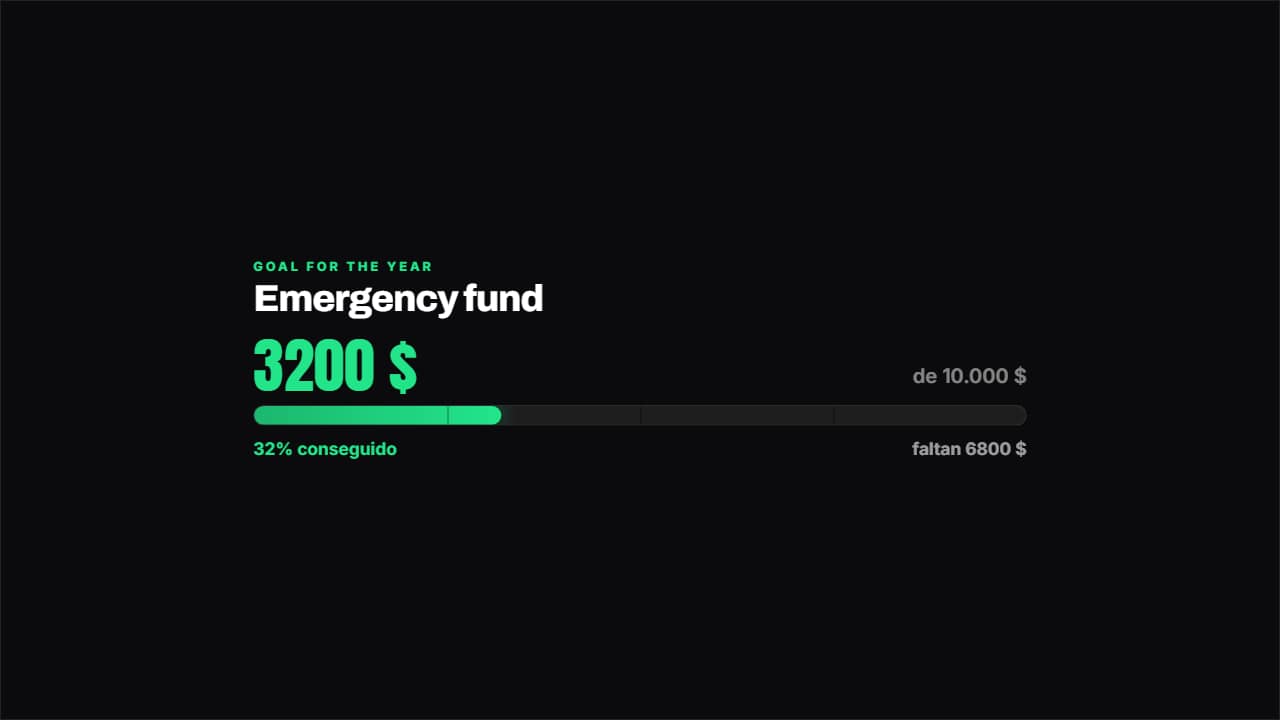 Savings goalHow much you've got, how much is left and what percentage that is, with the bar marked in quarters.
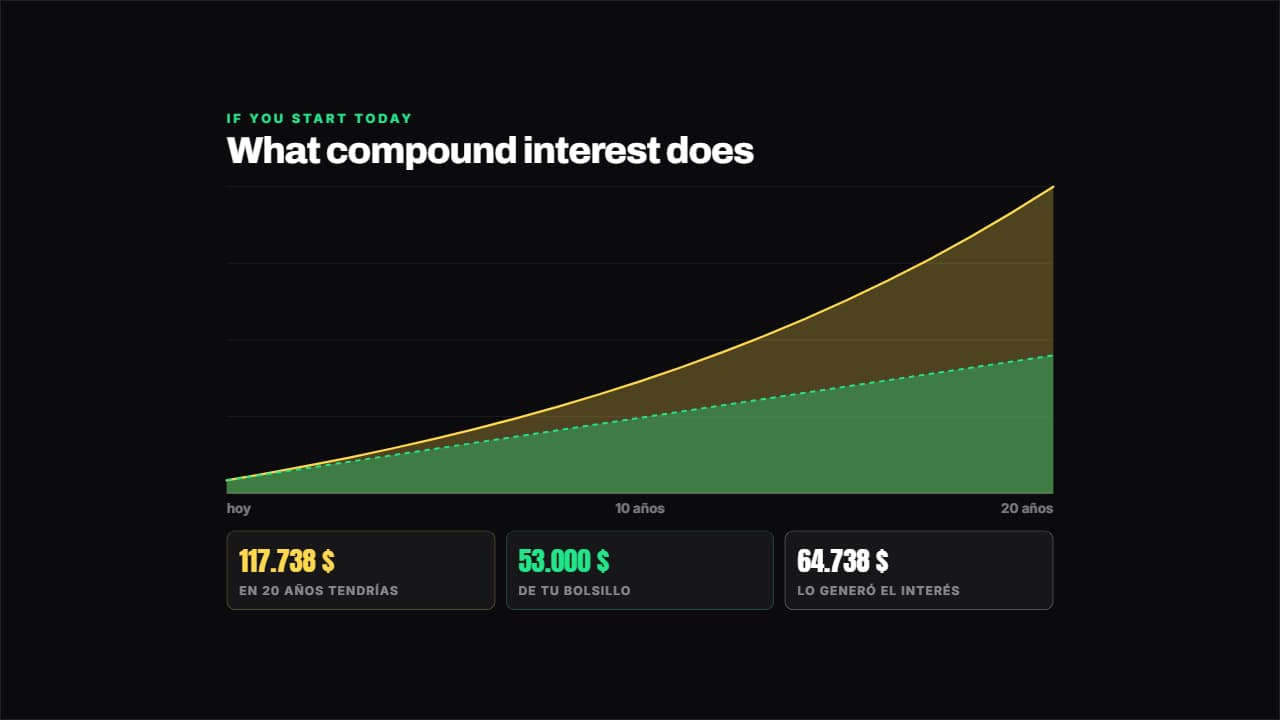 Compound interestWorked out year by year from your numbers: what you put in out of your own pocket goes in one layer and what…
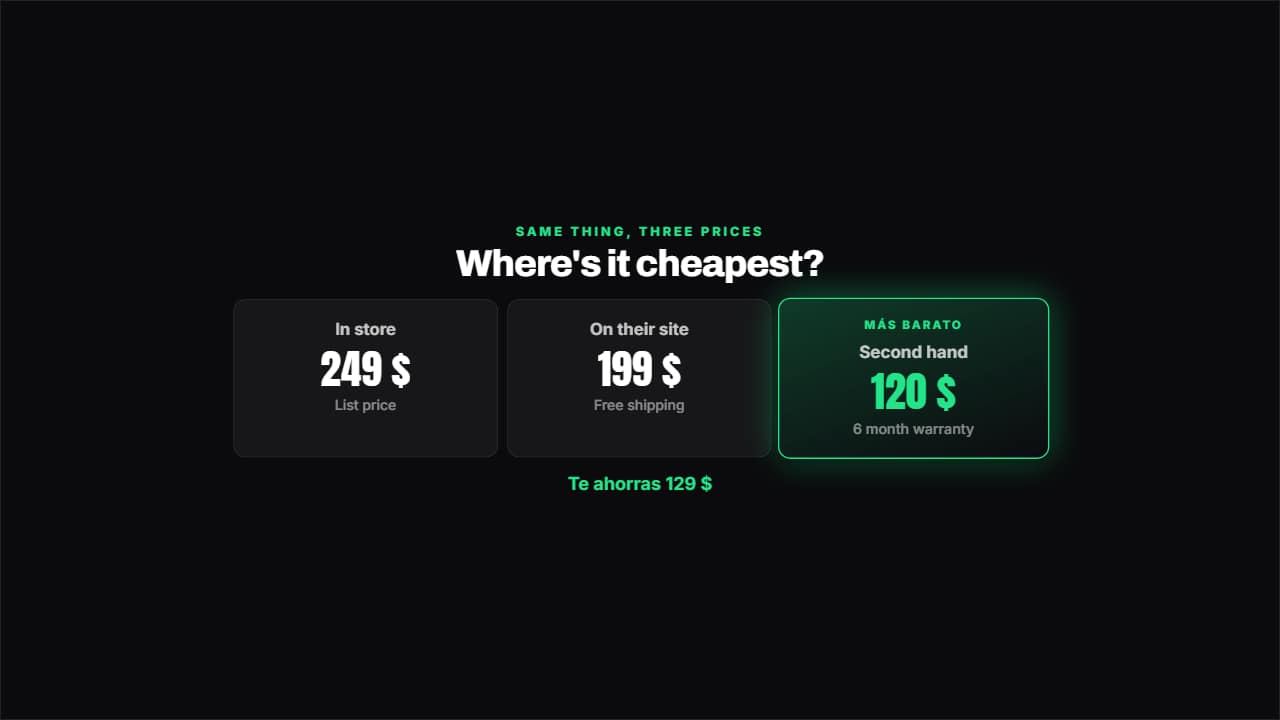 Price comparisonTwo, three or four options side by side: the cheapest lights up on its own and underneath you get how much…
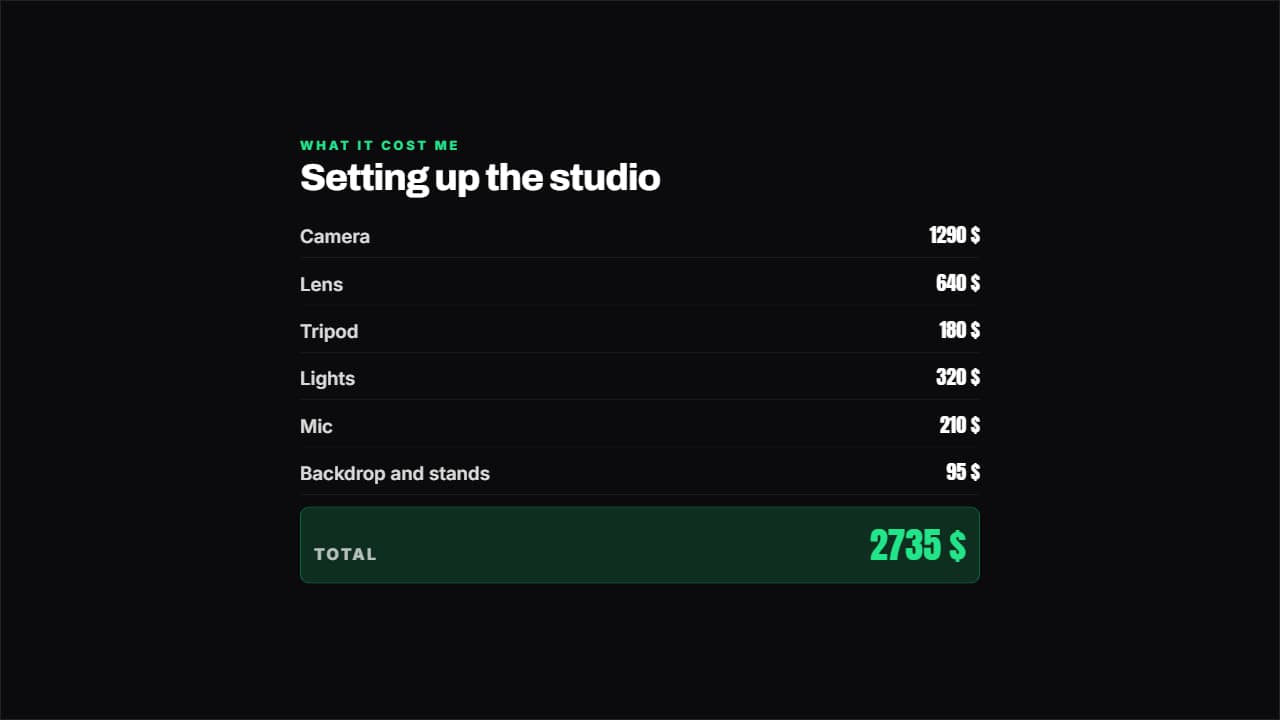 Breakdown with totalItems and amounts like an invoice, and the total ADDS ITSELF UP.
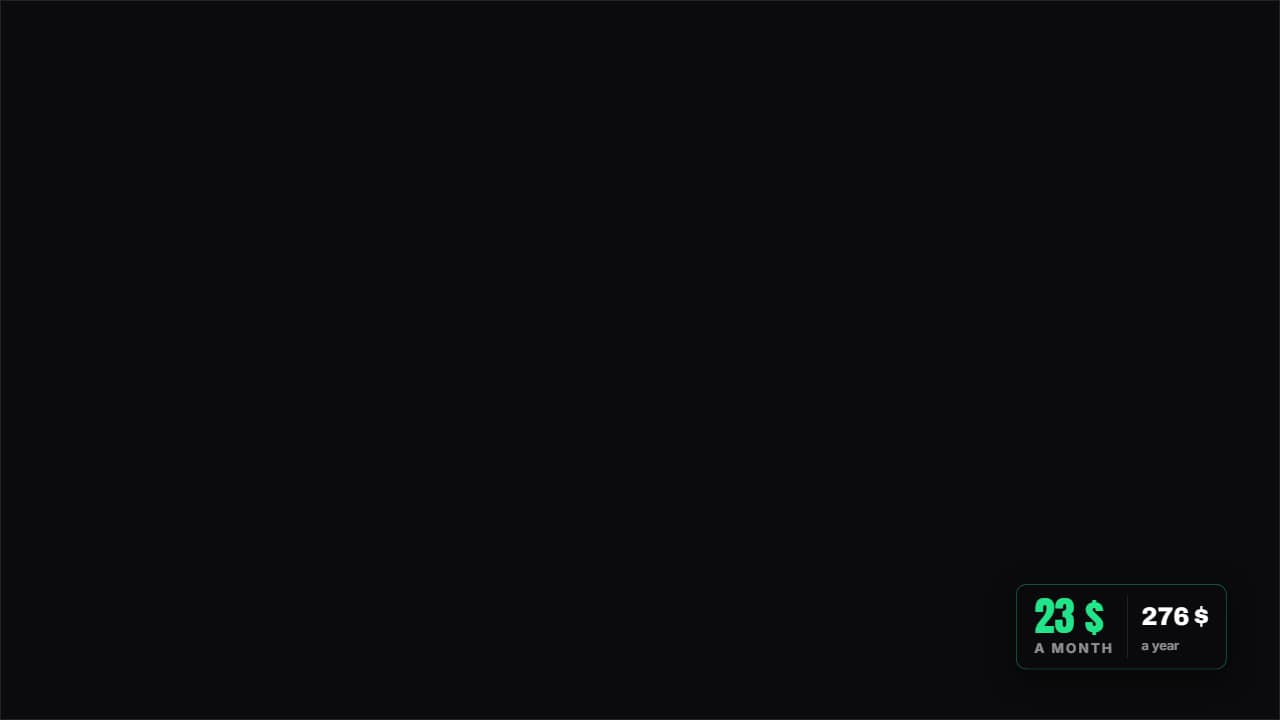 Per month and per yearThe badge that turns a small subscription into the figure that stings: the monthly amount next to the yearly…
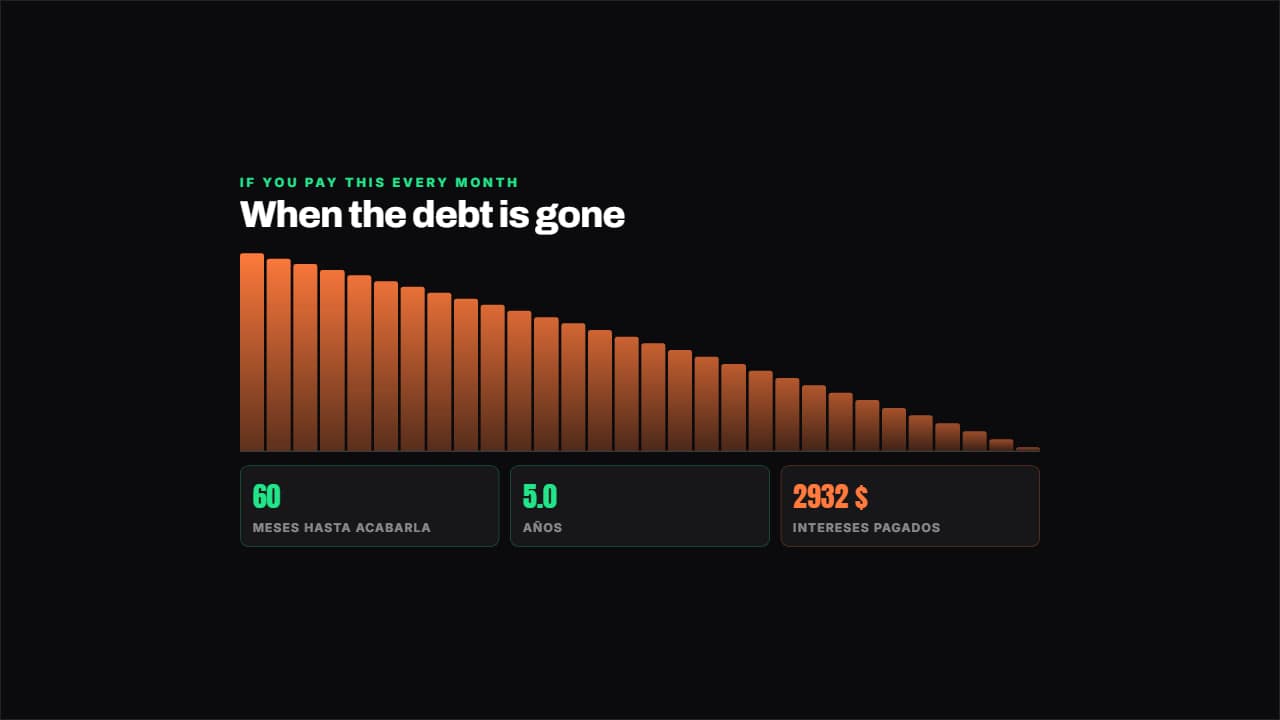 Plan to clear a debtSimulates the payments month by month with the real interest: how many months are left, how many years that…