Format (important)1920×1080this is how it downloads
Preview doesn't change the file
You'll download 1920×1080, 3.5 s, with no background (.mov).
You'll download 1920×1080, 3.5 s, with no background (.mov).
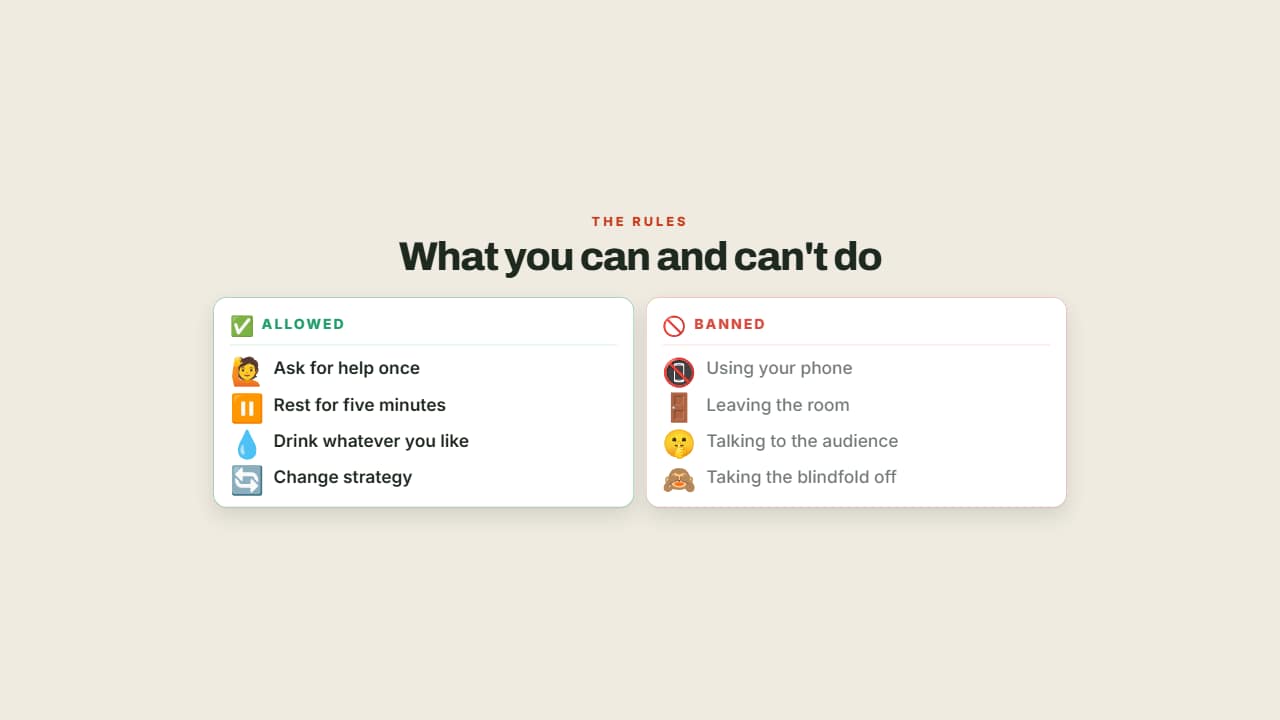
The rules in two columns, allowed in green and banned in red. If the viewer isn't clear on the rules there's no tension in the rest of the video, and in two columns they land without narration.
Plus the typeface and an optional letter outline, in every template.
Export it without background and put it on a track above your clip: the animation plays over your video.
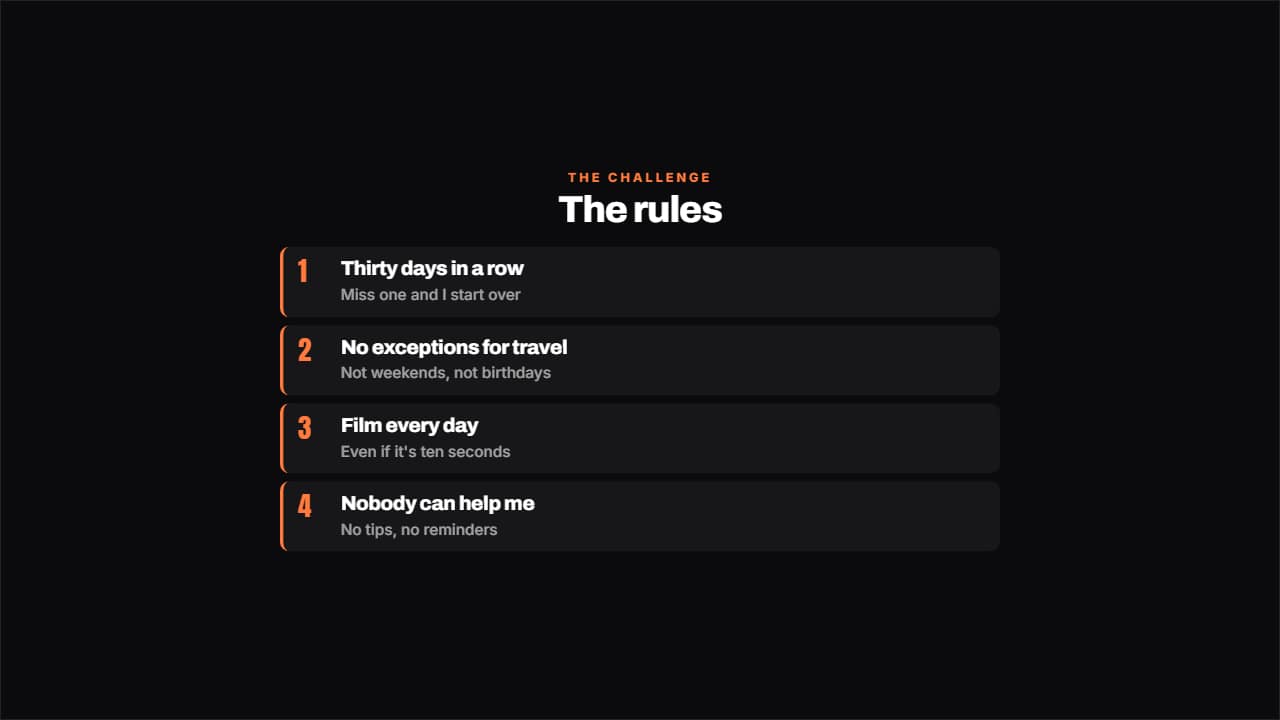 The rules of the challengeThe rules numbered, each with its small explanation underneath.
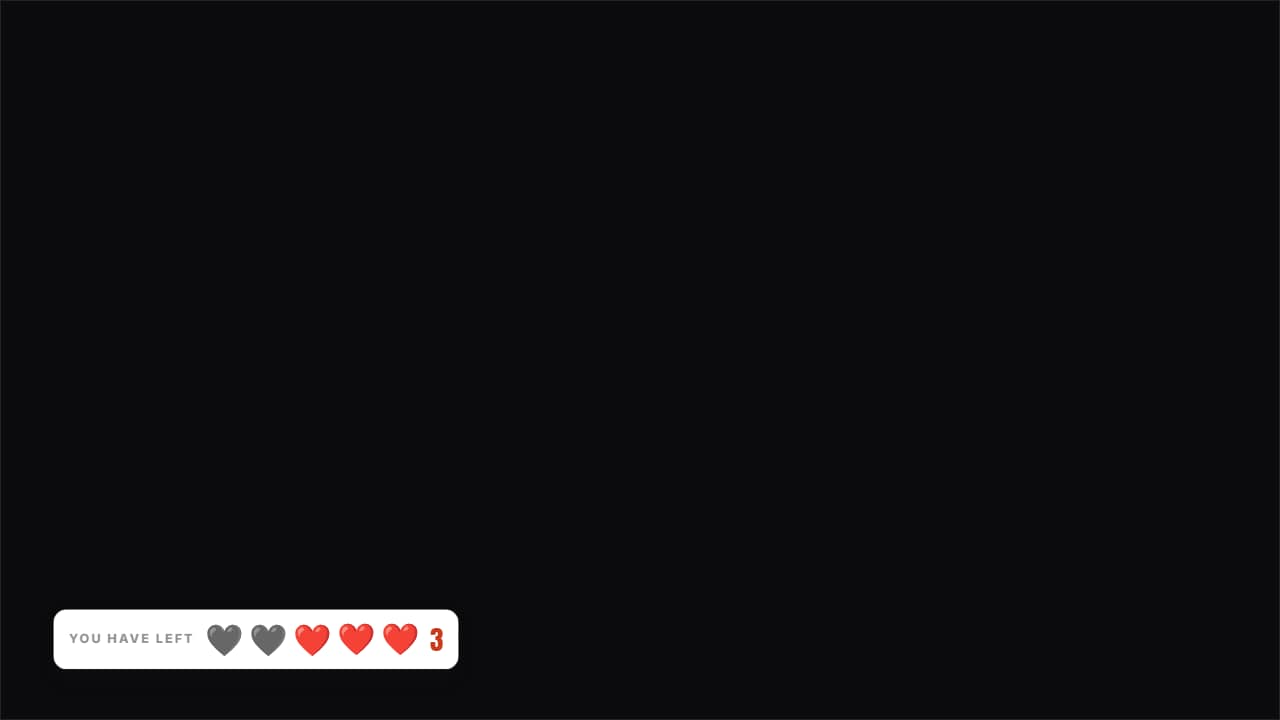 Lives you have leftHearts (or whatever you like) over the video: the used ones stay on screen in gray, they don't disappear.
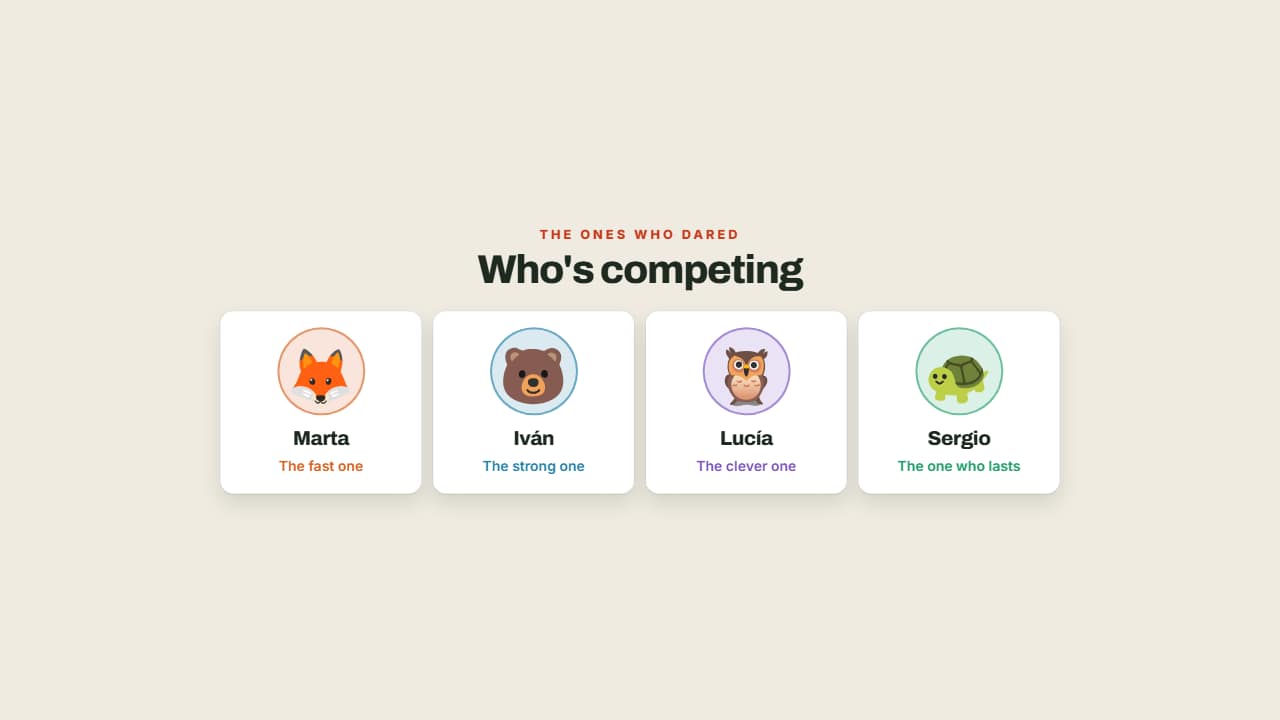 Who's competingThe contestants with their face, their name and their role, each in their own color.
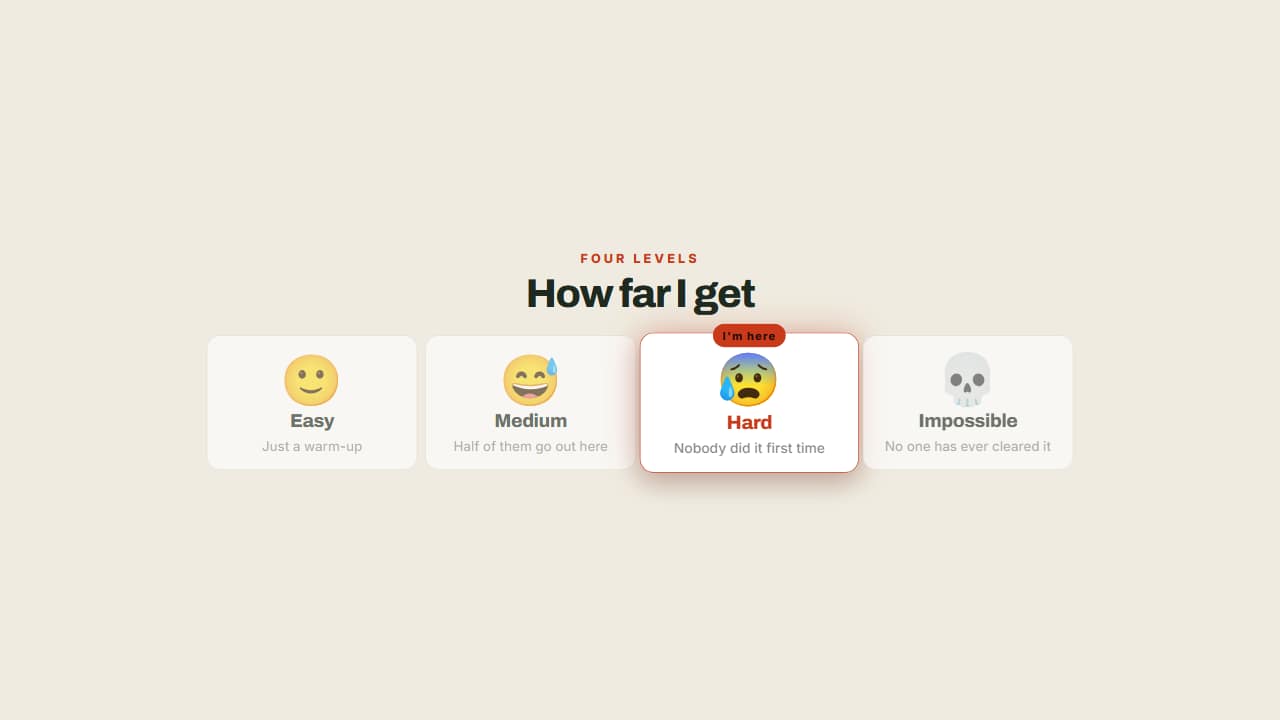 The levels of the challengeFrom easy to impossible, with a badge marking which one you're on.
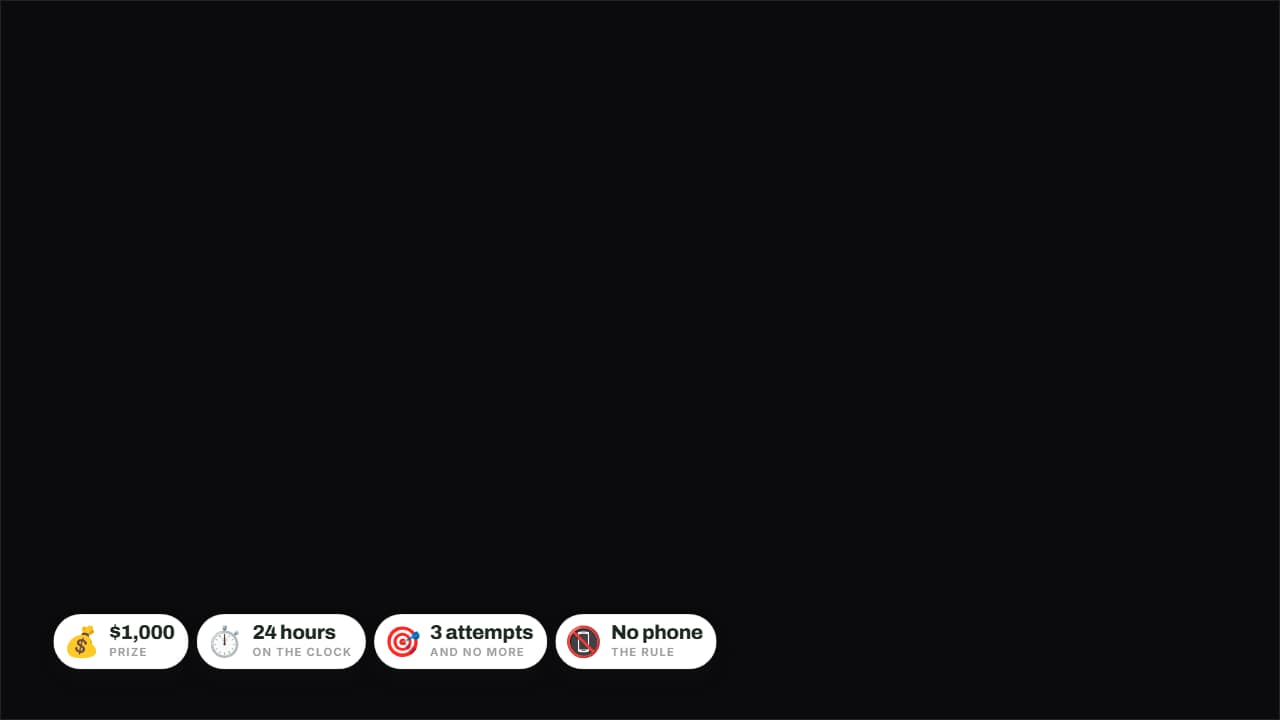 The rules in badgesPrize, time, attempts and forfeit on badges over the image.
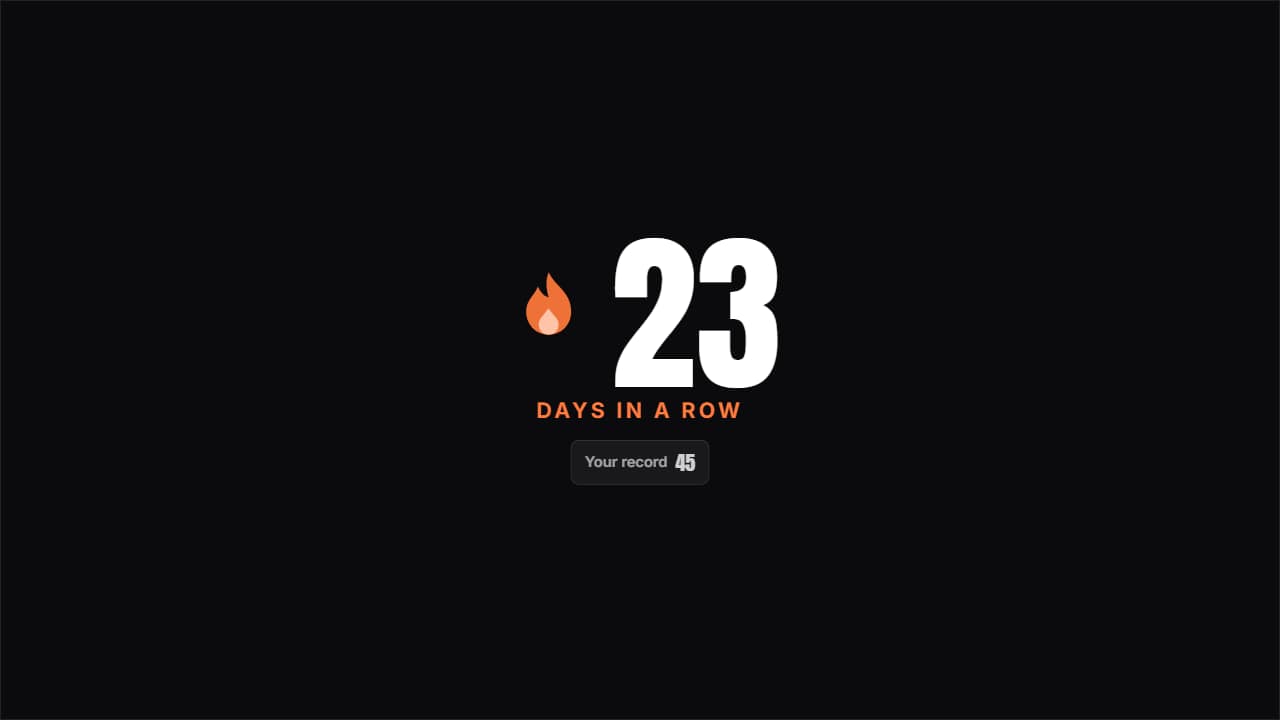 Day streakThe huge number with the flame pulsing beside it and the previous record underneath; beat it and it turns…
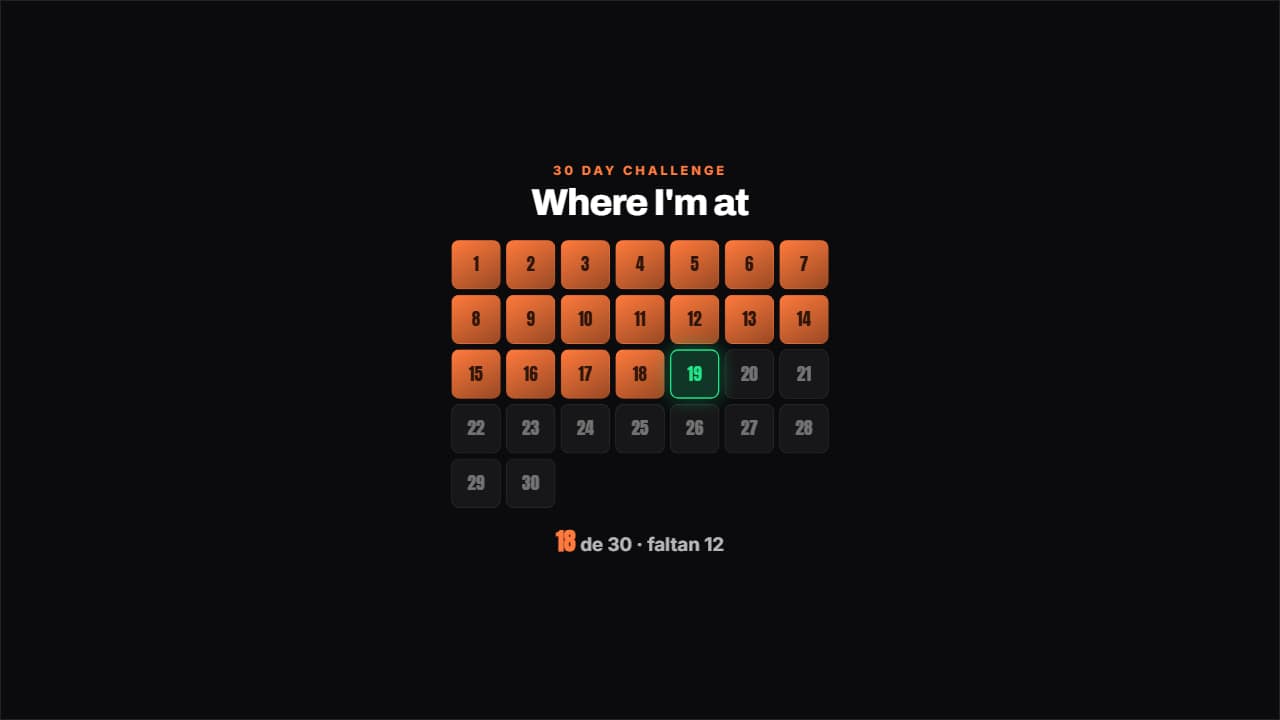 Challenge gridThe days of the challenge in a grid: the done ones filled, today pulsing with its outline and the ones left…
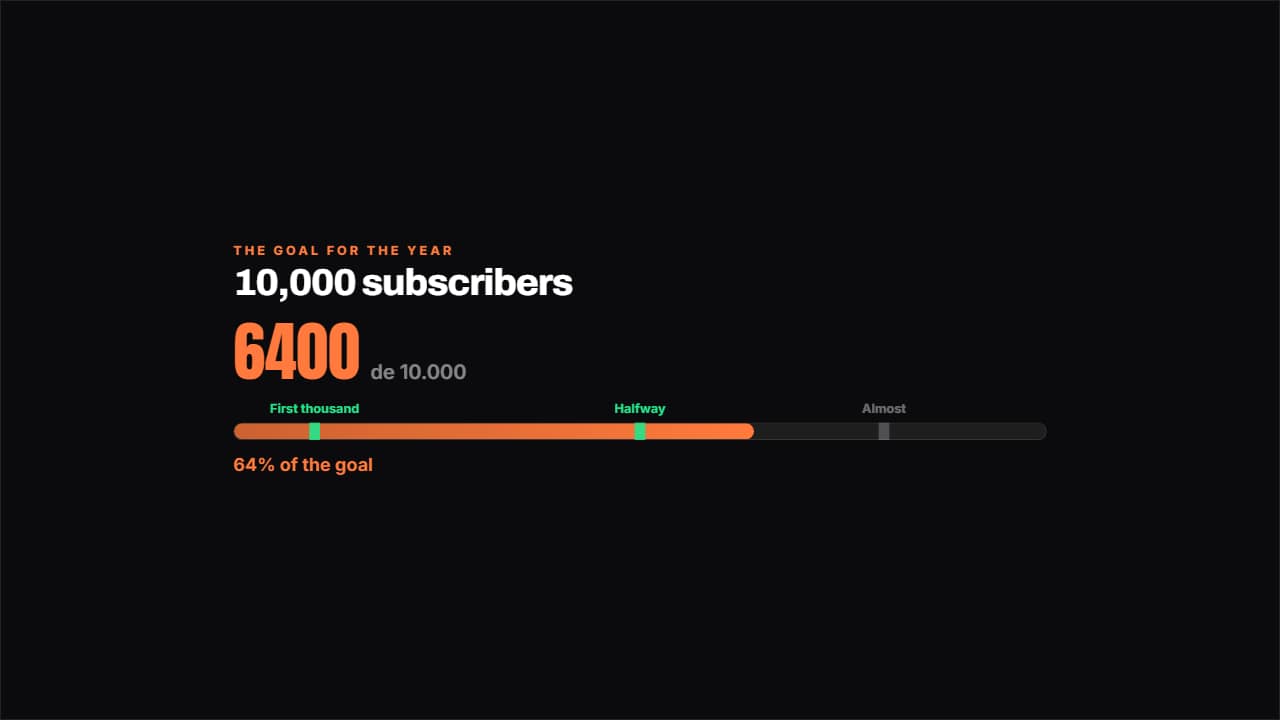 Road to the goalA bar towards the goal with the milestones marked along it: the ones you've passed light up.